iPhone 17e Overheating While Charging: Causes and Fixes (2026)
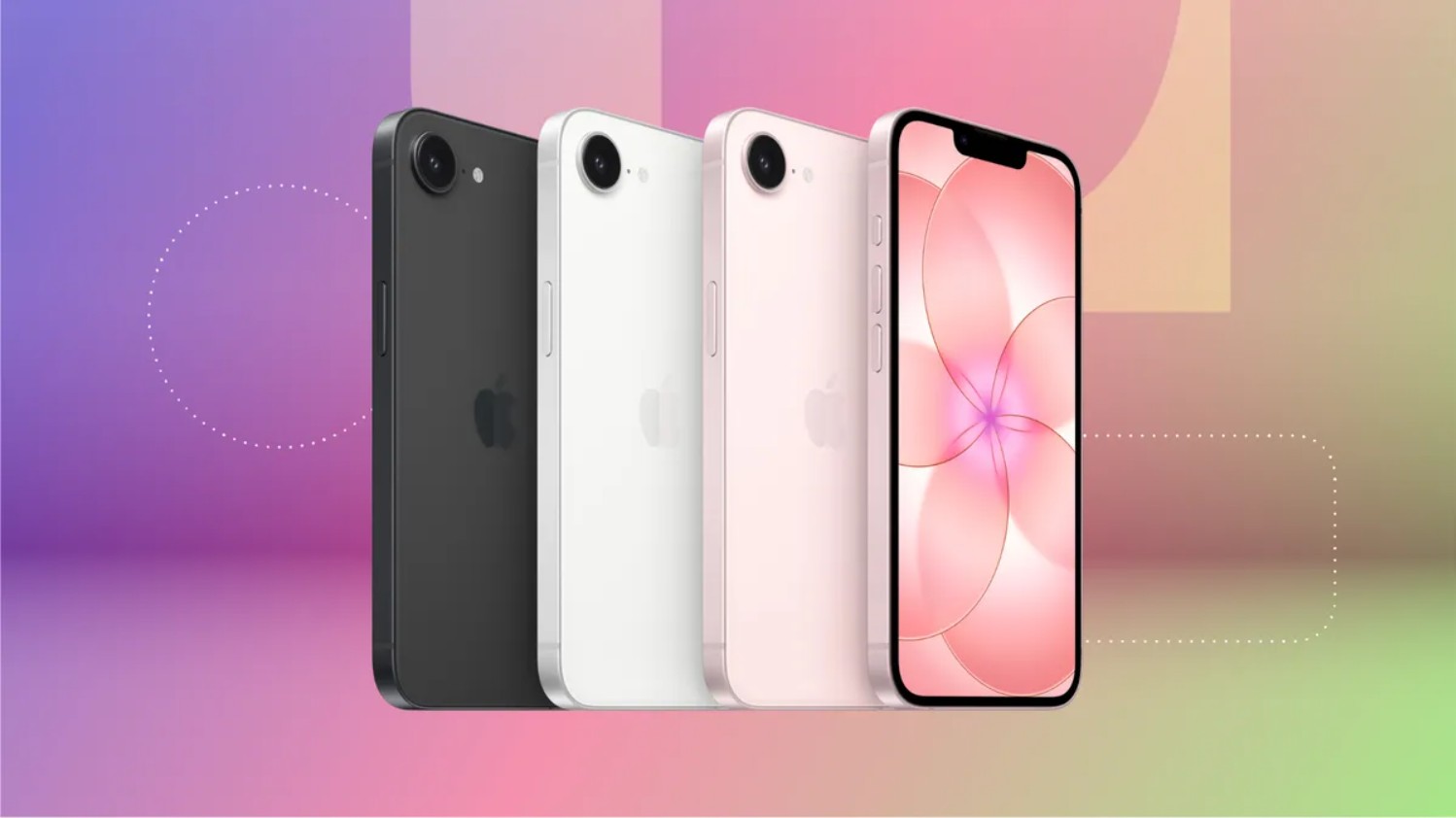
If your iPhone 17e gets unusually hot while charging, something is working harder than it should. A mildly warm device during fast charging is completely normal, but if the phone becomes uncomfortable to hold, charging slows down on its own, or you see a temperature warning on screen, that’s worth investigating.
This guide walks through every practical fix, in order from the simplest to the most involved.
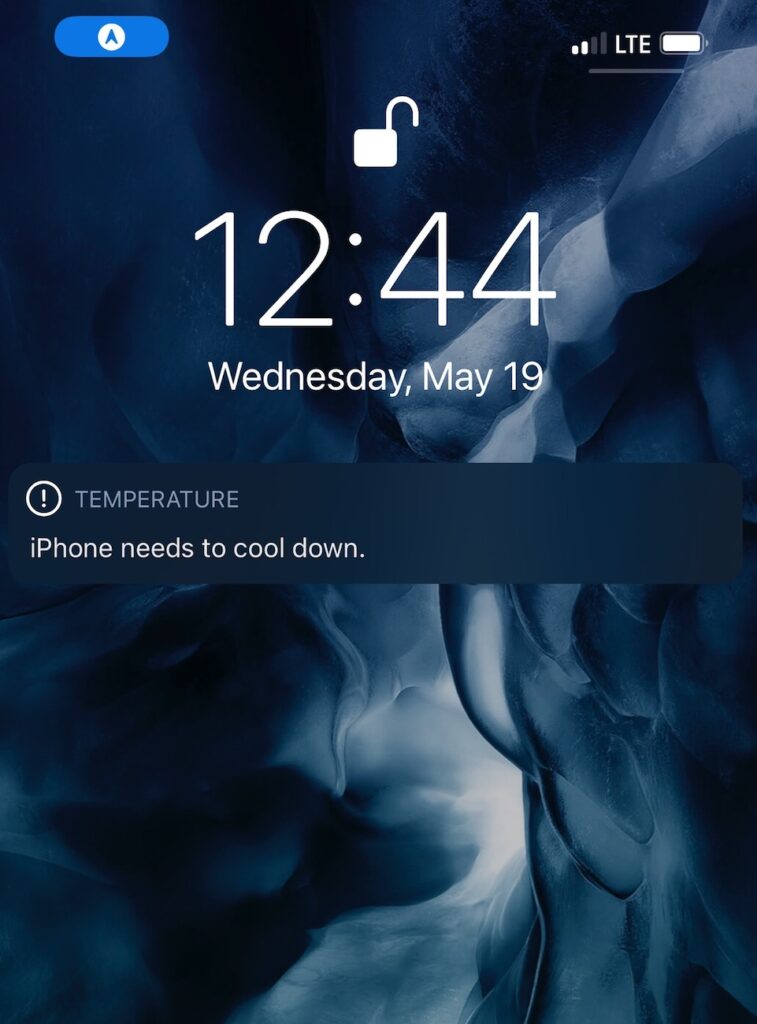
Why Does the iPhone 17e Overheat While Charging?
The iPhone 17e supports fast charging via USB-C, which generates more heat than standard charging by design. Add background processes like iCloud sync, app updates, Apple Intelligence tasks and temperatures climb further. Environmental factors like direct sunlight, a hot car, or a thick case that traps heat can push things over the limit.
Less commonly, an aging battery or a faulty third-party charging accessory may be the actual culprit.
1. Remove the Case While Charging
Thick silicone or rugged cases act as insulators. During fast charging especially, they prevent the iPhone from dissipating heat through its aluminum frame the way it’s designed to.
Disconnect the charger, take the iPhone completely out of its case, then reconnect. Charge for 15 minutes and compare. If the device stays noticeably cooler, the case was the problem, consider using a slimmer one or charging without it entirely.
2. Switch to an Apple-Certified Charger
Off-brand cables and adapters can deliver unstable current and generate excess heat. This is one of the most common and overlooked causes of charging-related heat on any iPhone.
Check the cable for fraying or bent connectors near the USB-C plug. Then look for the MFi logo (“Made for iPhone”) on the packaging. Replace it with Apple’s own 20W or 30W adapter, or a certified third-party alternative, and compare temperatures during the next charge cycle.
If you’re also seeing slow charging alongside the heat, the fixes in our guide on iPhone not charging properly cover this in more detail.
3. Move to a Cooler Location
Apple recommends operating and charging iPhones between 0°C and 35°C. Charging in a hot car, on a sunny windowsill, or under a blanket pushes internal temps well beyond that threshold.
Unplug, move to a shaded spot, and place the phone on a hard surface like wood, metal, or a desk, not on fabric, which traps heat. Wait 5–10 minutes before reconnecting. Never put the iPhone in a refrigerator: rapid temperature changes cause condensation inside the device.
4. Check Battery Health
Time needed: 2 minutes
An aging or degraded battery works harder during every charge cycle, generating more heat as a result. iOS lets you check exactly where your battery stands in under a minute.
- Open Settings
ap the Settings app on your Home Screen or App Library.
- Tap Battery
Scroll down to find the Battery section in the main Settings list.
- Tap Battery Health & Charging
This screen shows your battery’s current condition and charging behavior.
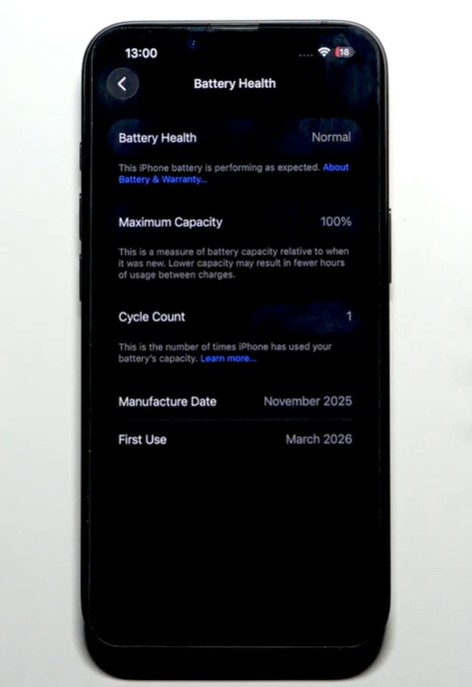
- Review Maximum Capacity
Anything below 80% is considered degraded by Apple’s own standard. A degraded battery generates more heat during charging and will continue to worsen over time.
- Check for a service recommendation
If iOS displays a message about significantly degraded battery health, a replacement is the most effective fix, not a software workaround.
If you’re unsure whether a replacement is worth it, our article on when to replace your iPhone battery based on health percentage walks through the decision.
5. Disable Background App Refresh
Apps refreshing in the background while the phone charges keep the processor active and add unnecessary heat, especially in the 24–48 hours after a major iOS update, when apps reindex data automatically.
Go to Settings → General → Background App Refresh and disable it for apps that don’t need to update in the background, or turn it off entirely. Restart the iPhone after.
6. Update iOS
Software bugs can cause abnormal CPU activity during charging. Keeping iOS current ensures you’re not running a version with a known thermal management issue.
Go to Settings → General → Software Update and install any available update. If prompted to update overnight, enable it, the phone will be on charge anyway.
If overheating started after a recent iOS update, check our roundup of reported iOS 26 bugs and fixes to see if others are experiencing the same thing.
7. Find the App That’s Causing It
A single poorly optimized app can continuously pin CPU usage and generate heat while the phone charges, even if you’re not actively using it.
Go to Settings → Battery and review Battery Usage by App for the last 24 hours. Any app consuming a disproportionate share of battery when you haven’t been using it is a red flag. Force-quit it from the app switcher, then check the App Store for updates. If it keeps showing up, delete it.
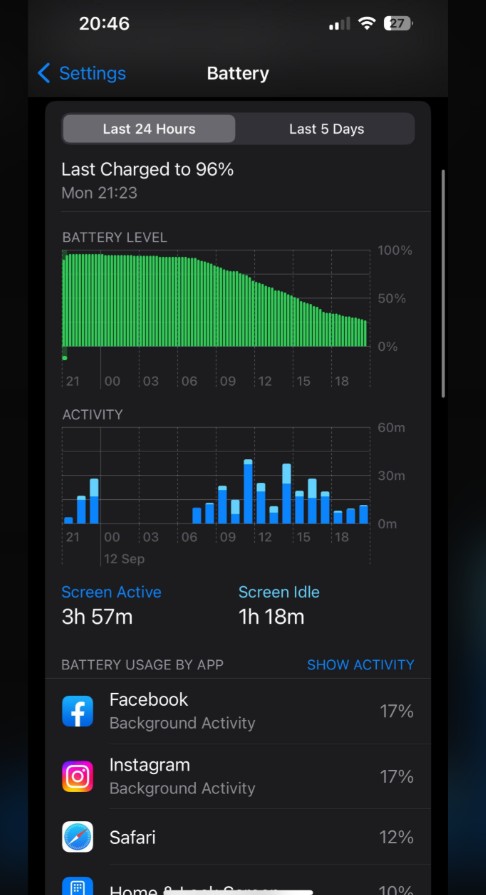
If iMessage or a native Apple app appears unusually high, the fixes in this guide on iMessage not working after iOS 26 may be related.
8. Force Restart the iPhone 17e
A background process can get stuck in a loop and consume CPU resources indefinitely. A force restart clears it without affecting your data or settings.
Press and quickly release Volume Up, then Volume Down, then press and hold the Side button until the Apple logo appears. Release, let the phone boot, then connect it to charge and observe whether the heat improves.
9. Reset All Settings
If nothing else has worked, a corrupted system setting may be interfering with power or thermal management.
Go to Settings → General → Transfer or Reset iPhone → Reset → Reset All Settings. This resets Wi-Fi passwords, network configuration, display and privacy preferences, but does not delete your photos, apps, or files. You’ll need to re-enter Wi-Fi passwords afterward.
When the Problem Is Hardware
If the iPhone 17e still overheats after every fix above, look for these signs that point to a hardware fault:
- Gets hot when idle, not just during charging
- Charging stops and restarts repeatedly on its own
- Temperature warnings appear every single charge cycle
- Battery drains unusually fast even with light use
- Phone shuts down unexpectedly
Before booking a repair, check whether your device is still covered. Our guide on how to check Apple warranty and AppleCare coverage shows exactly where to look, a covered repair costs nothing.
Quick Tips
- Charge on a hard surface, not on a bed or sofa
- Remove thick cases during fast charging sessions
- Avoid gaming or streaming video while the phone is charging
- Keep iOS updated
- Use Apple-certified USB-C accessories
FAQ
Is it normal for the iPhone 17e to get warm while charging? Yes, mild warmth during fast charging or a software update is expected. The concern is when the device becomes uncomfortable to hold or iOS shows a temperature warning.
Can a phone case cause overheating while charging? Yes. Thick or non-ventilated cases trap heat that the iPhone would normally dissipate through its frame. Remove the case during charging sessions if heat is an issue.
Does fast charging damage the iPhone 17e battery? Not directly. Apple’s thermal management throttles charging speed when temperatures rise. That said, consistently charging in hot environments does accelerate long-term battery degradation.
Why does charging stop when my iPhone gets hot? iOS includes a thermal protection system that slows or pauses charging when internal temperatures exceed safe limits. It’s a built-in safeguard, not a fault.
Should I replace the battery if my iPhone 17e keeps overheating? If Battery Health shows below 80% and iOS recommends service, yes — a battery replacement is the most effective and permanent fix.



0 Comments