How to Downgrade iOS 26 to iOS 18 Safely And Make It Work Normally Again?
Downgrading iOS 26 to iOS 18 can help if you are experiencing bugs, battery drain, app crashes, or performance issues after installing a newer update. Many users choose to revert to an earlier iOS version when a major release introduces instability on their iPhone.
This guide explains several safe ways to return to iOS 18 using Finder, Recovery Mode, and IPSW firmware files. You will also learn how to back up your data before downgrading, which is essential if you want to restore your apps and settings later. If you plan to secure your data first, it helps to follow a proper guide on backing up your iPhone before proceeding.
Why Would You Downgrade From iOS 26 to iOS 18?
New iOS versions sometimes introduce unexpected bugs or performance issues, especially on older devices. Some users notice overheating, app compatibility problems, or reduced battery life after upgrading.
Downgrading to iOS 18 can restore stability if that version ran better on your device. It is also common for developers and testers to revert after experimenting with beta software.
Before starting, remember that Apple only allows downgrades to firmware versions that are still being signed. If iOS 18 is no longer signed, standard downgrade methods will not work.
1. Back Up Your iPhone Before Downgrading
Downgrading iOS erases your device. Creating a backup ensures you can restore your photos, messages, and apps afterward.
- Open Settings.
- Tap your Apple ID name.
- Tap iCloud.
- Select iCloud Backup.
- Tap Back Up Now.
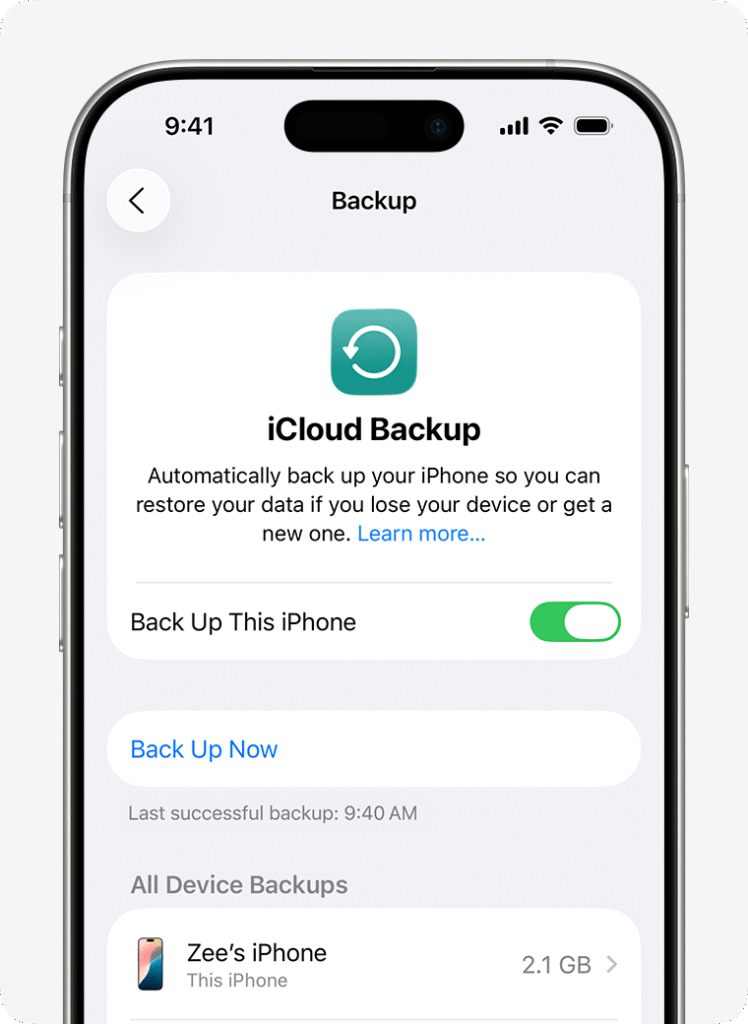
You can also back up your device using Finder on macOS or iTunes on Windows for a full local backup.
2. Downgrade Using Finder on macOS
Finder is the official way to restore or downgrade iOS on a Mac. This method installs a clean firmware version on your device.
- Download the correct iOS 18 IPSW file for your iPhone.
- Connect your iPhone to your Mac using a USB cable.
- Open Finder.
- Select your iPhone in the sidebar.
- Hold the Option key.
- Click Restore iPhone.
- Select the downloaded IPSW file.
- Confirm the restore.
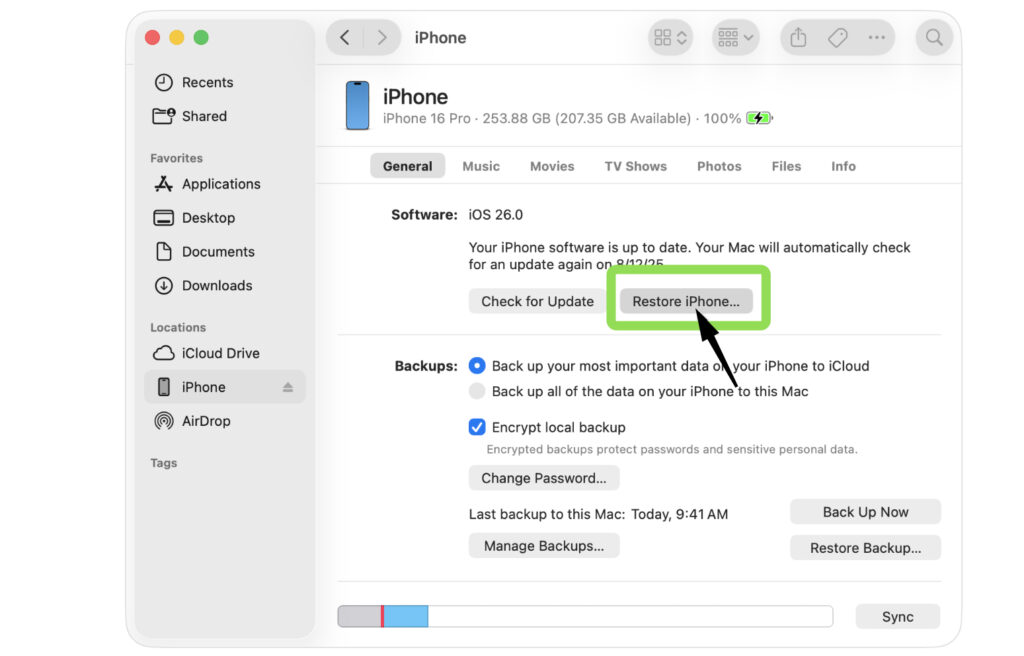
Finder will erase the device and install iOS 18.
3. Downgrade Using Recovery Mode
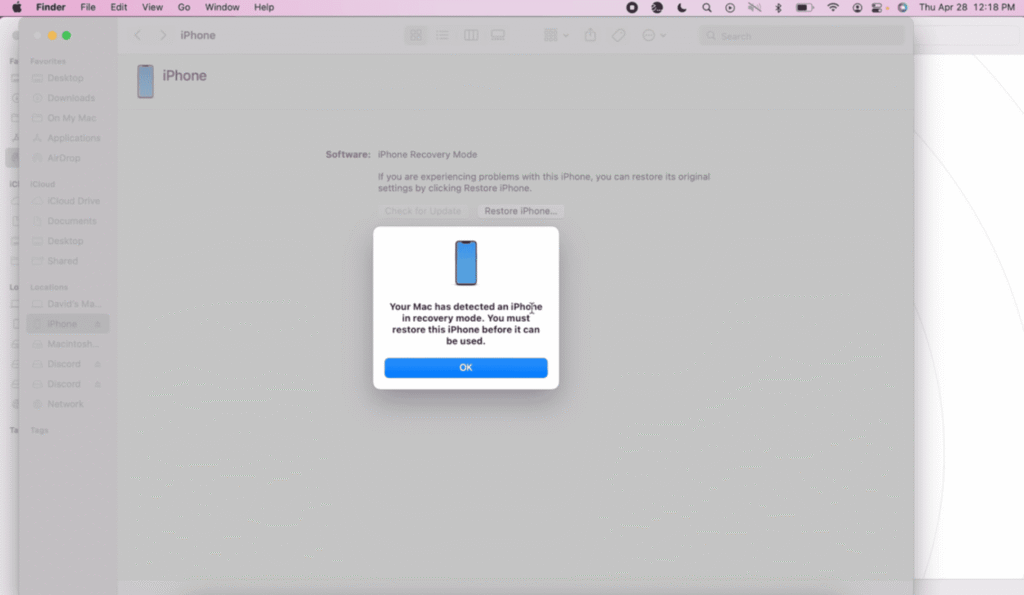
Recovery Mode allows you to reinstall iOS when the device is unstable or stuck during an update.
- Connect your iPhone to a Mac or PC.
- Open Finder or iTunes.
- Press and release Volume Up.
- Press and release Volume Down.
- Press and hold the Side button.
- Keep holding until the Recovery Mode screen appears.
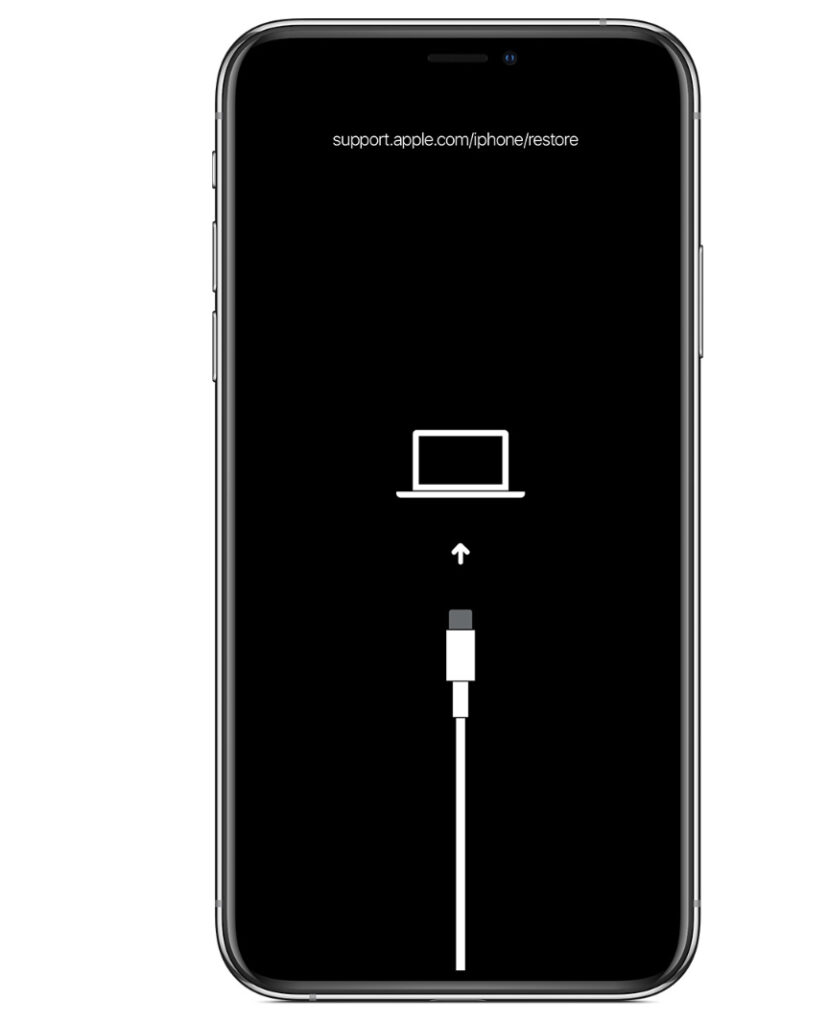
- Select Restore when prompted.
- Wait for the process to complete.
If Finder detects the firmware automatically, it will install the latest compatible version.
4. Use DFU Mode for a Deeper Restore
Device Firmware Update mode performs a deeper restore than Recovery Mode. It bypasses the current operating system and directly reinstalls firmware.
- Connect your iPhone to a Mac or PC.
- Open Finder or iTunes.
- Press Volume Up.
- Press Volume Down.
- Hold the Side button for 10 seconds.
- Hold Volume Down while still holding the Side button.
- Release the Side button after 5 seconds.
- Keep holding Volume Down until Finder detects the device.
Once detected, you can restore the firmware using the IPSW file.
5. Downgrade With Apple Configurator 2
Apple Configurator 2 offers advanced device management tools that can reinstall iOS firmware.
- Download Apple Configurator 2 from the Mac App Store.
- Connect your iPhone to your Mac.
- Put the device into DFU Mode.
- Select the device inside Apple Configurator.
- Click Restore.
- Choose the firmware file.
This method is often used by technicians when standard restore processes fail.
6. Restore Your Backup After Downgrading
Once iOS 18 is installed, you can restore your personal data.
- Turn on the iPhone.
- Follow the setup assistant.
- Choose Restore From iCloud Backup.
- Sign in with your Apple ID.
- Select your latest backup.
If you previously used a computer backup, you can restore it through Finder or iTunes.
7. Check App Compatibility After Downgrading
Some apps that were updated for iOS 26 may not work correctly on iOS 18. You may need to update or reinstall them.
- Open the App Store.
- Tap your profile icon.
- Select Purchased apps.
- Reinstall compatible versions.
If you experience crashes or missing notifications after the downgrade, troubleshooting steps similar to fixing issues where the iPhone does not receive verification texts can sometimes resolve app communication problems.
Tips
• Always verify that Apple is still signing the iOS version you want to install.
• Keep a local backup on your Mac before performing firmware changes.
• Use an official Apple USB cable to prevent restore interruptions.
• Ensure your iPhone has at least 50 percent battery before starting.
• Avoid disconnecting the device during firmware installation.
Returning to a Stable iOS Version
Downgrading from iOS 26 to iOS 18 is possible if the firmware is still signed by Apple. Using Finder, Recovery Mode, or DFU Mode allows you to reinstall an earlier iOS version safely.
While the process is straightforward, backing up your data first is critical because downgrading erases the device. Once completed, you can restore your backup and return to a more stable iPhone experience.
Key Takeaways
Downgrading iOS 26 to iOS 18 can resolve performance issues, bugs, or compatibility problems introduced by a newer update. The safest methods include restoring firmware through Finder, Recovery Mode, or DFU Mode. Backing up your data is essential because the downgrade process erases your device. This guide helps iPhone users safely return to an earlier and more stable iOS version.
FAQ
No. Apple must still be signing the iOS version you want to install. If signing has stopped, standard downgrade methods will not work.
Yes. Downgrading iOS erases your device, which is why creating a backup before starting is important.
Using Finder with the official IPSW firmware file is generally the safest and most reliable method.
DFU Mode reinstalls firmware at a deeper level than Recovery Mode. It is helpful when the operating system is severely corrupted.
Usually no. Backups created on newer iOS versions are often incompatible with older firmware.

0 Comments