How to Stop Spam Calls on iPhone
Spam calls are not just annoying, but also could represent a scam attempt. Learning how to stop spam calls on iPhone can reduce interruptions and potential scams. Apple includes several built-in tools that filter unknown callers, block suspicious numbers, and integrate with carrier or third-party spam protection services. If your iPhone keeps ringing from unknown numbers, enabling the right settings can make a big difference.
In this guide, you will learn multiple proven ways to block spam calls, silence unknown numbers, and filter suspicious callers. We will also cover newer iOS call screening features, carrier protections, and manual blocking methods so your iPhone stays much quieter.
For additional call-related fixes, check our guide on fixing incoming calls that never ring, which explains common notification and call issues.
Why Is Your iPhone Getting Spam Calls?
Spam and robocalls often happen when your phone number appears in marketing databases or data leaks. Companies can obtain numbers from online forms, public records, or data breaches. Scammers also use automated dialing systems to call thousands of numbers at once.
Apple includes several call-filtering tools inside iOS that help reduce these interruptions. Features like Silence Unknown Callers, Call Blocking & Identification, and newer call screening tools allow your iPhone to detect and filter suspicious calls automatically.
Below are the most effective ways to stop spam calls on your iPhone.
1. Enable Call Blocking & Identification
Apple allows certain apps and carriers to identify or block suspected spam callers directly from the Phone settings. This is one of the first settings you should enable.
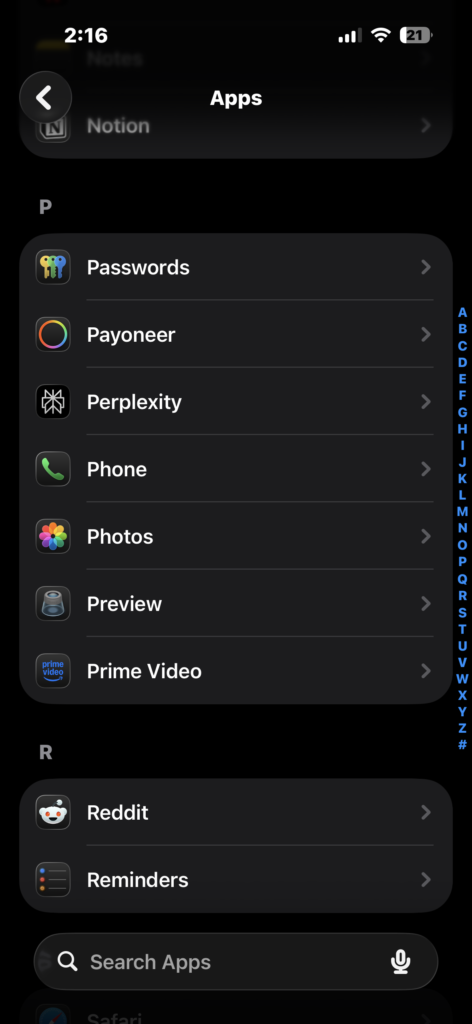
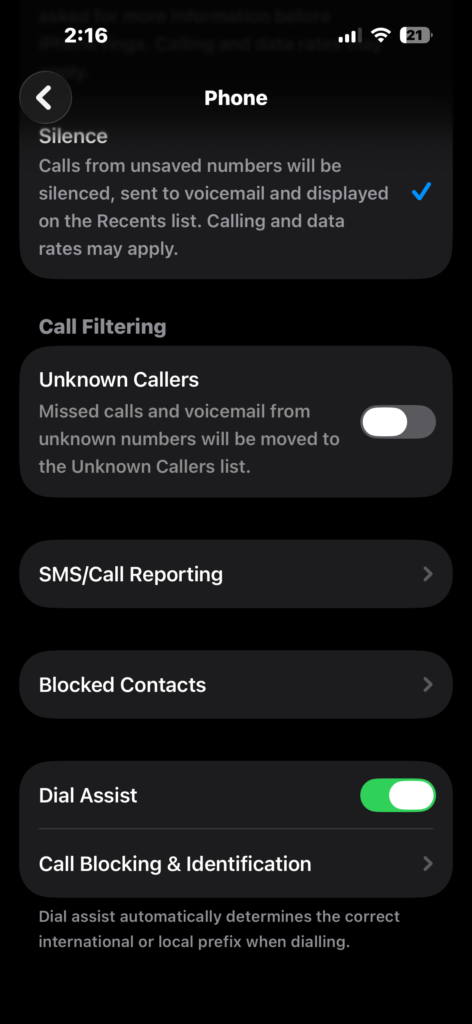
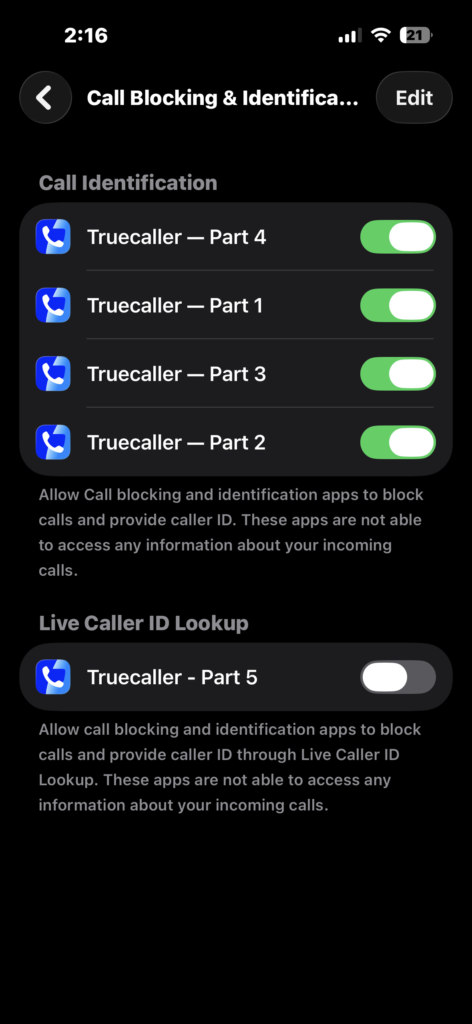
- Open Settings on your iPhone.
- Scroll down and tap Apps.
- Tap Phone.
- Select Call Blocking & Identification.
- Enable the toggle for available call filtering apps or services.
Once enabled, supported apps or carriers can automatically label or block suspicious calls before they reach you.
2. Turn On iOS Call Screening Features
Newer iOS versions include additional tools designed to reduce robocalls and scam calls. Call screening can automatically ask unknown callers why they are calling before your phone rings.
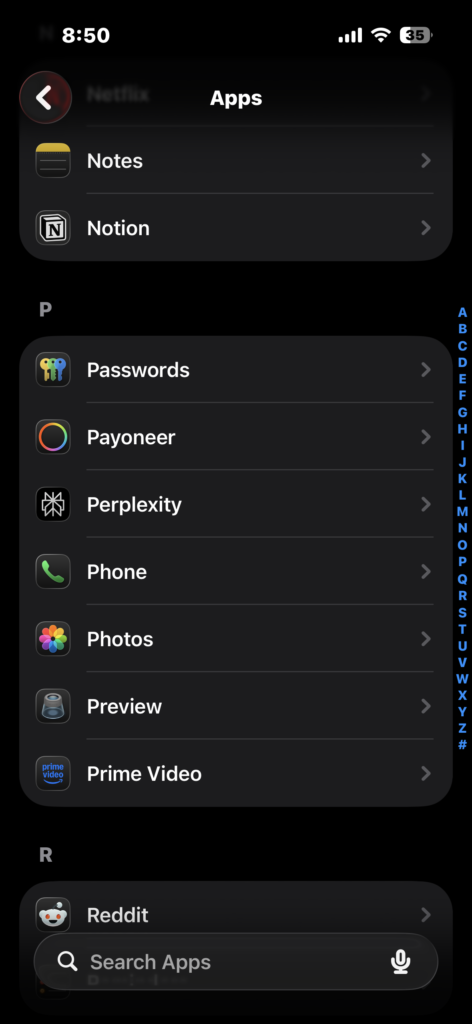
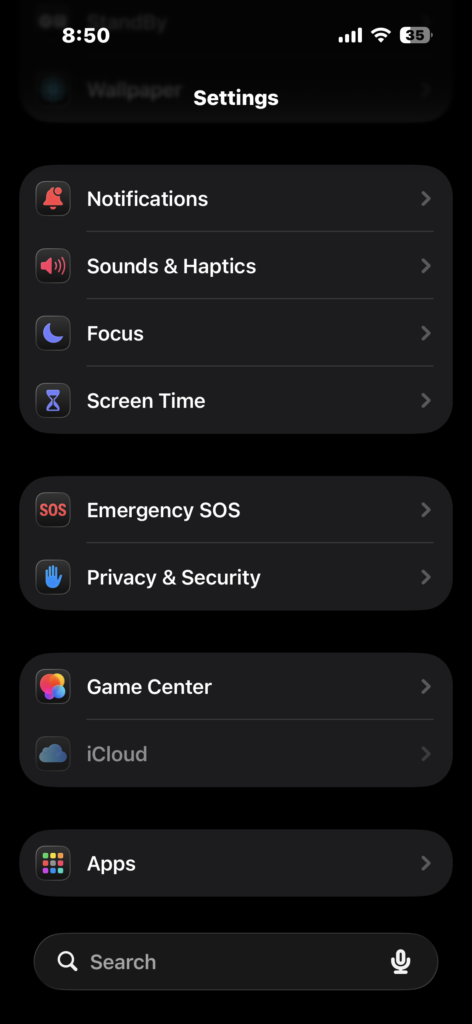
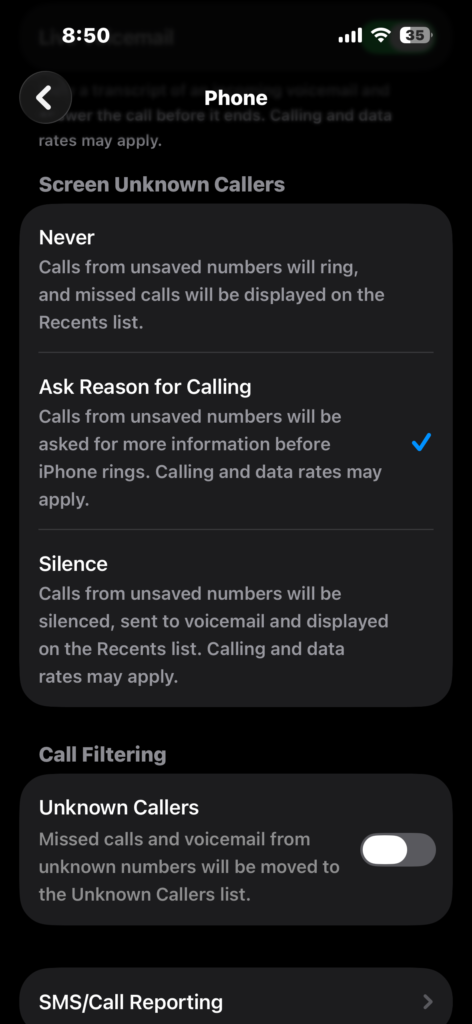
- Go to Settings.
- Tap Apps > Phone.
- Scroll down to Screen Unknown Callers.
- Select Ask Reason for Calling.
These features allow your iPhone to transcribe unknown calls in real time and filter suspicious voicemails. They work best on modern devices such as iPhone 11 and newer running recent iOS versions.
3. Install a Third-Party Spam Blocking App
If your carrier does not provide strong spam protection, third-party call filtering apps can help. These apps maintain large databases of known scam numbers and automatically block them.
Popular options include:
- Hiya
- Truecaller
- RoboKiller
To enable a spam-blocking app:
- Download the app from the App Store.
- Open the app.
- Follow the setup instructions.
- Go to Settings > Apps.
- Tap Phone.
- Select Call Blocking & Identification.
- Enable the installed spam filtering app.
These apps are especially helpful if you receive a high volume of robocalls.
4. Use Focus Mode to Silence Unknown Numbers
Focus modes allow you to control who can call you. By allowing calls only from contacts or favorites, unknown callers are automatically silenced.
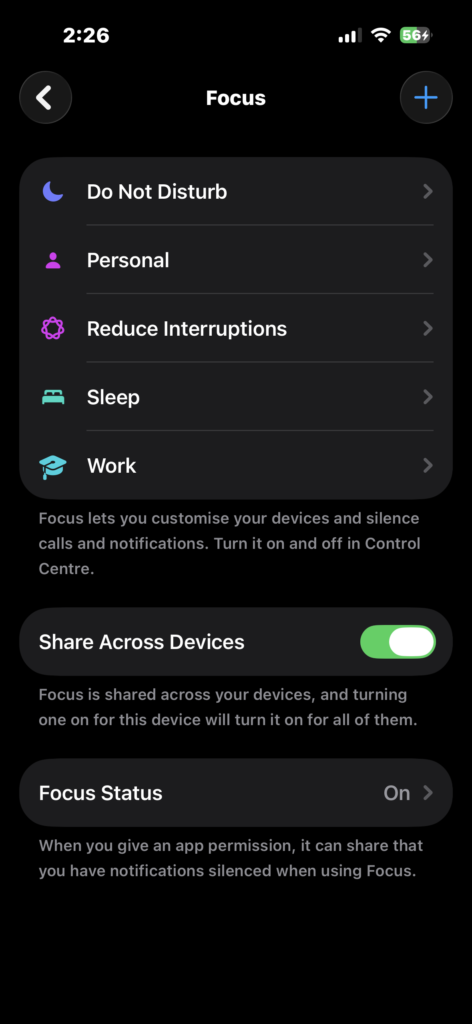
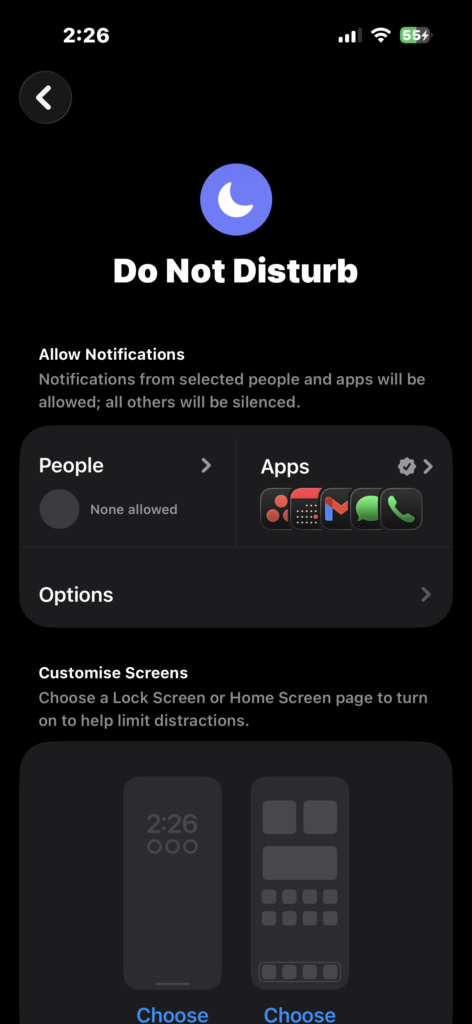
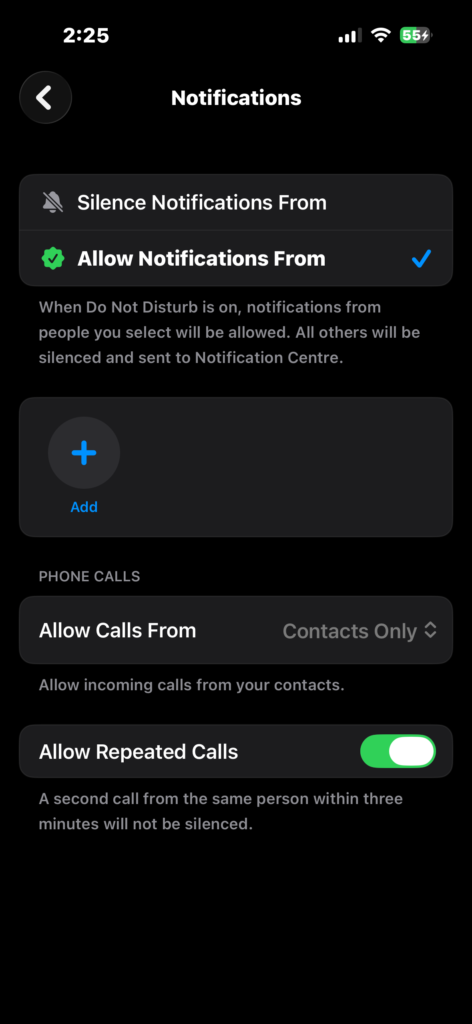
- Open Settings.
- Tap Focus.
- Select Do Not Disturb or create a new Focus mode.
- Tap People > Allow Calls From.
- Select Contacts Only or Favorites.
Any caller not in your contact list will be silenced while the Focus mode is active.
This method is very useful during work hours or at night when spam calls are more disruptive.
6. Enable Silence Unknown Callers
Apple introduced Silence Unknown Callers in iOS 13. When enabled, calls from numbers not in your contacts are sent directly to voicemail without ringing.
- Open Settings.
- Tap Apps > Phone.
- Scroll down to Screen Unknown Callers.
- And select the Silence option.
Your iPhone still records these calls in the Recents list and voicemail, but they will not interrupt you.
7. Register Your Number on a Do Not Call Registry
Some countries maintain official registries that stop telemarketers from contacting you.
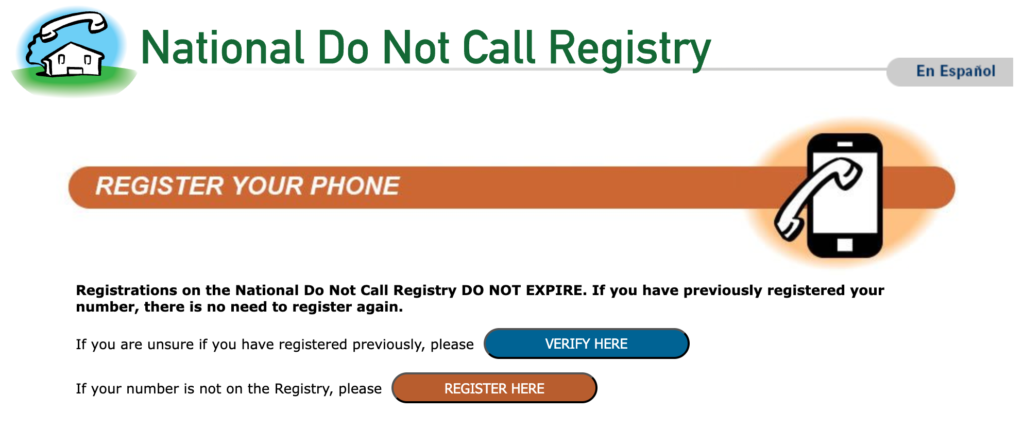
- Visit the National Do Not Call Registry website.
- Tap Register.
- Enter your phone number and email address.
- Submit the registration form.
- Confirm your registration using the email link.
This method reduces legitimate telemarketing calls but may not stop scammers who ignore regulations. If you are dealing with suspicious activity or security concerns, it is also helpful to learn how to check if your Apple account is secure.
Tips
• Save important contacts so legitimate calls are never silenced.
• Avoid answering unknown numbers because scammers often confirm active numbers this way.
• Report spam calls to your carrier whenever possible.
• Keep iOS updated so you receive the latest call-filtering features.
• Review blocked contacts occasionally to ensure legitimate numbers are not blocked.
You can also explore our guide on making anonymous calls safely if you want to understand how caller ID works.
Take Back Control of Your iPhone Calls
Spam calls can quickly become frustrating, but iOS provides several effective ways to control them. By combining Apple’s built-in tools with carrier protections or third-party apps, you can significantly reduce unwanted calls.
Most users find that enabling Silence Unknown Callers, Call Screening, and carrier spam filters removes the majority of robocalls. When necessary, manual blocking adds an extra layer of control.
Key Takeaways
Spam calls on iPhone usually happen because your phone number appears in marketing lists or data leaks. Fortunately, iOS includes built-in tools such as Silence Unknown Callers, call screening, and call blocking that help reduce unwanted calls. Carrier filtering services and third-party spam apps can add even stronger protection. These solutions help anyone who wants fewer robocalls and better control over incoming calls.
FAQs?
iPhones can automatically filter spam calls if you enable Silence Unknown Callers, call identification apps, or carrier spam protection. However, some suspicious calls may still appear in your call history.
It does not block them completely. Calls from unknown numbers are sent to voicemail and recorded in your Recents list so you can review them later.
iOS does not directly block all hidden numbers, but enabling Silence Unknown Callers or Focus mode effectively prevents them from ringing your phone.
In many cases yes. Third-party apps maintain large spam databases and can identify robocalls faster than Apple’s built-in filters.
This often happens after your number appears in leaked databases or marketing lists. Signing up for services, filling out online forms, or participating in promotions can expose your number to telemarketers.


0 Comments