AirPods Pro Static Noise in One Ear? 7 Fixes That Actually Work
If you hear static noise in one AirPod Pro, it can make music, calls, and podcasts difficult to enjoy. The problem often appears as crackling, buzzing, or distorted sound coming from one earbud. It may happen during calls, while listening to music, or when using noise cancellation.
This guide explains the most effective ways to fix AirPods Pro static noise in one ear. You will learn how to clean the earbuds, reset them, update firmware, and determine whether the issue requires a replacement from Apple Support.
If the issue involves connection problems between your AirPods and iPhone, you may also want to review these fixes for general Apple device connectivity issues in this guide on how to enable CarPlay on iPhone.
Why Do AirPods Pro Produce Static Noise in One Ear?
Static noise in AirPods Pro usually happens due to dirt buildup, firmware glitches, Bluetooth interference, or hardware defects. Early AirPods Pro models were also known for crackling sounds caused by internal microphone issues used for Active Noise Cancellation and Transparency Mode.
Apple has acknowledged these problems in certain units and may offer replacement options if the issue is hardware related. However, several troubleshooting steps can fix the problem before seeking a repair.
1. Clean Your AirPods Pro
Dust or earwax buildup can interfere with the speaker or microphones and create distorted audio.
- Remove the AirPods Pro from the charging case.
- Inspect the speaker mesh on the affected earbud.
- Use a dry, soft microfiber cloth.
- Gently clean the speaker mesh.
- Remove debris using a soft brush if necessary.
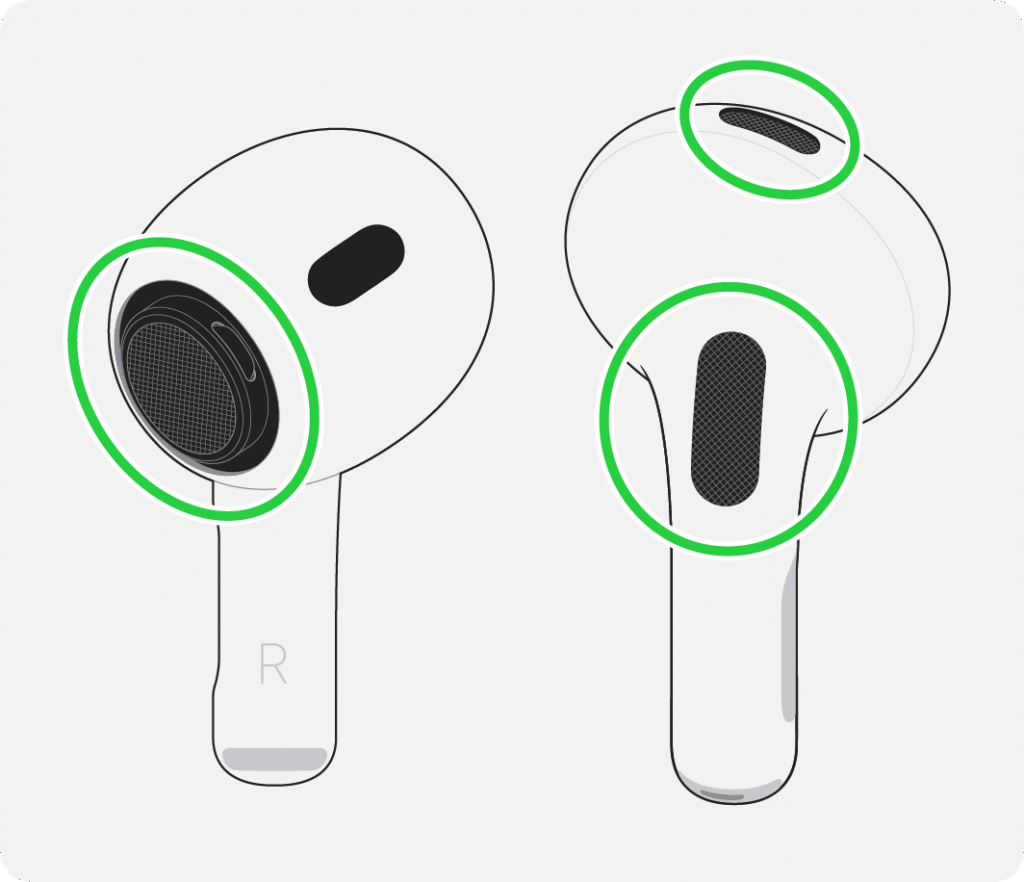
Avoid using liquids or sharp objects because they can damage the speaker or internal components.
2. Reset Your AirPods Pro
If your AirPods are crackling or disconnecting, a “Soft Reset” isn’t enough. You need to perform a Factory Reset to flush the firmware’s temporary cache. This process forces the Bluetooth handshake to regenerate, which often solves the “distortion” bug found in older firmware versions.
- Secure the Buds:
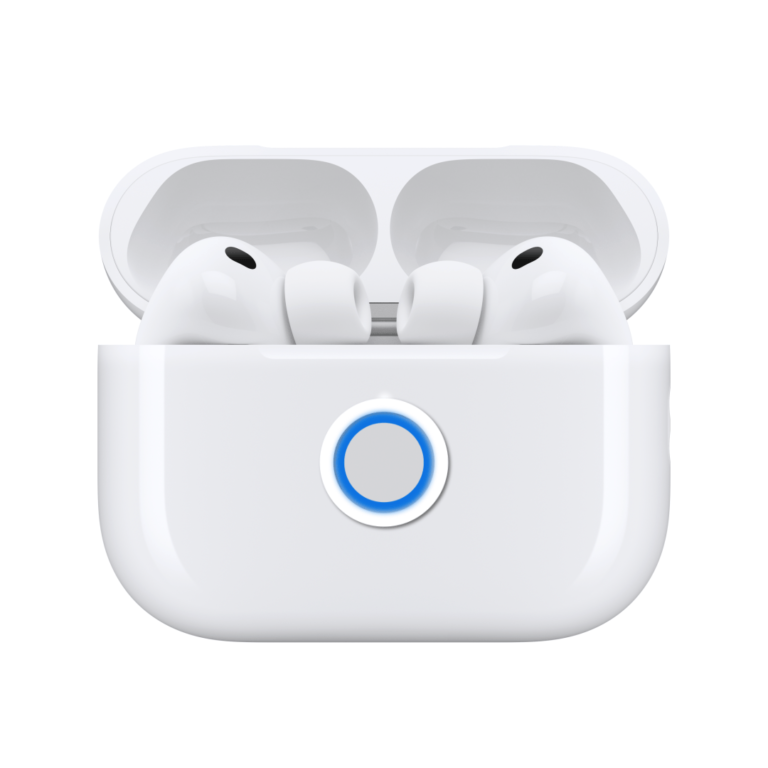
Place both AirPods Pro into the charging case and close the lid. Wait 30 seconds to ensure they are fully powered down.
- Prepare for Pairing:
Open the lid and keep it open throughout the process.
- The Master Reset:
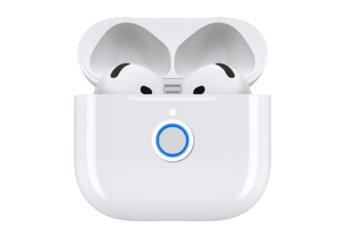
Locate the small circular setup button on the back of the case. Press and hold it firmly.
- Watch the LED:
Keep holding until the status light (on the front or inside the lid) flashes Amber, then turns back to White.
- Reconnect:
Close the lid, then open it again near your iPhone. Follow the on-screen animation to pair them as if they were brand new.
After resetting, test both earbuds to see if the static noise disappears.
3. Check Bluetooth Connection
Weak or unstable Bluetooth connections can produce audio interference.
- Open Settings on your iPhone.
- Tap Bluetooth.
- Locate your AirPods Pro in the list.
- Tap the info icon next to the device.
- Select Forget This Device.
- Reconnect the AirPods.
If your iPhone frequently experiences connection problems, it may also help to check troubleshooting steps similar to those used when fixing an iPhone stuck in Emergency SOS, since both issues can relate to wireless connectivity.
4. Turn Off Noise Cancellation Temporarily
Static sounds sometimes occur due to the microphones used by Active Noise Cancellation.
- Put both AirPods Pro in your ears.
- Open Settings on your iPhone.
- Tap Bluetooth.
- Tap the info icon next to your AirPods Pro.
- Change Noise Control to Off.
- Test audio playback again.
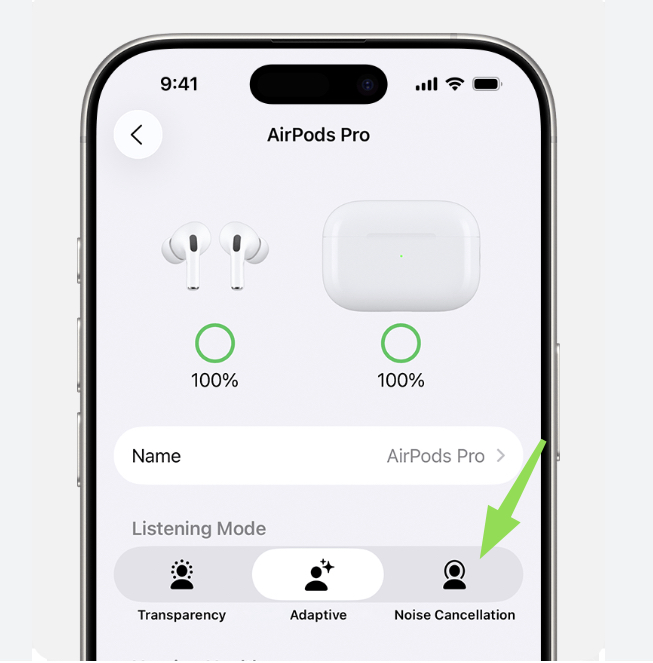
If the static noise disappears after disabling this feature, the problem may be related to the noise cancellation microphones.
5. Update Your iPhone Software
AirPods firmware updates install automatically when connected to an updated iPhone.
- Open Settings.
- Tap General.
- Select Software Update.
- Install the latest iOS update if available.
After updating, place the AirPods in the charging case and connect them to your iPhone so the firmware can update automatically.
6. Test the AirPods on Another Device
Testing the earbuds on another device helps determine whether the issue is hardware related.
- Connect your AirPods Pro to another iPhone, iPad, or Mac.
- Play music or a podcast.
- Listen for static or crackling noise.
- Compare both earbuds.
If the static noise still appears in the same earbud, the problem likely involves the AirPods hardware.
7. Contact Apple Support for Replacement
Some AirPods Pro units were affected by manufacturing issues that cause crackling or static sounds.
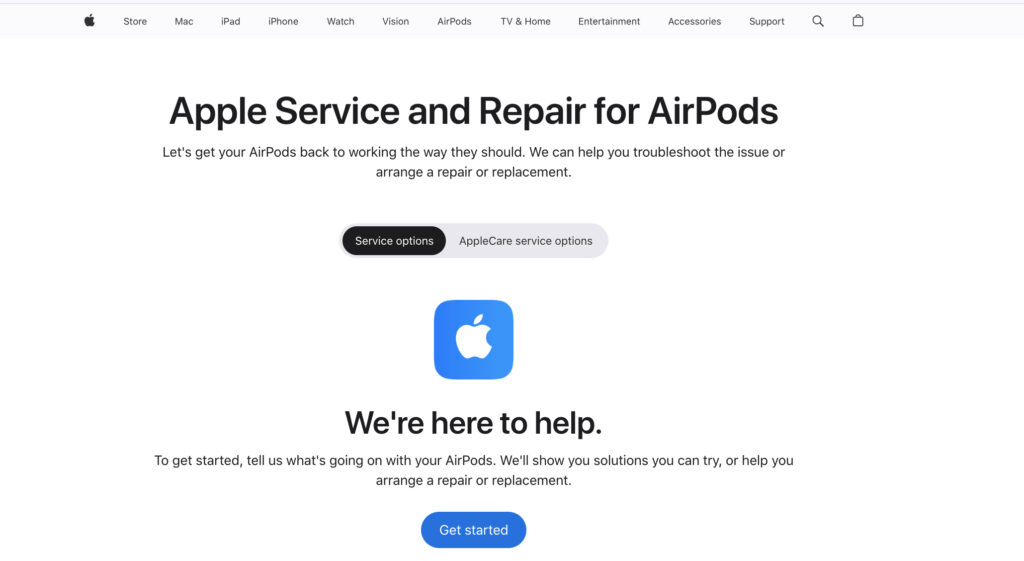
- Visit the Apple Support website.
- Select AirPods.
- Choose Service and Repair.
- Schedule a repair or visit an Apple Store.
- Bring your AirPods and charging case.
You can also check whether your AirPods are still covered by warranty using this guide on checking Apple warranty and AppleCare coverage.
Tips
• Clean your AirPods Pro regularly to prevent sound blockage.
• Avoid exposing the earbuds to moisture or sweat buildup.
• Keep firmware updated by maintaining the latest iOS version.
• Store AirPods in their charging case when not in use.
• Avoid dropping the earbuds, which can damage internal microphones.
Restore Clear Sound in Your AirPods
Static or crackling sound in one AirPod Pro can be frustrating, but many cases are caused by simple issues such as debris, Bluetooth interference, or temporary software glitches. Cleaning the earbuds and resetting them often solves the problem quickly.
If the noise persists after troubleshooting, the issue may be related to hardware defects in the microphones used for noise cancellation. In that situation, contacting Apple Support for a repair or replacement is the best solution.
Key Takeaways
Static noise in one AirPod Pro usually results from dirt buildup, connection problems, or software glitches. Cleaning the earbuds, resetting them, and reconnecting Bluetooth often resolve the issue quickly.
If the noise continues after these fixes, the earbud may have a hardware defect, and contacting Apple Support for repair or replacement may be necessary.
FAQs
This usually happens due to debris in the speaker mesh, Bluetooth interference, or a malfunctioning noise cancellation microphone.
Yes. Resetting the AirPods often resolves temporary firmware or connection glitches that cause static audio.
In some cases. Problems with the microphones used for noise cancellation can produce crackling sounds.
Apple may replace affected units if the issue is related to a known hardware defect or if the device is still under warranty.
You can check the coverage status using Apple’s warranty lookup tool with your device serial number.

0 Comments