Easy Guide:Can You Connect AirPods Pro 3 to Laptop?
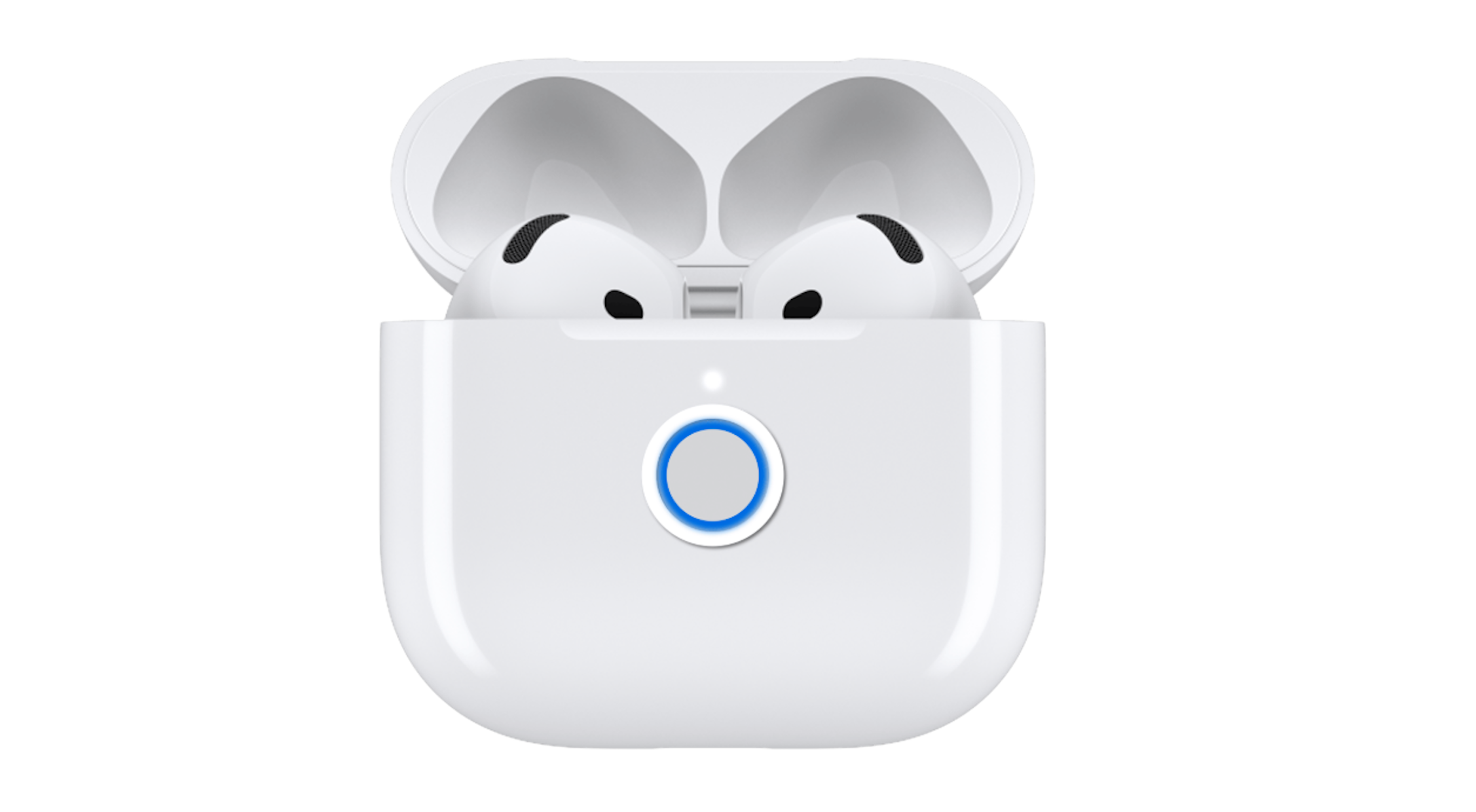
Connecting AirPods Pro 3 to a laptop is simple once you know the correct steps, but many users run into pairing issues, poor audio quality, or unstable connections. These problems usually happen because AirPods behave differently outside the Apple ecosystem, especially on Windows devices.
In this guide, you will learn how to connect AirPods Pro 3 to both Mac and Windows laptops, along with practical fixes for common issues like connection failures, low-quality sound, and random disconnections.
Why Won’t AirPods Pro 3 Connect to Your Laptop?
AirPods Pro 3 rely on Bluetooth, but laptops do not offer the same seamless experience as an iPhone or iPad. On macOS, especially when you are signed in with your Apple ID, pairing is often automatic.
On Windows, AirPods work like standard Bluetooth earbuds. That means manual pairing and fewer smart features. This difference is similar to how Apple services require extra setup outside the ecosystem, like when trying to get messaging working on a PC using alternative methods for iMessage access.
Put AirPods Pro 3 in Pairing Mode
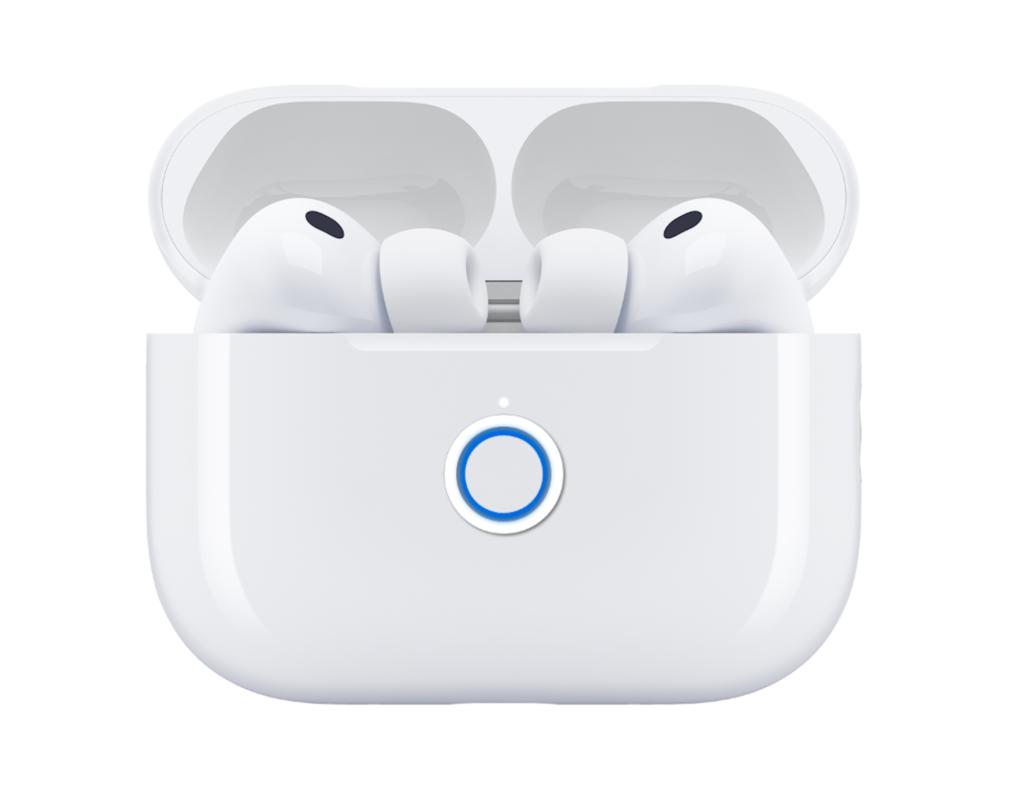
Before connecting to any laptop, you must enable pairing mode. This is the most commonly missed step.
- Place your AirPods inside the charging case.
- Open the lid of the case.
- Press and hold the button on the back of the case.
- Wait until the LED starts blinking white.
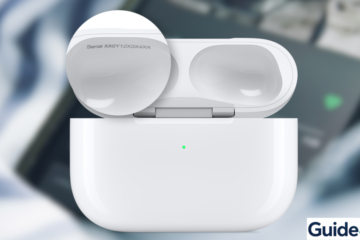
If the LED does not blink, charge your AirPods first. If pairing still fails, it is worth confirming the AirPods are genuine, especially if you recently bought them, using a quick serial number authenticity check.
Connect AirPods Pro 3 to MacBook
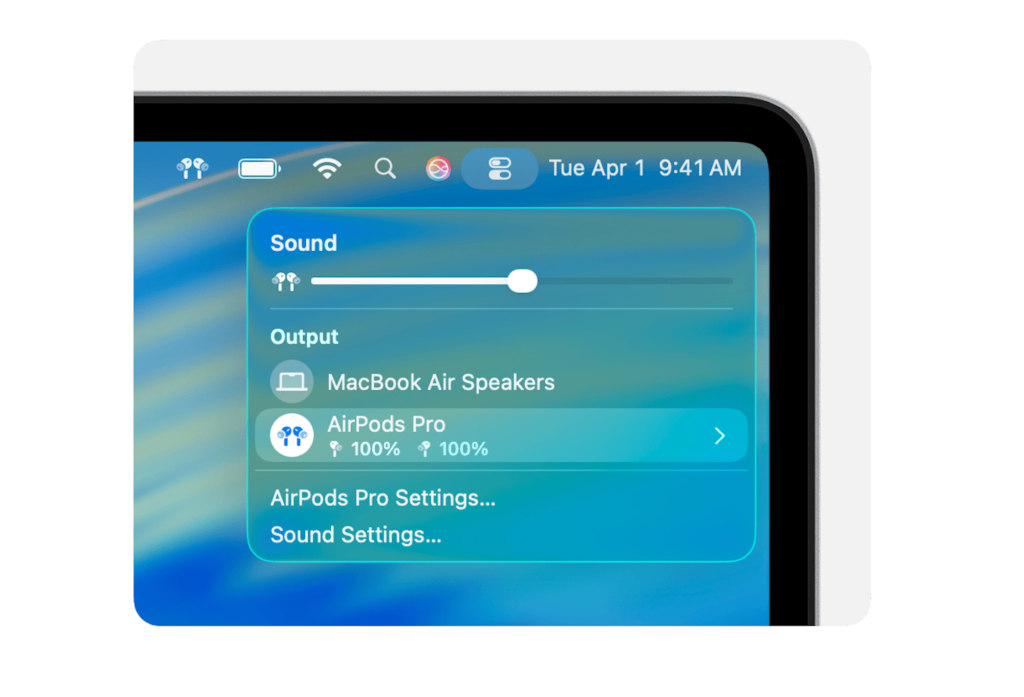
Connecting to a MacBook Air, MacBook Pro, or iMac is usually straightforward.
- Click the Apple menu.
- Open System Settings.
- Click Bluetooth.
- Turn Bluetooth on.
- Select your AirPods from the list.
If you are signed in with the same Apple ID, your AirPods may connect instantly. This is part of Apple’s ecosystem syncing, similar to how your browsing activity carries across devices when using features like shared Safari history.
Connect AirPods Pro 3 to Windows Laptop
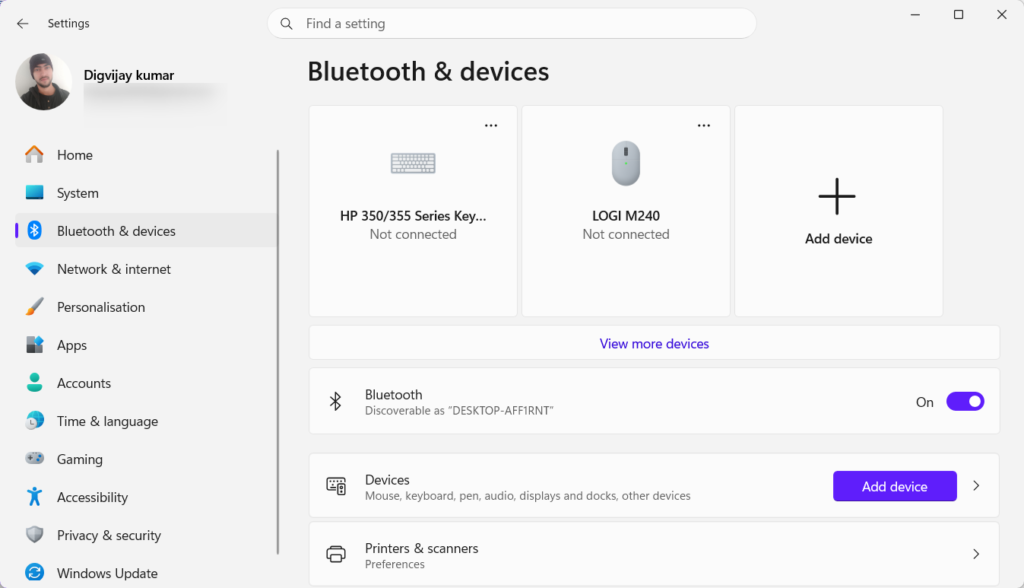
Time needed: 2 minutes
Steps to manually connect AirPods Pro 3 to a Windows laptop using Bluetooth settings.
- Open Settings
Open the Settings app on your Windows laptop.
- Click Bluetooth & Devices.
Click on Bluetooth & Devices in the Settings menu.
- Click Add Device.
Select Add Device to start pairing a new Bluetooth device.
- Select Bluetooth.
Choose Bluetooth from the list of device types.
- Choose your AirPods from the list.
Choose your AirPods Pro 3 from the list of available devices to complete the connection.
On Windows laptops, the process requires manual pairing.
Make sure pairing mode is active before scanning. If the device does not appear, restarting your laptop often helps, just like when other Apple devices need a refresh using proper restart and reset steps.
Fix AirPods Not Showing on Laptop
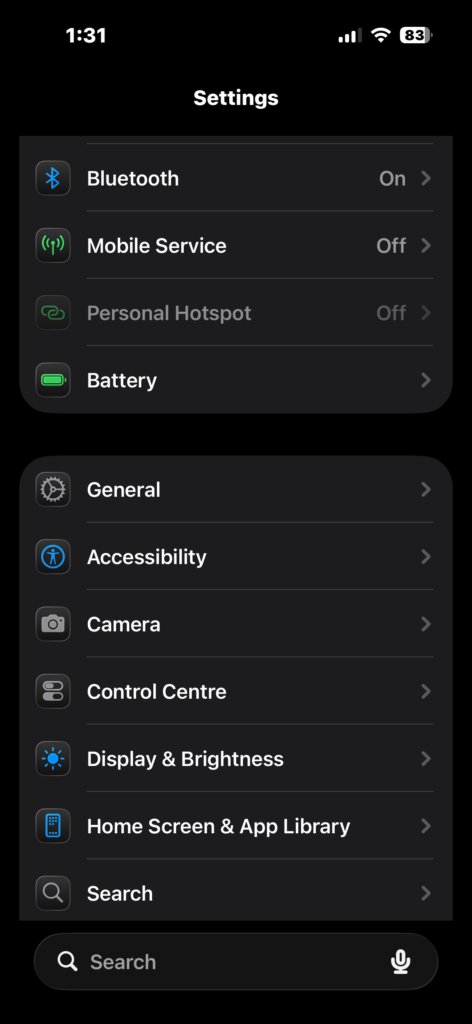
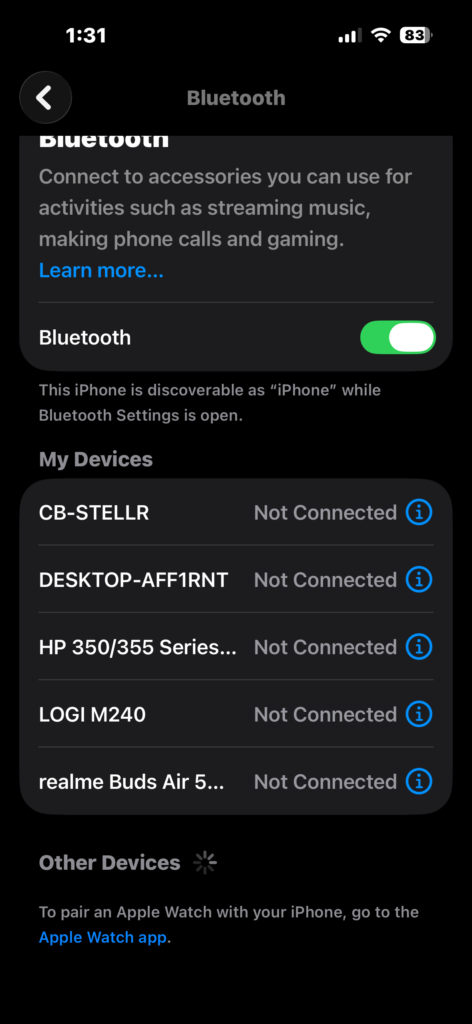
If your AirPods do not show up, the issue is usually temporary.
- Put AirPods back in the case.
- Close the lid.
- Wait 10 seconds.
- Reopen the lid.
- Hold the pairing button again.
If the problem continues, resetting the AirPods is the most reliable fix.
Reset AirPods Pro 3
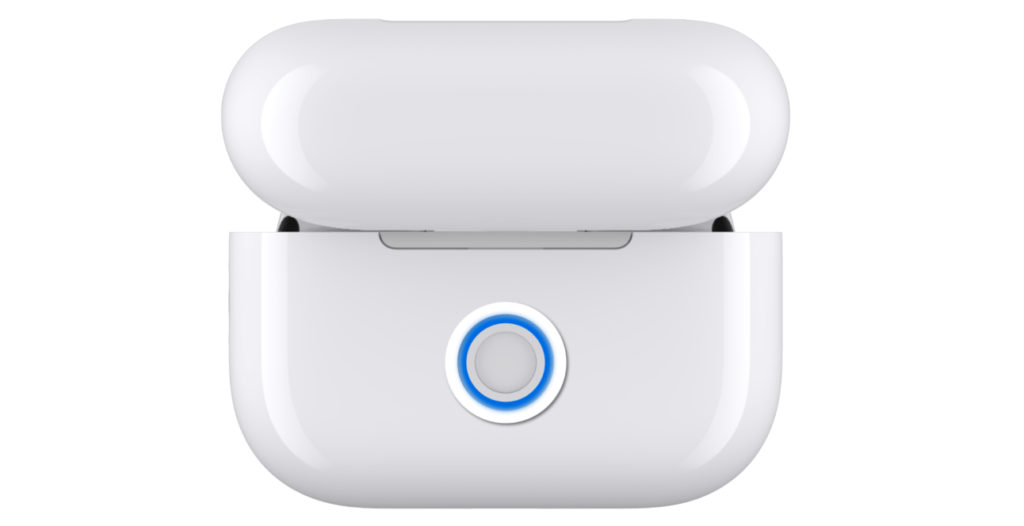
Resetting clears connection errors and restores default settings.
- Place AirPods in the case.
- Close the lid.
- Wait 30 seconds.
- Open the lid.
- Press and hold the button for 15 seconds.
- Wait for the amber light, then white light.
After resetting, reconnect your AirPods. This approach is similar to resolving persistent device issues with a full reset cycle when basic fixes do not work.
Fix Poor Sound Quality on Windows
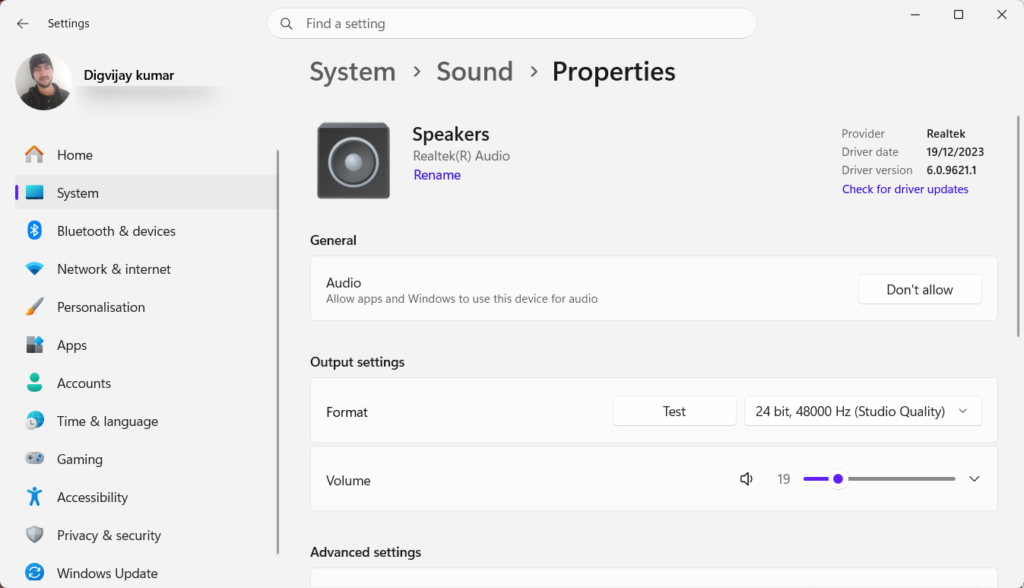
Audio quality problems are common on Windows due to Bluetooth profiles.
- Open Settings.
- Click System.
- Select Sound.
- Choose th Output device.
- Select AirPods Stereo instead of Hands-Free.
Windows often defaults to a lower-quality mode. Switching to stereo significantly improves sound clarity, especially if you have experienced issues like uneven audio or interference, similar to those addressed in this AirPods sound troubleshooting guide.
Fix AirPods Disconnecting or Lagging
Connection drops and lag usually come from interference or outdated software.
- Restart your laptop.
- Turn Bluetooth off and on.
- Update your operating system.
- Move closer to your laptop.
Keeping your system updated is essential for maintaining stable wireless connections and avoiding random dropouts.
Switch AirPods Between Devices
[Insert Image: iPhone and Mac showing AirPods switching popup]
AirPods switch automatically between Apple devices, but not with Windows.
- Disconnect AirPods from the current device.
- Open Bluetooth settings on the new device.
- Select your AirPods.
Understanding this limitation helps prevent confusion when moving between different platforms.
Tips
- Always enable pairing mode before connecting
- Keep AirPods charged above 20 percent
- Use Stereo mode on Windows for better audio
- Stay within Bluetooth range
- Keep macOS or Windows updated
Get Your AirPods Working Smoothly
Connecting AirPods Pro 3 to a laptop becomes easy once you understand how pairing works across different systems. Most problems come from missing pairing mode or incorrect settings.
With the steps above, you can connect your AirPods reliably and fix the most common issues without needing extra tools.
Key Takeaways
AirPods Pro 3 connect to laptops using Bluetooth, but behavior differs between macOS and Windows. Most issues are caused by pairing mistakes, incorrect audio settings, or Bluetooth limitations. Following the right steps ensures stable connections and better sound performance.
FAQs?
They are likely not in pairing mode. Make sure the LED is blinking white before scanning.
Yes, but with fewer features compared to Apple devices.
Windows may use a low-quality audio profile. Switching to Stereo mode usually fixes it.
They can switch automatically between Apple devices, but not stay connected to multiple devices at once.
No, but an iPhone helps with updates and accessing all features.

0 Comments