How to Remove Shlayer Trojan Horse Virus from Your Mac (Full Guide)

- Trojan Horse Virus Threat Profile
- What Is a Trojan Horse Virus on Mac?
- How to Remove a Trojan Horse Virus from Mac Manually
- Remove the Trojan Horse Virus from Your Browsers
- Detect a Trojan Horse Virus from the Terminal
- Check for Hidden Persistence
- Remove the Enterprise Policy (Chrome “Managed by Your Organization”)
- Where to Find These Settings on macOS Ventura, Sonoma, and Sequoia
- Verify the Trojan Horse Virus Is Fully Gone
- Common Mistakes When Removing a Trojan Horse Virus from Mac
- Frequently Asked Questions
The Shlayer Trojan, first discovered in 2018, became the most widespread Mac threat on record, detected on nearly 10% of all Mac devices monitored by Kaspersky by 2020. It spread through fake Adobe Flash Player updates and drove home a hard truth: Macs are not immune, and trojan horse viruses on Mac are a real, ongoing threat. This guide walks you through every step needed to find and remove a trojan horse virus from your Mac using only built-in macOS tools, with no third-party cleaners required.
Trojans are particularly stubborn because they hide components across multiple system folders and sometimes abuse macOS configuration profiles to block removal. The sections below cover manual removal through Finder, Terminal-based diagnostics, browser cleanup for Safari, Chrome, and Firefox, and a post-removal verification checklist to confirm your Mac is clean. If you are not sure the infection is a trojan, start with our complete MacBook virus removal guide.
Trojan Horse Virus Threat Profile
| Name | Trojan Horse Virus (Mac) |
| Category | Trojan, adware dropper, ransomware dropper, scareware, browser hijacker |
| Affected Browsers/Systems | Safari, Chrome, Firefox on macOS 10.x through macOS Sequoia 15 |
| Symptoms | Redirected searches, unknown extensions, intrusive ads, fake security alerts, sluggish performance, modified homepage |
| Severity | Medium to High, depending on payload: adware variants are disruptive; ransomware and spyware variants are destructive |
| Potential Damage | Browser hijacking, search redirection, personally identifiable data collection, file encryption (ransomware variants), installation of additional malware |
Use Activity Monitor, Library folder cleanup, configuration profile removal, and browser resets to fully remove a trojan horse virus from your Mac.
- Kill the malicious process in Activity Monitor
Open Finder, go to Go > Utilities, launch Activity Monitor, find the suspicious process, and click the Stop button, then choose Force Quit.
- Remove rogue LaunchAgents and LaunchDaemons
Use Go to Folder in Finder to check /Library/LaunchAgents, ~/Library/LaunchAgents, ~/Library/Application Support, and /Library/LaunchDaemons. Drag any suspicious .plist files to the Trash.
- Delete the malicious app from Applications
Open the Applications folder in Finder, locate the rogue app, and drag it to the Trash. Enter your admin password if prompted.
- Remove the Login Item and configuration profile
In System Settings, go to General > Login Items and remove the unwanted entry. Then check System Settings > Privacy and Security > Profiles and delete any rogue profiles.
- Reset affected browsers
Remove unknown extensions and reset the homepage and search engine in Safari, Chrome, and Firefox. For Chrome, run a full reset if a managed policy is blocking changes.
What Is a Trojan Horse Virus on Mac?
A trojan horse virus on Mac is malware that disguises itself as a legitimate app or installer to trick you into granting it the access it needs to run. Unlike a true self-replicating virus, a trojan relies entirely on deception: you install it willingly, believing it to be something harmless.
The most common delivery method is software bundling. A rogue installer combines a real-looking app with hidden malicious components, disclosing only the benign part during setup. The Shlayer Trojan perfected this approach by posing as an Adobe Flash Player update, then silently dropping adware payloads that hijacked browser settings and redirected traffic to fake search engines.
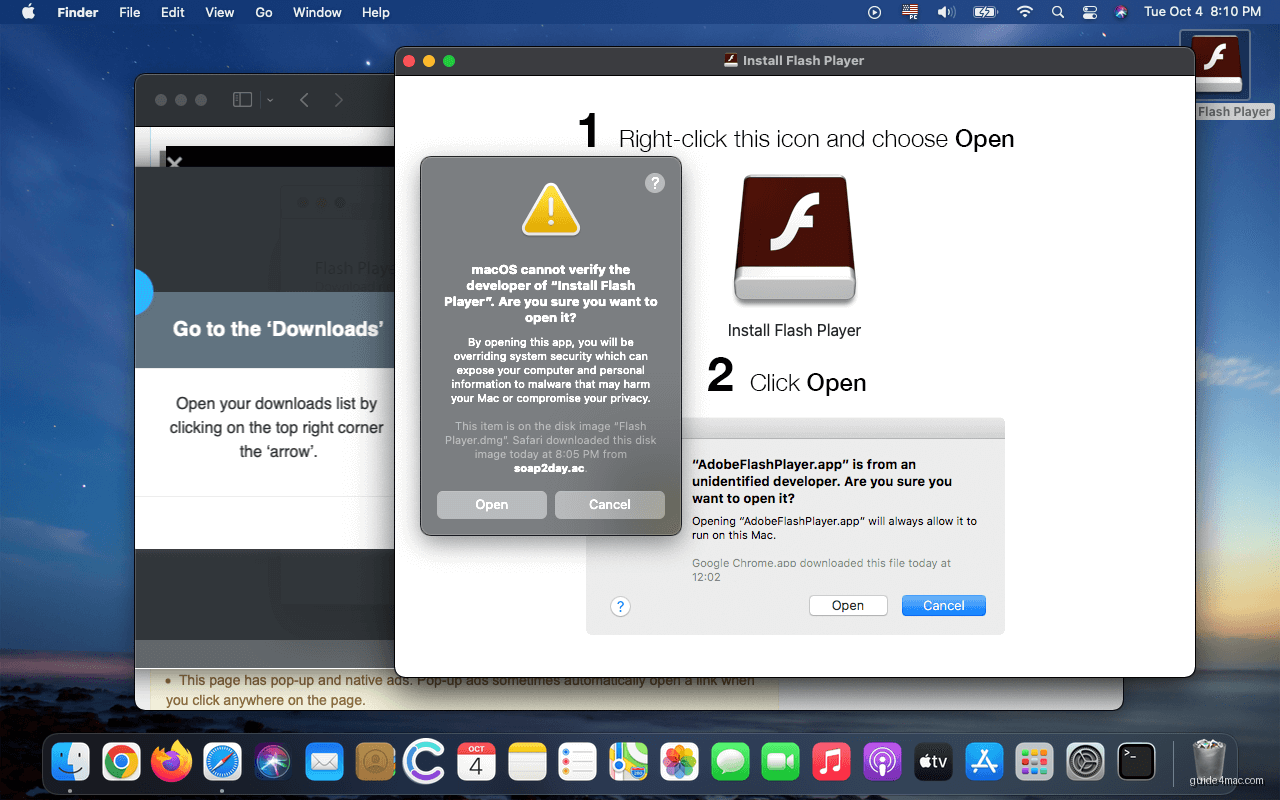
Mac ransomware is another payload category delivered through trojan-style installers. The 2016 KeRanger campaign embedded a ransomware payload inside a tampered build of the Transmission BitTorrent client, making it the first documented ransomware attack against macOS in the wild. A separate strain called Patcher posed as a crack tool for Adobe Premiere Pro CC. Both campaigns encrypted victims’ files and demanded payment for the decryption key.
The Trojan Horse as a Scare Tactic
Not every “trojan detected” warning you see in a browser is real. A large category of online scams exploits trojan-related fear to push fake system optimizers, bogus antivirus apps, or remote-access schemes. These alerts appear exclusively inside a browser window and have no connection to your actual macOS security state.

Some scam pages instruct you to call a “tech support” number, where an impersonator attempts to extract credit card details or gain remote access to your Mac. Others hide a notification-permission request behind a “Click here to remove the virus” button. If you click it, the site gains permission to flood your browser and desktop with pop-up ads. If the same kind of alert appears on your phone, see how to fix the “your iPhone has been hacked” pop-up.

What a Trojan Horse Virus Does to Your Mac?
The symptoms depend on which payload the trojan delivered. Adware variants redirect your searches, swap your homepage, inject ads into web pages, and collect browsing data. Ransomware variants encrypt your files and display a payment demand. Scareware variants manufacture fake performance issues to pressure you into buying worthless cleanup software.
What all trojan variants share is stealth and persistence. Files get scattered across multiple Library folders. Some trojans write LaunchAgent or LaunchDaemon property lists to restart themselves after every reboot. The most aggressive variants install a macOS configuration profile that locks browser settings so you cannot change them manually. That’s why a surface-level uninstall rarely works.
How to Remove a Trojan Horse Virus from Mac Manually?
Work through these steps in order. Skipping ahead, particularly past the LaunchAgents and configuration profile checks, leaves persistence hooks in place that will reinstall the trojan after a restart.
Step 1: Kill the Malicious Process in Activity Monitor
- Expand the Go menu in the Finder menu bar and select Utilities.

- Locate Activity Monitor on the Utilities screen and double-click to open it.

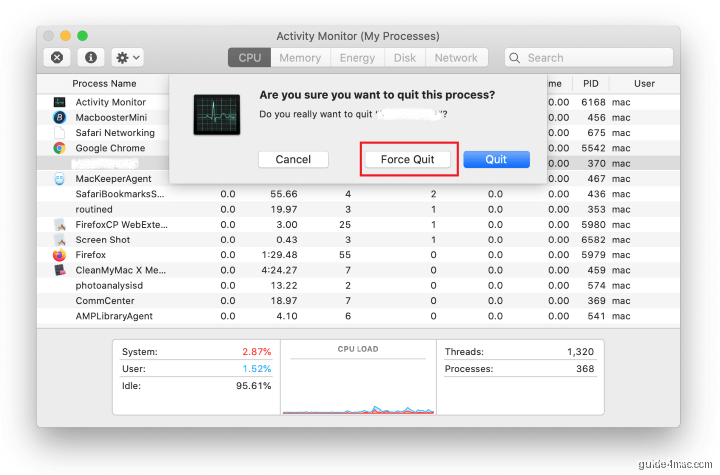
- Look for a process that seems unfamiliar or is consuming an unusually high share of CPU or memory. The process name may not obviously relate to the trojan. If you identify a suspect, select it and click the Stop button (the X icon) in the upper-left corner of the window.

- When the confirmation dialog appears, click Force Quit.
Step 2: Clean Up Library Folders
- Click Go in the Finder menu bar and select Go to Folder, or press Command-Shift-G.
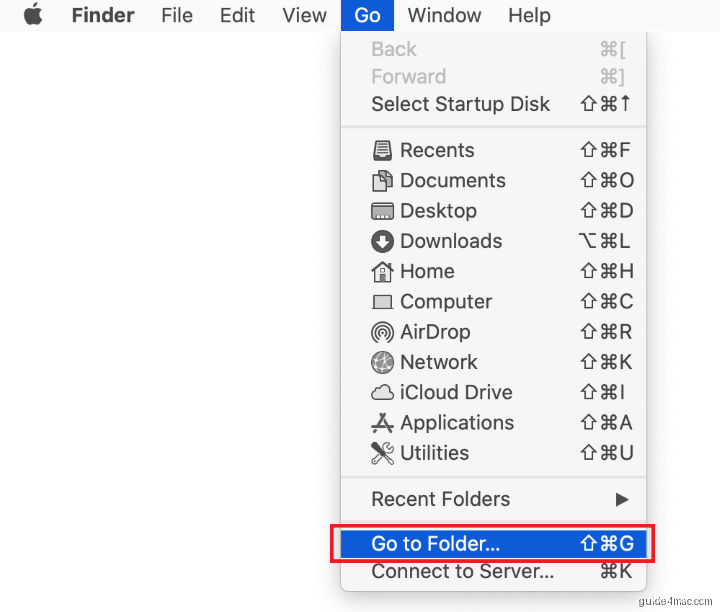
- Type /Library/LaunchAgents and click Go.

- Review the folder contents for recently added, unfamiliar .plist files. Known malicious examples include com.updater.mcy.plist, com.avickUpd.plist, and com.msp.agent.plist. Drag any suspicious files to the Trash.

- Use Go to Folder again and type ~/Library/Application Support (note the tilde).
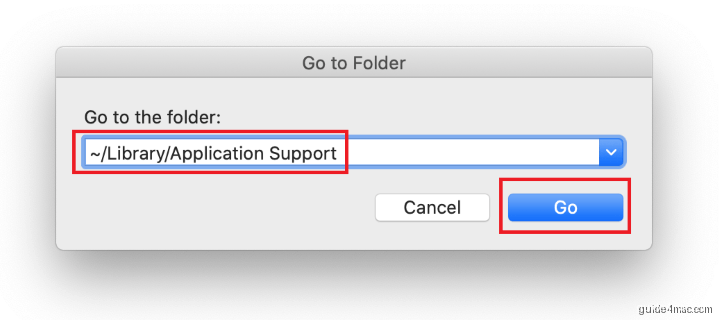
- Identify recently created folders that have no connection to Apple products or apps you intentionally installed. Known malicious folder names include com.AuraSearchDaemon, ProgressSite, and IdeaShared. Drag suspects to the Trash.

- Open Go to Folder and enter ~/Library/LaunchAgents.
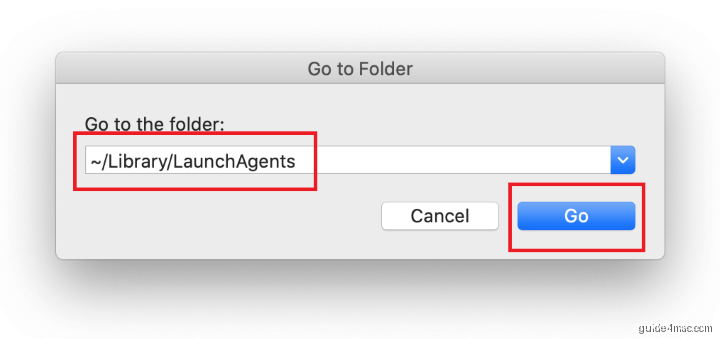
- Check the user-level LaunchAgents folder for the same types of suspicious .plist files. Drag anything unfamiliar to the Trash.

- Navigate to /Library/LaunchDaemons using Go to Folder.
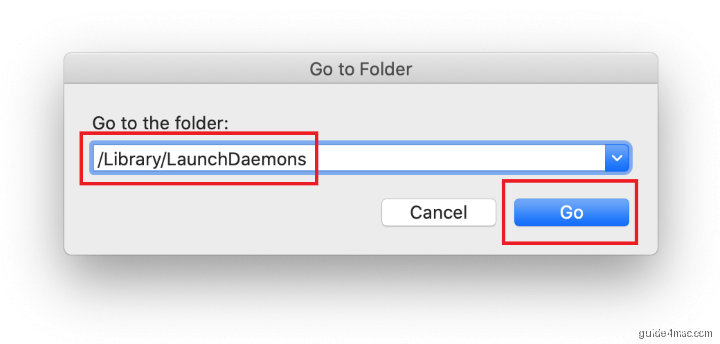
- Look for .plist files the trojan uses to survive reboots. Known malicious examples are com.pplauncher.plist, com.startup.plist, and com.ExpertModuleSearchDaemon.plist. Delete any that match or appear suspicious.
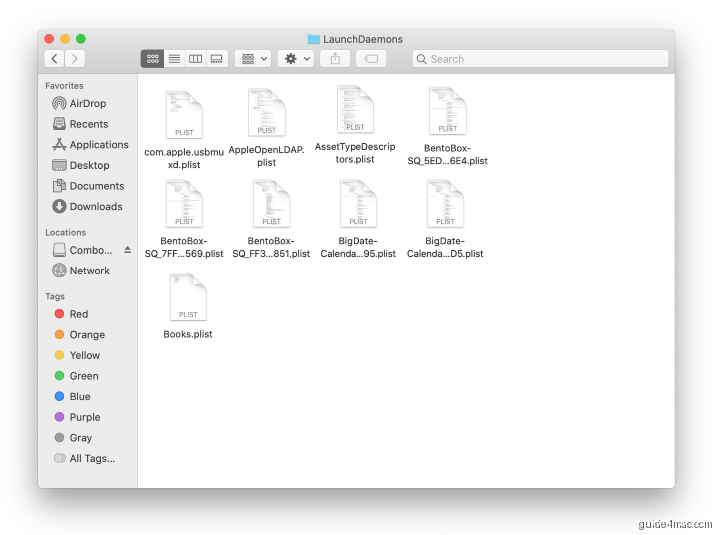
Step 3: Delete the Rogue App from Applications
- Click Go in the Finder menu bar and select Applications.
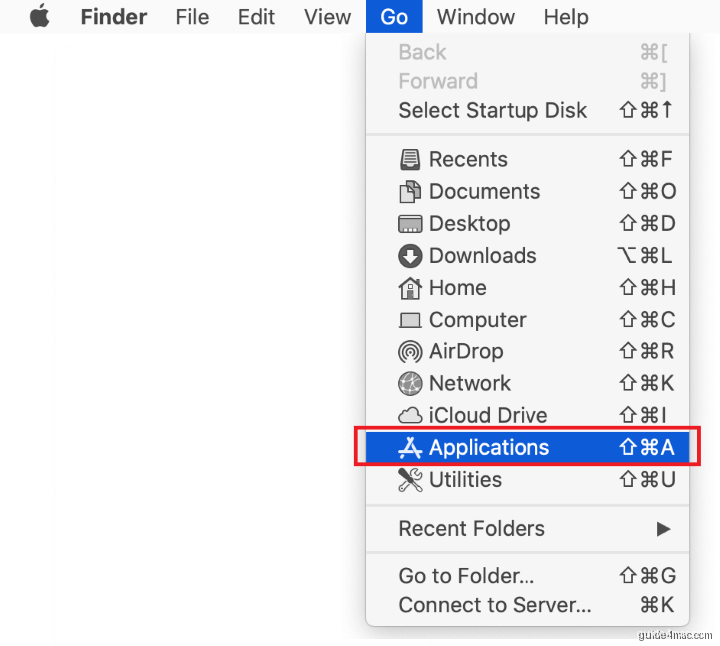
- Find the app that does not belong and drag it to the Trash. Enter your admin password if macOS prompts you.

Step 4: Remove the Login Item and Configuration Profile
On macOS Ventura, Sonoma, and Sequoia, these settings have moved from System Preferences to System Settings. The navigation paths below reflect the current layout.
- Open System Settings from the Apple menu.
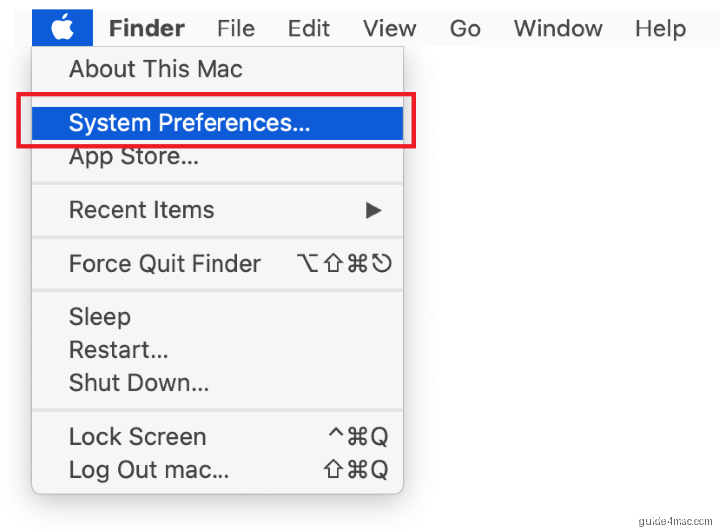
- Go to General > Login Items and Extensions. Find the unwanted entry in the login items list and click the minus (-) button to remove it.
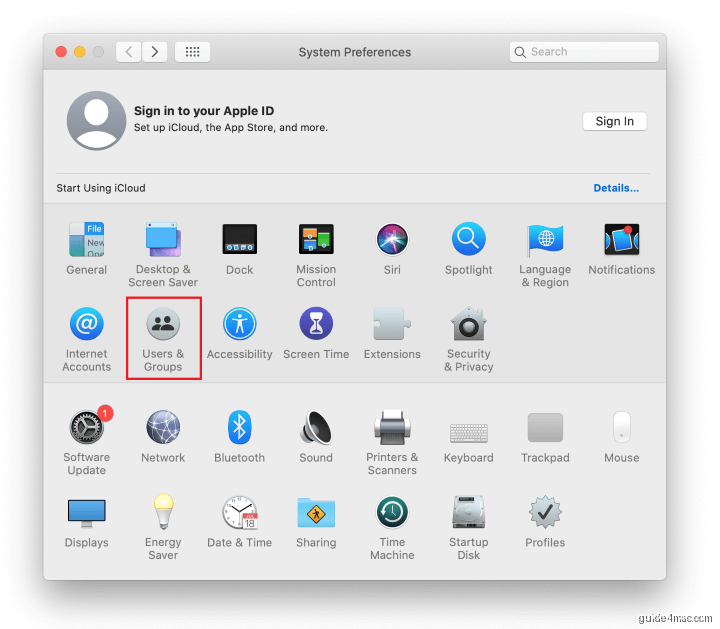
- Still in System Settings, go to Privacy and Security > Profiles. If you see a profile you did not install, select it and click the minus (-) button at the bottom to delete it. Known rogue profile names include TechSignalSearch, MainSearchPlatform, AdminPrefs, and Safari Preferences.

If the Profiles section does not appear in System Settings, no configuration profile is installed on your Mac. That is a normal result on a clean machine.
Remove the Trojan Horse Virus from Your Browsers
After clearing the system-level components, clean every browser you use. Trojans frequently install extensions, swap the default search engine, and lock the homepage. Browser cleanup stops residual redirect activity even after the main payload is gone.
Remove Trojan Extensions and Settings from Safari
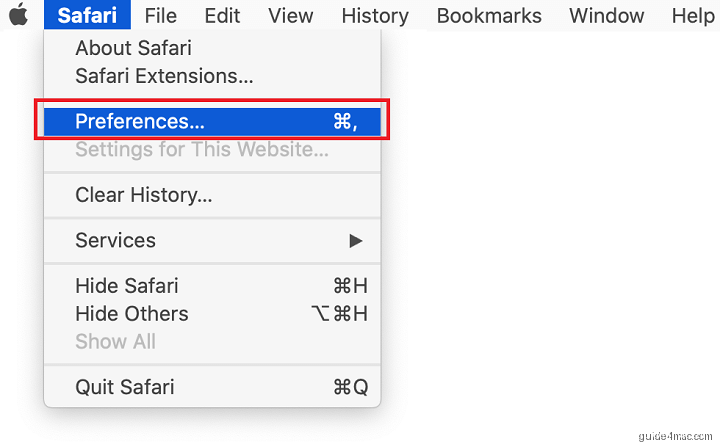
- Open Safari and click Safari in the menu bar, then choose Settings (or Preferences on macOS Monterey and earlier).
- Go to the Extensions tab. Uninstall any extension you do not recognise by selecting it and clicking Uninstall.
- Switch to the General tab and reset the Homepage field to your preferred URL.
- Open the Search tab and change the Search engine back to your preferred option.
- Go to Privacy and click Manage Website Data, then Remove All to clear stored site data that may contain redirect rules.
Remove Trojan Extensions and Settings from Chrome
- Open Chrome and click the three-dot menu in the top-right corner, then go to Settings.
- Select Extensions from the left sidebar. Remove any extension you did not install by clicking Remove.
- Go to Search engine in the left sidebar and change the default search engine back to your preference.
- Go to On startup and remove any rogue URLs from the startup pages list.
- If Chrome displays a “Managed by your organization” notice and you cannot change settings, see the Terminal section below for removing the enforced policy.

Remove Trojan Extensions and Settings from Firefox
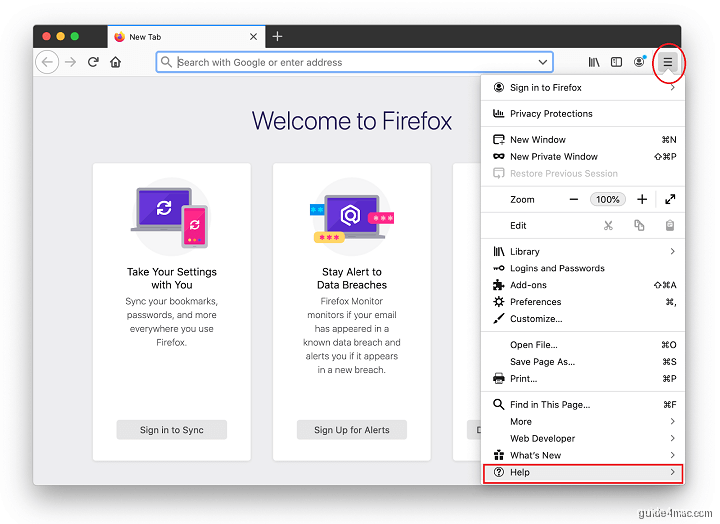
- Open Firefox and click the hamburger menu (three lines), then select Help > More Troubleshooting Information.
- Click Refresh Firefox on the page that opens, then confirm. This resets Firefox to its default state while preserving your bookmarks.
How To Detect a Trojan Horse Virus from the Terminal?
The Finder steps above cover most removals. Terminal gives you a second layer of confirmation, letting you see exactly what is loaded, what proxies are active, and whether a configuration profile is silently present. All commands in this section are read-only; they change nothing on your Mac.
1. Check Loaded Launch Items
Run the command below to list every non-Apple process currently registered with launchctl. A clean Mac shows only a few lines, all with recognisable names. Unknown entries with random-looking strings or names matching files you found in the Library folders confirm active persistence.
launchctl list | grep -v com.appleTo inspect the actual persistence folders at once, run:
ls -la ~/Library/LaunchAgents /Library/LaunchAgents /Library/LaunchDaemonsLook for recently modified files (the date column on the left) that do not correspond to apps you installed. Timestamps from the day your Mac started behaving strangely are especially worth noting. If an entry turns out to be a symbolic link, our guide to creating and removing symlinks on Mac explains how to check where it points.
2. Verify Your XProtect Signatures Are Current
XProtect is Apple’s built-in signature-based malware scanner. Confirming it is up to date tells you whether your Mac had the latest Trojan definitions at the time of infection.
system_profiler SPInstallHistoryDataType | grep -A4 XProtectThe output shows the install date of the most recent XProtect update. If it is more than a few weeks old, open System Settings > General > Software Update and install any available security updates.
Some trojan variants redirect your network traffic through a proxy or alter DNS settings so that even after you remove the main app, your searches still route through a rogue server. Run these read-only checks to confirm your network configuration is clean.
3. Check Web Proxy and DNS Settings
- Check the HTTP proxy setting. A clean result shows “Enabled: No”.
networksetup -getwebproxy Wi-Fi- Check the HTTPS proxy. Again, “Enabled: No” is the expected clean result.
networksetup -getsecurewebproxy Wi-Fi- Check the SOCKS proxy.
networksetup -getsocksfirewallproxy Wi-Fi- Check your DNS servers. A clean Mac running on an ISP or router typically returns “There aren’t any DNS Servers set on Wi-Fi.” If you see unfamiliar IP addresses, a trojan may have injected rogue DNS entries.
networksetup -getdnsservers Wi-FiIf you use Ethernet instead of Wi-Fi, substitute Ethernet for Wi-Fi in all four commands above.
4. Check the Hosts File and Configuration Profiles
- Inspect the hosts file. A clean file contains only Apple’s default localhost entries (127.0.0.1 and ::1). Any unfamiliar domain redirects here are a red flag.
cat /etc/hosts- List all configuration profiles currently installed on your Mac.
profiles listA clean Mac with no MDM enrollment returns no output or a message that no profiles are installed. Any profile with a name you do not recognise, especially one referencing a search engine or browser preferences, should be removed.
5. Reset a Rogue Proxy or DNS (If Found)
Only run the commands below if the diagnostic checks above confirmed a rogue proxy or DNS entry. These commands modify your network configuration.
To disable a rogue HTTP proxy:
networksetup -setwebproxystate Wi-Fi offTo reset DNS back to automatic (letting your router assign DNS):
networksetup -setdnsservers Wi-Fi EmptyOnly edit the hosts file if the cat /etc/hosts output showed unauthorized redirects. The command below opens the file in the nano text editor with admin rights.
sudo nano /etc/hostsDelete only the lines that were not in the original default file, then press Control-O to save and Control-X to exit nano.
6. Remove the Enterprise Policy (Chrome “Managed by Your Organization”)
Some trojan horse variants write a managed policy to Chrome using macOS’s defaults system. This forces a search engine or extension and prevents you from changing it inside Chrome’s settings. Run the following read-only command first to check whether a policy exists:
defaults read com.google.ChromeIf the output shows keys like HomepageLocation, DefaultSearchProviderEnabled, or ExtensionInstallForcelist with values you did not set, a managed policy is active. To remove a configuration profile enforcing this policy, first get the profile identifier from profiles list, then run the command below, replacing {PROFILE_ID} with the actual identifier string shown in the output.
This command removes the named configuration profile permanently. Make sure the identifier matches the rogue profile, not an Apple or corporate MDM profile you need.
sudo profiles remove -identifier {PROFILE_ID}After removing the profile, quit and relaunch Chrome. The “Managed by your organization” notice should no longer appear. If it persists, check whether a separate .plist file in /Library/Managed Preferences is enforcing the policy, and move it to the Trash from Finder.
Where to Find These Settings on macOS Ventura, Sonoma, and Sequoia?
Apple redesigned the settings app in macOS Ventura (13) and the layout has carried forward through Sonoma (14) and Sequoia (15). If instructions elsewhere refer to old System Preferences panel names, here is where to find the equivalent settings today.
- Login Items: System Settings > General > Login Items and Extensions. The “Allow in the Background” toggle list below the main login items list shows background agents separately, which is where some trojan persistence entries hide.
- Configuration Profiles: System Settings > Privacy and Security > Profiles. This section only appears if at least one profile is installed. If the section is absent, your Mac has no profiles.
- Software Update (including XProtect): System Settings > General > Software Update. Click the information icon next to “Automatic Updates” to confirm security response updates are enabled. macOS delivers XProtect signature updates silently through this channel.
The old System Preferences > Users and Groups > Login Items path no longer exists as a separate panel in macOS Ventura and later. Everything is consolidated under General > Login Items and Extensions.
How To Verify the Trojan Horse Virus Is Fully Gone From Mac or Macbook?
Run through this checklist after completing all removal steps. Each check re-uses the read-only commands from earlier, so nothing here modifies your system.
- Run
launchctl list | grep -v com.appleand confirm the suspicious process name no longer appears. - Run
ls -la ~/Library/LaunchAgents /Library/LaunchAgents /Library/LaunchDaemonsand verify the rogue .plist files are gone. - Run
profiles listand confirm the rogue configuration profile is no longer listed. - Run
networksetup -getwebproxy Wi-Fiandnetworksetup -getsecurewebproxy Wi-Fiand confirm both return “Enabled: No”. - Run
networksetup -getdnsservers Wi-Fiand confirm no unfamiliar IP addresses remain. - Run
cat /etc/hostsand confirm no unauthorized redirects are present. - Open Safari, Chrome, and Firefox. Confirm the homepage, default search engine, and extensions are all as you set them, with no “Managed by your organization” notice in Chrome.
- Restart your Mac and reopen each browser to confirm the settings persist after a reboot.
Common Mistakes When Removing a Trojan Horse Virus from Mac
These are the four most frequent errors that leave a trojan partially active, even after you believe you have removed it.
- Changing the browser search engine without removing the configuration profile first. If a profile is locking the search engine setting, your change inside the browser’s settings UI will revert on the next launch. Always remove the profile before touching browser preferences.
- Emptying the Trash before restarting. Some trojan processes hold open file handles on their own components. Restarting first ensures all processes are fully terminated before permanent deletion.
- Checking only one Library folder. Trojans deliberately split their components across
/Library/LaunchAgents, ~/Library/LaunchAgents, and /Library/LaunchDaemons. Checking only one location leaves the others intact, and the trojan restarts on the next login. - Assuming a browser reset alone is sufficient. Browser-level cleanup removes extensions and resets preferences, but it does not touch the LaunchAgent files or configuration profiles that reload the hijacker. A browser reset without system-level cleanup is a temporary fix at best.
Frequently Asked Questions
Common signs include a browser homepage or search engine you did not set, extensions you did not install, intrusive pop-up ads, searches that redirect to unfamiliar sites, sluggish performance, and fake security alerts appearing in your browser. If System Settings shows a configuration profile you do not recognise, that is a strong indicator of a trojan-delivered payload.
Yes. Trojans write LaunchAgent or LaunchDaemon property list files specifically so they reload after every restart. Some also install configuration profiles that re-apply browser settings on launch. That is why the Library folder checks and the profile removal step are the most important parts of the removal process.
No. macOS does not display security alerts inside a browser window. Any in-browser pop-up claiming a trojan has been detected is a social engineering scam. Close the tab and do not call any phone number shown, click any download link, or grant notification permission to that site.
In the vast majority of cases, no. The manual removal steps in this guide, covering Activity Monitor, Library folders, configuration profiles, and browser cleanup, are sufficient to eliminate trojan horse malware. A macOS reinstall is only warranted if the trojan installed a kernel extension or rootkit that survives the standard removal process, which is extremely rare on modern Macs.
Chrome’s ‘Managed by your organization’ lock is enforced by either a macOS configuration profile or a managed preferences file, not by the trojan app itself. Deleting the app does not remove the policy. You need to delete the rogue profile via System Settings > Privacy and Security > Profiles, or use the Terminal command ‘sudo profiles remove -identifier {PROFILE_ID}’ with the profile’s actual identifier.
The most common delivery method is software bundling, where a rogue installer wraps a legitimate-looking app alongside hidden malware. Fake software update alerts, particularly fake Adobe Flash Player updates, are another major vector. Cracked or pirated software is also a frequent source. Downloading apps only from the Mac App Store or directly from verified developer websites eliminates most of this risk.
XProtect detects known trojan signatures and blocks them at install time. It is updated silently in the background via macOS Software Update. However, XProtect is signature-based, so very new or heavily obfuscated trojans may slip past it before Apple adds the definition. That is why safe download habits and regular macOS updates remain the strongest primary defence.



0 Comments