How to Add Email Account to MacBook? Step-By-Step Guide
Adding an email account to your MacBook is one of the first things you should do to stay connected across your Apple devices (if you have more, of course). Whether you’re using Gmail, Outlook, Yahoo, or a custom email, macOS makes the setup process simple and fast. This guide walks you through the easiest way to get your email working on your MacBook, along with solutions for common issues.
Add an Email Account to MacBook Using the Mail App
1. Add Email Account to MacBook
Time needed: 4 minutes
This method helps you quickly connect your email account to the Mail app on your MacBook, allowing you to sync messages, contacts, and calendars seamlessly.
- Open the Mail App
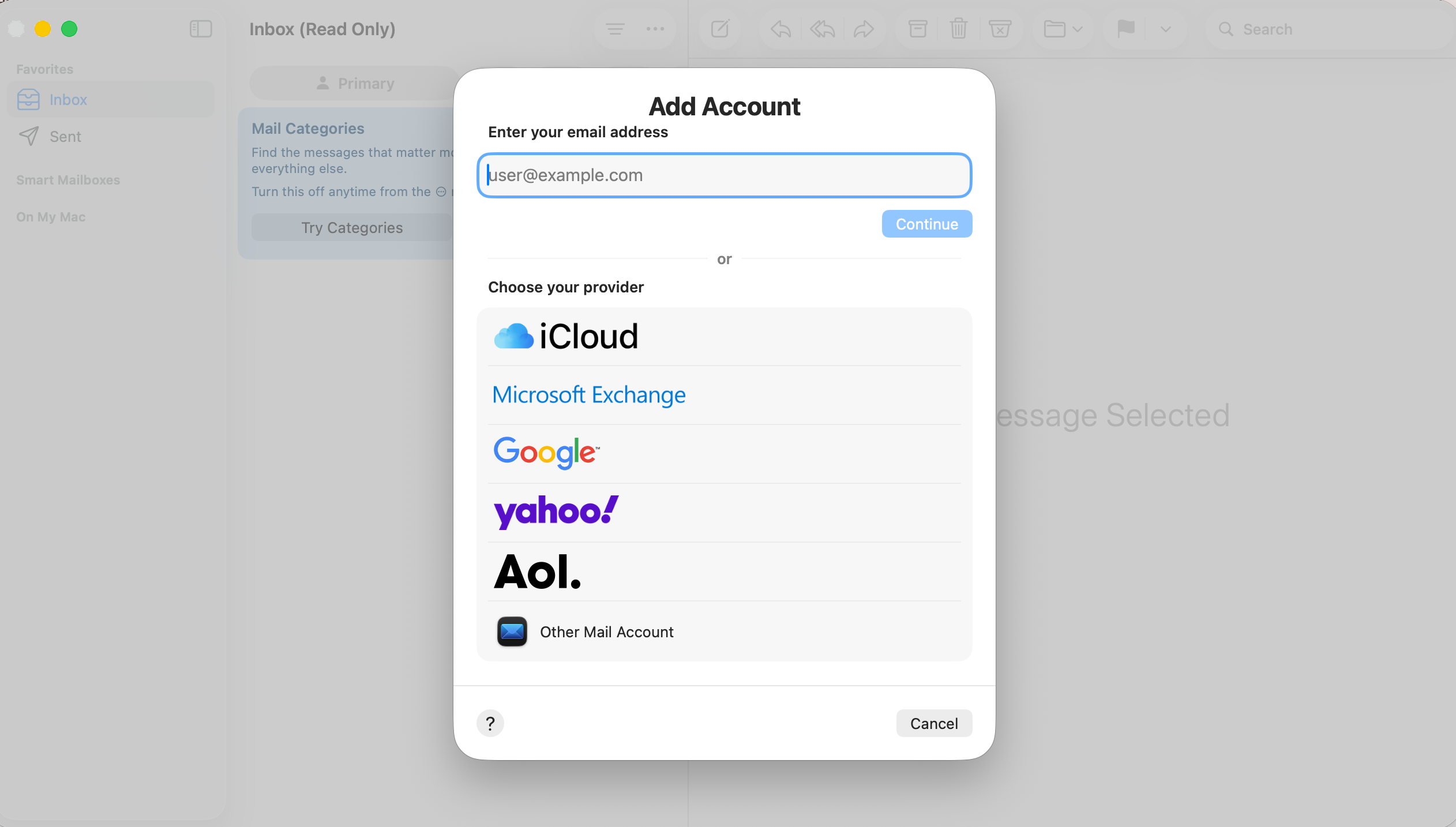
Click on the Mail app from your Dock or open it from the Applications folder. If no accounts are set up yet, the setup window will appear automatically.
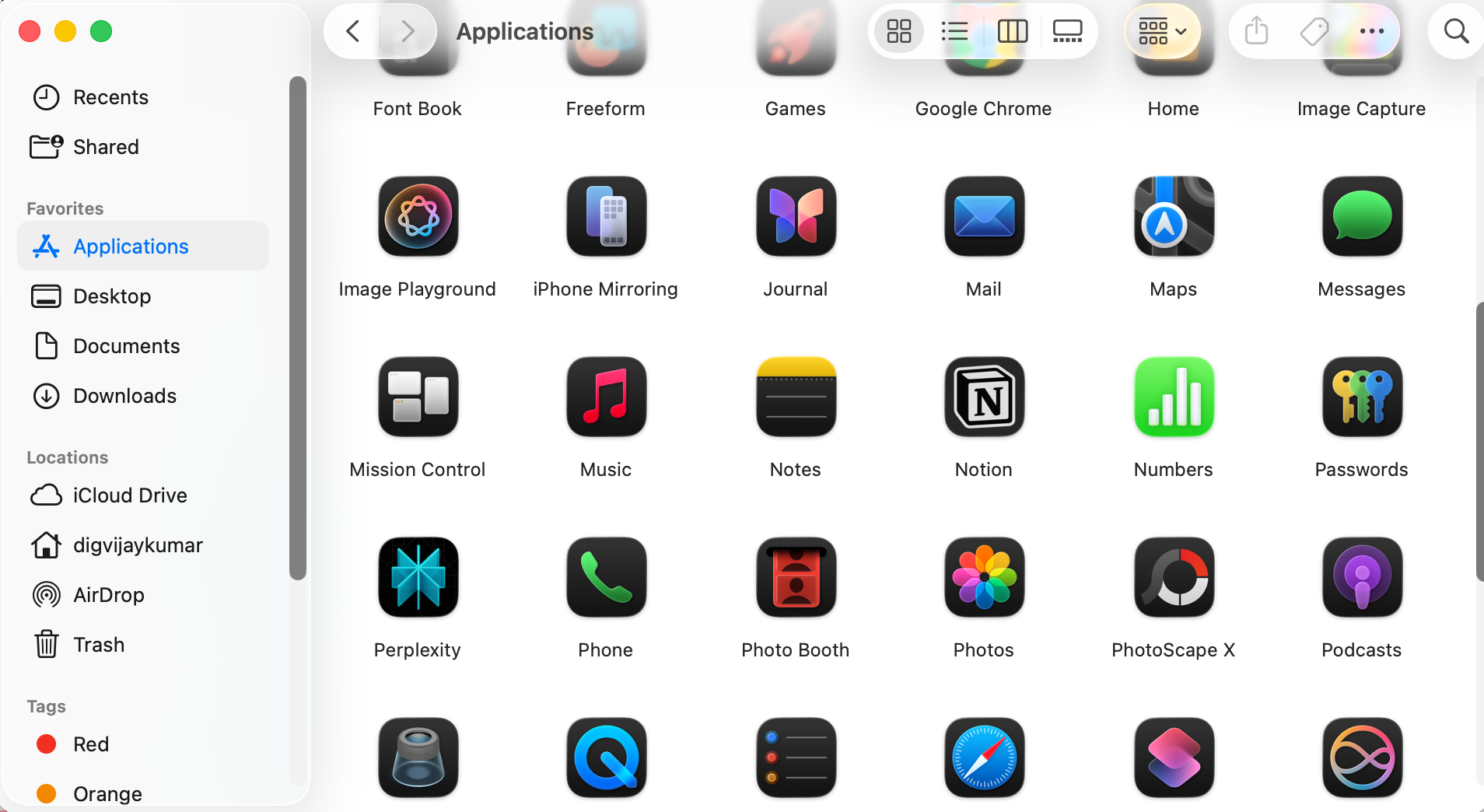
- Select Your Email Provider
Choose your email provider, such as Google, iCloud, Outlook, or Yahoo. If your email isn’t listed, select “Other Mail Account.”
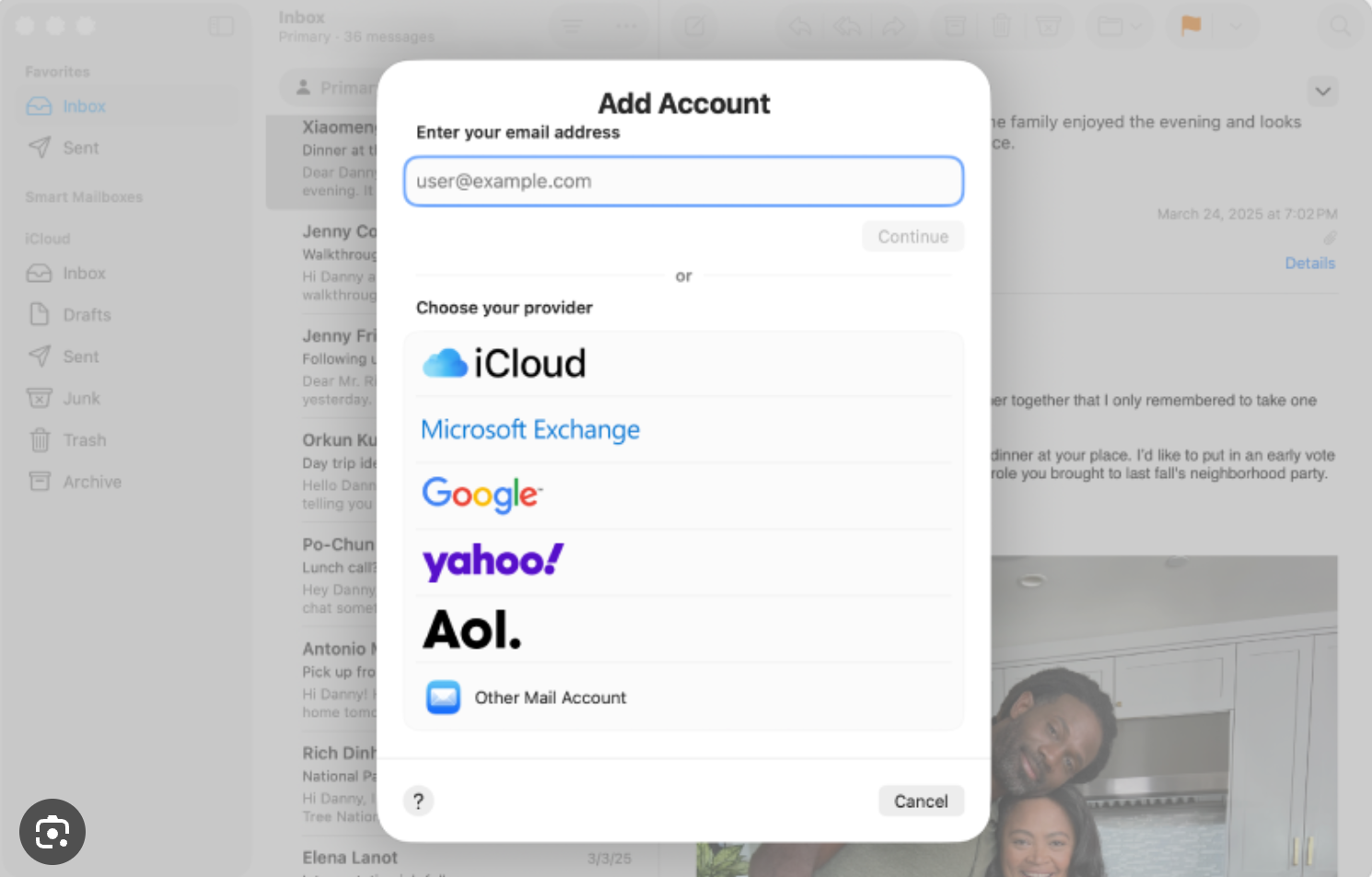
- Sign In to Your Account
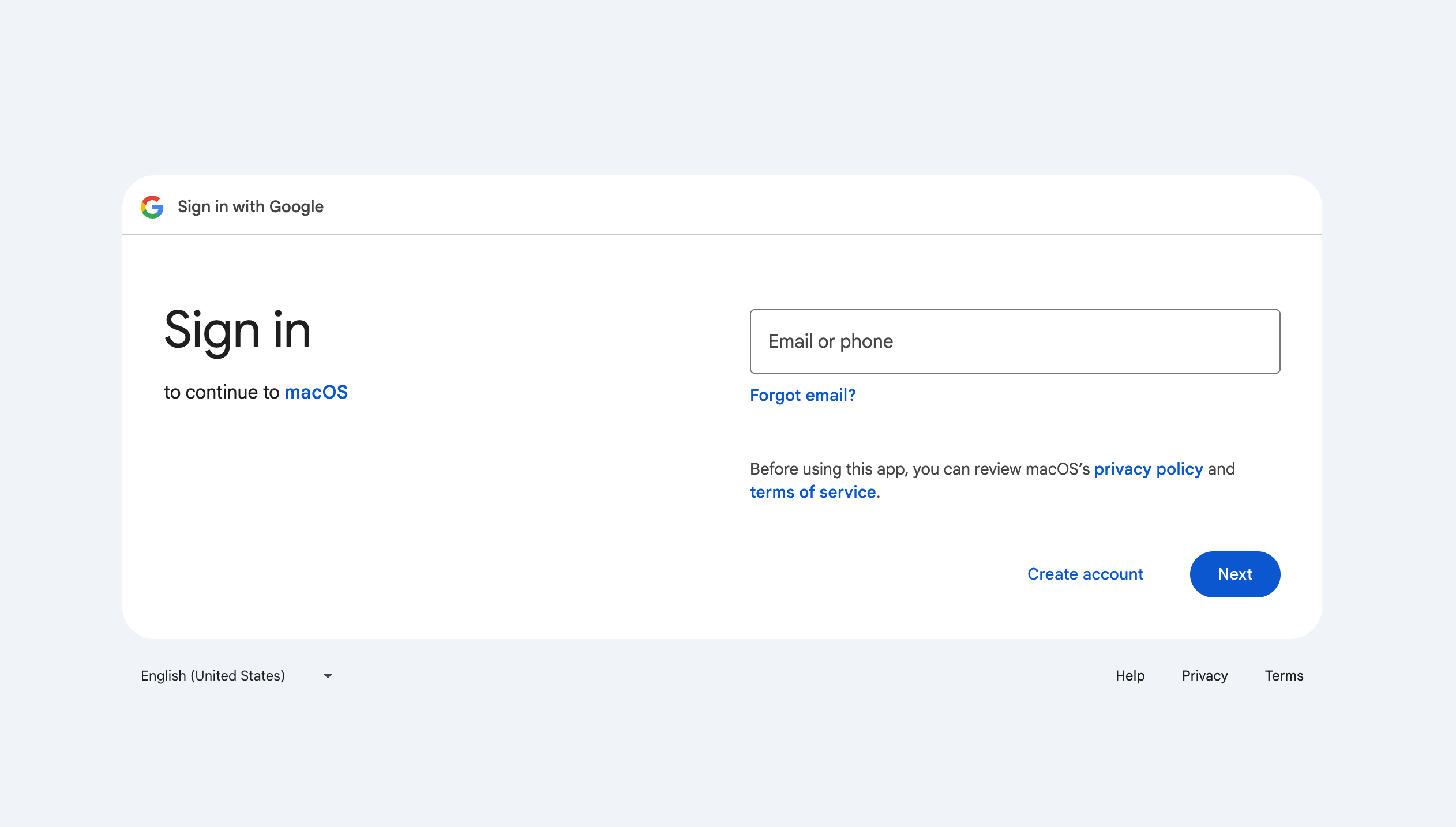
If you’re connecting a Google account, understanding the steps involved in logging into Gmail on a MacBook can help avoid common login interruptions.
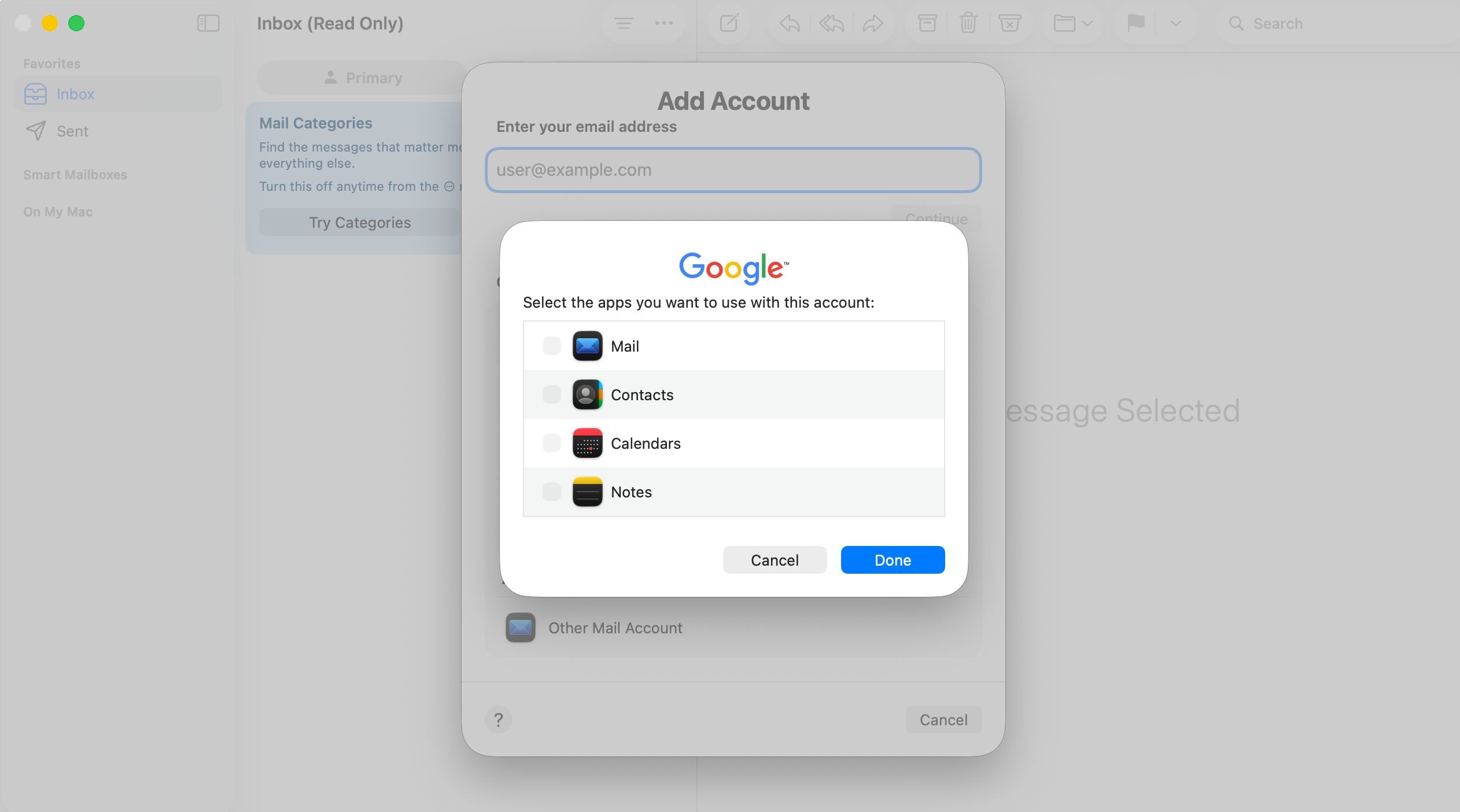
- Choose What to SyncChoose What to Sync
Select the apps you want to use with this account, such as Mail, Contacts, and Calendar. Keeping all options enabled ensures full integration.
- Complete the Setup
Click “Done” to finish. Your inbox will begin syncing automatically in the Mail app.
2. Add Email from System Settings
You can also add your email account through macOS settings, which connects it across multiple apps.
Add Account via Internet Accounts
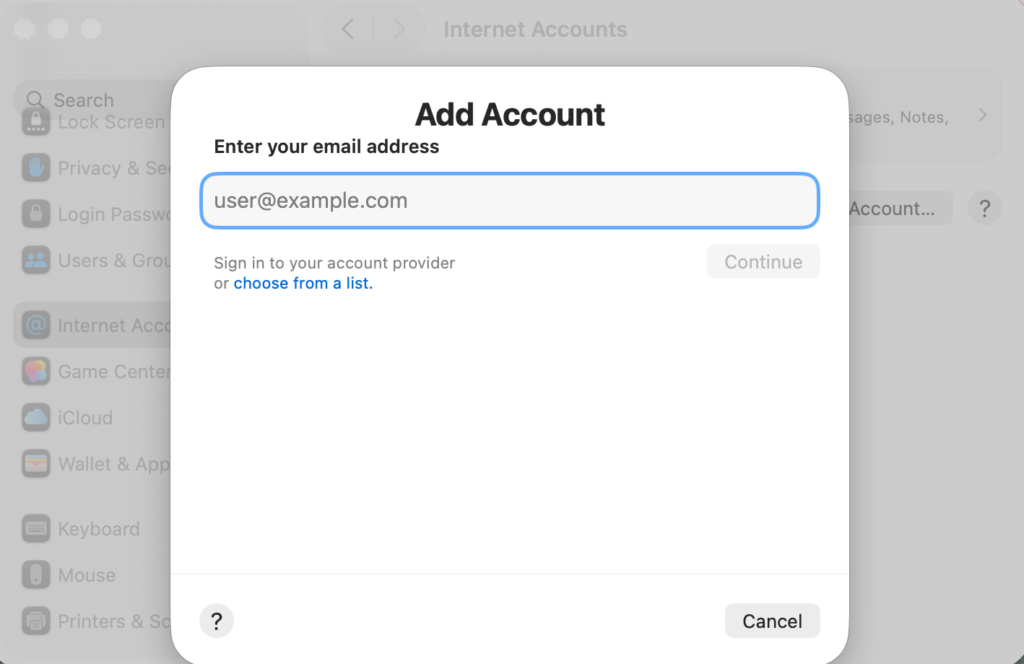
- Open Apple menu > System Settings.
- Click Internet Accounts.
- Select your email provider.
- Sign in and enable Mail.
This approach is useful if you want your email to sync with Contacts and Calendar automatically. The same logic applies across devices, so adding accounts on iPhone or iPad follows a similar process, like when you add an email account to an iPhone or set up an email account on an iPad.
Common Problems When Adding Email to MacBook
Incorrect Email or Password
Entering the wrong credentials is one of the most frequent issues, especially after a password change.
Gmail Not Connecting
Security restrictions or disabled IMAP settings can prevent Gmail from syncing properly.
Emails Not Appearing
This usually happens when sync settings are turned off or when POP is used instead of IMAP.
If Gmail messages are missing or not updating, resolving Apple Mail sync issues with Gmail can restore normal functionality through this solution for Gmail syncing problems.
Fixes and Troubleshooting
Update Your Email Password
If your login fails, updating your credentials across devices is essential. Adjusting your settings as shown when you change your email password on iPhone can prevent repeated login errors.
Enable IMAP
Make sure IMAP is enabled in your email provider’s settings to keep emails synced across all devices.
Remove and Re-Add the Account
Deleting the account and setting it up again often resolves configuration problems.
Check Apple Account Status
Your Apple ID must be properly connected. Signing in correctly ensures smooth syncing, similar to the steps outlined when you sign in to your Apple account.
Keep macOS Updated
Running the latest macOS version helps avoid compatibility issues with email providers.
Helpful Tips for Using Mail on MacBook
- Use IMAP instead of POP for better syncing
- Keep all Apple devices connected to the same accounts
- Enable notifications to stay updated
- Organize emails using folders and filters
- Avoid adding the same account multiple times
Managing multiple Gmail accounts becomes easier when you understand how the login process works across devices, including on mobile, like when you log into Gmail on iPhone.
FAQs?
Select Google when adding an account, sign in through the browser, and allow permissions.
This is usually caused by incorrect credentials, security settings, or outdated software.
IMAP is recommended because it keeps your emails synced across all devices.
Yes, the Mail app supports multiple accounts at the same time.
No, Gmail is configured automatically. Manual setup is only needed for custom domains.
Go to System Settings > Internet Accounts to view and manage all accounts.
By following these steps, you can easily add any email account to your MacBook and keep everything synced across your Apple ecosystem.

0 Comments