How to Fix Touch Bar Not Working in macOS Tahoe 26
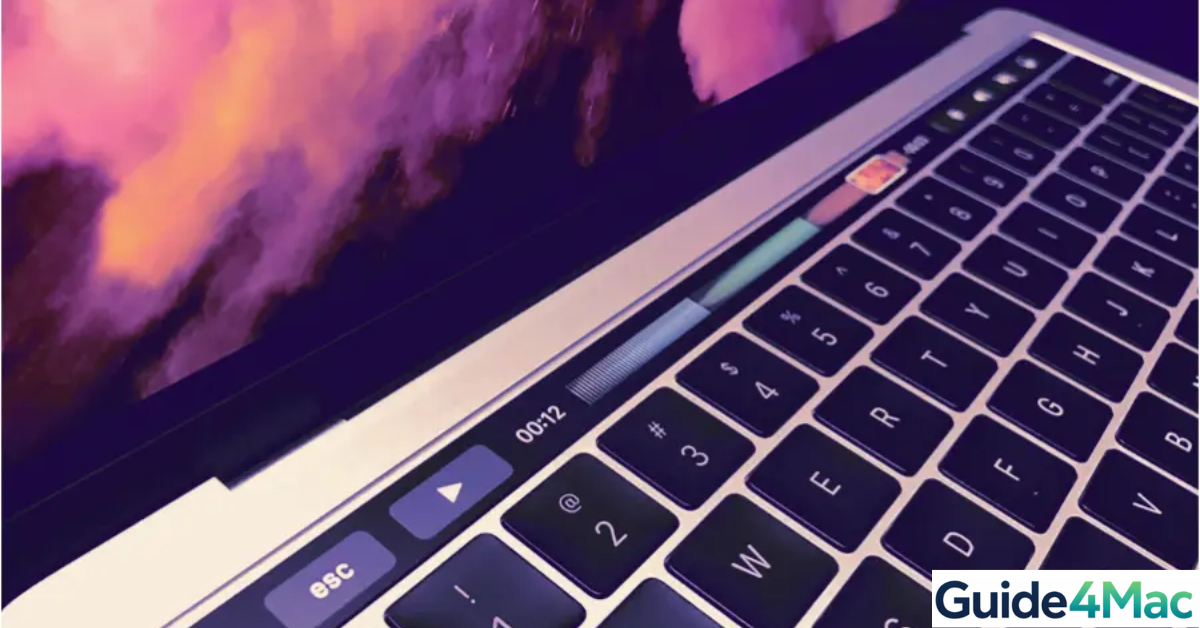
The Touch Bar on MacBook Pro gives quick access to shortcuts, media controls, and function keys, making daily tasks faster. After updating to macOS Tahoe 26, some users notice the Touch Bar becomes unresponsive, flickers, or disappears.
Most of the time, this is software-related—temporary glitches, stuck system processes, or conflicting apps. Below are five practical solutions, each explained in detail so you can restore your Touch Bar quickly.
How to Restart Your Mac
It might seem simple, but restarting your Mac often resolves Touch Bar freezes. This clears temporary caches and restarts the system processes that control the Touch Bar.
- Open Apple Menu
Click the Apple menu in the top-left corner of your screen. This menu contains all system options, including Restart.
- Select Restart
Choose Restart from the dropdown. Your Mac will begin shutting down and then automatically power back on.
- Wait for Mac to Boot
Allow your Mac to finish starting up completely. Once it’s on, give the Touch Bar a few seconds to reload its controls.
Tip: If the Touch Bar still doesn’t respond, try a forced restart. Hold the Power button until the Mac shuts off, then press it again to turn it back on. This clears deeper memory conflicts
1. Relaunch Touch Bar Processes
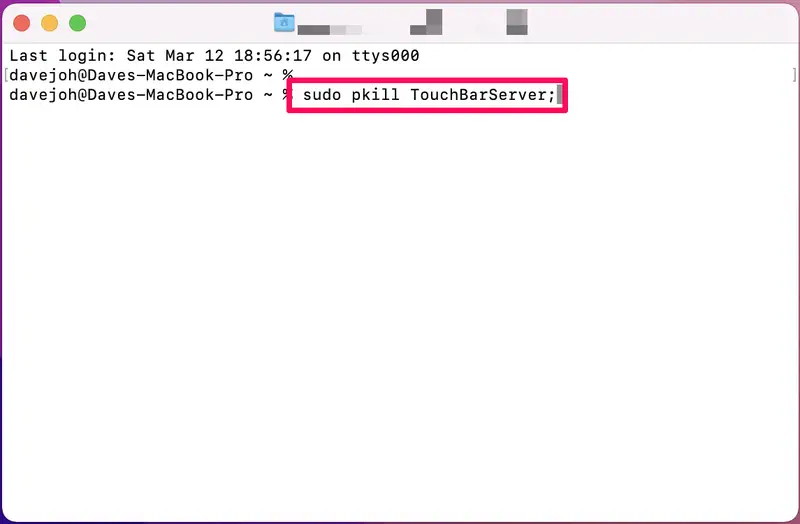
Sometimes the Touch Bar stops working because the background processes that power it—TouchBarServer and ControlStrip—have crashed or stalled. Restarting these processes can reload the Touch Bar without restarting your whole Mac.
- Open Terminal (Applications → Utilities).
- Type the following commands, pressing Enter after each:
sudo pkill TouchBarServer
sudo killall ControlStrip- The Touch Bar will disappear briefly and then reload automatically.
Alternative: Open Activity Monitor, find TouchBarServer and ControlStrip, and quit them manually. The system will restart them automatically.
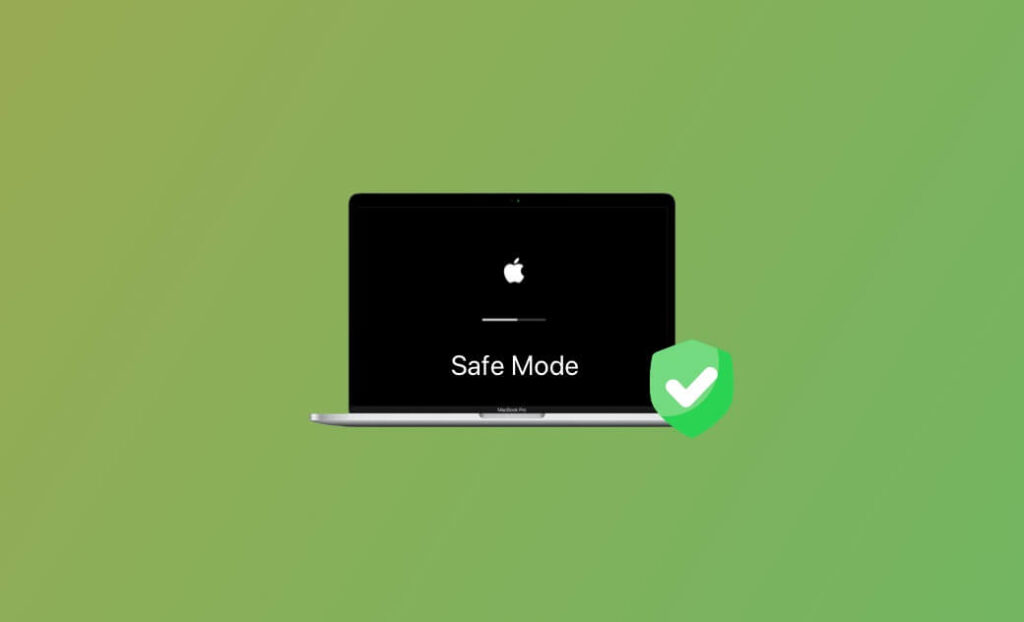
2. Boot in Safe Mode
Safe Mode prevents non-essential apps and processes from running, clearing cached system data that can interfere with the Touch Bar. This method is useful if a software conflict is causing repeated issues.
Apple Silicon Macs:
- Shut down your Mac.
- Hold the Power button until startup options appear.
- Select your startup disk while holding Shift.
- Click Continue in Safe Mode.
Intel Macs:
- Power on your Mac.
- Immediately hold Shift until the login screen appears.
- Use your Mac normally in Safe Mode for a few minutes, then restart it normally to exit Safe Mode.
3. Reset SMC and NVRAM (Intel Macs Only)
The System Management Controller (SMC) and NVRAM manage low-level hardware functions, including the Touch Bar. Resetting them can resolve unresponsive or flickering Touch Bar issues.
- Shut down your Mac completely.
- Press Option + Command + P + R simultaneously and hold for ~20 seconds.
- Release the keys after the Apple logo appears twice.
- Allow your Mac to finish booting and check the Touch Bar.
Tip: Resetting NVRAM and SMC does not delete personal files—it only refreshes system-level settings like volume, display, and Touch Bar behavior.
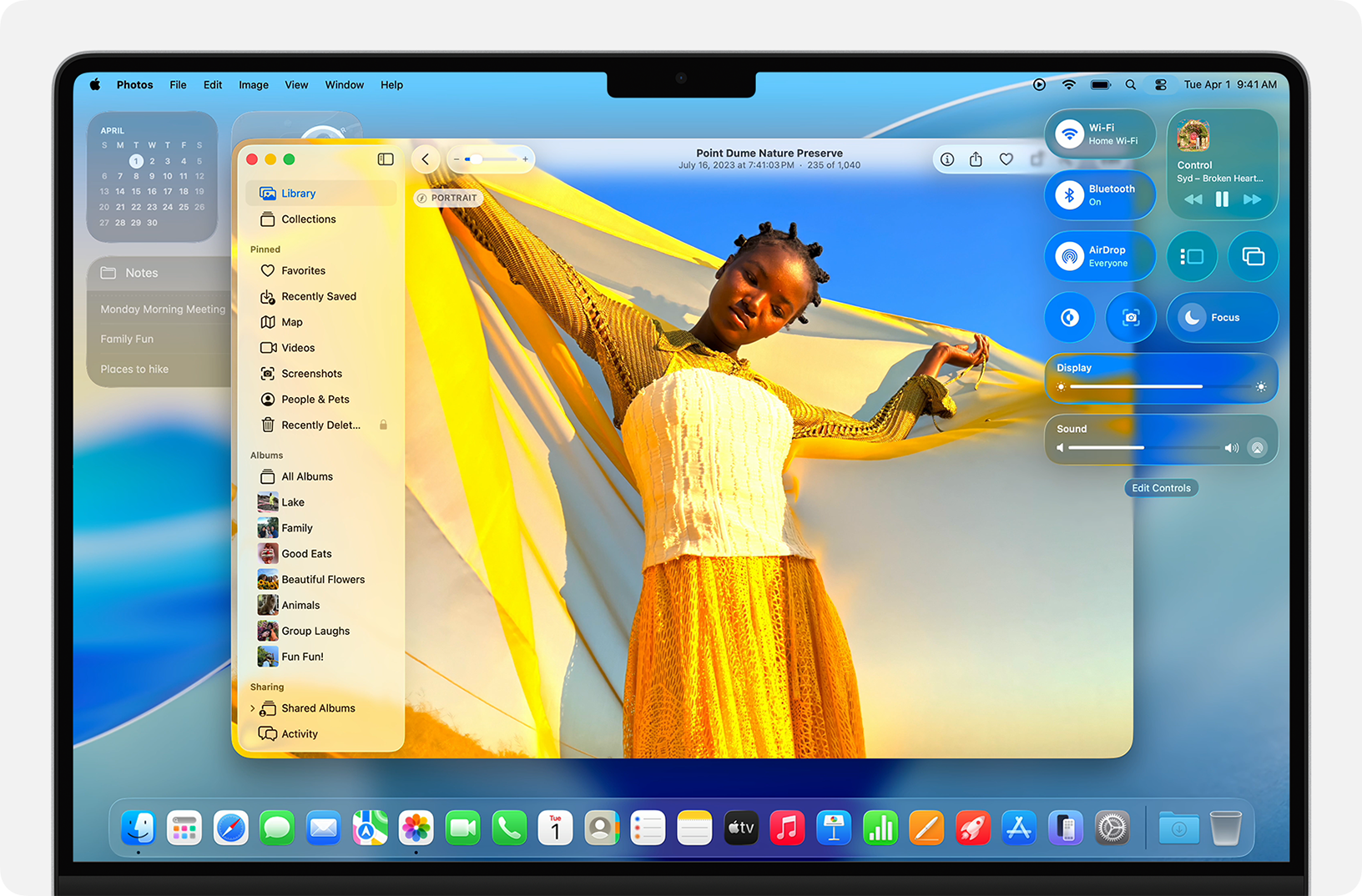
4. Reinstall macOS Tahoe
If all else fails, corrupted system files might be preventing the Touch Bar from working. Reinstalling macOS Tahoe can restore these files without erasing your data.
- Back up your Mac to Time Machine or another backup method.
- Open System Settings → General → Software Update → Reinstall macOS Tahoe.
- Follow the on-screen instructions to reinstall macOS.
Alternative Methods
- Check Keyboard & Touch Bar Settings: System Settings → Keyboard → Touch Bar → Ensure “Expanded Control Strip” or “App Controls” is selected.
- Remove Conflicting Apps: Uninstall or update apps installed recently that might modify macOS interface.
- Re-add Email Accounts: If apps like Mail are affected, remove and re-add accounts using guides like iPad Email Setup or Mac Email Setup.
Common Problems
- Touch Bar blank or flickering
- Volume, brightness, or media controls unresponsive
- Touch Bar disappears after login
- Function keys not appearing correctly
Tips to Prevent Touch Bar Issues
- Keep macOS updated to the latest minor releases
- Restart your Mac regularly to maintain stability
- Avoid running heavy tasks immediately after updates
- Use official Apple or MFi-certified accessories
- Customize the Touch Bar to remove unnecessary controls for faster reload
FAQs (People Also Ask)
Software glitches or corrupted caches are usually the cause in macOS Tahoe 26.
Almost always not. The issue is software-related.
Yes. Press Fn or the Globe key to access standard function keys.
Yes. Remove or update apps may modify the system interface.
Only if the Touch Bar remains unresponsive after trying all solutions.


0 Comments