Fixed: Apple Mail Not Syncing with iCloud?
Here’s a quick fact most people don’t realize: over 850 million users rely on iCloud, and for many of them, iCloud Mail is the backbone of daily communication across iPhone, iPad, and Mac. So when emails suddenly stop syncing, it feels like your entire workflow breaks. If you’re also using other services, like Gmail or Yahoo Mail, syncing problems can compound, making it even more frustrating.
Luckily, iCloud Mail issues are usually not complicated. Unlike Gmail or Outlook, iCloud works at a system level, which means most problems come down to a setting, an Apple ID issue, or a temporary sync glitch. Once you check the right things, your email usually starts working again within minutes.
How to Fix Apple Mail Not Syncing with iCloud?
1. Enable iCloud Mail in Settings
Time needed: 4 minutes
Apple Mail relies on iCloud Mail being enabled at the system level. If this setting is turned off, your emails will not sync at all.
- Open iCloud Settings
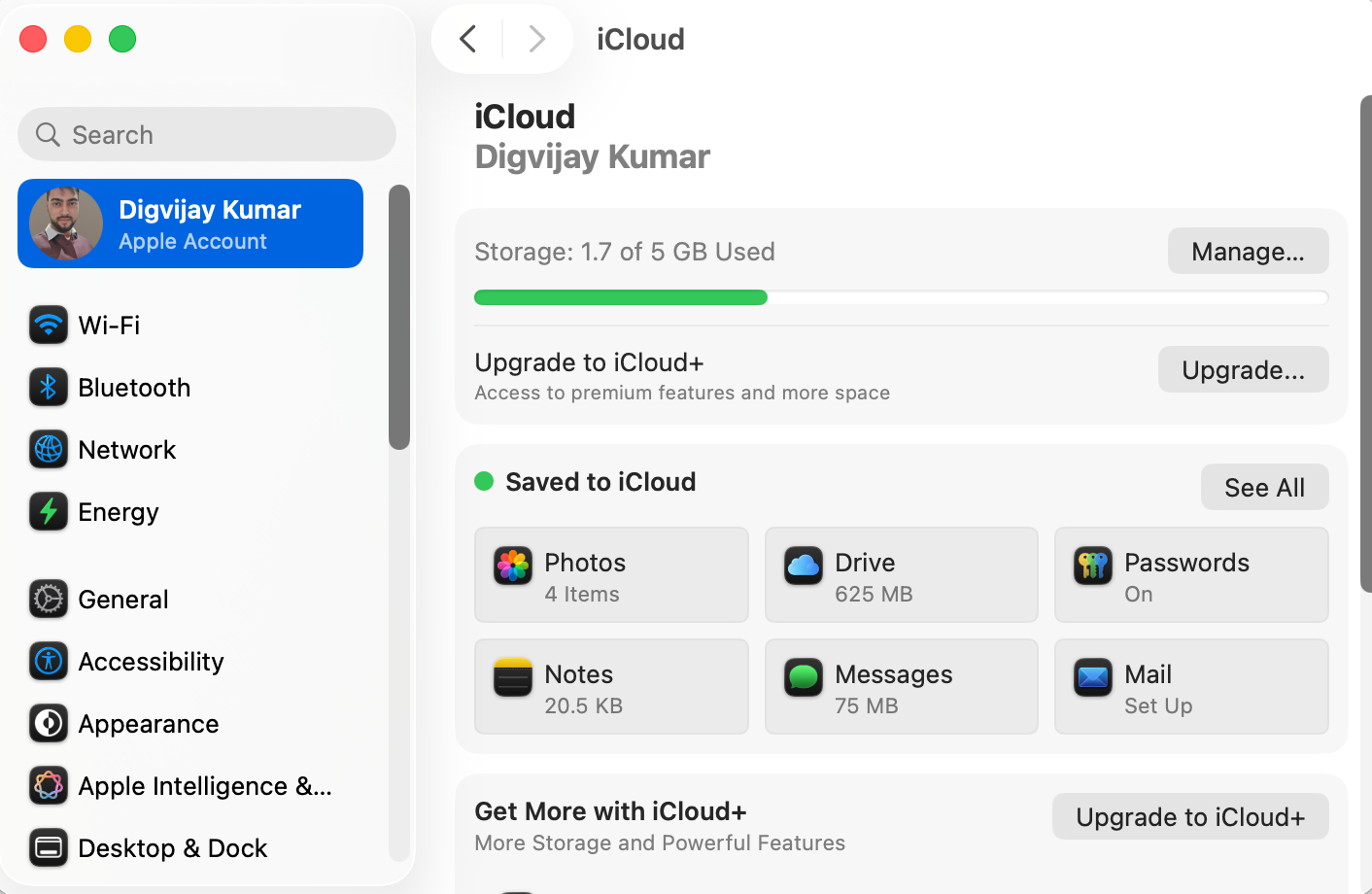
On iPhone or iPad, go to Settings → tap your name → iCloud. On Mac, go to System Settings → Apple ID → iCloud.
- Turn ON Mail
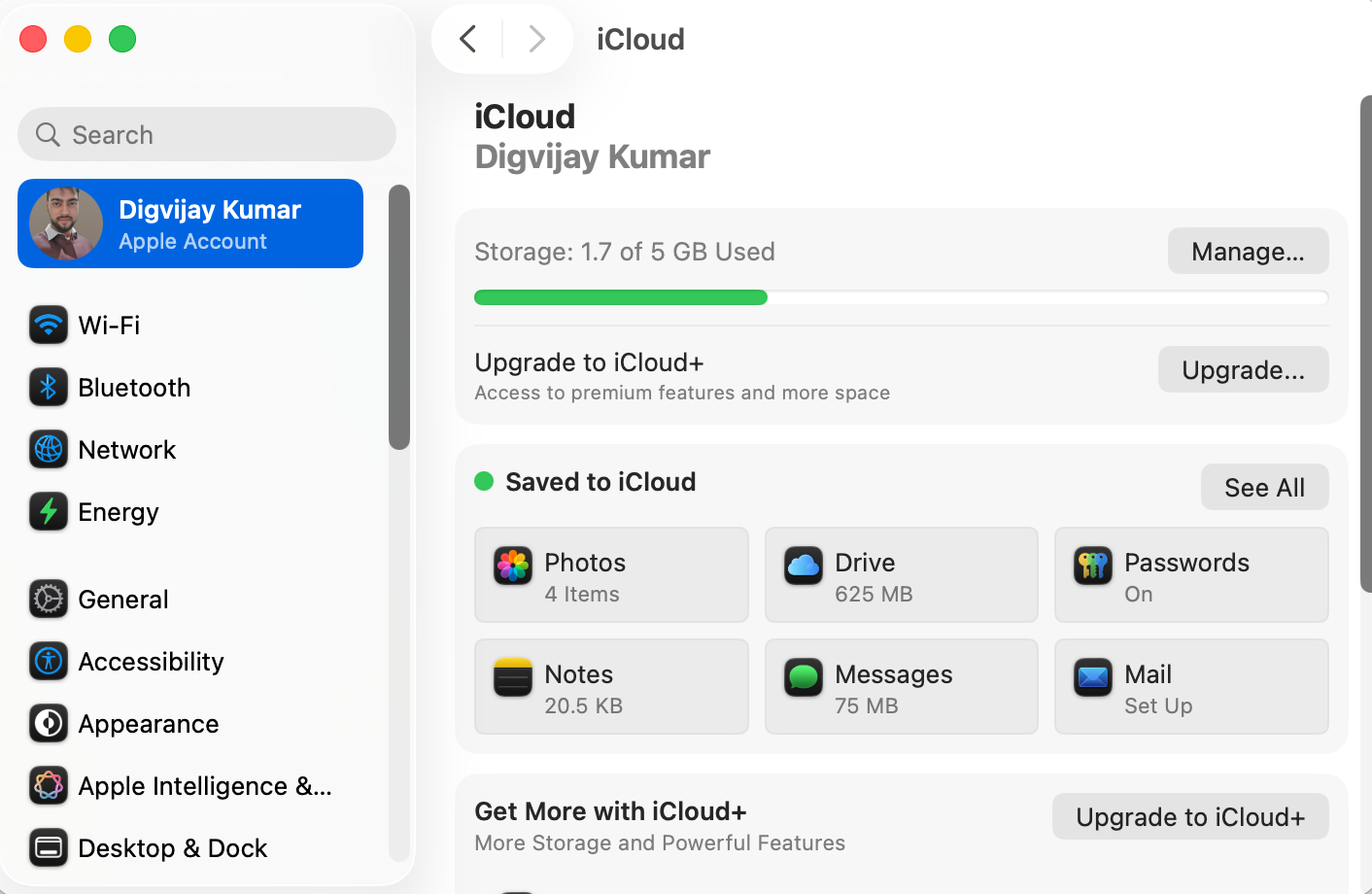
Find Mail in the list and toggle it ON.
- Wait for Sync to Resume
Open Apple Mail and allow a few seconds for your inbox to refresh.
- Verify Apple ID Connection
Make sure you are signed in correctly. If needed, you can follow steps to sign in into your Apple account again.
2. Check Your Apple ID Connection
Sometimes iCloud Mail stops syncing because your Apple ID session is not fully authenticated. This often happens after password changes, device restarts, or system updates. Making sure your Apple ID is correctly signed in can restore full sync functionality. Additionally, certain apps and services may fail silently if the Apple ID authentication is broken, so resolving this often fixes multiple issues at once.
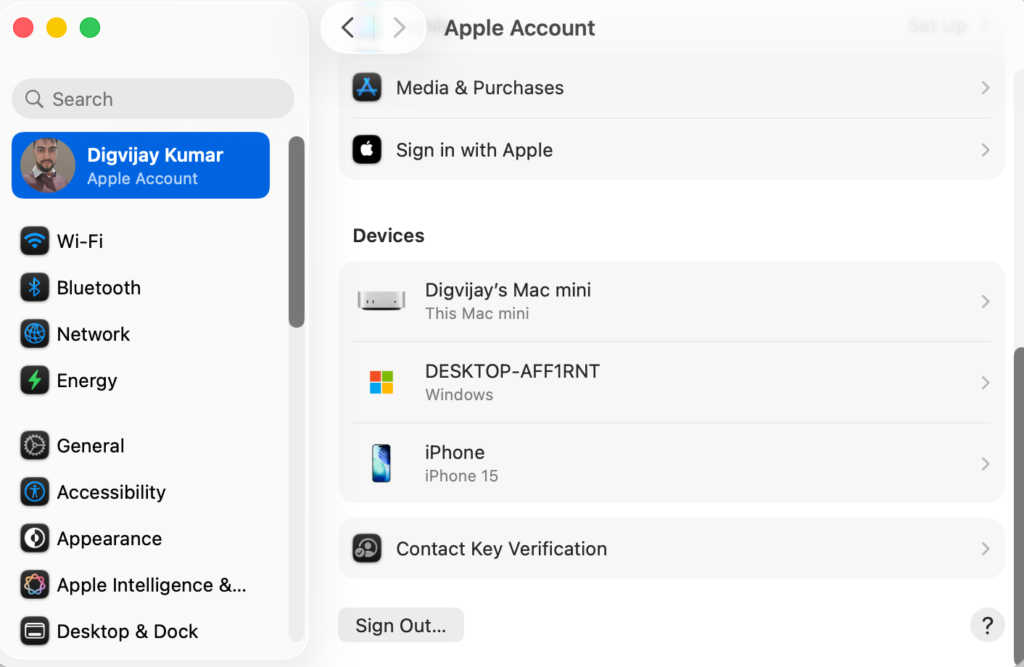
- Go to Settings → [Your Name] and confirm you are signed in
- Sign out and back in if needed
- Make sure your credentials are up to date, especially if you recently changed them
- If you need help managing email accounts on your device, you can also check how to add an email account to iPhone or add an email account to Mac
3. Restart Apple Mail and Your Device
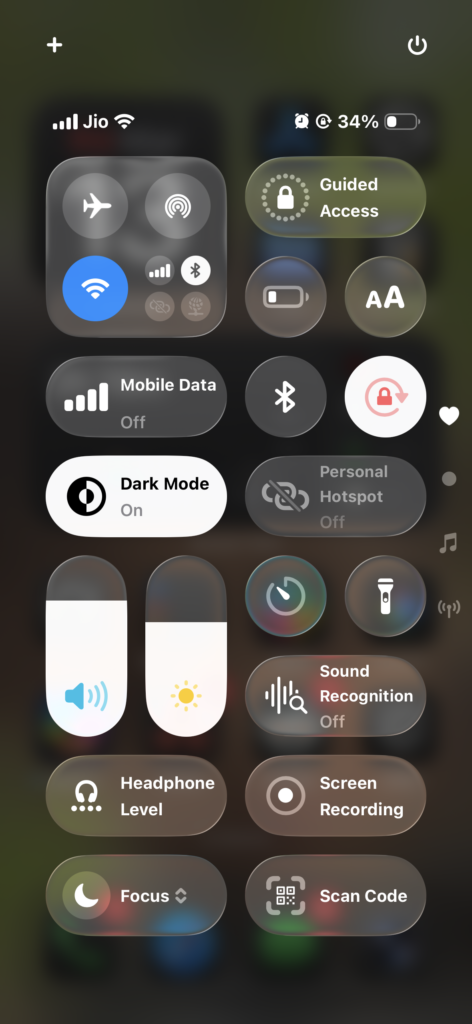
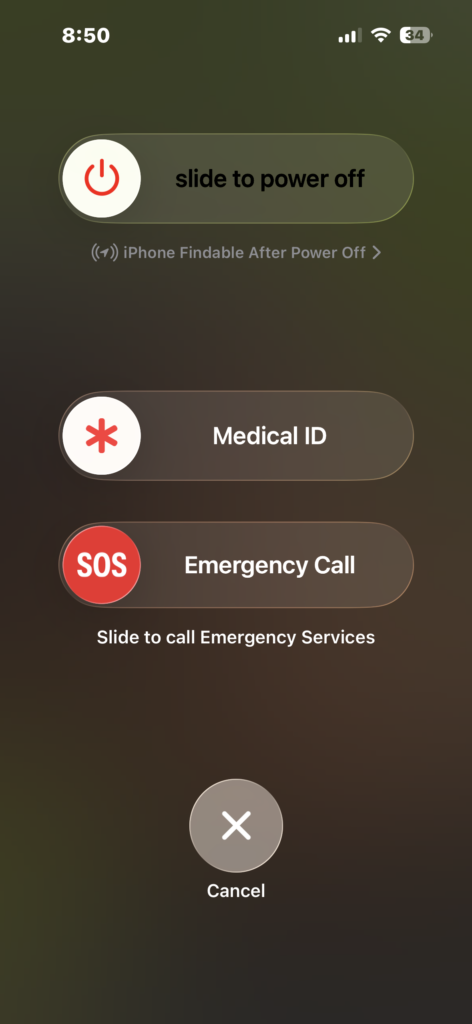
Restarting is more than a simple refresh: it clears temporary caches, resets background services, and forces Mail to reconnect to iCloud servers. This method often resolves stuck messages, slow syncing, or missing emails without altering any settings.
- Force close the Mail app.
- Reopen it after a few seconds.
- Restart your iPhone, iPad, or Mac.
4. Check Apple System Status
Before diving into device settings, it’s important to confirm that the issue is not on Apple’s end. iCloud Mail outages or maintenance can temporarily stop syncing. Checking the Apple System Status ensures you’re troubleshooting a device-specific problem rather than waiting for a server-side fix.
- Look for iCloud Mail
- If it is not green, wait until the service is restored
5. Check Your Internet Connection
A stable internet connection is crucial for iCloud Mail to sync in real-time. Weak Wi-Fi, mobile data issues, or VPN interference can prevent Apple Mail from updating, even if all settings are correct. Testing your connection ensures that the problem is not network-related before applying more complex fixes.
- Switch between Wi-Fi and mobile data
- Restart your router if needed
- Disable VPN temporarily
- Test other apps to confirm connectivity
6. Enable Background App Refresh
If emails only update when you open the app, it could be because Background App Refresh is disabled. Enabling this feature allows Apple Mail to fetch new messages in the background, ensuring timely updates across all devices. This can significantly improve the consistency of push notifications for iCloud Mail.
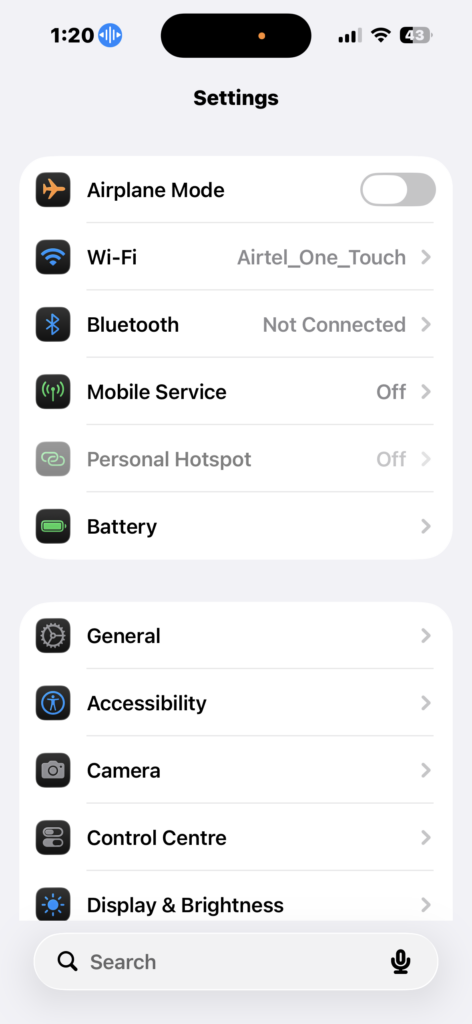
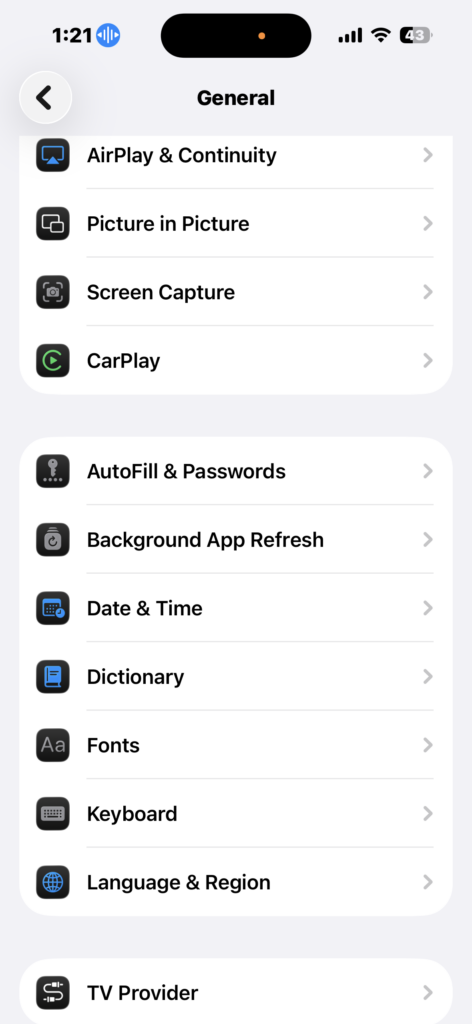
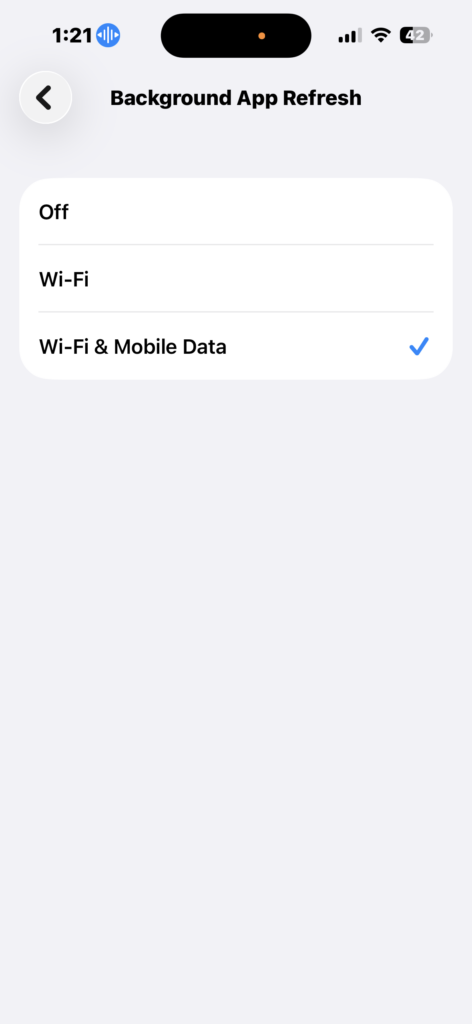
- Go to Settings → General → Background App Refresh.
- Turn it ON.
- Ensure Mail is allowed to refresh in the background.
7. Update iOS, iPadOS, or macOS
Outdated software can introduce bugs that affect iCloud Mail syncing. Installing the latest updates ensures compatibility with Apple’s servers and resolves known issues. Updates often include improvements to Mail, iCloud, and overall system stability.
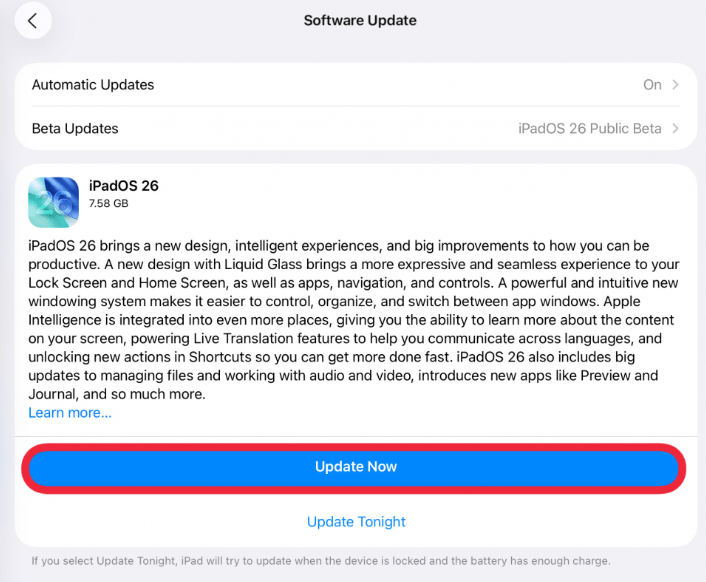
- On iPhone/iPad → Settings → General → Software Update.
- Install any available updates.
- On Mac → System Settings → Software Update.
8. Check iCloud Storage
A full iCloud storage account can prevent Mail from syncing new messages. Emails, attachments, and even small system files can fill up your iCloud space, causing Apple Mail to stop updating. Checking and managing your storage ensures your mailbox has room to receive new messages.
- Go to Settings → [Your Name] → iCloud → Storage
- Free up space by deleting files or upgrading your plan
- Open Mail again and check if syncing resumes
Common Problems
- iCloud emails not appearing in Apple Mail
- Inbox not updating automatically
- Emails missing on one device but visible on another
- Mail app stuck loading
Fixes / Troubleshooting
- Enable iCloud Mail in settings
- Sign out and back into your Apple ID
- Check Apple System Status
- Verify internet connection
- Restart your device after changes
Tips
Keeping iCloud Mail working smoothly is usually about maintaining a few simple settings.
- Always keep iCloud Mail enabled in settings
- Keep your Apple ID signed in and updated
- Ensure Background App Refresh is active
- Check storage regularly to avoid sync interruptions
- Similar syncing issues can also happen with Gmail, Yahoo Mail, or Hotmail accounts when settings or authentication break
- If you recently changed your email password, see how to change email password on iPhone to avoid syncing errors
Apple Mail and iCloud are designed to work seamlessly together. By checking your iCloud settings, Apple ID, and storage, you can quickly restore reliable email syncing across all your devices.
FAQs?
This usually happens because iCloud Mail is disabled, your Apple ID is not properly connected, or there is a temporary system issue.
Enable iCloud Mail, restart your device, and check your internet connection.
Yes, if your iCloud storage is full, new emails may not be received or synced.
No, iCloud Mail works through Apple ID integration and does not require manual IMAP setup.
This is usually caused by iCloud sync being disabled or a connection issue on that specific device.
Yes, updates can reset settings or cause temporary bugs that affect syncing.

0 Comments