How to Get Apple Music for Free in 2026: The Ultimate Guide
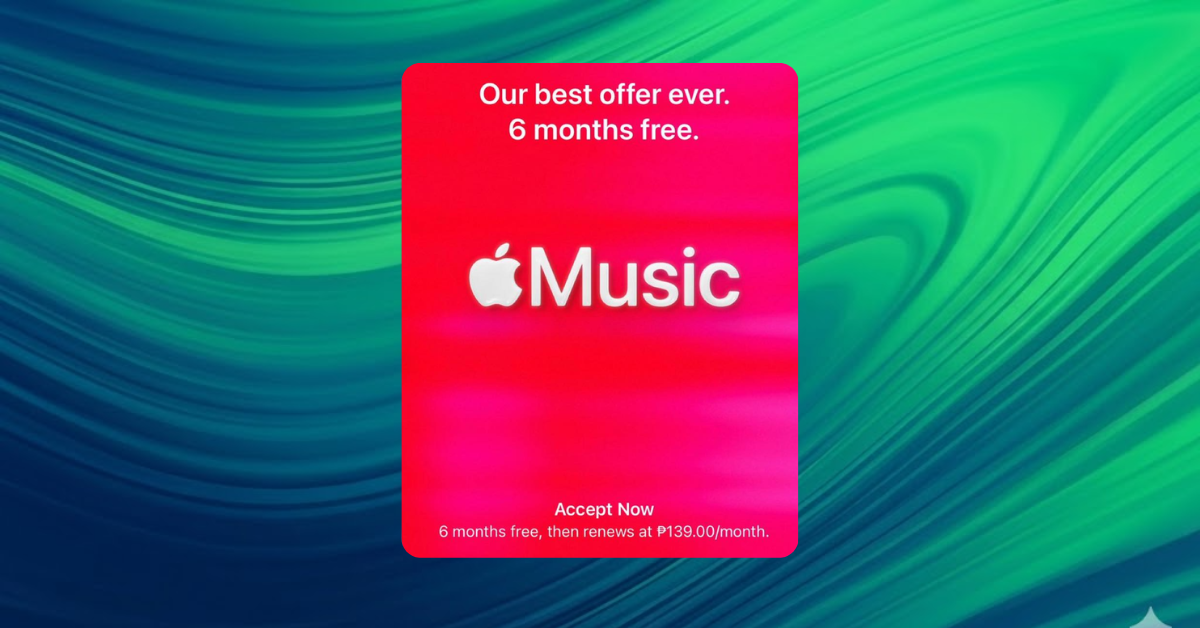
Apple Music has grown into a powerhouse of over 100 million songs. However, with subscription prices reaching $10.99/month, finding a free path is more important than ever. Whether you’ve just bought a new device or are a returning user, here are the most effective, tested ways to get Apple Music for free in 2026.
1. The “New Device” Goldmine (6 Months Free)
Apple’s most generous offer is reserved for those who purchase eligible hardware. If you’ve recently bought audio gear or an iPhone, you likely have a half-year of free music waiting.
- 6 Months Free: Pair eligible devices like AirPods (2nd/3rd Gen), AirPods Pro, AirPods Max, HomePod, or Beats headphones.
- 3 Months Free: Included with any new iPhone, iPad, Apple TV, or Mac.
- Crucial: You must claim this within 90 days of first pairing your device.
2. Best Buy & Target Promos (Up to 4 Months)
Retailers like Best Buy and Target often offer free Apple Music codes to drive traffic to their apps.
- Best Buy: Frequently offers 3 to 4 months free for new subscribers and often up to 3 months for “qualified returning subscribers”.
- Target Circle: Members can often find 2-month free trials within the “Partner Offers” section of the Target app.
3. The “Shazam” Trick (2 Months Free)
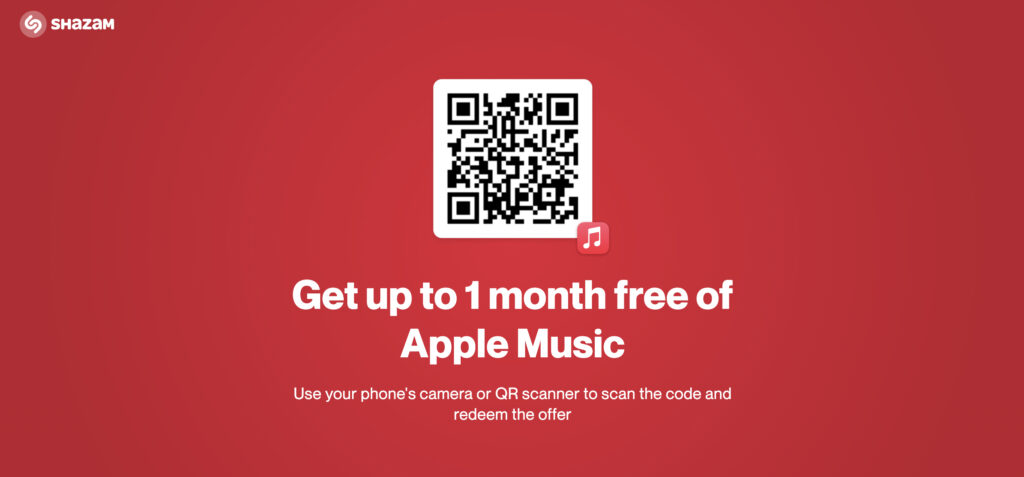
Shazam (owned by Apple) is a consistent source for trials. While the standard offer is currently 1 to 2 months, it periodically resets, allowing you to claim it multiple times a year.
- Go to shazam.com/applemusic on a computer.
- Point your iPhone camera at the QR code and scan it.
- Tap the notification to open Apple Music and confirm your free months.
Pro-Tip: If the offer doesn’t appear, identify a song using the Shazam app first. Once identified, a “Try it Free” banner usually appears directly under the song title in your history
Claiming Your 6-Month Trial:
Time needed: 5 minutes
If you recently bought AirPods or a HomePod, follow these steps to ensure you don’t miss the 6-month window.
Tools: iPhone/iPad and eligible Audio Device
- Update Your Software
Ensure your iPhone or iPad is running the latest version of iOS or iPadOS. This ensures the “handshake” between your hardware and the Music app is recognized.
- Pair Your Device
Connect your AirPods, Beats, or HomePod to your iPhone. Make sure they are active and currently selected as the audio output.
- Open Apple Music
Launch the Apple Music app. If the offer doesn’t pop up immediately, tap the “Home” or “Listen Now” tab at the bottom.
- Redeem the Offer
Look for the banner that says “Get 6 months free.” Tap it, verify your Apple Account with Face ID or your passcode, and your subscription starts immediately.
Apple Music lets you enjoy your favorite tracks anywhere, whether you’re streaming online or listening offline. By mastering the bulk download process, you can ensure your music keeps playing even when Wi-Fi isn’t available and enjoy it.
FAQs?
Yes, but usually only through partner offers. Best Buy, Shazam, and PlayStation 5 (offer valid through March 18, 2026) often allow “qualified returning subscribers” to get 2–3 months free.
While not “free,” the Student Plan ($5.99/mo) is the best value as it includes Apple TV+ for free as part of the bundle.
If you cancel, you lose access to your music at the end of the billing cycle. Apple generally keeps your library data for 90 days; if you don’t resubscribe by then, your playlists may be permanently deleted.

0 Comments