How to Download All Apple Music Songs on iPhone, iPad, and Mac
Downloading all Apple Music songs at once is something many users expect, but Apple doesn’t offer a direct “Download All” button. Instead, you need to rely on Sync Library, playlists, or bulk selection. Once set up correctly, you can make your entire Apple Music library available offline across all Apple devices in just a few minutes.
Download All Apple Music Songs (Best Working Method)
Time needed: 10 minutes
This method lets you download your entire Apple Music library by enabling Sync Library and using bulk download tools on Mac or synced playlists on iPhone and iPad.
- Enable Sync Library on All Devices
Go to Settings > Music and turn on Sync Library.
On Mac, open the Music app > Settings > General and enable Sync Library. This ensures your full Apple Music catalog is shared across all devices. If you’re not signed in correctly, you may need to check your Apple account setup. - Open Your Music Library
Go to the Music app and tap or click Library.
Wait a few moments until all your songs, albums, and playlists fully load. This step is important because Apple Music needs to sync your full collection before downloading.
- Select Your Entire Library (Mac Method)
On Mac, open Songs under Library.
Press Command + A to select all songs in your library. This is the fastest way to prepare everything for bulk download. - Download All Songs
Select all your Favorite Songs in one folder, now click Download ( ↓ ).
Apple Music will start downloading everything for offline use. Depending on your library size, this may take some time.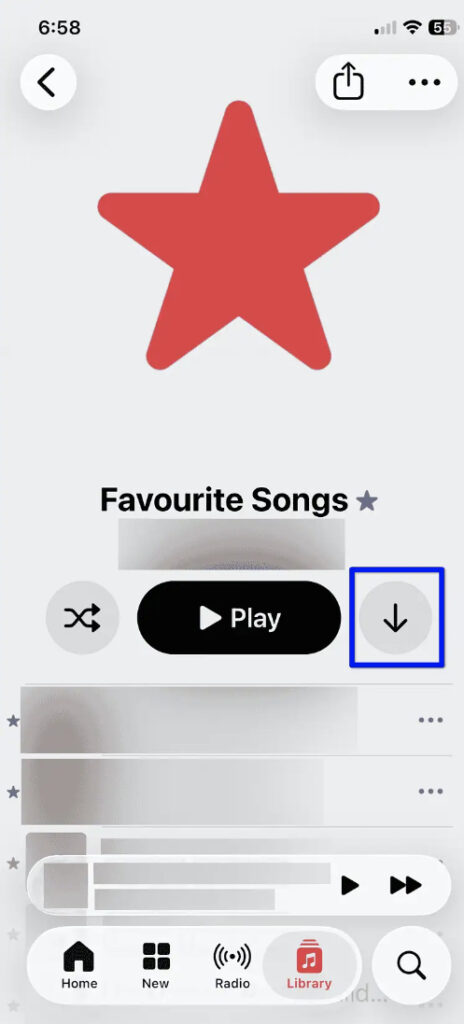
- Enable Automatic Downloads (Optional)
Go to Settings > Music and turn on Automatic Downloads.
This ensures that any new song you add is automatically downloaded without repeating the process.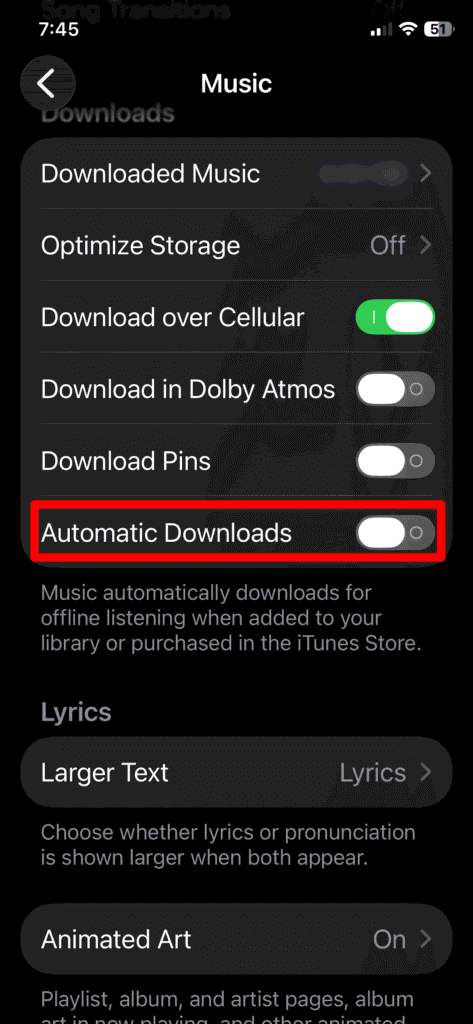
Alternative Methods to Download All Apple Music Songs
If the main method doesn’t fully work for your setup, here are other reliable options.
Method 1: Create a Master Playlist
Go to Library and add all songs into one playlist, then open it and tap Download.
This method is especially useful on iPhone and iPad when bulk selection is not available.
Method 2: Use Mac Bulk Selection
On Mac, open Music app > Songs.
Press Command + A, then right-click and choose Download. This is the fastest and most complete method.
Method 3: Re-Sync Your Library
If songs are missing, go to Settings > Music and toggle Sync Library off and on again.
If account issues persist, check your Apple sign-in.
Fixes and Troubleshooting
If Apple Music is not working properly, try these fixes:
- Restart the Music app and your device
- Re-enable Sync Library in settings
- Sign out and back into your Apple ID
- Check iPhone or iPad storage
- Reset Wi-Fi connection if downloads freeze
Tips for Managing Offline Apple Music
To keep your offline library clean and efficient:
- Always download using Wi-Fi
- Keep enough storage space free
- Use Mac for large library management
- Clean unused playlists regularly
- Keep Sync Library enabled on all devices
If you use multiple Apple devices, proper account setup helps avoid sync issues.
FAQs (People Also Ask)
No, Apple doesn’t offer a one-click option. You must use Mac bulk selection or playlists as shown in the solution 1.
Only while your subscription is active.
If your Apple Music subscription expires, all downloaded songs will remain on your device but will become unplayable and eventually be removed by the system to free up space.
Use Mac Music app, select all songs, and click Download.
Yes, offline music is stored locally on your device.
Remember, Apple Music doesn’t include a direct “download everything” button, but with Sync Library and Mac bulk selection, you can still make your entire music library available offline quickly and reliably across all Apple devices.


0 Comments