iPhone Stuck on Do Not Disturb? Fix It Fast
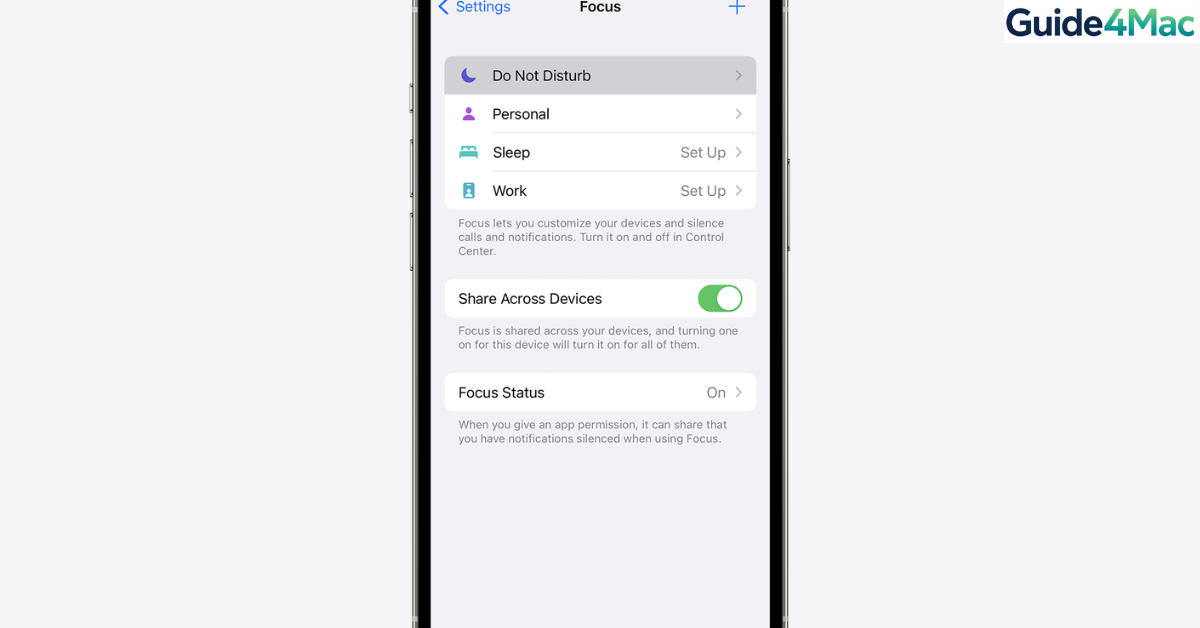
If your iPhone can’t turn off Do Not Disturb, notifications, calls, and alerts may stay silenced even when you toggle the setting off. This issue usually happens because of Focus automations, schedules, or device syncing that keeps turning the feature back on.
In this guide, you’ll learn several ways to fix Do Not Disturb stuck on iPhone. We will check manual toggles, Focus automations, Smart Activation, and syncing across Apple devices. If notifications are still blocked afterward, you will also see a few advanced troubleshooting steps.
If the issue is affecting incoming calls or alerts, it can sometimes look like your phone is malfunctioning. In some cases, problems with notifications are also linked to other iPhone issues such as when your device does not ring for incoming calls.
Why Is Your iPhone Stuck on Do Not Disturb?
Do Not Disturb is part of the Focus system introduced in iOS 15. Focus modes allow your iPhone to silence notifications depending on your schedule, location, or activity.
If you cannot turn it off, the problem is usually caused by one of these triggers:
• A Focus mode manually enabled in Control Center
• A scheduled automation turning it on again
• Smart Activation predicting when to enable it
• Focus syncing across devices like Mac or iPad
• A software glitch or outdated iOS version
Fixing the issue usually takes only a few minutes once you locate the trigger.
1. Check if Do Not Disturb Is Manually Enabled
The simplest reason your iPhone stays in Do Not Disturb is that it was manually enabled from the Control Center.
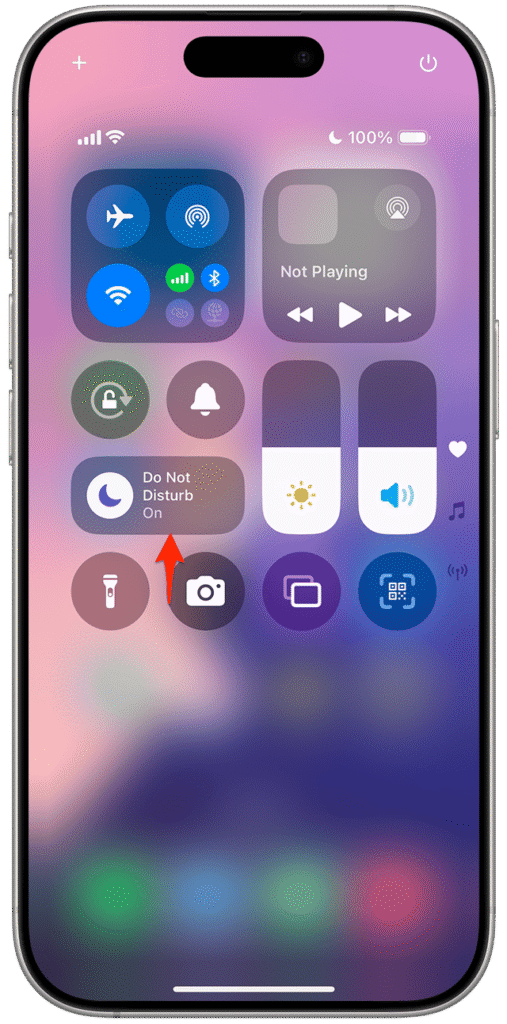
- Swipe down from the top right corner of the screen.
- Open Control Center.
- Find the Focus icon with the crescent moon.
- Tap the icon if Do Not Disturb is highlighted.
If the moon icon becomes inactive, the mode is turned off.
2. Delete Any Do Not Disturb Schedule
Many users forget they set a schedule. When a schedule exists, Do Not Disturb automatically activates at certain times.
- Open Settings.
- Tap Focus.
- Select Do Not Disturb.
- Scroll to Set a Schedule or Automation.
- Tap Turn On Automatically.
- Open any existing automation.
- Tap Delete Automation.
After removing schedules, Do Not Disturb will no longer activate automatically.
3. Turn Off Smart Activation
Smart Activation uses on-device intelligence to enable Focus modes based on your habits, such as when you arrive at work or start your bedtime routine.
- Open Settings.
- Tap Focus.
- Select Do Not Disturb.
- Scroll to Smart Activation.
- Turn the toggle off.
Disabling this option prevents iOS from activating Do Not Disturb based on patterns.
4. Disable Focus Sharing Across Devices
If you use the same Apple ID on multiple Apple devices, Focus status can sync automatically. This means enabling Do Not Disturb on a Mac, iPad, or Apple Watch may reactivate it on your iPhone.
- Open Settings.
- Tap Focus.
- Find Share Across Devices.
- Turn the toggle off.
Once disabled, Focus modes will remain independent on each device.
5. Unlink Do Not Disturb From Lock Screens
Newer versions of iOS allow a Lock Screen to automatically activate a Focus mode. If a Lock Screen is linked to Do Not Disturb, switching wallpapers may trigger it.
- Wake your iPhone and stay on the Lock Screen.
- Press and hold the Lock Screen.
- Tap Focus at the bottom.
- Select None to unlink Do Not Disturb.
Removing the Focus connection stops the Lock Screen from activating the mode automatically.
6. Restart Your iPhone
Time needed: 2 minutes
A quick restart clears temporary system glitches that may cause Focus modes to behave incorrectly.
- Open the Power Menu
Press and hold the Side button and either Volume button simultaneously until the power-off sliders appear on the screen.
- Slide to Power Off
Drag the Power Off slider from left to right. This initiates a system shutdown, terminating all active Focus Filter processes and clearing the iOS 26 kernel cache.
- Wait for Total Shutdown
Wait at least 30 seconds after the screen goes completely black. This ensures that the device’s volatile memory (RAM) is fully cleared of any temporary software hangs.
- Power On and Verify
Press and hold the Side button again until the Apple logo appears. Once the device reboots, swipe down to the Control Center to ensure the Do Not Disturb moon icon remains disabled and doesn’t automatically re-engage.
If your device is experiencing multiple issues like notification delays or system glitches, it may help to restart or force restart your device properly when troubleshooting.
7. Update Your iPhone
Apple regularly fixes Focus and notification bugs in iOS updates.
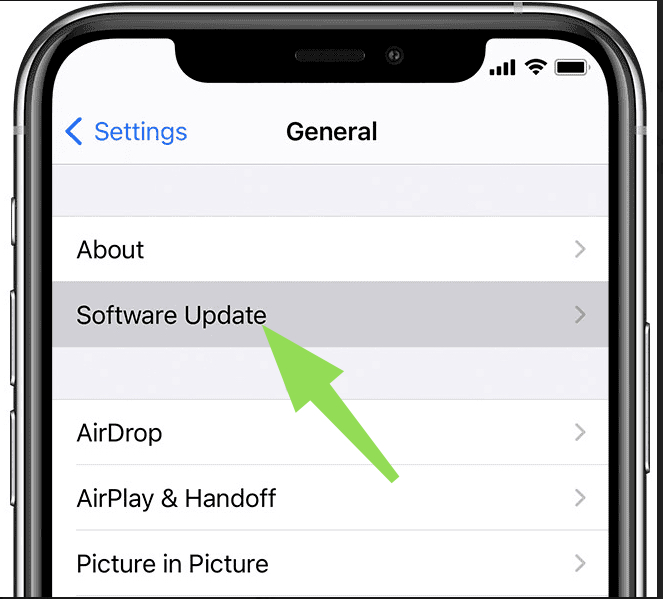
- Open Settings.
- Tap General.
- Select Software Update.
- Install any available update.
Updating ensures your iPhone runs the latest system patches that fix Focus-related bugs.
8. Reset All Settings
If nothing works, resetting settings can remove misconfigured Focus rules without deleting your data.
- Open Settings.
- Tap General.
- Select Transfer or Reset iPhone.
- Tap Reset.
- Choose Reset All Settings.
Your Wi-Fi networks and preferences will reset, but photos, apps, and files stay intact.
If your device is acting unpredictably or notifications are inconsistent, resetting settings can also help with issues similar to when an iPhone screen stops responding to touch.
PRO Tips
• Review all Focus modes like Work, Sleep, and Driving since they can behave like Do Not Disturb.
• Avoid linking Focus modes to Lock Screens unless you really need it.
• Keep iOS updated because Focus bugs are commonly fixed in system updates.
• Check the Health app if Sleep Focus is automatically enabling DND.
• Restart your iPhone occasionally to clear temporary glitches.
Take Back Control of Notifications
Do Not Disturb stuck on iPhone is usually caused by Focus automations or device syncing rather than a real system failure. Once you remove schedules and disable Smart Activation, the problem typically disappears.
If the issue keeps returning, updating iOS or resetting settings almost always resolves the bug. After that, you should be able to manage notifications normally again.
Key Takeaways
When an iPhone cannot turn off Do Not Disturb, the problem usually comes from Focus schedules, Smart Activation, or device syncing. Checking Control Center, removing automations, and disabling Focus sharing typically fixes the issue quickly. Restarting the device or updating iOS may also resolve software glitches. These solutions work on most modern iPhones running recent iOS versions.
FAQ
Most of the time an automation or Focus schedule keeps turning it back on. Removing schedules from Settings > Focus > Do Not Disturb usually fixes the problem.
This happens when Smart Activation, schedules, or linked Lock Screens trigger the Focus mode automatically.
Yes. If Focus sharing is enabled, a Mac, iPad, or Apple Watch using the same Apple ID can activate Do Not Disturb on your iPhone.
No. Silent Mode only mutes sounds using the side switch, while Do Not Disturb blocks notifications and alerts using Focus settings.
Resetting all settings can remove misconfigured Focus settings without deleting personal data, and it often resolves persistent notification problems.

0 Comments