How to Stop iPhone Going Into SOS Mode? 2026 Guide
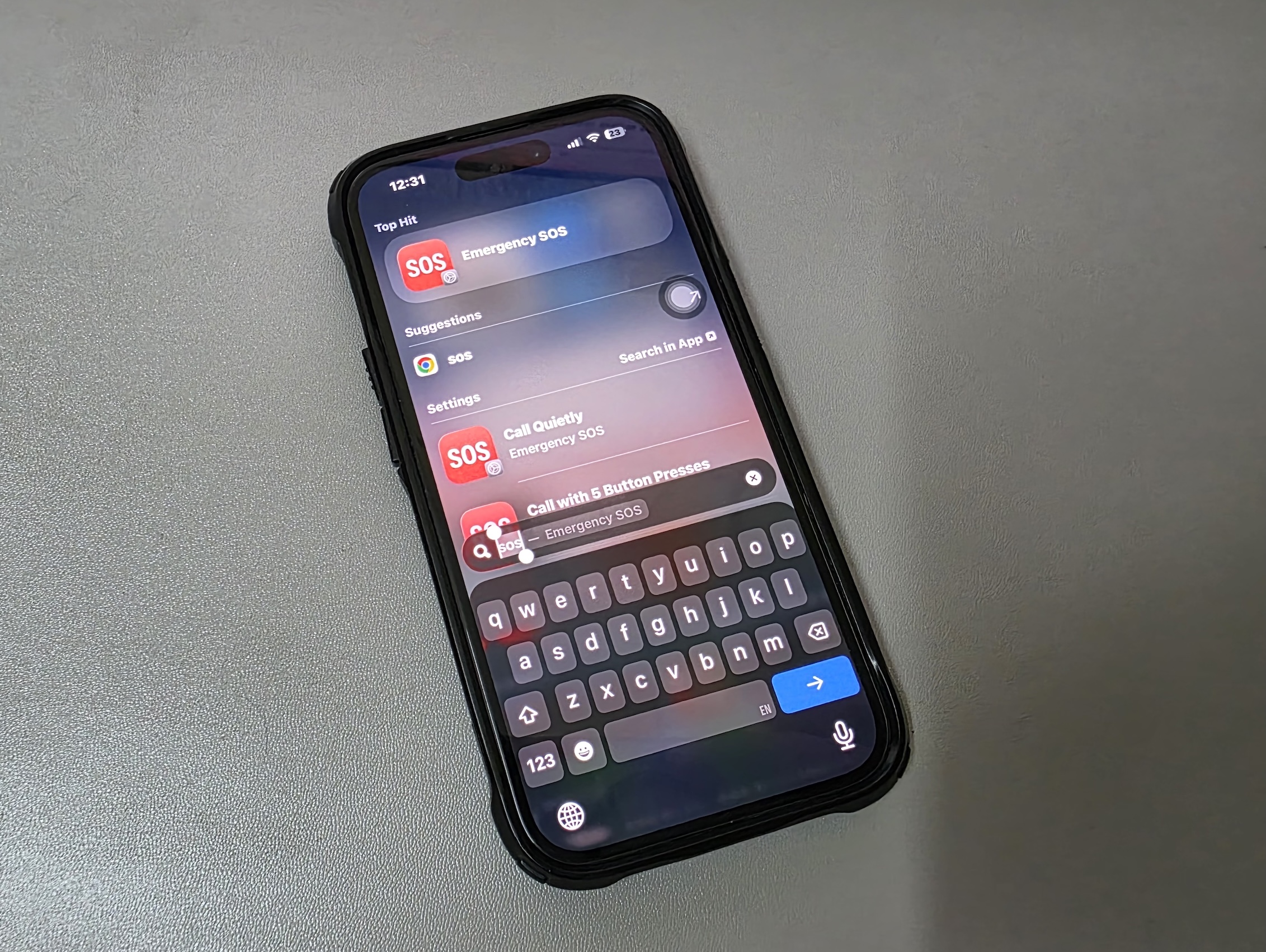
If your iPhone keeps going into SOS mode, it can interrupt normal usage and prevent you from making regular calls or using mobile data. Emergency SOS is designed to quickly contact emergency services, but when it activates repeatedly or by mistake, it becomes frustrating and disruptive.
This guide explains why your iPhone enters SOS mode and how to stop it from happening. You will find practical solutions that fix the most common causes, including network problems, incorrect settings, or accidental button presses. If your device stays stuck in emergency mode, you may also want to check how to fix an iPhone stuck in Emergency SOS for additional troubleshooting.
Why Does Your iPhone Keep Going Into SOS Mode?
When an iPhone enters SOS mode, it usually means the device cannot connect to your carrier network or believes an emergency action has been triggered. The phone may show SOS or SOS Only in the status bar when cellular coverage is unavailable, but emergency calls are still allowed.
Several things can cause this behavior. Weak signal areas, SIM card issues, software glitches, or accidental button combinations can trigger Emergency SOS.
Below are the most effective ways to stop your iPhone from entering SOS mode.
Check Cellular Signal
One of the most common reasons an iPhone switches to SOS mode is a weak or unavailable cellular signal.
- Look at the signal bars in the top corner of the screen.
- Move to an area with better network coverage.
- Wait a few seconds for the device to reconnect.
If your signal returns, the SOS indicator should disappear automatically.
Toggle Airplane Mode
Turning Airplane Mode on and off refreshes the cellular connection and often restores normal network service.
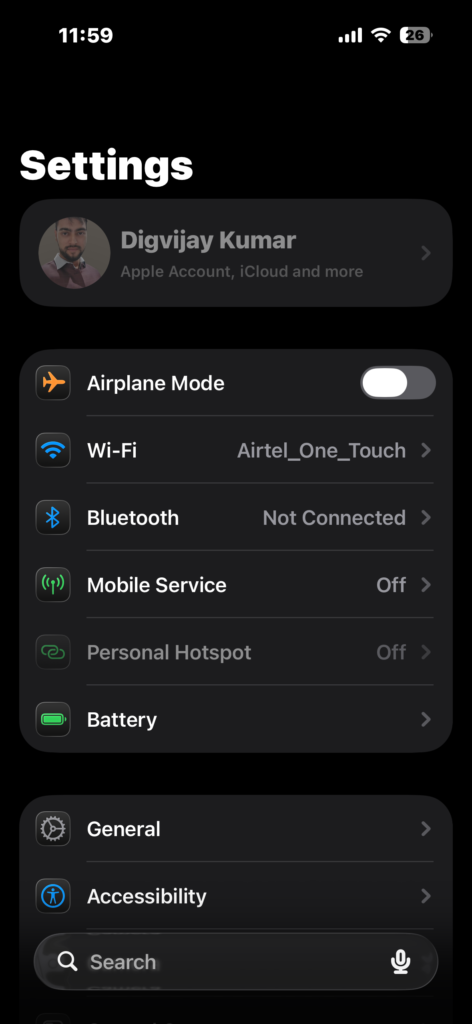
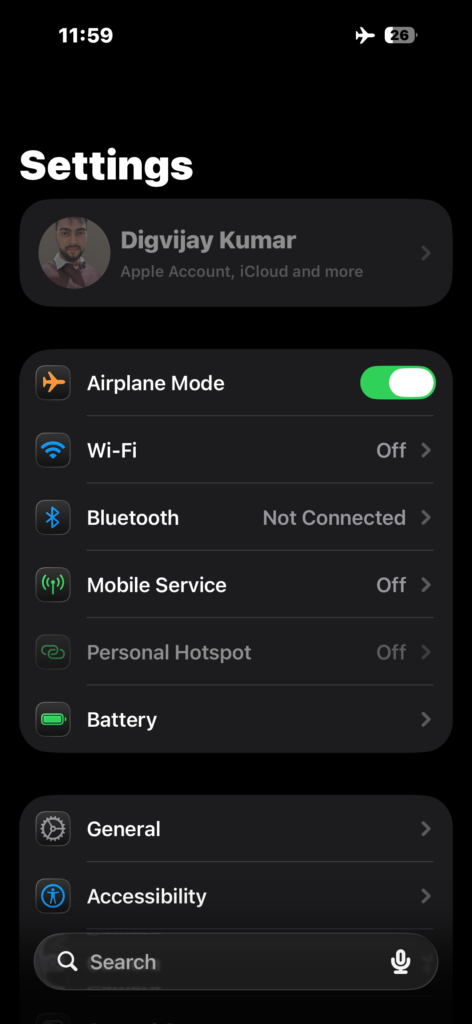
- Open Settings.
- Turn Airplane Mode on.
- Wait 10 seconds.
- Turn Airplane Mode off.
Your iPhone will reconnect to the cellular network after this reset.
Restart Your iPhone
A simple restart clears temporary system glitches that can interfere with network connections.
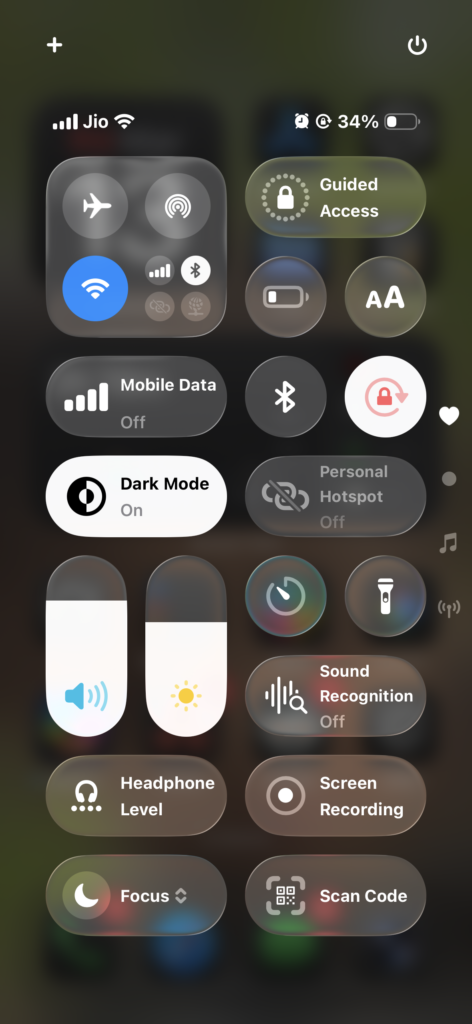
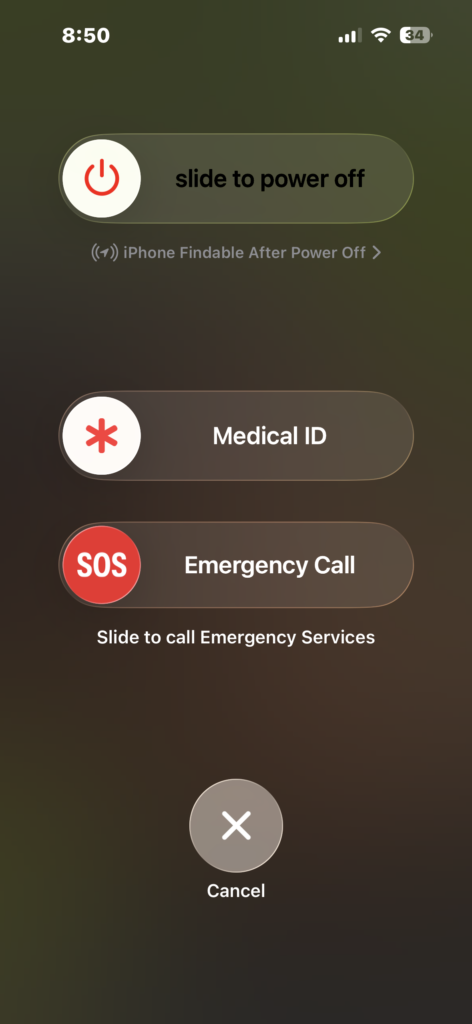
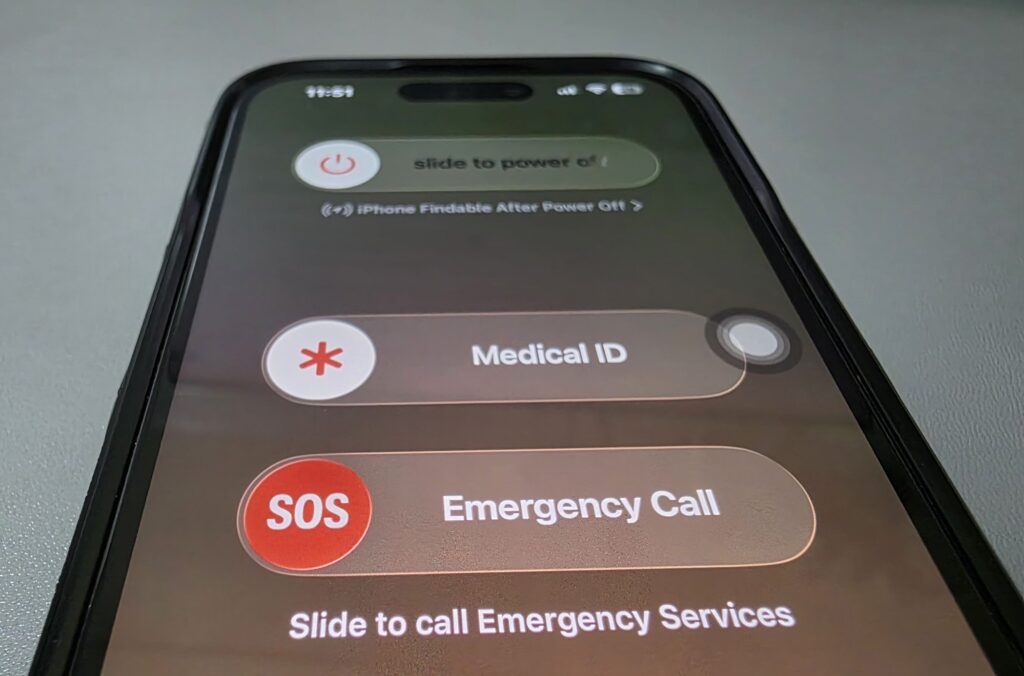
- Press and hold the Side button and a Volume button.
- Wait for the Power Off slider.
- Drag the slider to turn off the iPhone.
- Wait 30 seconds.
- Press the Side button to turn the device back on.
After restarting, the phone will reconnect to your carrier network.
Check the SIM Card
A loose or damaged SIM card can prevent your iPhone from connecting to your carrier, forcing it into SOS mode.
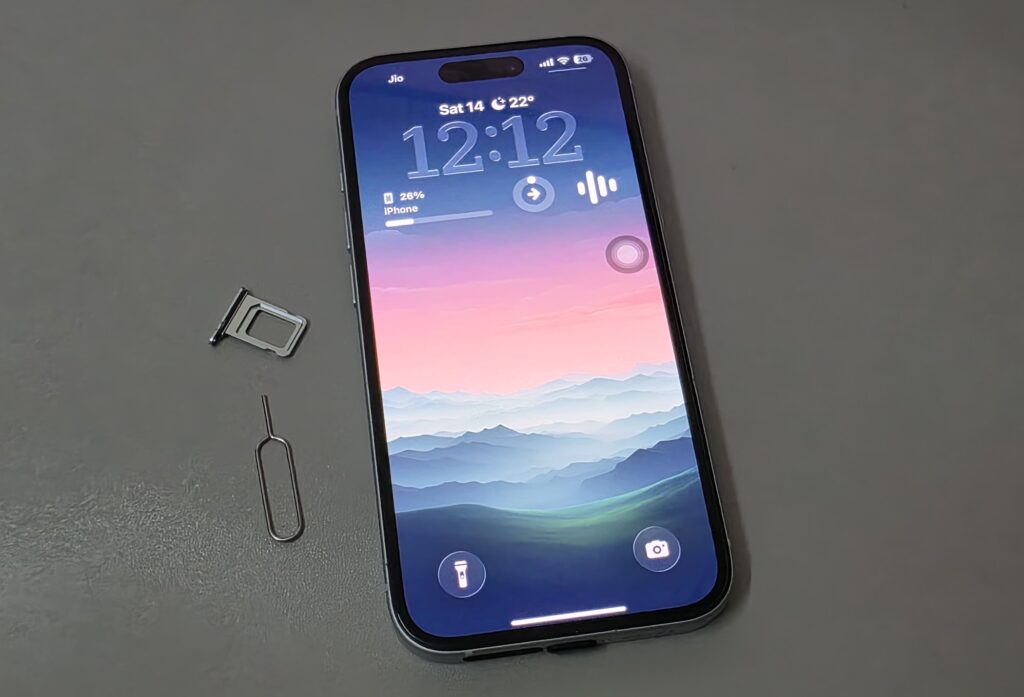
- Turn off your iPhone.
- Insert a SIM eject tool into the SIM tray.
- Remove the SIM card.
- Check the card for damage or dust.
- Reinsert the SIM card carefully.
- Turn the iPhone back on.
If the SIM card is damaged, contact your carrier for a replacement.
Disable Emergency SOS Button Shortcut
On some iPhones, pressing certain button combinations can accidentally activate Emergency SOS.
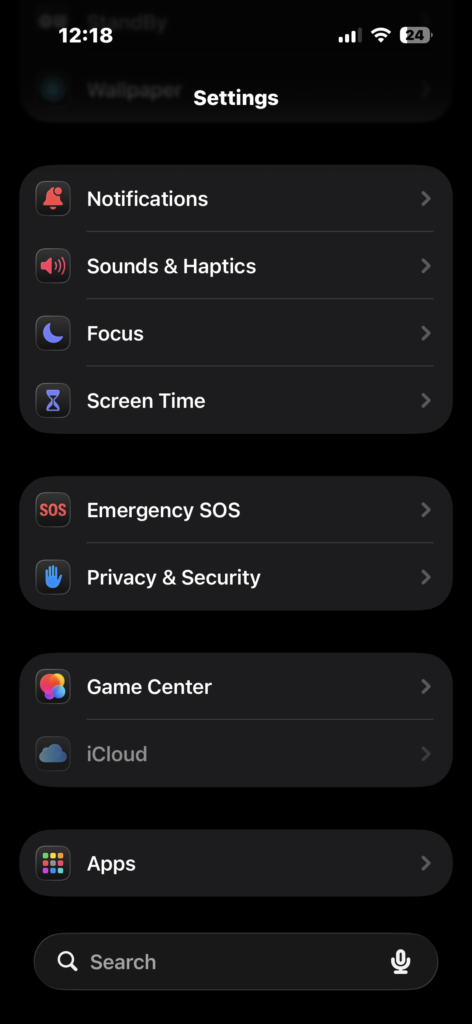
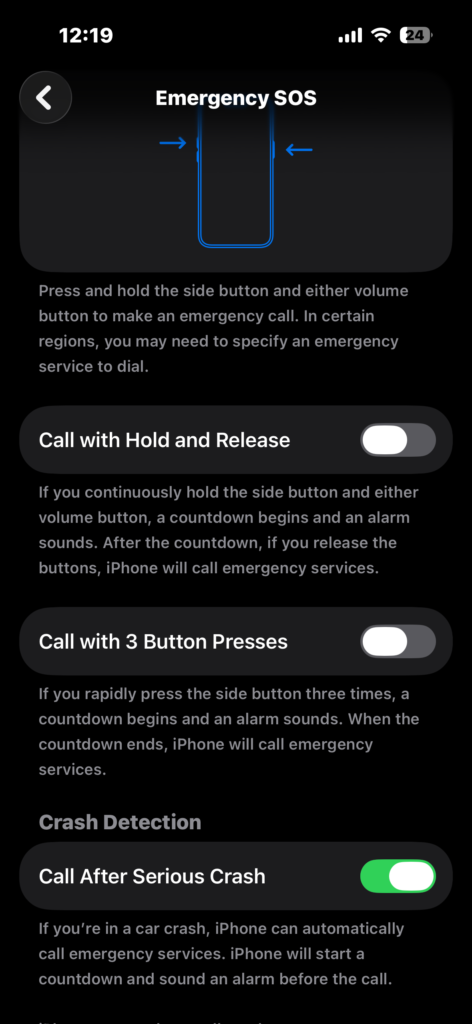
- Open Settings.
- Tap Emergency SOS.
- Turn off Call with Hold and Release.
- Turn off Call with 3 Button Presses.
Disabling these options prevents accidental SOS activation when pressing the side buttons.
Update iOS
Software bugs occasionally cause network issues that lead to SOS mode. Updating your iPhone ensures the latest fixes from Apple are installed.
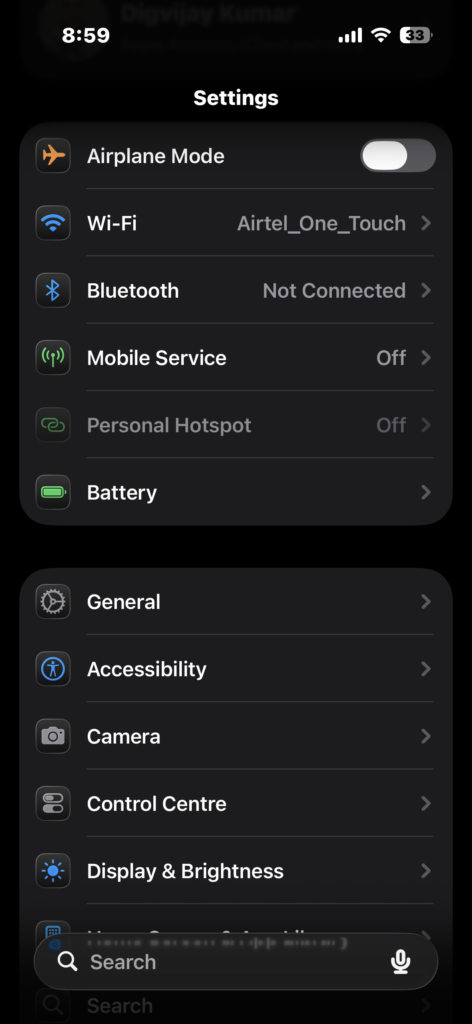
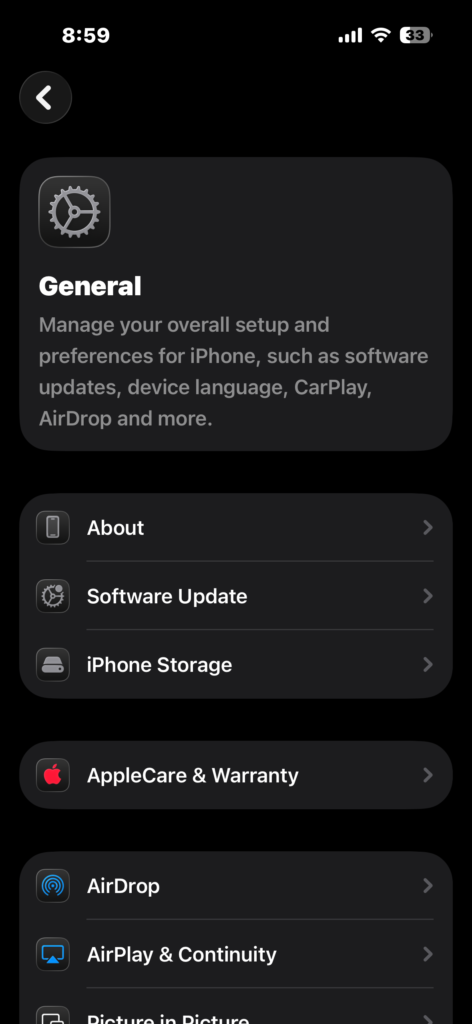
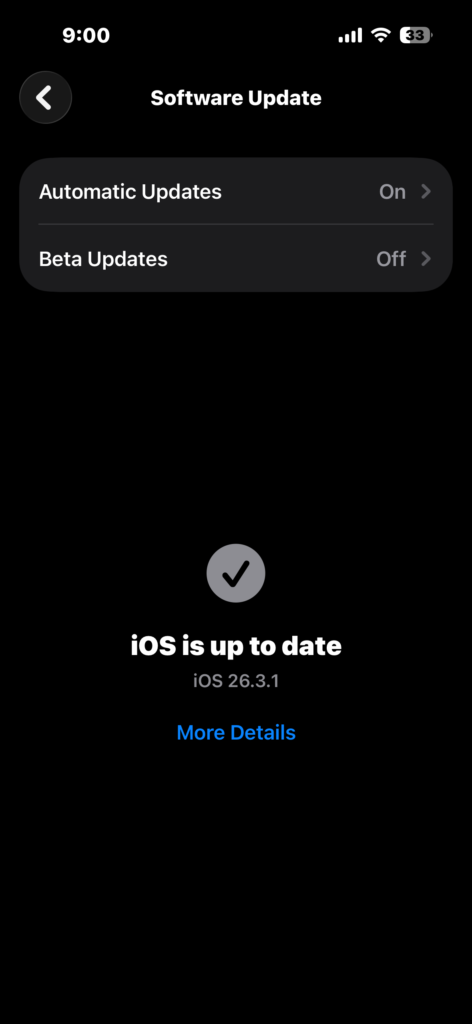
- Open Settings.
- Tap General.
- Tap Software Update.
- Tap Download and Install if an update is available.
Keeping iOS updated improves device stability and carrier compatibility.
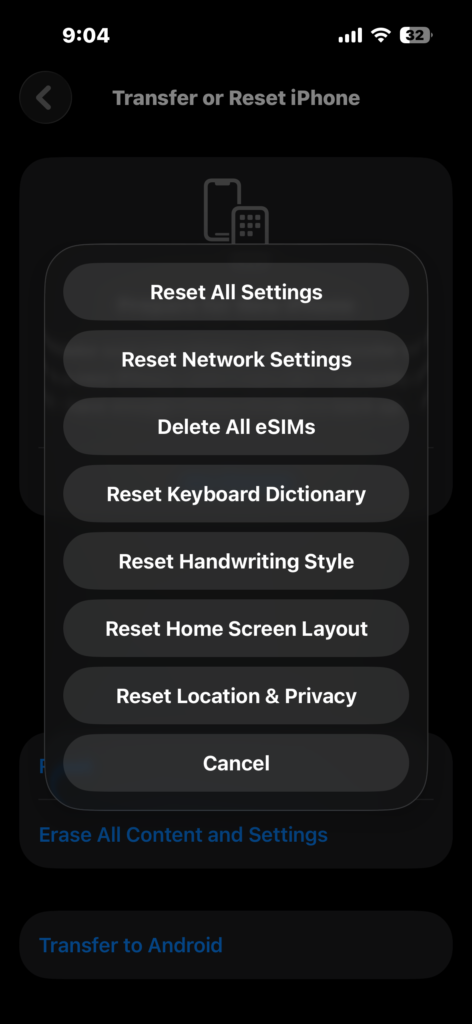
Reset Network Settings
If network problems continue, resetting network settings can fix configuration issues.
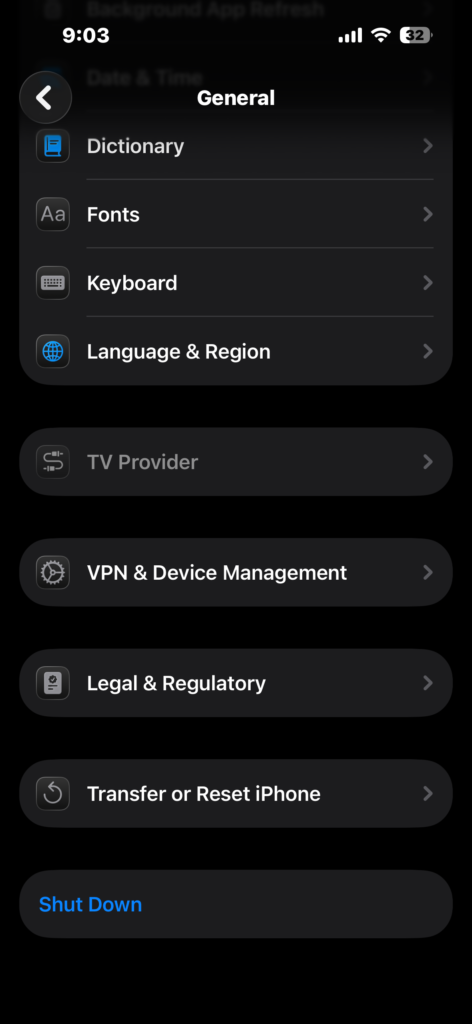
- Open Settings.
- Tap General.
- Tap Transfer or Reset iPhone.
- Tap Reset.
- Select Reset Network Settings.
- Enter your passcode.
This removes saved Wi-Fi networks and cellular settings but often restores proper network connectivity.
Contact Your Carrier
If your iPhone frequently switches to SOS mode even in areas with good coverage, the problem might be related to your carrier account or network.
Contact your mobile provider and ask them to:
• Verify your SIM card status
• Check for network outages
• Confirm your account is active
Carrier support can often resolve service-related issues quickly.
Tips
• Avoid pressing the Side button and volume buttons repeatedly, which can trigger Emergency SOS.
• Keep your iPhone updated to the latest iOS version.
• Check your carrier coverage map if you often lose signal.
• Ensure the SIM card tray is fully inserted.
• Restart your device if the SOS indicator appears unexpectedly.
Restore Normal Network Connection
An iPhone that repeatedly enters SOS mode is usually dealing with a cellular connection problem or accidental emergency activation. Checking signal strength, resetting network connections, and reviewing Emergency SOS settings typically resolves the issue.
Once your carrier signal returns and your settings are correct, the SOS indicator should disappear and your iPhone will return to normal network service.
Key Takeaways
If your iPhone keeps going into SOS mode, the most common causes are weak cellular signal, SIM card issues, accidental Emergency SOS activation, or network configuration problems. Restarting the device, toggling Airplane Mode, or resetting network settings usually resolves the issue. These steps help restore normal carrier connectivity so your iPhone can make and receive calls again.
FAQs
This usually means your iPhone cannot connect to your carrier network but can still place emergency calls.
Yes. A damaged or incorrectly inserted SIM card can prevent your phone from connecting to the network.
No. In most cases it simply indicates a temporary network or configuration problem.
Accidental button presses or enabled SOS shortcuts can cause the feature to activate unexpectedly.
No. It only removes Wi-Fi passwords and network configurations, not your personal files.


0 Comments