How to Check If AirPods Are Real Using Serial Number: Step-By-Step
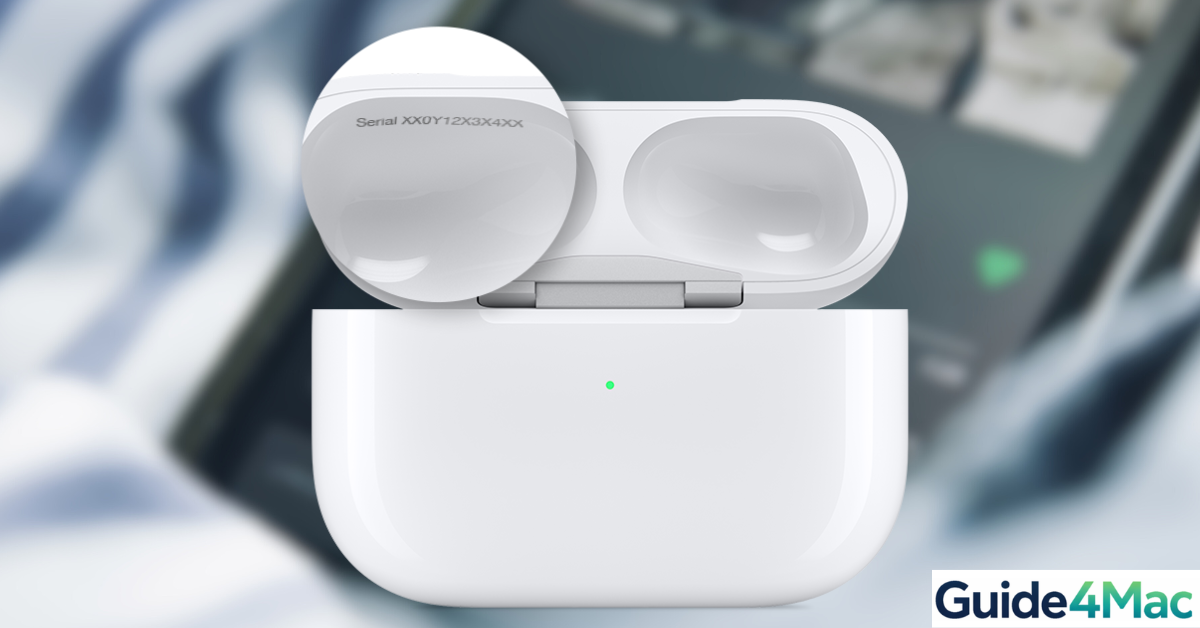
If you want to check if AirPods are real using the serial number, Apple provides a simple verification tool that confirms whether the device is genuine. Because AirPods are among the most frequently counterfeited Apple products, verifying the serial number is one of the fastest ways to identify fake units before or after purchase.
In this guide, you will learn how to find the AirPods serial number, verify it on Apple’s official website, and identify additional signs that reveal counterfeit earbuds. If you recently bought AirPods and want to confirm their authenticity before checking warranty coverage, you can also review this guide on checking Apple warranty and AppleCare coverage.
How Can You Tell If AirPods Are Real?
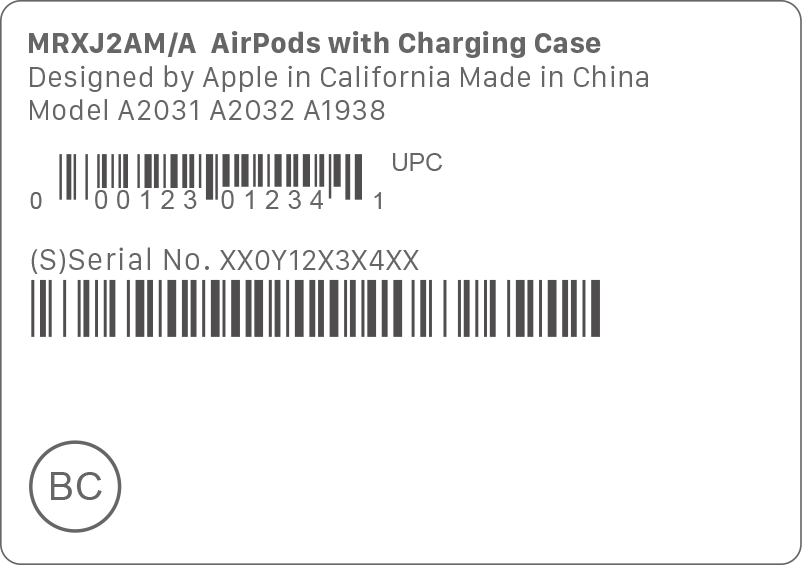
Authentic AirPods include a unique serial number stored inside the device firmware and printed on the charging case. Apple uses this number to track warranty status, manufacturing details, and support eligibility.
However, counterfeit manufacturers sometimes copy serial numbers from real AirPods. That is why verifying the number alone is not always enough. You should also compare the device information shown on Apple’s site with the physical AirPods you have.
Below are the most reliable ways to confirm whether your AirPods are genuine.
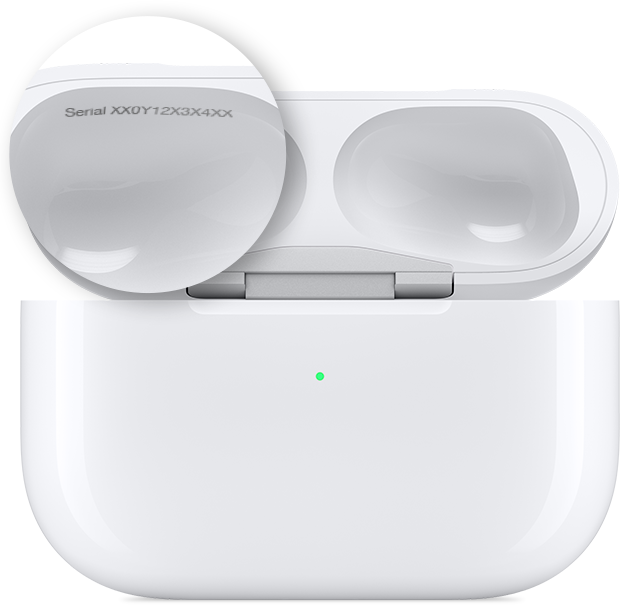
1. Find the Serial Number on Your AirPods
The first step is locating the serial number.
- Place both AirPods in the charging case.
- Open the case lid.
- Look inside the lid for the serial number.
- Write the serial number down.
You can also find the serial number directly from your iPhone.
- Connect your AirPods to your iPhone.
- Open Settings.
- Tap Bluetooth.
- Tap the info icon next to your AirPods.
- Locate the Serial Number field.
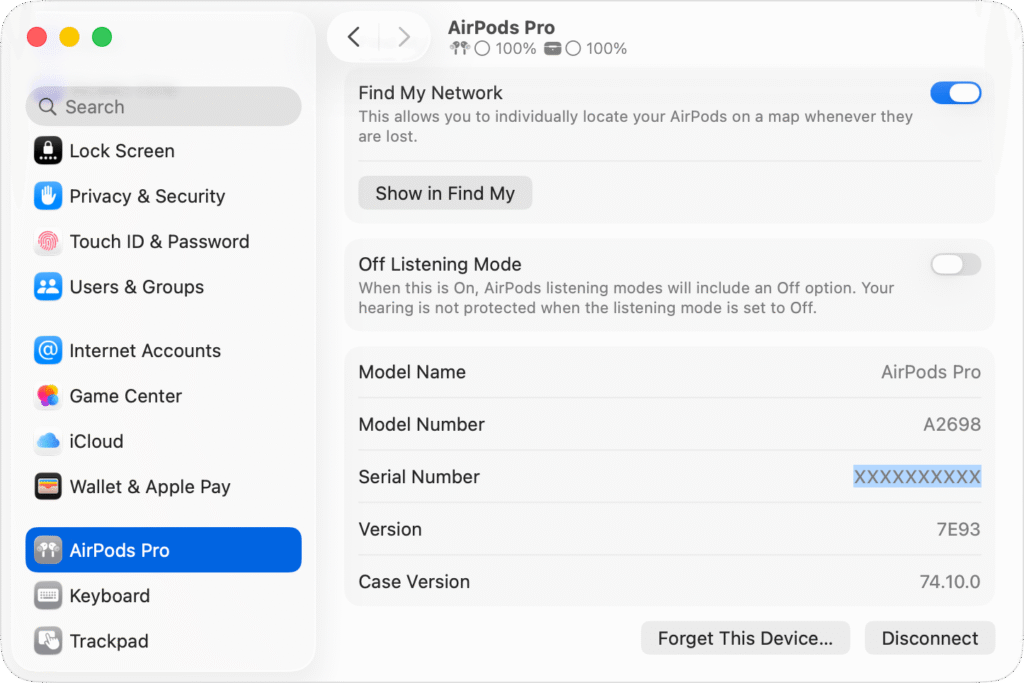
This number will be used for verification on Apple’s website.
2. Verify the Serial Number on Apple’s Website
Once you have the serial number, check it using Apple’s official coverage tool.
- Open a web browser.
- Go to Apple’s Check Coverage page.
- Enter the AirPods serial number.
- Complete the captcha verification.
- Click Submit.
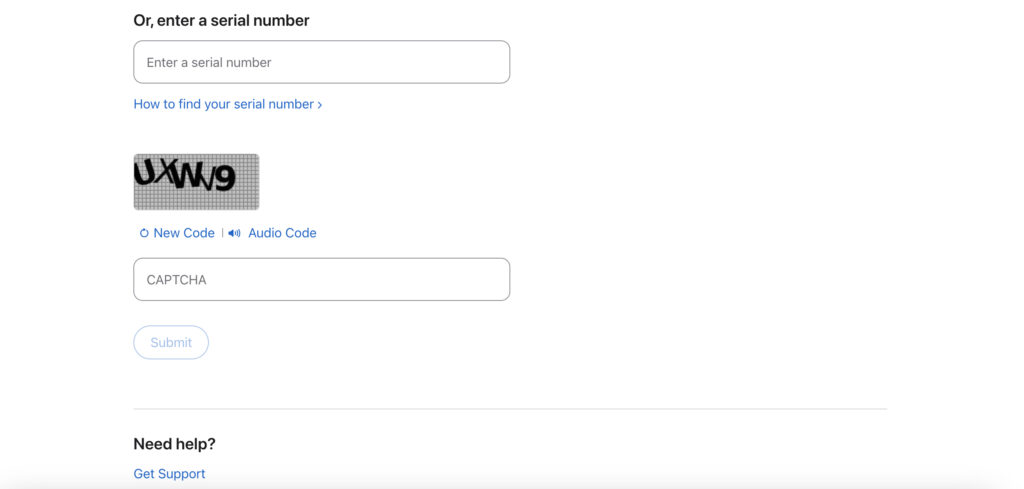
If the AirPods are genuine, Apple will display the product model and warranty status. If the number is invalid, the device may be counterfeit.
3. Compare the Product Details
After entering the serial number, Apple’s site will show product details.
Check that the information matches your AirPods model.
- Compare the AirPods model name.
- Check the warranty information.
- Confirm the purchase validation status.
- Verify the device category listed.
If the product shown on Apple’s website does not match your AirPods model, the serial number may have been copied from another device.
4. Check AirPods Settings on Your iPhone
Real AirPods display detailed device information inside iOS.
- Connect the AirPods to your iPhone.
- Open Settings.
- Tap your AirPods name near the top.
- View the device details.
Genuine AirPods typically display:
• Firmware version
• Serial number
• Noise control options
• Battery information
If these details are missing or limited, the earbuds may be fake.
5. Inspect Build Quality and Packaging
Physical differences are another reliable way to detect counterfeit AirPods.
Look for these details:
• Poor printing on the box
• Incorrect Apple logos
• Loose hinge on the charging case
• Mismatched speaker grills
• Low quality materials
Apple products are manufactured with extremely precise materials and assembly, so visible defects are often a sign of counterfeit units.
6. Test AirPods Features
Fake AirPods often cannot support Apple-specific features.
Check these functions:
- Connect the AirPods to your iPhone.
- Open Control Center.
- Tap the audio controls panel.
- Test Active Noise Cancellation if supported.
- Check Transparency Mode.
- Test automatic ear detection.
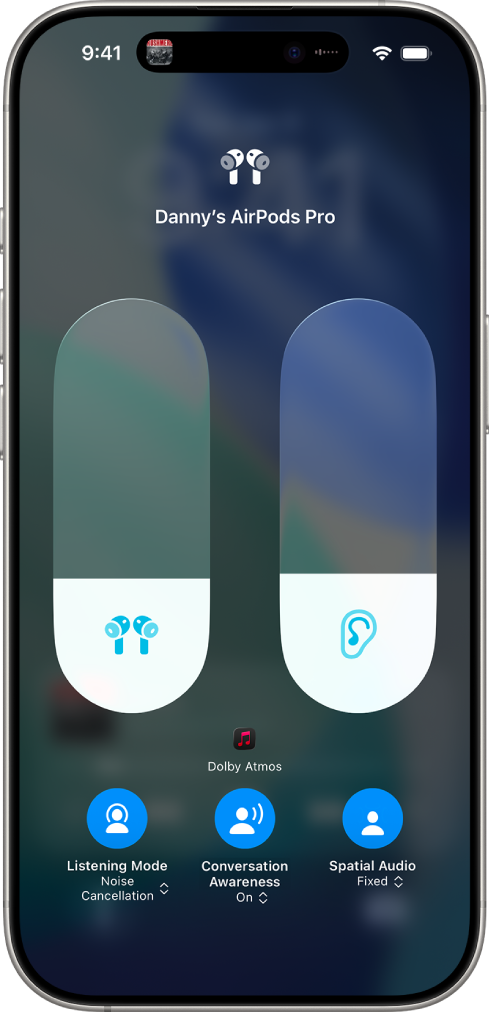
If these features do not work correctly, the device may not be genuine.
If your AirPods are authentic but you experience audio problems, you can troubleshoot them using this guide on fixing AirPods Pro static noise in one ear.
Tips
• Always buy AirPods from authorized Apple retailers.
• Avoid deals that seem significantly cheaper than normal.
• Verify the serial number before purchasing second-hand devices.
• Check the packaging carefully for printing errors.
• Test key features like noise cancellation and automatic pairing.
Protect Yourself From Fake AirPods
Counterfeit AirPods have become increasingly common because of their popularity. While the serial number verification tool helps confirm authenticity, it should always be combined with physical inspection and feature testing.
By checking the serial number, comparing product details, and verifying Apple-exclusive features, you can confidently determine whether your AirPods are genuine or counterfeit.
Key Takeaways
Checking the AirPods serial number is one of the fastest ways to confirm authenticity. Apple’s coverage verification tool shows whether the serial number belongs to a legitimate product and provides warranty information.
However, counterfeit devices may reuse real serial numbers, so it is important to also examine packaging, build quality, and Apple-specific features to fully confirm that the AirPods are genuine.
FAQs
Yes. Some counterfeit AirPods copy serial numbers from real devices, which is why additional checks are important.
The serial number is printed inside the charging case lid and also appears in the AirPods settings on your iPhone.
Some fake AirPods can connect through Bluetooth, but they often lack advanced Apple features like automatic switching or spatial audio.
You can enter the serial number on Apple’s official Check Coverage website to view warranty details.
Do all real AirPods support noise cancellation?
No. Only specific models such as AirPods Pro and AirPods Pro 2 include Active Noise Cancellation.

0 Comments