How to Back Up iPhone: 6 Best Ways for 2026 [Expert Guide]
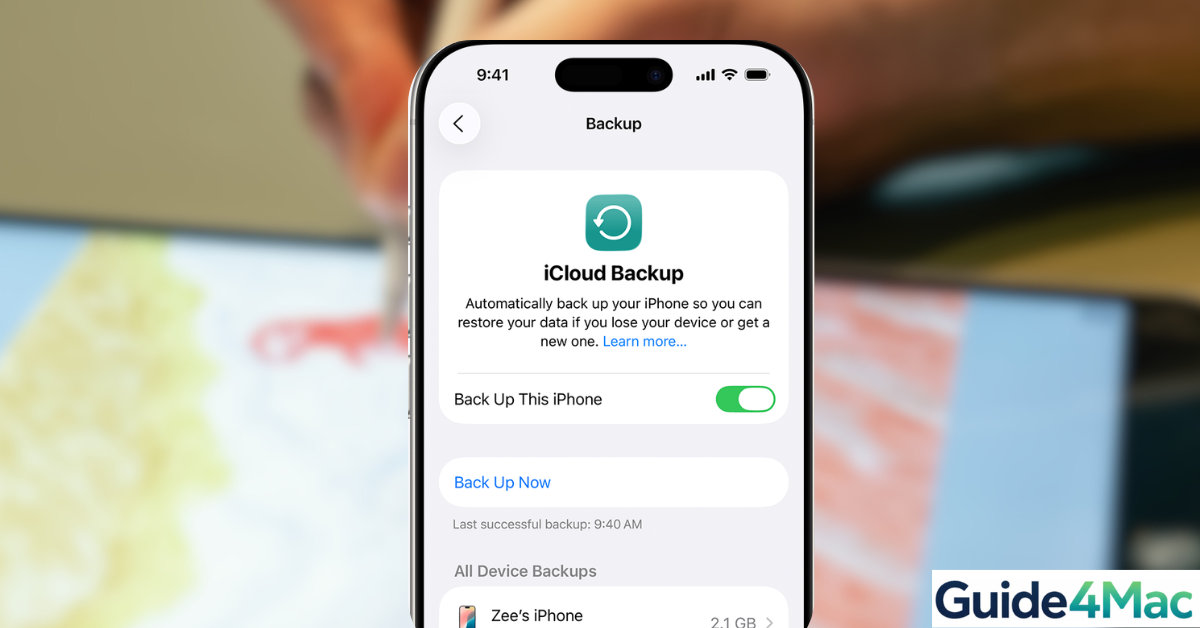
Creating a backup of your iPhone protects your photos, messages, apps, and settings in case the device is lost, damaged, or replaced. Apple provides several built-in ways to back up your data, including iCloud and computer backups through Finder or iTunes.
In this guide, you will learn how to back up an iPhone using iCloud, Mac, and Windows. We will also explain how to enable automatic backups and verify that your data is safely stored before updating iOS or restoring the device.
If you plan to reset your iPhone or troubleshoot issues like an iPhone stuck in Emergency SOS, creating a backup first ensures your data is protected.
Why Should You Back Up Your iPhone?
iPhone backups store important information including app data, device settings, photos, messages, and home screen layouts. If something goes wrong during an update or device reset, you can restore the backup and return your iPhone to its previous state.
Backups are also essential when upgrading to a new iPhone. During setup, Apple allows you to restore everything from your previous device using a recent backup.
Below are the main ways to back up your iPhone.
1. Back Up Your iPhone Using iCloud
iCloud backup is the easiest method because it happens automatically when your iPhone is connected to WiFi and charging.
- Open Settings.
- Tap your Apple ID at the top.
- Select iCloud.
- Tap iCloud Backup.
- Turn on Back Up This iPhone.
- Tap Back Up Now.
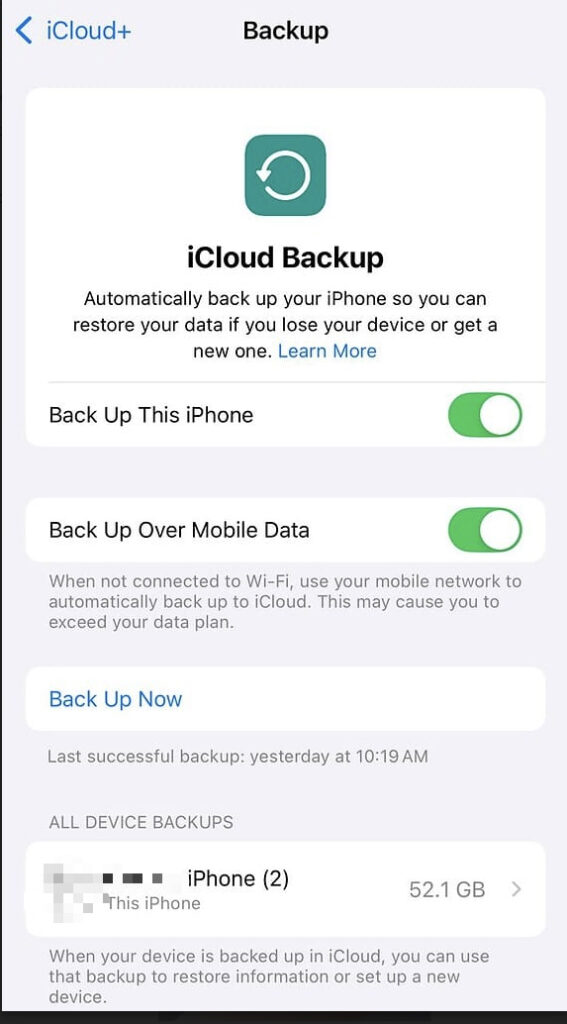
Once enabled, your iPhone will automatically create backups daily when connected to WiFi and power.
If you encounter issues signing in to your Apple account while enabling iCloud backups, follow this guide on signing into your Apple account to resolve account problems.
2. Back Up Your iPhone Using Finder on Mac
Mac computers running newer versions of macOS use Finder instead of iTunes to manage iPhone backups.
- Connect your iPhone to the Mac using a cable.
- Open Finder.
- Select your iPhone in the sidebar.
- Click General.
- Choose Back up all data on your iPhone to this Mac.
- Click Back Up Now.
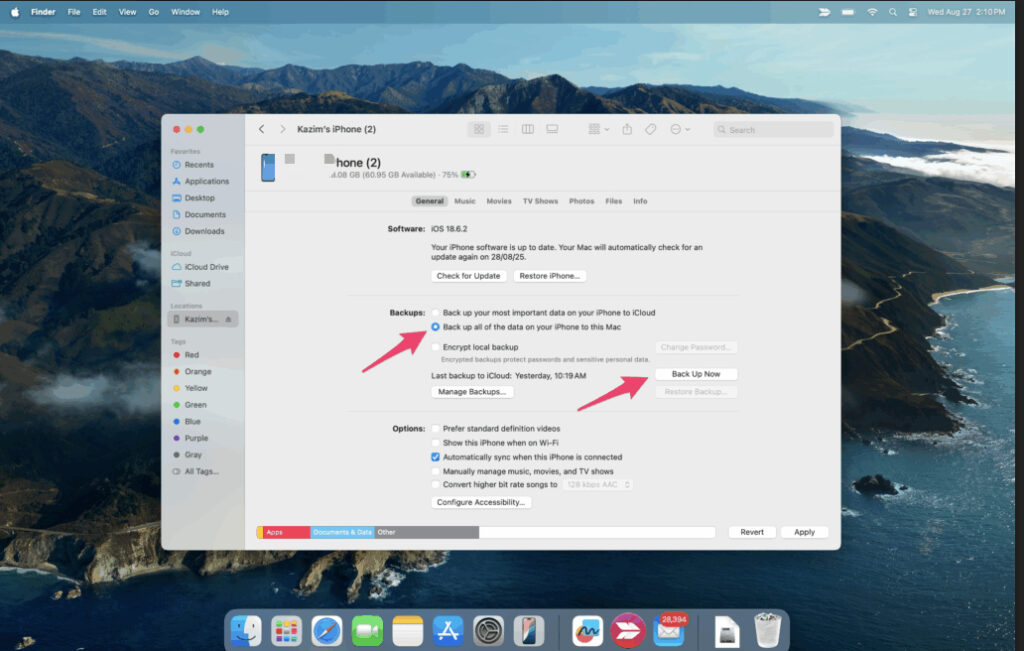
You can also enable Encrypt local backup to include saved passwords, health data, and WiFi settings.
3. Back Up Your iPhone Using iTunes on Windows
Windows users can create iPhone backups through iTunes.
- Install the latest version of iTunes.
- Connect your iPhone to the computer.
- Open iTunes.
- Click the device icon.
- Select Summary.
- Click Back Up Now.
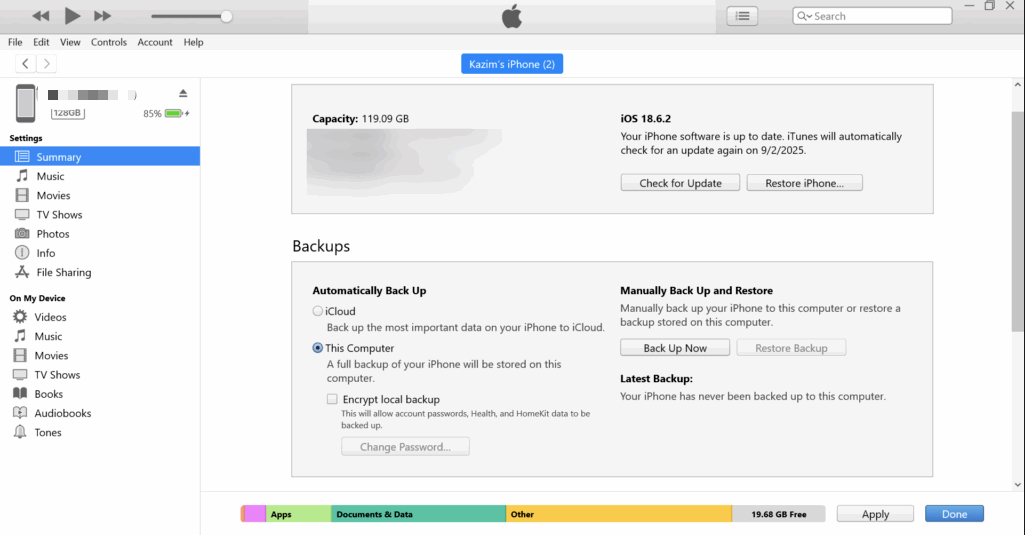
The backup will be stored locally on your computer.
4. Enable Automatic iCloud Backups
Automatic backups ensure your data is always protected without manual action.
- Open Settings.
- Tap your Apple ID.
- Select iCloud.
- Tap iCloud Backup.
- Turn on Back Up This iPhone.
- Connect your iPhone to WiFi and power.

Once enabled, your iPhone backs up automatically every day.
5. Check If Your iPhone Backup Was Successful
After creating a backup, it is important to confirm it completed correctly.
- Open Settings.
- Tap your Apple ID.
- Select iCloud.
- Tap iCloud Backup.
- Check the Last Successful Backup date.
If the backup date is recent, your data is safely stored.
If your iPhone experiences issues such as apps disappearing or settings resetting, reviewing steps in this guide about restoring missing icons on the iPhone Home Screen may help once your backup is restored.
Tips
• Enable automatic iCloud backups for daily protection.
• Use encrypted computer backups to store sensitive data.
• Connect to WiFi before backing up to iCloud.
• Ensure your iCloud storage plan has enough space.
• Back up your device before major iOS updates.
Keep Your Data Safe With Regular Backups
Backing up your iPhone regularly is one of the most important steps to protect your data. Whether you use iCloud for automatic backups or create manual backups on your computer, having a recent backup ensures that photos, messages, and settings can be restored quickly if needed.
By enabling automatic backups and checking them occasionally, you can avoid data loss and move to new devices without worrying about losing important information.
Key Takeaways
Backing up an iPhone protects personal data such as photos, messages, and app settings. Apple allows backups through iCloud, Finder on Mac, and iTunes on Windows computers.
Enabling automatic iCloud backups ensures your data is saved daily, making it easy to restore the device if something goes wrong or when switching to a new iPhone.
FAQs
It is recommended to back up your iPhone regularly, especially before software updates or device resets.
Yes, if iCloud Photos is not enabled. If iCloud Photos is enabled, photos are stored separately in iCloud.
Yes. You can create a full backup using Finder on a Mac or iTunes on a Windows computer.
Backup time depends on the amount of data stored on the device and the speed of your internet connection.
No. Creating a backup only copies data and does not remove anything from your device.


0 Comments