How to Make Anonymous Calls on iPhone: 5 Ways to Hide Caller ID
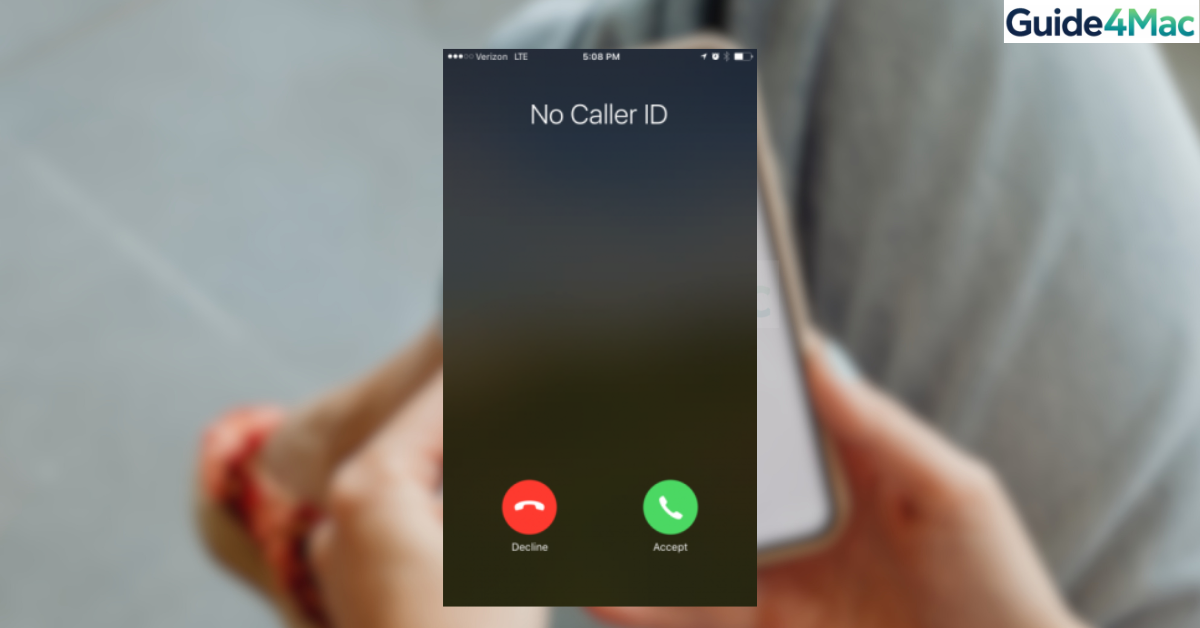
Learning how to make anonymous calls on iPhone can help protect your privacy when contacting businesses, unknown numbers, or people you do not want to share your phone number with. Apple allows you to hide your caller ID so the recipient sees “No Caller ID” or “Unknown Caller” instead of your number.
In this guide, you will learn several ways to hide your phone number when making calls from an iPhone. These methods include disabling caller ID in Settings, dialing special carrier codes, and using alternative calling options when the built-in feature does not work.
Why Would You Want to Hide Your Caller ID on iPhone?
When you make a normal phone call, your number appears on the recipient’s phone. Some users prefer to hide this information to maintain privacy, especially when contacting unfamiliar numbers or businesses.
Apple includes a built-in setting that allows you to disable caller ID for outgoing calls. However, some carriers control this option, which means you may need to use dialing codes instead.
Below are the most effective methods to make anonymous calls from an iPhone.
1. Turn Off Show My Caller ID
The easiest way to make anonymous calls is by disabling the Show My Caller ID setting.
- Open Settings.
- Scroll down and tap Phone.
- Select Show My Caller ID.
- Turn off Show My Caller ID.
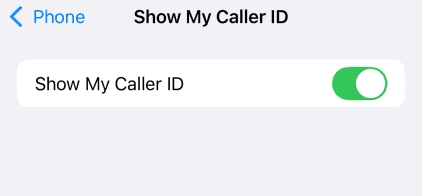
Once this setting is disabled, every call you make will appear as No Caller ID on the recipient’s device.
If you later want to restore normal calling behavior, simply enable the toggle again.
2. Mask your number for a Single Call
Another quick way to hide your number is by using the *67 carrier code before dialing a phone number.
- Open the Phone app.
- Tap the Keypad tab.
- Type *67.
- Enter the phone number you want to call.
- Tap the Call button.
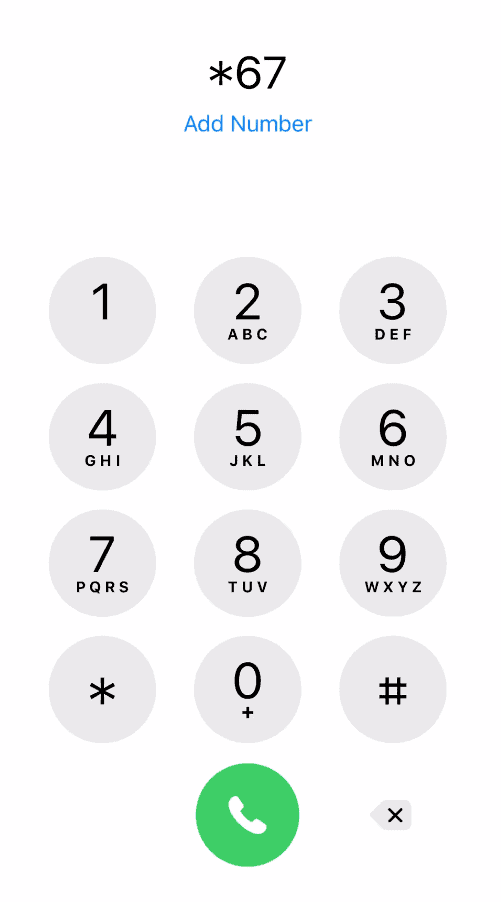
This method hides your number for that specific call only. Your caller ID will appear normally on the next call unless you dial the code again.
3. Use Contacts With the *67 Prefix
You can also add the *67 prefix directly to a saved contact if you frequently call that number anonymously.
- Open the Contacts app.
- Select the contact you want to modify.
- Tap Edit.
- Add *67 before the phone number.
- Tap Done.
Now every call to that contact will automatically hide your caller ID.
4. Use a Secondary Calling App
Some users prefer to use calling apps that generate a temporary number. These apps allow calls without exposing your personal phone number.
Apps that provide this feature typically offer temporary or virtual numbers that forward calls through the internet instead of using your carrier network.
Key Features
• Virtual phone numbers
• Caller ID masking
• VoIP calling
• Separate contact lists
• International calling options
These apps can be useful if your carrier does not support caller ID blocking.
5. Contact Your Carrier to Block Caller ID
Some mobile carriers control caller ID settings and may prevent the toggle from appearing in the Phone settings.
In that case, you may need to request caller ID blocking directly from the carrier.
- Open the Phone app.
- Dial your carrier’s support number.
- Request permanent caller ID blocking.
- Follow the instructions provided.
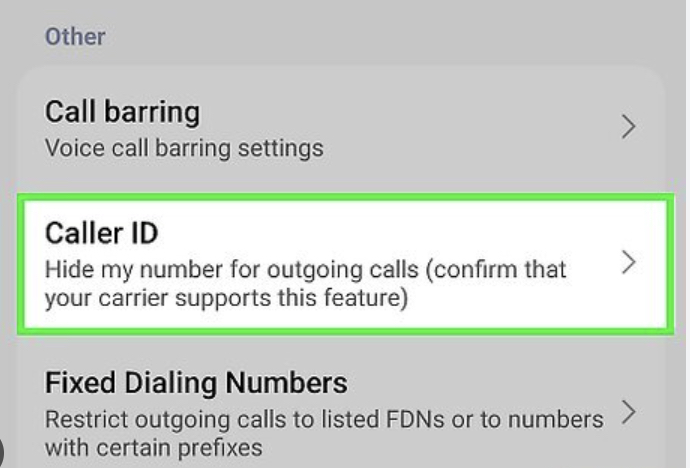
Once enabled, your number will remain hidden for outgoing calls unless you disable the feature.
Tips
• Use *67 if you want to hide your number only once.
• Disable Show My Caller ID for permanent anonymous calls.
• Some businesses automatically block calls without caller ID.
• Carriers may restrict caller ID settings in certain regions.
• Avoid anonymous calls for sensitive services that require identification.
Protect Your Privacy When Calling
Making anonymous calls on an iPhone is simple once you know the available options. The built-in Show My Caller ID toggle provides the easiest way to hide your number for all outgoing calls, while the *67 dialing code works well for one-time anonymous calls.
If your carrier restricts these features, contacting your provider or using a calling app with virtual numbers can offer additional privacy options when making phone calls.
Key Takeaways
Anonymous calls on iPhone allow users to hide their phone number when making outgoing calls. The most common methods include disabling Show My Caller ID in Settings or dialing the *67 prefix before a phone number.
If these options are not available, contacting your carrier or using a calling app with virtual numbers can help maintain privacy when placing calls.
FAQs
You can disable Show My Caller ID in the Phone settings to hide your number for all outgoing calls.
*Does 67 work on iPhone?
Yes. Dialing *67 before a phone number hides your caller ID for that specific call.
Some carriers disable this setting and require users to request caller ID blocking directly through support.
Caller ID blocking depends on your carrier and the country you are calling.
Yes. Phone carriers and law enforcement can still trace anonymous calls if necessary.


0 Comments