How to Fax from iPhone for Free: 5 Easy Ways in 2026
If you want to fax from iPhone for free, you do not need a traditional fax machine anymore. Several apps and online services allow you to send documents directly from your iPhone using the internet. These tools convert your files into a fax format and deliver them to a standard fax number.
In this guide, you will learn multiple ways to send a fax from your iPhone, including using dedicated fax apps, scanning documents with the iPhone camera, and sending files through online fax services. If you frequently send documents from your device, it may also help to know how to make iPhone pictures smaller before sending them so scanned documents upload faster.
How Can You Send a Fax From an iPhone?
Modern iPhones allow you to fax documents using apps that connect to cloud-based fax services. Instead of a phone line, these services transmit documents digitally and deliver them to fax machines worldwide.
Most apps work similarly:
• Scan a document with the iPhone camera
• Upload a file such as PDF or image
• Enter the recipient’s fax number
• Send the document through the app
Below are some of the easiest ways to fax from an iPhone.
1. Use the iFax App
The iFax app is one of the most popular tools for sending faxes directly from an iPhone. It allows users to scan documents, attach files from cloud storage, and send faxes internationally.
The app includes built-in scanning technology that automatically detects document edges, improving clarity before transmission.
Key Features
• Scan documents using the iPhone camera
• Send faxes to international numbers
• Attach PDFs, photos, and documents
• Built-in document editing tools
• Secure cloud fax delivery
Pricing: Free with limited pages
2. Use the Fax.Plus App
Fax.Plus provides a simple and reliable way to send faxes from mobile devices. The app integrates with popular cloud services, making it easy to attach documents stored on iCloud Drive, Google Drive, or Dropbox.

It also includes features like fax tracking and delivery confirmation.
Key Features
• Send faxes worldwide
• Scan documents using the camera
• Cloud storage integration
• Delivery confirmation notifications
• Secure encrypted fax transmission
Pricing: Free trial available
3. Send Fax Using Genius Fax
Genius Fax is designed for quick document transmission directly from iPhone. It works particularly well when paired with the Genius Scan app, which converts photos into high quality scanned documents.
This combination allows you to capture a document and fax it within seconds.
Key Features
• Fast document scanning support
• High-quality PDF generation
• Send faxes to many countries
• Simple interface for quick faxing
• Secure file transmission
Pricing: Pay-per-fax model
4. Fax Documents Using the Files App
Some fax apps allow direct integration with the Files app on iPhone, making it easy to send stored documents.
- Open the Files app.
- Locate the document you want to fax.
- Tap and hold the file.
- Tap Share.
- Select your installed fax app.
- Enter the recipient fax number.
- Tap Send Fax.
This method is useful when you already have a PDF or document stored on your iPhone.
5. Scan and Fax a Document With Your iPhone Camera
If your document is on paper, you can scan it first before sending the fax.
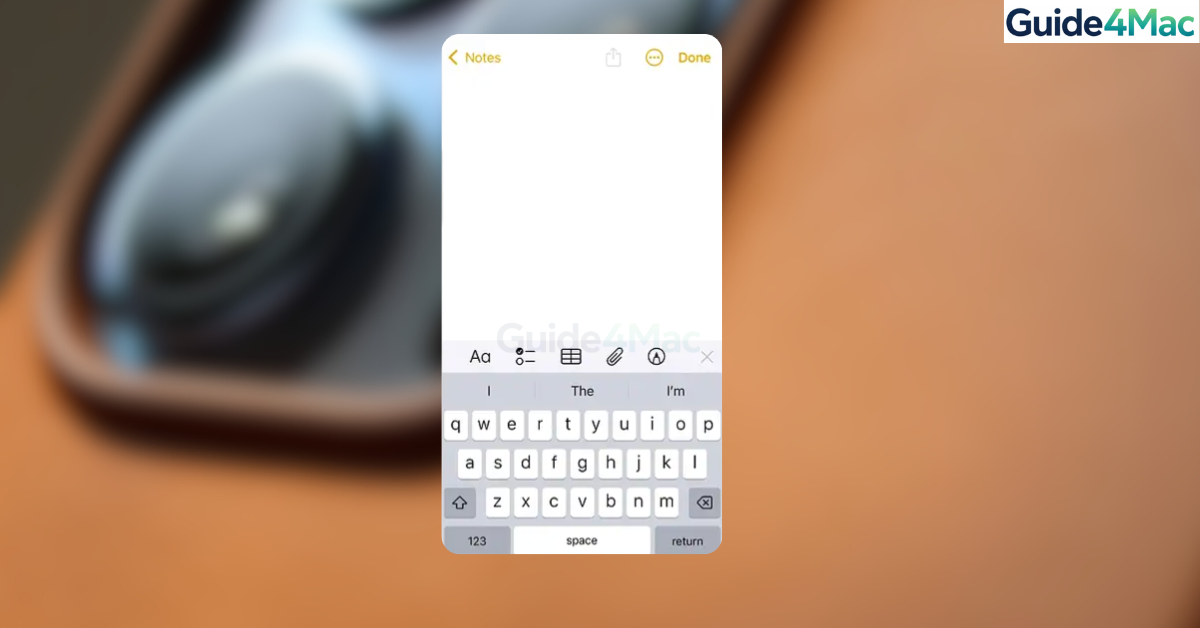
- Open the Notes app.
- Create a new note.
- Tap the Camera icon.
- Select Scan Documents.
- Capture the document image.
- Save the scanned file.
- Send it using a fax app.
Using the built-in scanner helps create clean, readable faxes.
If you often scan documents with your phone, you may also want to learn how to use the iPhone camera effectively in newer iOS versions for better document clarity.
Quick Feature Comparison
| Tool | Best For | Key Feature | Price |
|---|---|---|---|
| iFax | Frequent faxing | Built-in document scanner | Free limited |
| Fax.Plus | Cloud integration | Secure fax delivery | Free trial |
| Genius Fax | Fast fax sending | Works with Genius Scan | Pay per fax |
These apps differ mainly in pricing models and document handling features.
Tips
• Always scan documents in good lighting for clearer faxes.
• Convert files to PDF before sending if possible.
• Double-check the fax number before sending.
• Keep scanned copies saved for future reference.
• Use Wi-Fi when sending large files to avoid slow uploads.
Sending Faxes Without a Fax Machine
Sending a fax from an iPhone is simple thanks to modern fax apps and cloud services. With just a few taps, you can scan documents, attach files, and send them to traditional fax machines anywhere in the world.
These apps remove the need for physical fax hardware while still allowing you to communicate with businesses or institutions that rely on fax technology.
Key Takeaways
You can fax from an iPhone using cloud-based fax apps that convert documents into fax transmissions. Apps like iFax, Fax.Plus, and Genius Fax allow you to scan documents, upload PDFs, and send faxes directly from your phone. By using your iPhone camera or the Notes scanner, you can quickly digitize paper documents and send them without a traditional fax machine.
FAQ
Yes. Fax apps use internet-based fax services that send documents digitally to traditional fax numbers.
Some apps provide free trials or limited free pages, but most require credits or subscriptions for regular faxing.
Most fax apps support PDF, JPG, PNG, and documents stored in the Files app.
No. Fax apps send documents through the internet rather than a traditional phone line.
Yes. You can use the iPhone camera or the Notes app document scanner to digitize paper documents before sending them.

0 Comments