How to Fix “Your SIM Sent a Text Message” on iPhone? Working Solutions
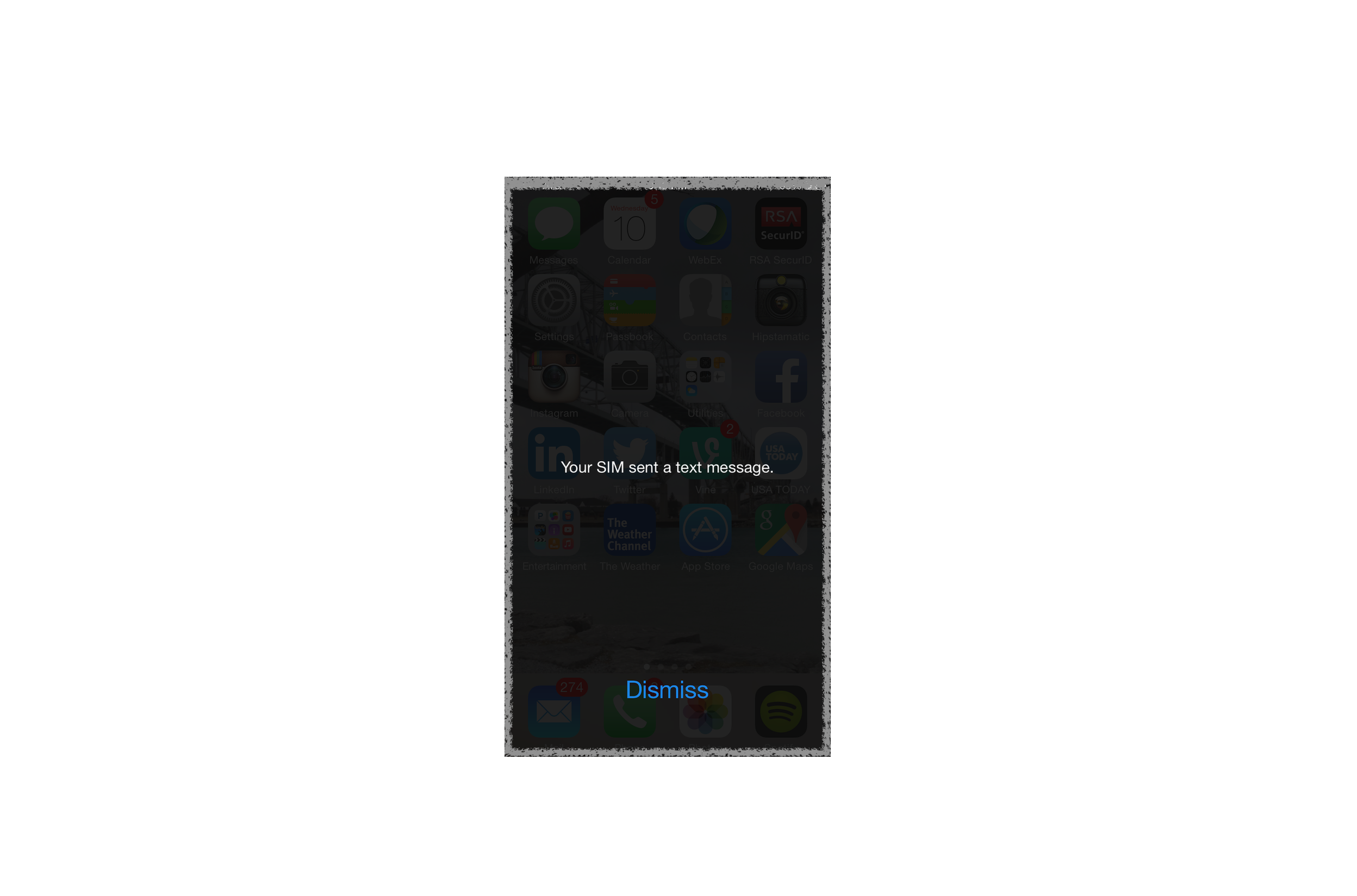
Seeing the “Your SIM Sent a Text Message” alert on iPhone can be confusing because the message appears even when you did not send a single word to anybody. Many users encounter this notification repeatedly, sometimes several times per day, and it often appears without any clear explanation.
The good news is that the issue is usually related to carrier communication settings rather than malware or a security problem. In most cases, a few quick adjustments on your iPhone can stop the notification. If the problem continues, it may also help to review common iPhone communication issues such as those discussed in this guide about fixing iPhone not receiving verification texts.
In this article, you will learn why the “Your SIM Sent a Text Message” notification appears and the most reliable ways to stop it on iPhone.
Why Does “Your SIM Sent a Text Message” Appear on iPhone?
The message usually appears when your carrier attempts to communicate with the SIM card using a silent SMS message. These messages are used for network configuration tasks such as activating services, updating carrier settings, or verifying SIM connectivity.
Normally, these messages are hidden from users. However, certain carrier configurations or iOS updates can cause the notification to appear on screen.
You may see this alert when:
• Carrier settings need to be updated
• The SIM card is reactivating on the network
• iOS is syncing with carrier configuration servers
• A temporary network error occurs
Fortunately, several troubleshooting steps can stop the message from appearing repeatedly.
1. Restart Your iPhone
A simple restart is often enough to resolve temporary communication issues between the iPhone and the mobile carrier.
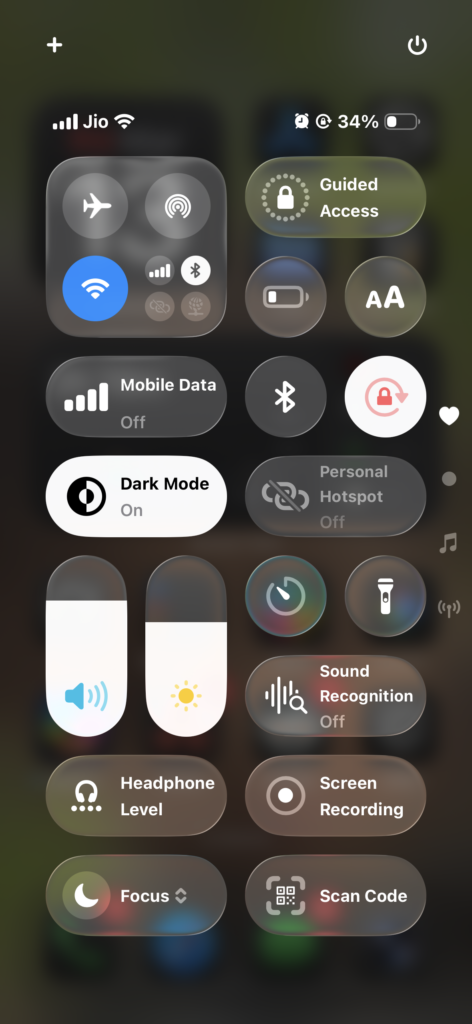
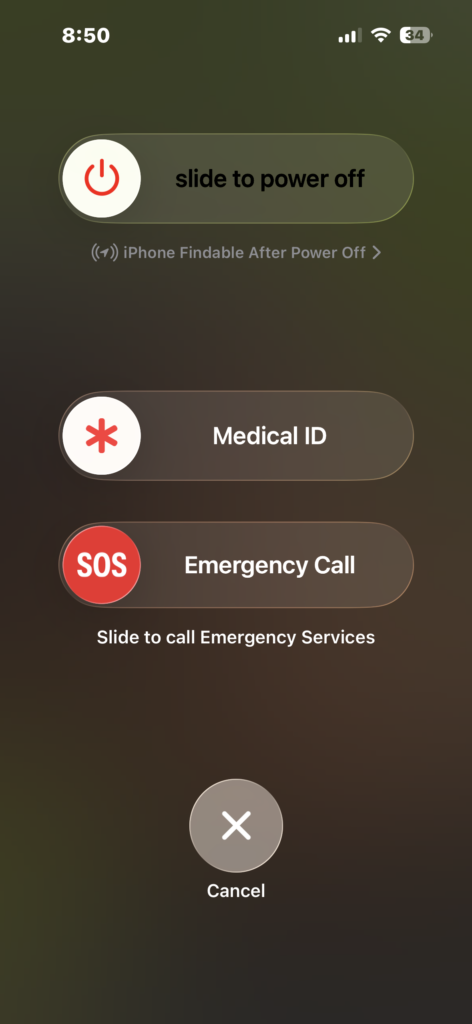
- Press and hold the Side button and the Volume button.
- Wait until the power off slider appears.
- Drag the slider to turn off the device.
- Wait about 30 seconds.
- Press and hold the Side button again to turn the iPhone back on.
Restarting refreshes the connection between the SIM card and the cellular network. Many temporary carrier communication problems disappear after a reboot.
2. Update Carrier Settings
Updating carrier settings is one of the most effective ways to stop the “Your SIM Sent a Text Message” notification. Carriers release configuration updates that fix communication issues between the SIM card and the network.
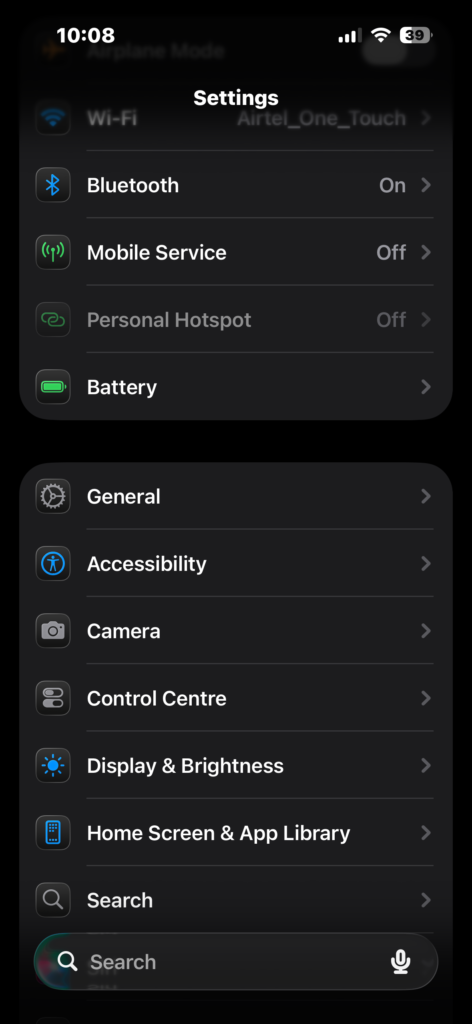
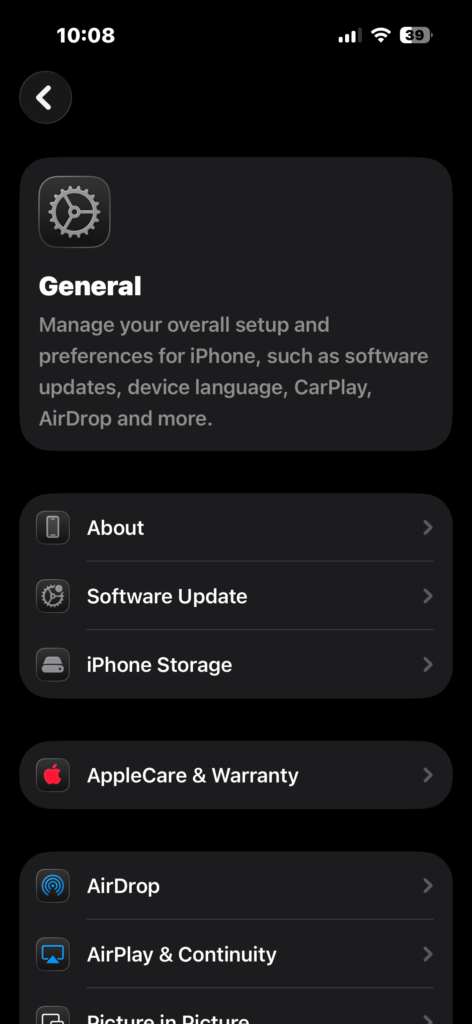
Time needed: 10 minutes
This is how to check and install the updates on carrier settings to get rid of the “Your Sim Sent A Text Message” error
- Check for carrier settings update
Open Settings, tap General, then tap About. Wait for a few seconds to see if a carrier update notification appears.
- Install the carrier update
If an update prompt appears, tap Update to install the new carrier settings.
- Restart the device
After installing the update, restart the iPhone to ensure the new carrier configuration is fully applied.
Carrier updates often resolve background network messaging issues that trigger the SIM notification.
3. Reset Network Settings
If the problem continues, resetting network settings can remove corrupted configuration files that may cause the notification.
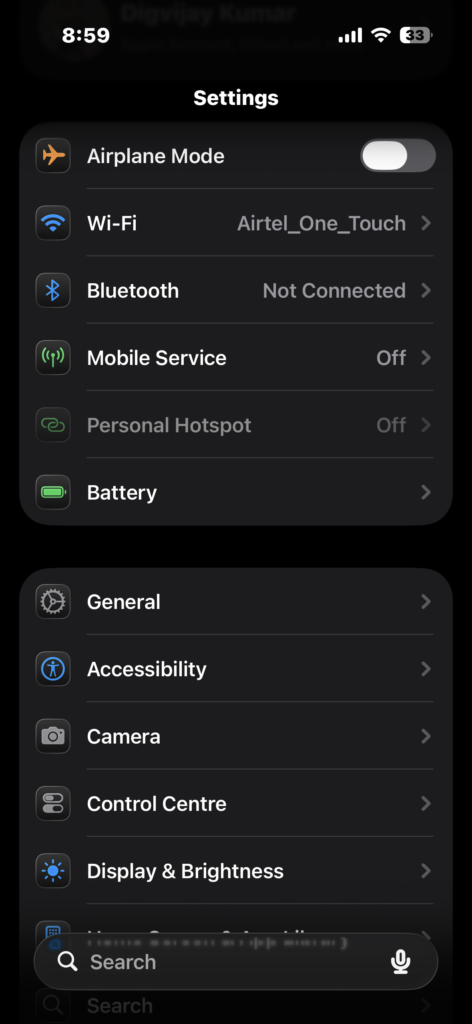
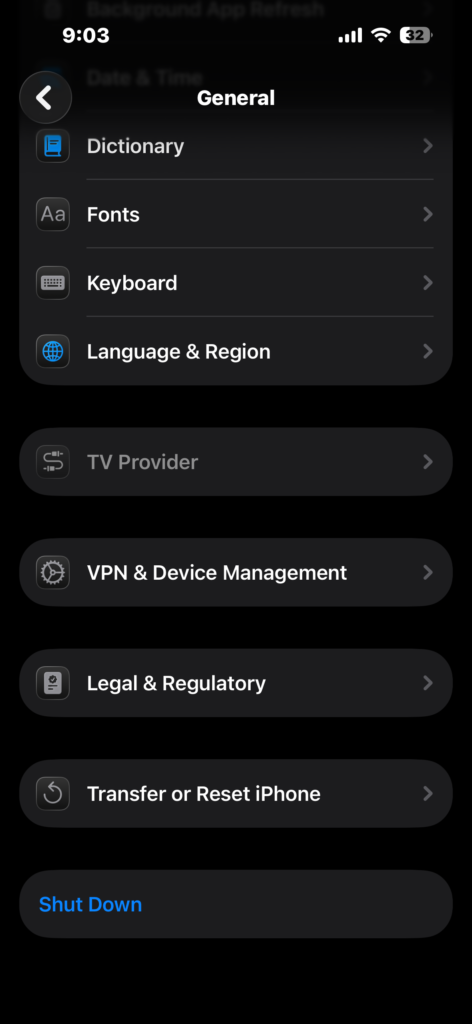
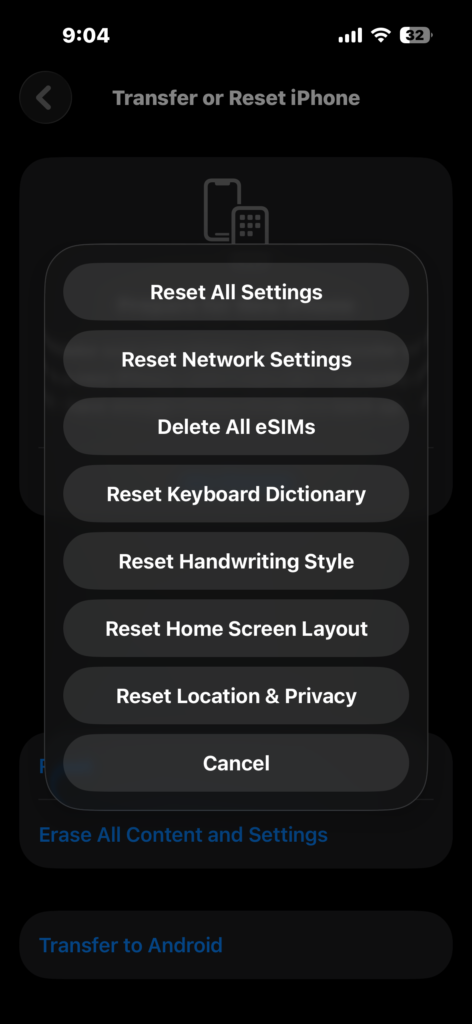
- Open the Settings app.
- Tap General.
- Scroll down and tap Transfer or Reset iPhone.
- Tap Reset.
- Select Reset Network Settings.
- Enter your passcode if prompted.
This process resets WiFi networks, cellular settings, and VPN configurations. After the reset, the iPhone reconnects to the carrier with fresh settings.
If your device often experiences network-related problems, you may also want to check broader connectivity troubleshooting, such as this guide on fixing iPhone calls going straight to voicemail.
4. Reinsert the SIM Card
Sometimes the SIM card itself may temporarily lose proper contact with the device.
Removing and reinserting the SIM can refresh the hardware connection.
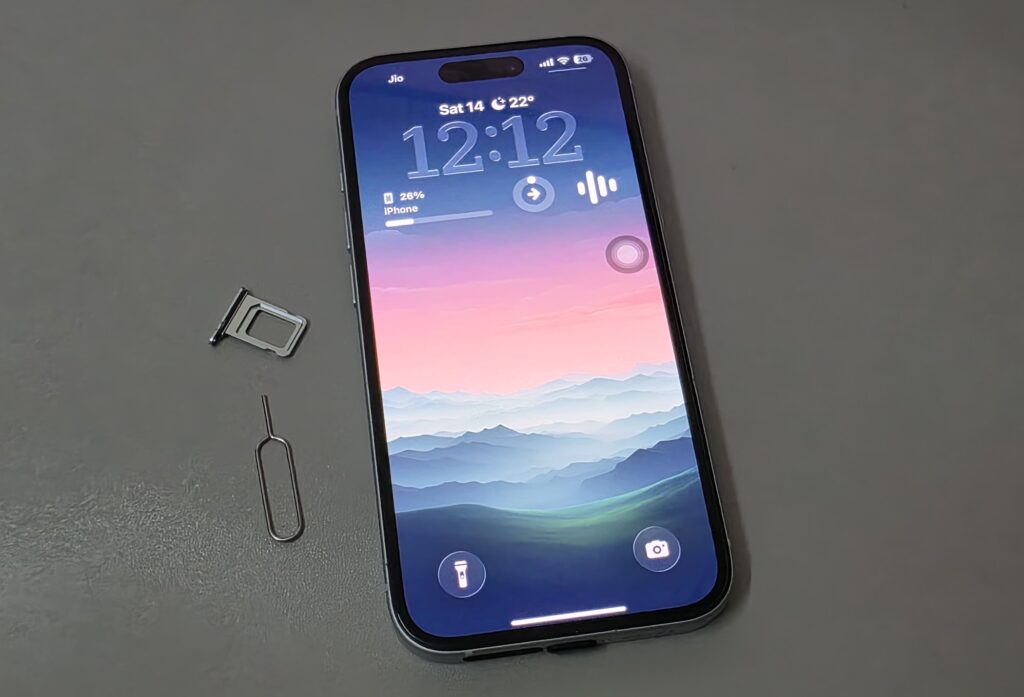
- Power off your iPhone.
- Locate the SIM tray on the side of the device.
- Insert a SIM eject tool into the small hole.
- Remove the SIM tray carefully.
- Take out the SIM card.
- Reinsert the SIM card and slide the tray back in.
- Turn the iPhone back on.
Once the SIM reconnects to the carrier network, the system may stop sending configuration messages that trigger the alert.
5. Contact Your Carrier
If the alert continues appearing frequently, the issue may originate from the mobile carrier itself.
Carriers sometimes send configuration messages repeatedly when the SIM activation process is incomplete.
- Contact your mobile carrier’s customer support.
- Explain that your iPhone repeatedly shows the “Your SIM Sent a Text Message” notification.
- Ask them to refresh or reprovision your SIM card on their network.
Carrier technicians can check network logs and reset the SIM profile if needed.
Tips on how to fix Your Sim Sent A Text Message Error
- Check for carrier updates after major iOS upgrades
- Restart the iPhone after installing new SIM cards
- Avoid removing the SIM card while the device is powered on
- Keep iOS updated to the latest version
- Contact your carrier if the notification appears daily
Stop the SIM Message for Good
The “Your SIM Sent a Text Message” alert usually appears because the carrier is communicating with your SIM card in the background. While these messages are normally invisible, certain network conditions can make them appear on screen.
In most cases, updating carrier settings or resetting network configuration resolves the problem quickly. If the message continues appearing after these fixes, your mobile carrier can refresh the SIM configuration and stop the notifications.
Key Takeaways
The “Your SIM Sent a Text Message” notification appears when the mobile carrier sends a silent configuration message to your SIM card. This typically happens during network updates, carrier configuration changes, or temporary connectivity problems. Restarting the iPhone, updating carrier settings, resetting network settings, or reinserting the SIM card can usually resolve the issue. If the notification continues appearing frequently, contacting your mobile carrier may be necessary.
FAQs?
It usually means your carrier is sending a silent configuration SMS to update or verify your SIM connection.
No. The message is normally related to carrier network communication and not malware.
It may appear repeatedly if the carrier settings are outdated or the SIM card needs to reconnect to the network.
In many cases, yes. Resetting network settings refreshes the cellular configuration and can stop the alert.
Yes, if the notification appears frequently. The carrier can refresh the SIM configuration or replace the SIM card if needed.


0 Comments