How to Find & Check Apple Serial Numbers: iPhone, Mac & AirPods
If you want to perform an Apple serial number lookup, the serial number is the key identifier that reveals details about your device, including warranty coverage, hardware specifications, and authenticity.
Whether you use an iPhone, iPad, Mac, Apple Watch, or AirPods, each Apple device has a unique serial number tied to Apple’s support system. You can use it to verify your device on Apple’s coverage page, confirm whether it is genuine, or check service eligibility.
If you are trying to identify your device first, you may want to learn how to determine exactly which iPhone model you own before running a lookup. This guide explains how to find the serial number on different Apple devices and how to use it to check warranty and device information.
What Is an Apple Serial Number and Why Is It Important?
An Apple serial number is a unique identifier assigned to every Apple product during manufacturing. It allows Apple to track the device’s production details, warranty status, and service history.
This identifier helps with several important tasks:
- Checking Apple warranty or AppleCare+ coverage
- Identifying exact device specifications
- Confirming the device is genuine Apple hardware
- Verifying activation lock status before buying used devices
For example, if your iPhone stops charging, Apple technicians may ask for the serial number before diagnosing the issue. The same applies when contacting Apple Support or visiting a repair center.
Find the Serial Number in Settings
The easiest way to find the serial number on most Apple devices is through the Settings app.
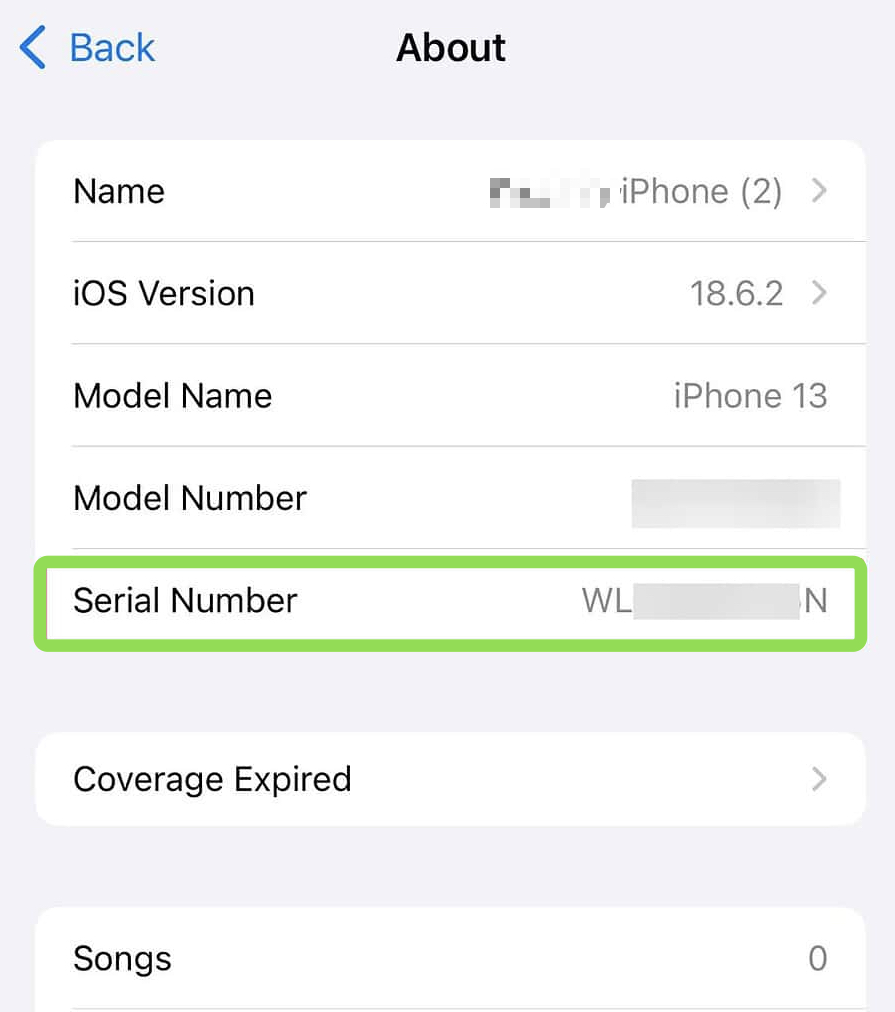
iPhone, iPad, or iPod touch
- Open Settings.
- Tap General.
- Select About.
- Scroll until you see Serial Number.
If you are troubleshooting issues like charging problems, this information may also help when following steps in guides such as fixing an iPhone that is not charging properly.
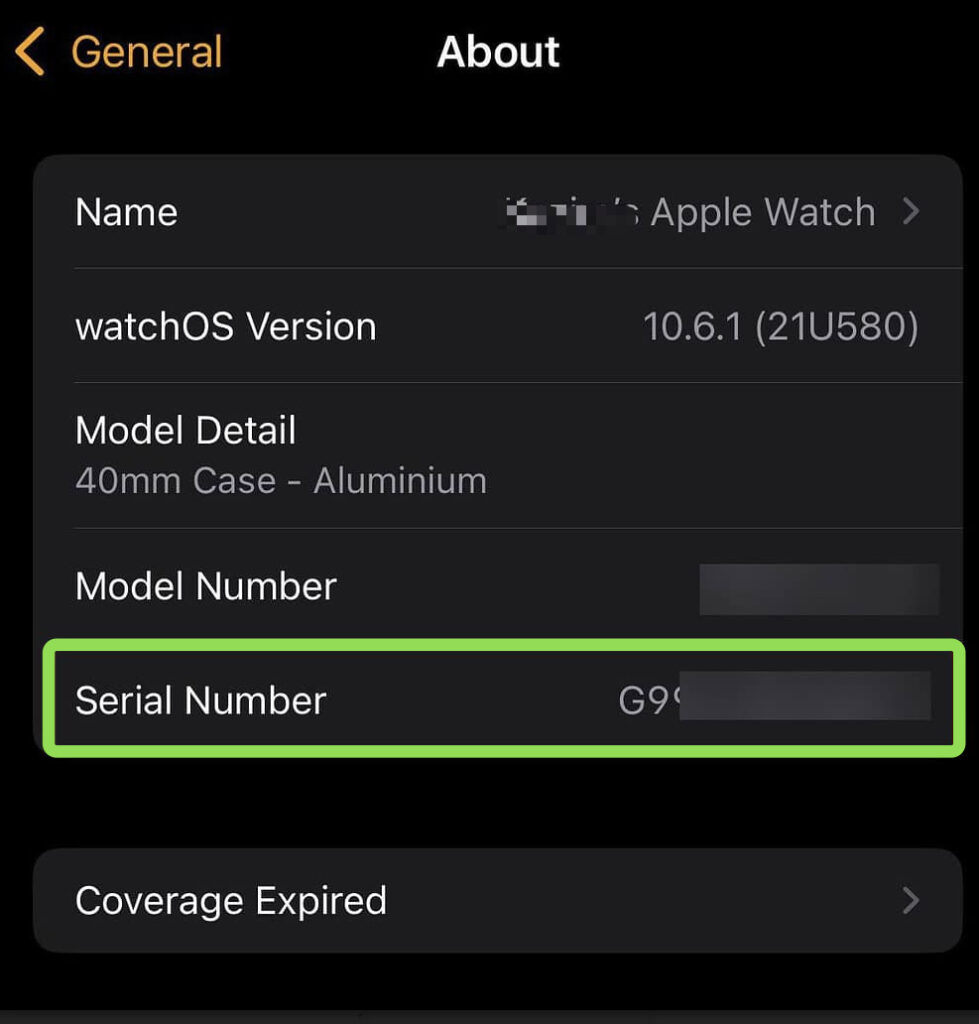
Apple Watch
- Open the Watch app on your paired iPhone.
- Tap General.
- Tap About.
- Locate the Serial Number.
Mac
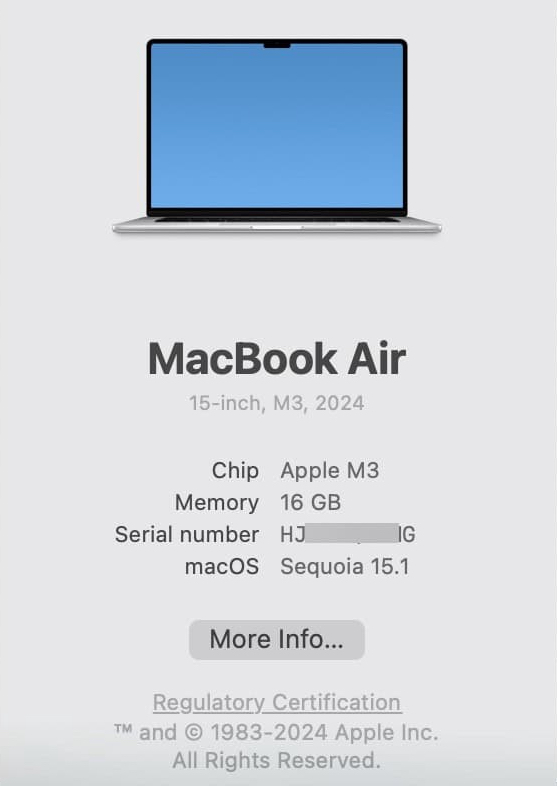
- Click the Apple menu in the top left corner.
- Select About This Mac.
- Look for the Serial Number in the overview window.
Check the Serial Number on the Device
If your device cannot turn on or you cannot access the settings, you can often find the serial number printed directly on the hardware.
Examples include:
- iPhone and iPad: Some older models have it engraved on the back or SIM tray.
- MacBook or Mac laptops: Usually printed on the underside near regulatory text.
- Apple Watch: Engraved around the sensor area on the back of the watch.
This method is helpful when troubleshooting issues like boot failures or when a device will not power on.
Find the Serial Number Using Your Apple ID
You can also find your device serial number through your Apple ID account, even if you do not have the device nearby.
- Visit the Apple Account website.
- Sign in using your Apple ID.
- Scroll to the Devices section.
- Select the device to see its details, including the serial number.
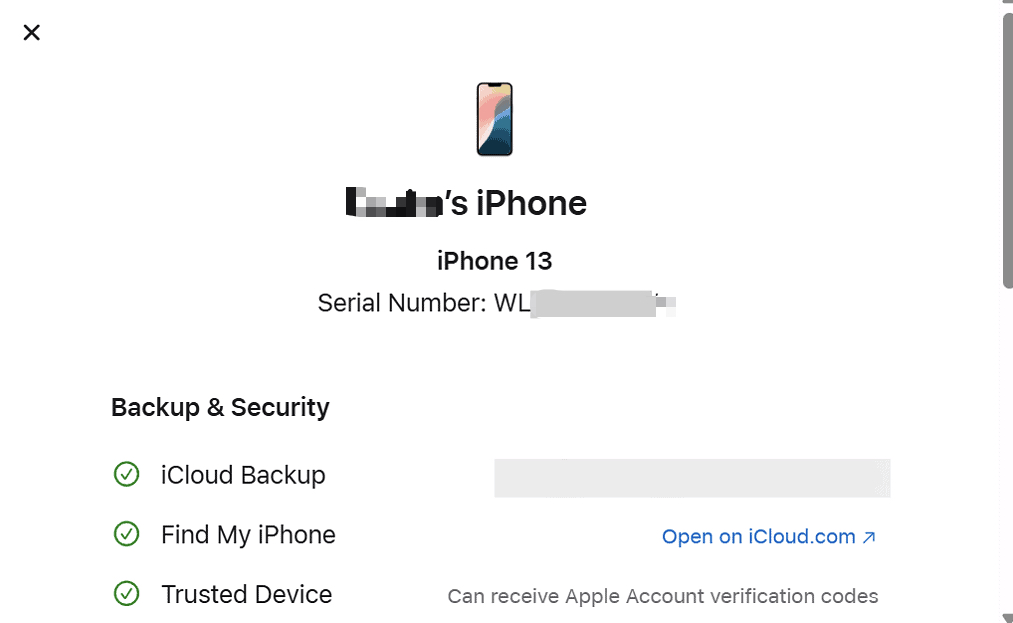
This is useful if you manage several devices or want to check details remotely. If you need help accessing your account, you can follow steps to sign in to your Apple account properly.
Check the Original Box or Purchase Receipt
If you still have the original packaging, the serial number is usually printed next to a barcode on the box.
You may also find it on:
- The original purchase receipt
- The invoice email from Apple or an authorized retailer
- Warranty documents included in the box
Keeping this information is useful for warranty claims or when selling your device later.
Use Apple’s Coverage Tool for Serial Lookup
Once you have the serial number, you can check your device’s warranty and support coverage using Apple’s official lookup tool.
- Go to Apple’s Check Coverage page.
- Enter your device’s serial number.
- Complete the CAPTCHA verification.
- Click Continue.
You will see detailed information about:
- Warranty status
- AppleCare or AppleCare+ coverage
- Technical support eligibility
- Repair and service options
This process works for most Apple devices, including Mac, iPhone, iPad, Apple Watch, and AirPods.
For a deeper explanation of coverage information, you can also learn how to check Apple warranty and AppleCare coverage.
What Information a Serial Number Reveals
When you perform an Apple serial number lookup, you can typically learn several details about your device.
These include:
- Device model and hardware configuration
- Warranty and service coverage
- Estimated purchase date
- Eligibility for AppleCare+ protection
However, newer Apple systems sometimes show less detailed information than before, mainly for privacy and security reasons.
Can You Use Serial Numbers to Detect Fake Apple Devices?
Yes, but it is not always foolproof.
Counterfeit devices sometimes use copied serial numbers from real Apple products. This means the number may appear valid when checked online.
To avoid scams when buying used Apple devices:
- Check the serial number on Apple’s coverage page.
- Compare the model and color shown with the actual device.
- Inspect packaging and accessories carefully.
- Verify the device inside Settings → General → About.
These steps help confirm whether the device matches the information Apple reports.
Tips
- Write down your serial number and store it somewhere secure.
- Avoid sharing your serial number publicly online.
- Always verify the serial number before buying used Apple products.
- Compare the serial number on the box with the one inside device settings.
Managing Your Apple Devices More Easily
Your Apple device’s serial number is more than just a random identifier. It connects your hardware to Apple’s support ecosystem, including warranty coverage, repair eligibility, and service history.
Knowing how to find and use it can save time when troubleshooting issues, verifying authenticity, or preparing a device for resale. With just a few clicks, you can quickly confirm the details of any Apple product linked to your Apple ID.
Key Takeaways
Apple serial number lookup helps you verify a device’s identity, warranty coverage, and technical details. The serial number can be found in Settings, on the device itself, through your Apple ID account, or on the original packaging. Once located, you can use Apple’s official coverage checker to see warranty status and support eligibility. This information is useful for troubleshooting, resale verification, and confirming that a device is genuine.
FAQ
No. The serial number identifies the device itself, while the IMEI is used specifically for cellular network identification on iPhones and other mobile devices.
Yes. Enter the serial number on Apple’s coverage check page to view warranty status, AppleCare coverage, and repair eligibility.
Double-check that the number was entered correctly. If the issue continues, contact Apple Support and provide proof of purchase.
Yes. You can check the original box, purchase receipt, or the Apple ID devices list to retrieve it.
It is better not to share it publicly. Although it does not expose personal data directly, it can sometimes be misused for fraudulent listings or counterfeit products.


0 Comments