How to Find Apple ID Password Without Resetting: 5 Easy Fixes

For security reasons, it is not actually possible to find your Apple ID password without resetting it. Apple encrypts account credentials, which means the password cannot be viewed in plain text anywhere in the system. However, there are several ways to recover or access it indirectly if it is saved on your devices.
If your password is stored in iCloud Keychain or another password manager, you may be able to reveal it without resetting your account. Otherwise, the only reliable option is to reset the password through Apple’s official recovery process. If you are having trouble accessing your account entirely, you may also want to review how to sign in to your Apple account correctly to make sure the credentials are entered properly.
This guide explains the legitimate methods to locate or recover your Apple ID password.
Can You Find an Apple ID Password Without Resetting It?
Apple uses strong encryption to protect account credentials. Because of this, Apple does not allow users or support staff to view the password directly.
However, you may still access it if it has been saved in one of the following places:
- iCloud Keychain on iPhone, iPad, or Mac
- A password manager such as Safari AutoFill
- Saved credentials on another Apple device already signed in
If none of these options work, resetting the password is required to regain access.
1. Check iCloud Keychain on iPhone or iPad
If you previously saved your Apple ID password in iCloud Keychain, you can view it in the Passwords section of iOS.
Time needed: 3 minutes
You can view saved Apple ID credentials through the Passwords section in Settings if they were previously stored on your device.
- Open Settings on your iPhone or iPad.
Launch the Settings app from your Home Screen.
- Scroll down and tap Apps.
Scroll down in Settings and tap Apps to view installed and system applications.
- Navigate to Passwords > Open Passwords.
Navigate to Passwords, then tap Open Passwords to access saved credentials.
- Authenticate using Face ID, Touch ID, or passcode.
Use Face ID, Touch ID, or your device passcode to unlock the password manager.
- Search for apple.com or your Apple ID email address.
Use the search bar and type apple.com or your Apple ID email address.
- Tap the entry to reveal the saved password.
Tap the result to reveal the saved Apple ID password and login details.
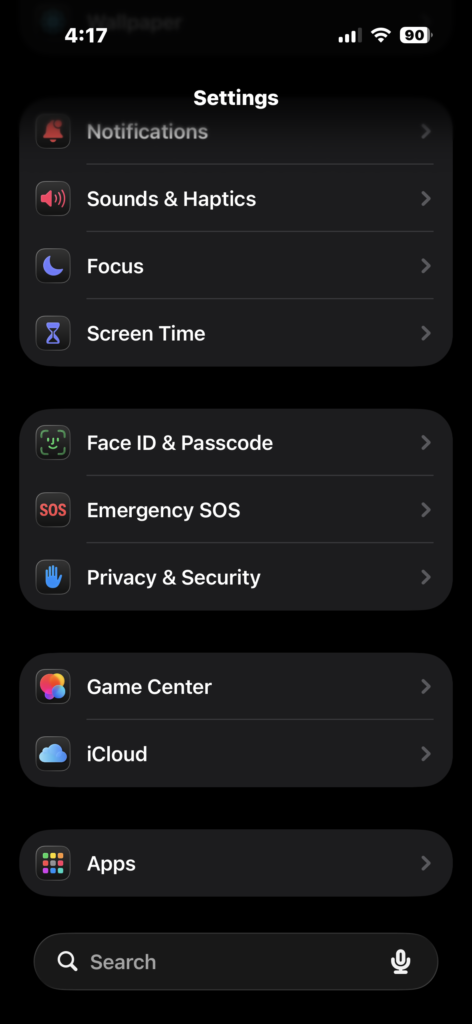
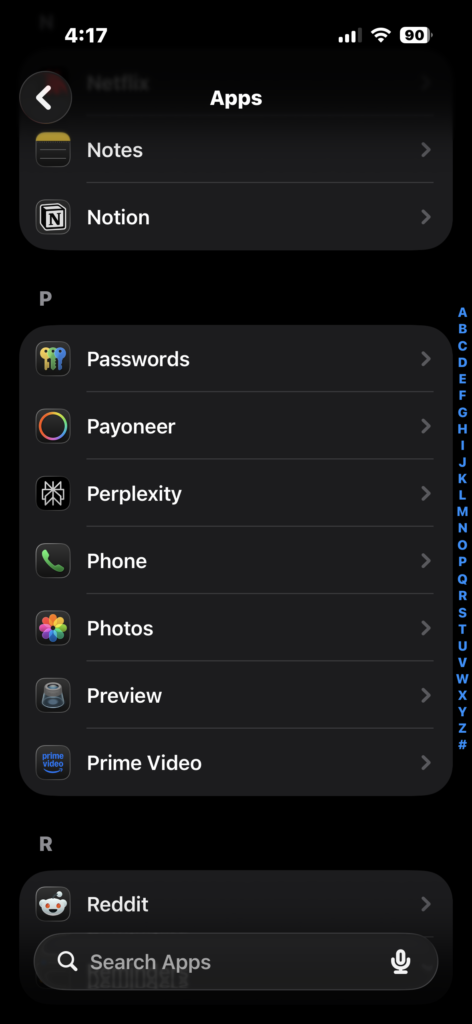
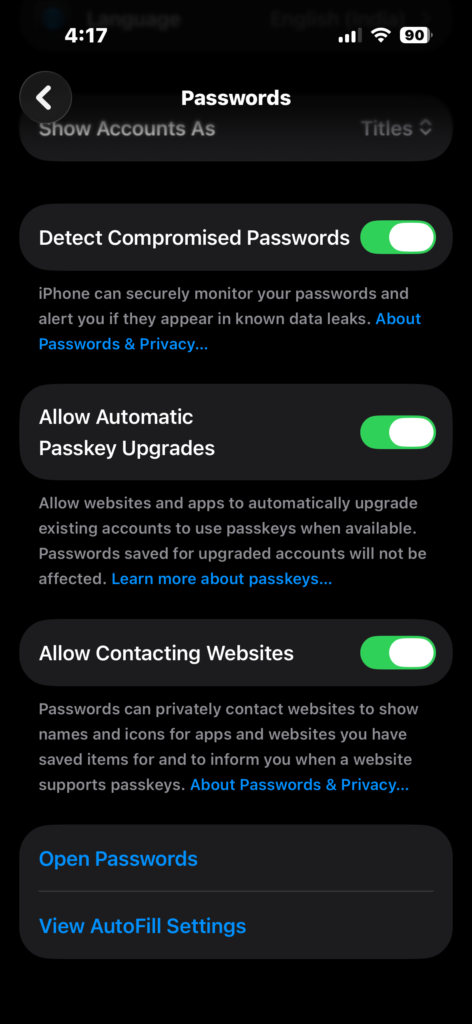
This method works only if the password was saved previously through Safari or AutoFill.
2. Find the Apple ID Password on a Mac
Mac computers also store saved passwords through iCloud Keychain and Safari.
- Click the Apple menu.
- Open System Settings.
- Go to iCloud > Passwords.
- Authenticate with Touch ID or your Mac password.
- Search for apple.com or your Apple ID email.
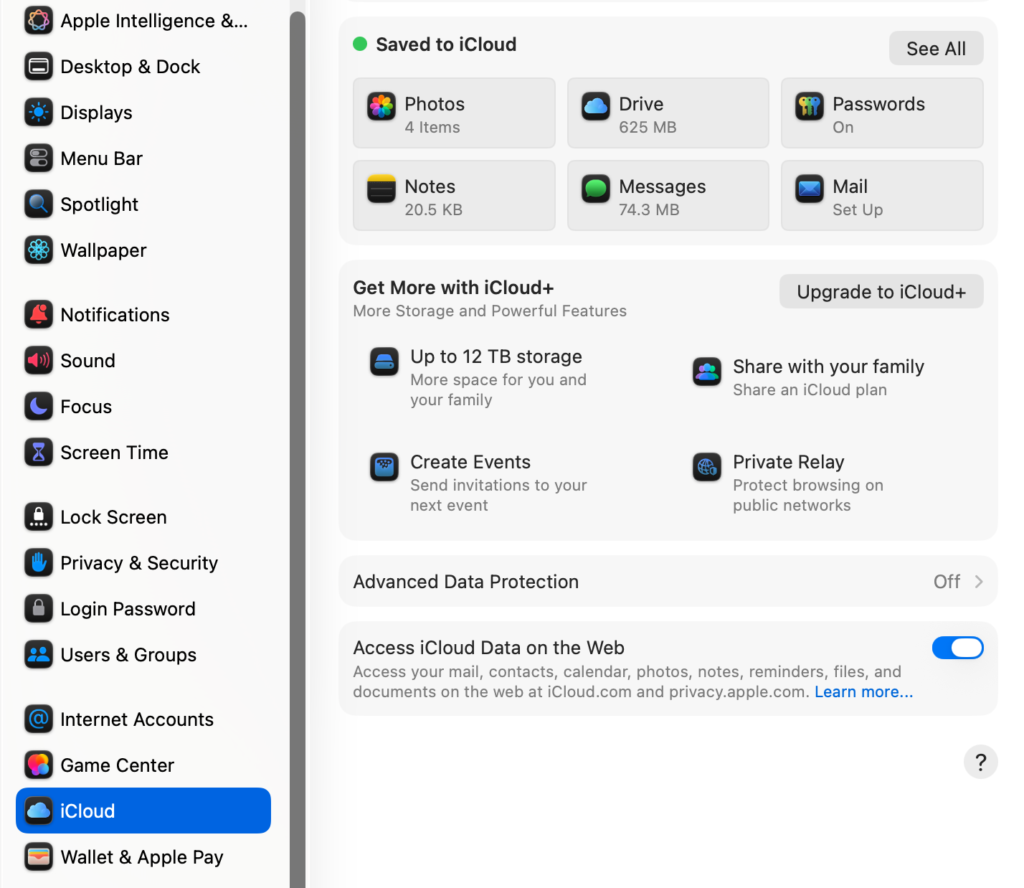
If the password was saved earlier, it will appear and can be copied or revealed.
3. Check Safari Saved Passwords
Safari’s AutoFill feature often stores login credentials when you sign in to websites.
- Open Safari.
- Click Safari in the menu bar.
- Select Settings.
- Open the Passwords tab.
- Search for your Apple ID login.
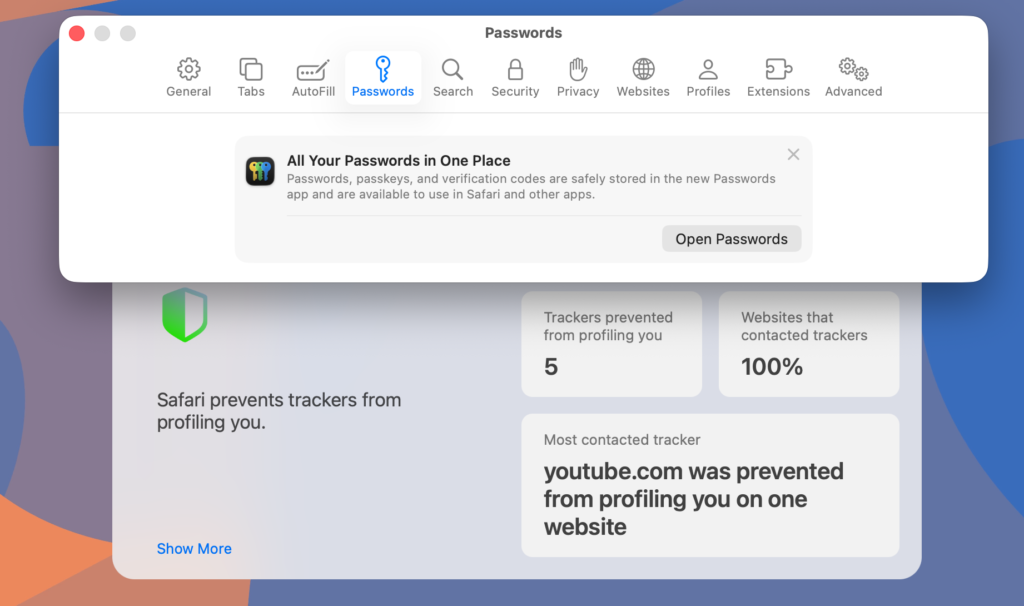
If present, Safari will display the saved password after authentication.
If you frequently manage multiple Apple devices, guides about checking Apple warranty and AppleCare coverage can also help track which devices are linked to your account.
4. Use Another Device Already Signed In
If your Apple ID is still signed in on another device, you may be able to change the password directly without knowing the old one.
- Open Settings on the device.
- Tap your Apple ID name at the top.
- Select Sign-In & Security.
- Tap Change Password.
- Follow the on-screen instructions.
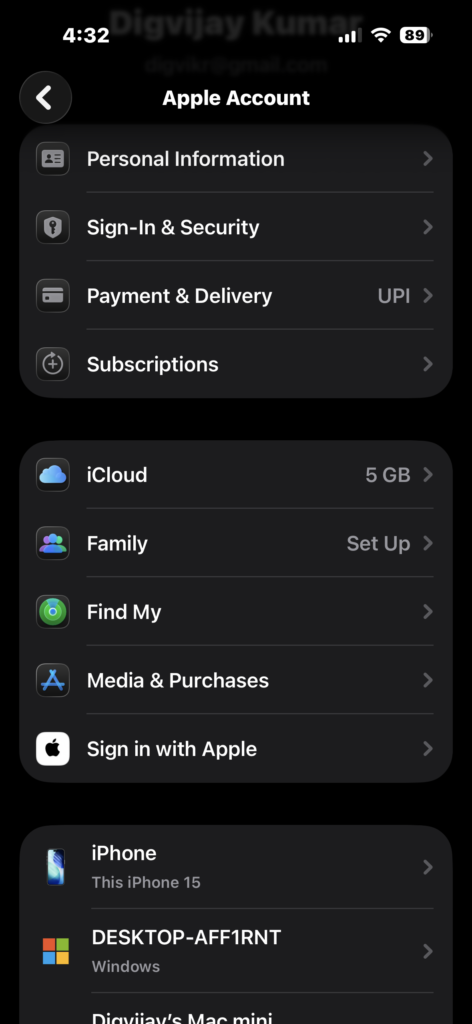
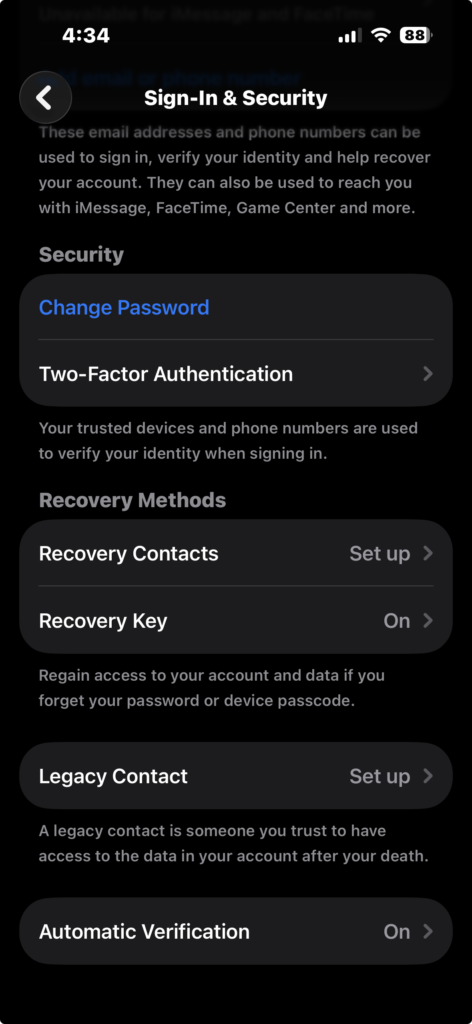
This does not reveal the existing password but allows you to create a new one without full account recovery.
5. Reset the Apple ID Password if Necessary
If the password is not stored anywhere, the safest solution is to reset it through Apple’s recovery system.
- Go to Apple’s account recovery page.
- Enter your Apple ID email address.
- Verify your identity using a trusted device or phone number.
- Follow the steps to create a new password.
This ensures your account remains secure and prevents unauthorized access.
Tips
- Enable iCloud Keychain so passwords are saved automatically.
- Use Face ID or Touch ID for quick access to stored passwords.
- Store your Apple ID credentials in a secure password manager.
- Avoid writing passwords in unsecured notes or screenshots.
- Use a strong and unique Apple ID password for security.
Protecting Your Apple Account Access
Your Apple ID controls access to many Apple services including iCloud, App Store, FaceTime, and iMessage. Because of this, Apple prioritizes security and does not allow passwords to be viewed directly.
If the password is saved in iCloud Keychain or Safari, you may be able to reveal it quickly. Otherwise, resetting the password is the safest way to regain access to your account. Keeping your credentials stored securely ensures you can always access your Apple ecosystem when needed.
Key Takeaways
Apple does not allow users to view their Apple ID password directly for security reasons. However, you may find it in iCloud Keychain or Safari if it was saved previously. If the password is not stored on any device, the only reliable solution is resetting it through Apple’s account recovery process. These methods help maintain strong account security while allowing legitimate users to regain access.
FAQs
Not directly. You can only view it if it was saved in iCloud Keychain or Safari passwords.
No. Apple cannot access or reveal your password because it is encrypted.
You can reset it using Apple’s official account recovery system or through a trusted device already signed in.
Yes, if you allowed Safari or AutoFill to save the password previously.
Only if the password was saved in a password manager such as iCloud Keychain or Safari AutoFill. Otherwise, it must be reset.



0 Comments