Apple Pencil Not Working But Connected? 8 Fast Fixes
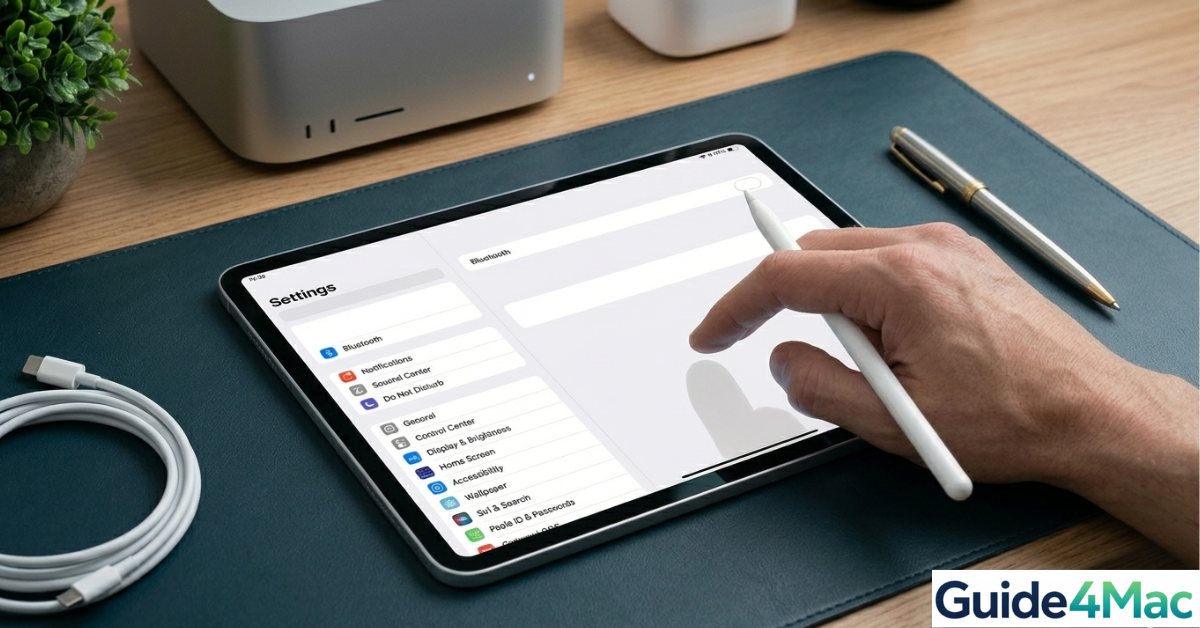
If your Apple Pencil is connected but not working, you might notice that it appears paired with your iPad yet does not respond when you try to write or draw. This can happen with both Apple Pencil (1st generation) and Apple Pencil (2nd generation) across devices like the iPad, iPad Air, and iPad Pro.
The problem is usually caused by temporary connection glitches, outdated iPadOS software, or pairing issues. In some cases, it may also happen if the stylus battery is low or the tip is loose. If your Pencil also refuses to charge, you may want to check how to fix Apple Pencil not charging before troubleshooting further.
This guide walks through the most effective ways to fix an Apple Pencil that shows as connected but does not respond.
Why Is Your Apple Pencil Connected but Not Working?
When an Apple Pencil shows as connected yet fails to respond, the issue usually lies with the connection handshake between the stylus and the iPad.
Common causes include:
- Temporary Bluetooth connection glitches
- Low Apple Pencil battery
- A loose or worn Pencil tip
- iPadOS software bugs
- Pairing problems between the iPad and the Pencil
- Screen protector interference
Most of these problems can be resolved with simple troubleshooting steps.
1. Check Apple Pencil Battery Level
A very low battery may allow the Pencil to appear connected but still fail to respond properly.
- Open Settings on your iPad.
- Tap Apple Pencil.
- Check the battery percentage.
- Charge the Pencil if the battery is low.
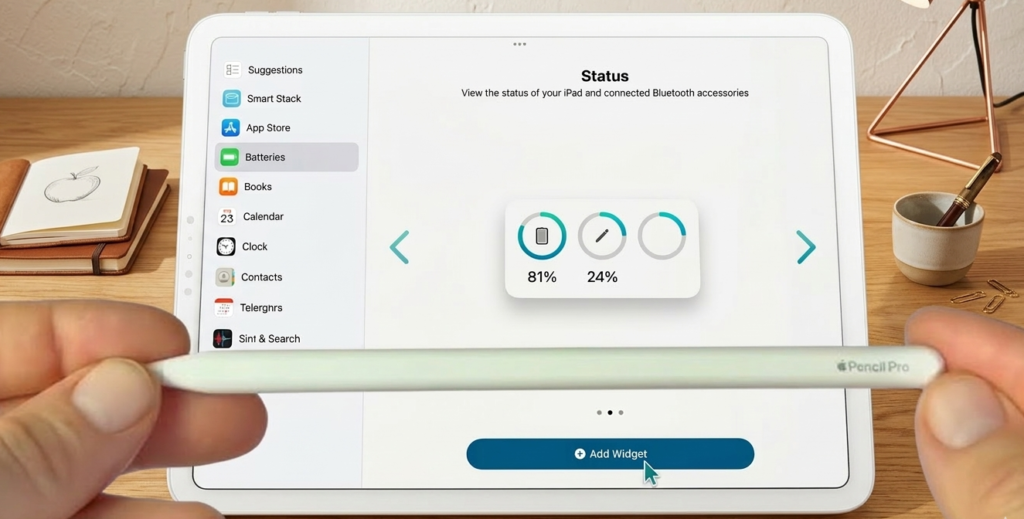
You can also add the Batteries widget to your Home Screen to monitor the Pencil battery easily.
2. Restart Your iPad
Restarting your iPad refreshes Bluetooth connections and system processes.
- Press and hold the Top button and Volume button together.
- Wait for the Power Off slider.
- Drag the slider to turn off the device.
- Wait about 30 seconds.
- Press the Top button to turn the iPad back on.
After the device restarts, try using the Apple Pencil again.
3. Reconnect the Apple Pencil
Sometimes the pairing between the iPad and Apple Pencil becomes unstable. Reconnecting it often fixes the issue.
- Open Settings.
- Tap Bluetooth.
- Find your Apple Pencil in the device list.
- Tap the Info (i) icon.
- Select Forget This Device.
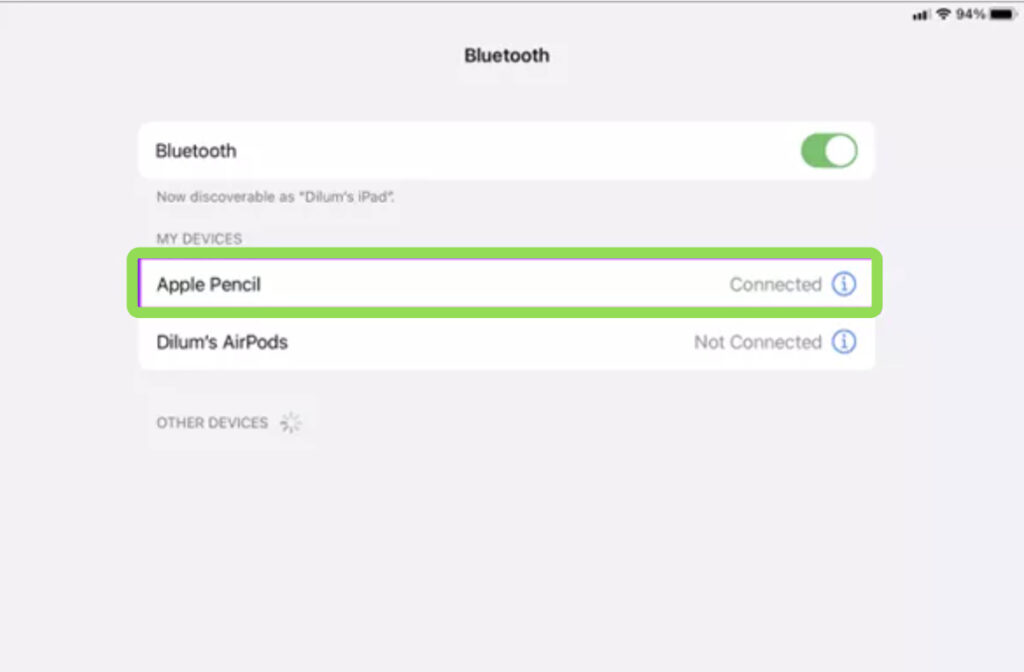
- Reconnect the Pencil by attaching it to the iPad (2nd generation) or plugging it into the Lightning port (1st generation).
4. Tighten or Replace the Pencil Tip
A loose Apple Pencil tip can prevent proper contact with the internal sensors.
- Hold the tip of the Apple Pencil.
- Rotate it clockwise to tighten it.
- Test the Pencil again on the screen.
If the tip is worn down or damaged, replacing it can restore normal functionality.
5. Turn Bluetooth Off and On
Since Apple Pencil relies on Bluetooth, refreshing the connection may solve the issue.
- Open Settings.
- Tap Bluetooth.
- Turn Bluetooth off.
- Wait a few seconds.
- Turn Bluetooth on again.
After reconnecting, test the Pencil in apps like Notes or Procreate.
6. Update iPadOS
Software bugs sometimes affect Apple Pencil performance. Updating iPadOS can resolve compatibility issues.
- Open Settings.
- Tap General.
- Tap Software Update.
- Install any available updates.
Keeping your device updated ensures the best compatibility between iPadOS and Apple Pencil hardware.
7. Remove Screen Protectors Temporarily
Some thick screen protectors can interfere with Apple Pencil sensitivity.
- Remove the screen protector temporarily.
- Test the Apple Pencil directly on the screen.
- Check if responsiveness improves.
If the Pencil works normally afterward, consider switching to a Pencil-compatible screen protector.
8. Reset Network Settings
If Bluetooth connectivity continues to fail, resetting network settings may help.
- Open Settings.
- Tap General.
- Select Transfer or Reset iPad.
- Tap Reset.
- Choose Reset Network Settings.
This resets Wi-Fi and Bluetooth settings but does not erase personal data.
Tips
- Keep the Apple Pencil charged regularly.
- Store the Pencil attached to the iPad when possible.
- Avoid dropping the Pencil to prevent internal sensor damage.
- Replace worn Pencil tips periodically.
- Keep your iPadOS updated.
Getting Your Apple Pencil Working Again
When an Apple Pencil shows as connected but does not work, the issue is usually related to Bluetooth connectivity, battery level, or pairing glitches. Simple steps like restarting the iPad, reconnecting the stylus, or tightening the Pencil tip often resolve the problem quickly.
If the issue persists after troubleshooting, testing the Pencil on another compatible iPad can help determine whether the problem lies with the stylus or the device itself.
Key Takeaways
An Apple Pencil connected but not working is usually caused by battery issues, Bluetooth glitches, or pairing problems. Restarting the iPad, reconnecting the Pencil, and tightening the tip are the most effective solutions. Updating iPadOS and checking screen protectors can also restore normal functionality. These troubleshooting steps help resolve most Apple Pencil responsiveness problems.
FAQs
This usually happens due to low battery, pairing issues, or a loose Pencil tip.
Forget the device in Bluetooth settings and pair it again by attaching it to the iPad or plugging it into the Lightning port.
Yes. A worn or loose tip can prevent proper screen contact and should be tightened or replaced.
Yes. Apple Pencil communicates through Bluetooth, so connection issues can prevent it from working properly.
Often yes. Updates can fix software bugs that affect stylus connectivity and responsiveness.


0 Comments