How to Add an Email Account to iPad (Easy Step-by-Step Guide)
A recent survey found that over 85% of people check their emails on tablets daily, yet many iPad users still struggle with setting up their accounts properly. Luckily, Apple makes adding an email account on iPad quick and simple. Once set up, your emails sync automatically across all Apple devices, letting you manage messages wherever you go. Let’s walk through the process so you can get started in minutes.
The easiest way to add an email account on iPad
Yoast How-To: Add an email account on iPad
Total Time: 2–4 minutes
Description: Use your iPad’s built-in Mail app to connect any email account, including Gmail, Yahoo, Outlook, or iCloud, quickly and securely.
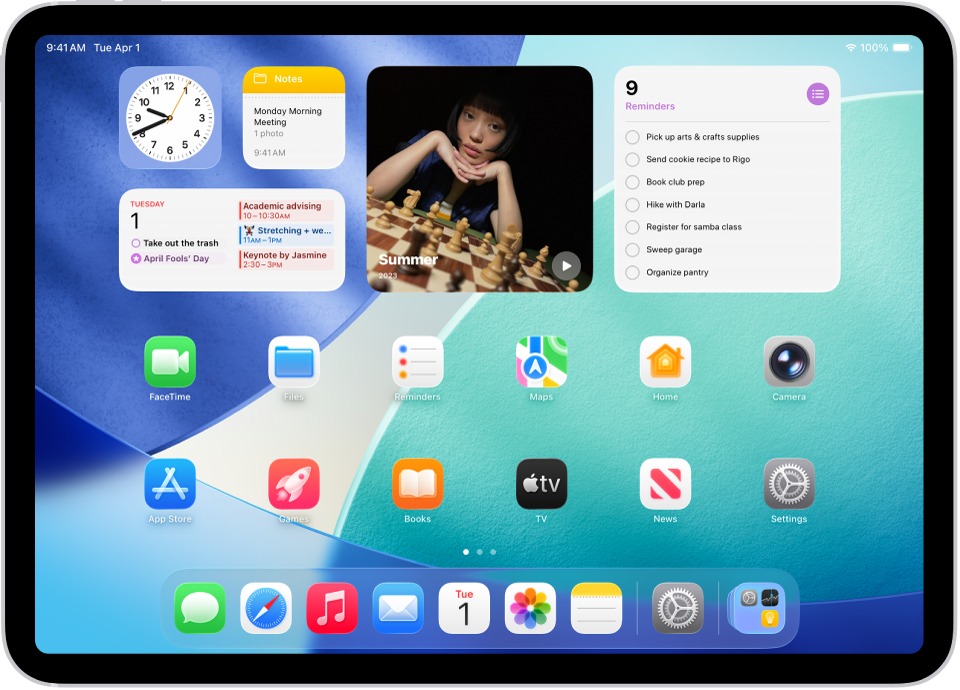
Step 1: Open Settings
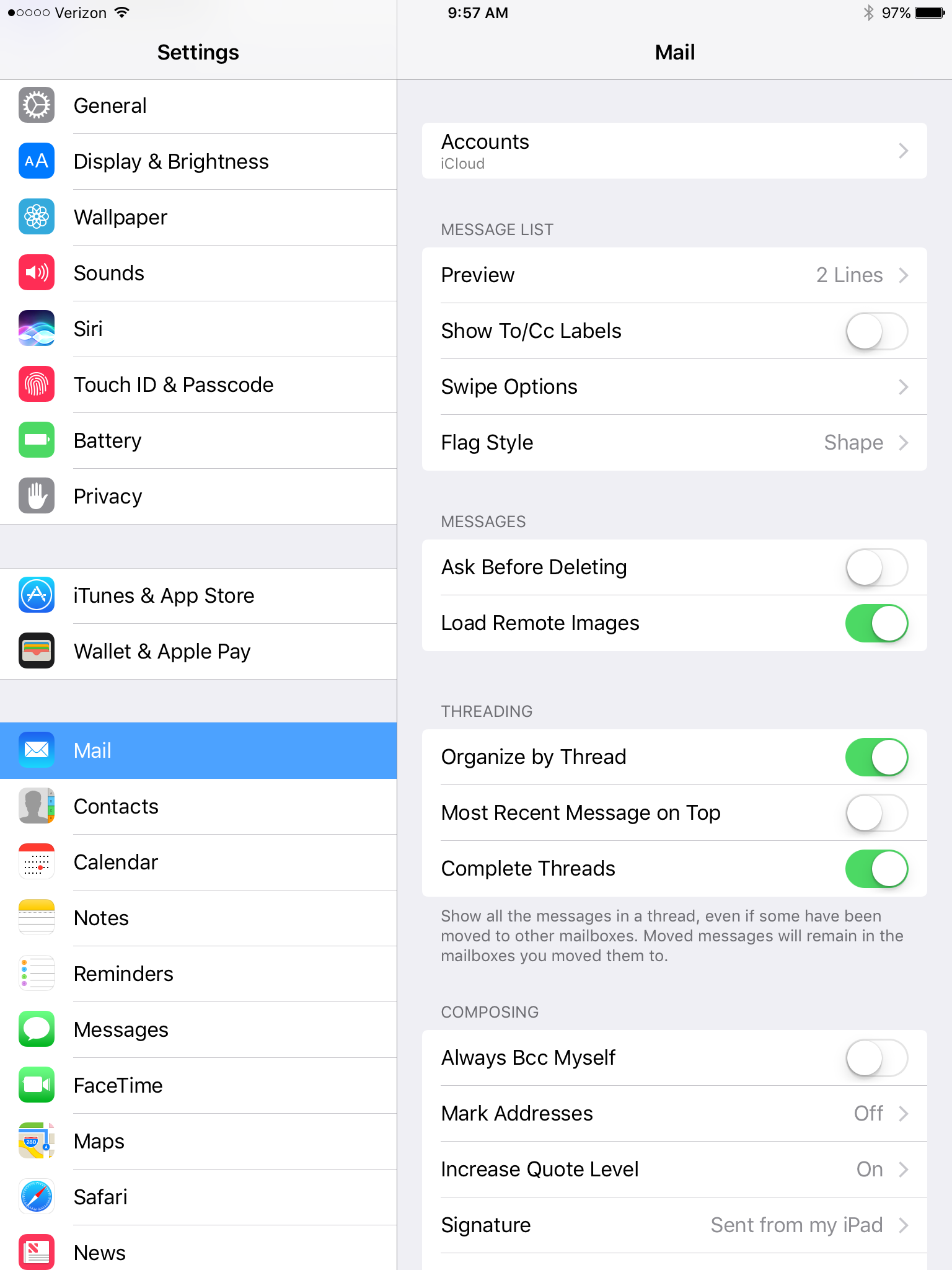
Unlock your iPad and open the Settings app. This is where all account management is done on iOS devices.
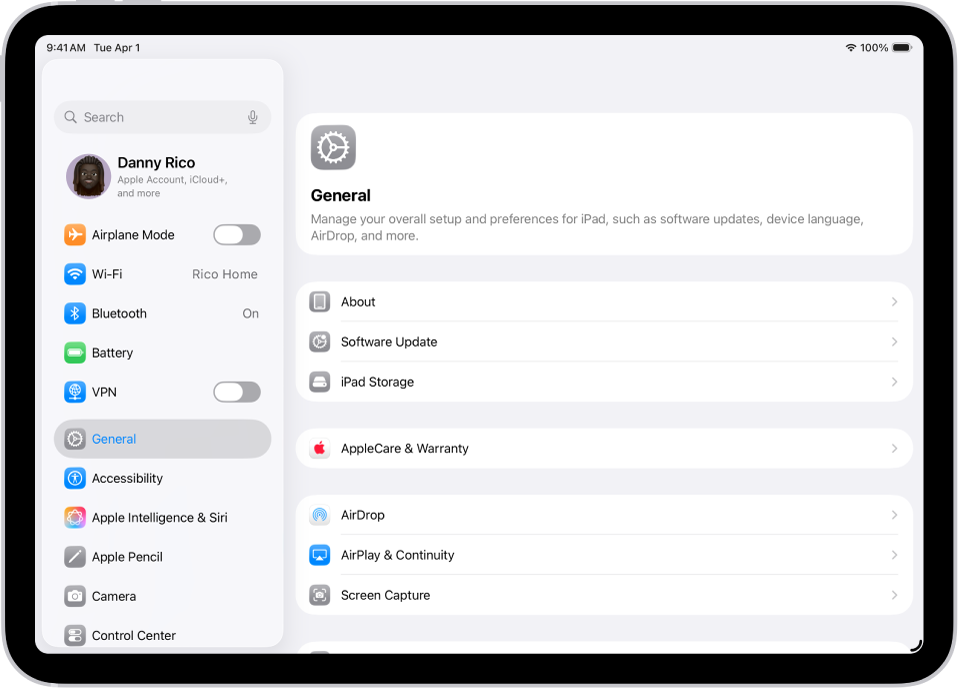
Step 2: Go to Mail settings
Scroll down and tap Mail, then select Accounts. This area shows all email accounts currently linked to your iPad.
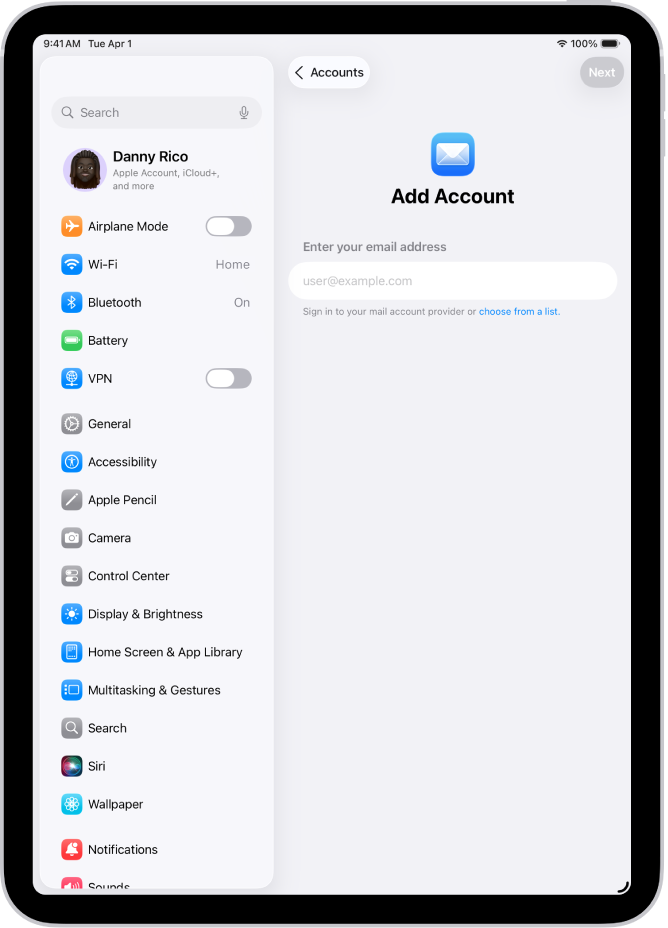
Step 3: Tap Add Account
Tap Add Account to see a list of popular providers like Google, Yahoo, Outlook, and iCloud.

Step 4: Choose your email provider
Select your email provider. For Gmail, this works similarly to logging into Gmail on iPhone using Google’s secure sign-in system.
Step 5: Enter login credentials
Type your email address and password. If you recently changed your password, make sure it’s updated. You can also change your email password on iPhone to keep your accounts in sync.

Step 6: Allow permissions
Select what you want to sync, such as Mail, Contacts, Calendars, and Notes. Make sure the Mail toggle is enabled so your emails appear in the app.
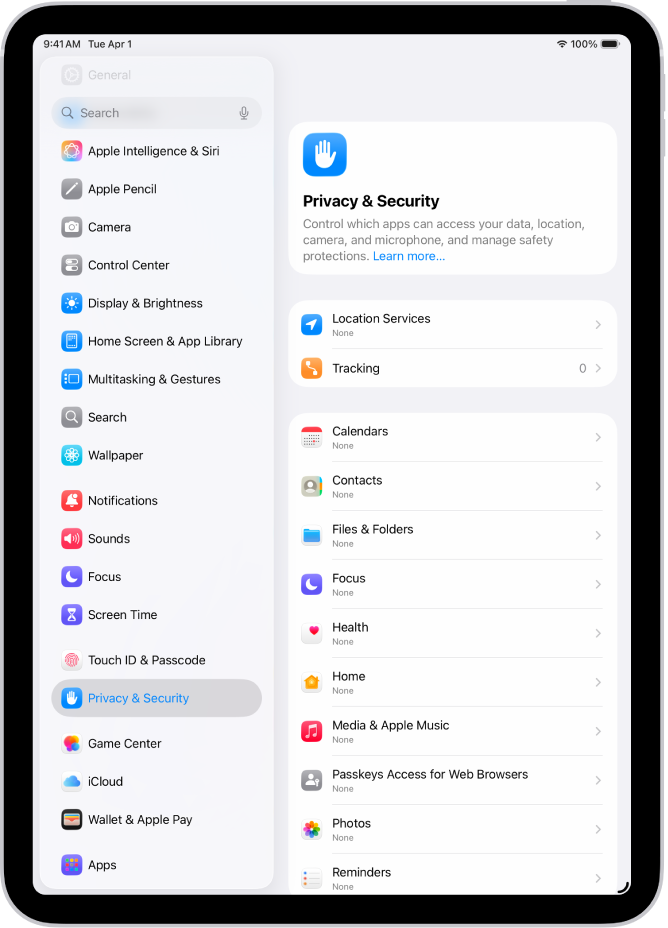
Step 7: Save and open Mail app
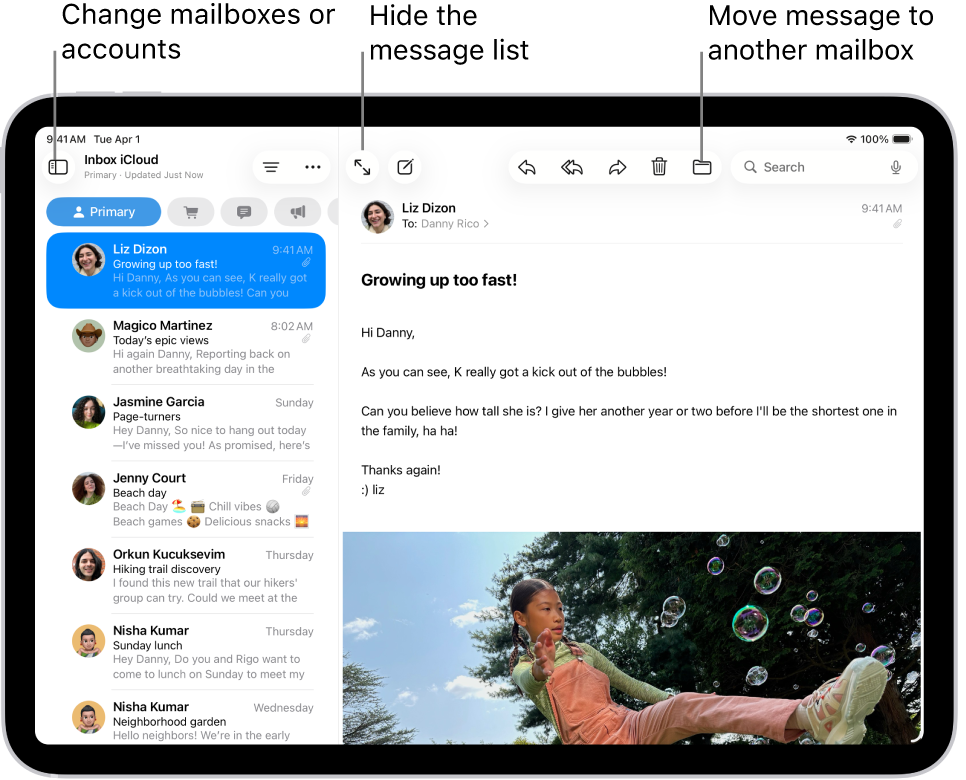
Tap Save, then open the Mail app. Your inbox should appear immediately. For seamless syncing across devices, ensure you sign in properly to your Apple account.
Alternative method: Manual setup for custom email accounts
If your provider isn’t listed or automatic setup fails, choose Other → Add Mail Account. Enter your name, email, and password, then configure incoming (IMAP/POP) and outgoing (SMTP) servers.
For Gmail, the typical IMAP settings are:
- IMAP: imap.gmail.com (Port 993, SSL)
- SMTP: smtp.gmail.com (Ports 465 or 587, SSL)
Manual setup is ideal for business emails or custom domains that aren’t automatically recognized by iOS.
Common problems when adding an email account on iPad
Even though the process is straightforward, users sometimes face issues:
- “Cannot verify account” errors
- Incorrect password messages
- Emails not syncing or delayed
- Account not appearing in Mail app
- Restrictions caused by Screen Time or Content & Privacy settings
These are often linked to incorrect credentials, device restrictions, or provider security policies.
Fixes and troubleshooting steps
To resolve common issues:
- Double-check your email and password
- Enable IMAP in your email provider’s settings
- Remove and re-add the account
- Restart your iPad
- Update to the latest iPadOS version
If Gmail specifically isn’t syncing, steps to fix Apple Mail not syncing with Gmail often solve the issue instantly.
Helpful tips for managing email on iPad
Once your email is connected, these tips can make your workflow smoother:
- Use folders and labels to organize emails
- Enable push notifications for real-time updates
- Add multiple accounts to view everything in one place
- Keep your iPad updated for the best performance
For Apple ecosystem users, syncing your email across devices saves time. You can also add an email account to your Mac or log in Gmail on iPhone for consistent access everywhere.
FAQs (People Also Ask)
How do I add an email account to my iPad?
Go to Settings → Mail → Accounts → Add Account, then select your provider and sign in.
Why can’t I add my email to my iPad?
This often happens due to incorrect login details, disabled IMAP, or device restrictions in Screen Time.
Can I add multiple email accounts on iPad?
Yes, you can add multiple accounts and manage them all inside the Mail app.
Do I need IMAP or POP for iPad?
IMAP is recommended because it syncs emails across all Apple devices in real time.
How do I sync email on iPad?
Make sure Mail is enabled in your account settings and that IMAP is active.
What email providers are supported on iPad?
iPad supports Gmail, Yahoo, Outlook, iCloud, Exchange, and custom email providers.

0 Comments