How to Fix Apple Mail Not Syncing with Hotmail? Best Methods
Hotmail has been around longer than most people realize. Launched in 1996, it was one of the first web-based email services in the world, and today it still powers millions of accounts under Microsoft Outlook. So when your Hotmail suddenly stops syncing with Apple Mail, it feels less like a minor glitch and more like something that should not be happening in 2026.
The reality is simpler. Most syncing issues come down to account setup, authentication, or a small setting that breaks communication between Apple Mail and Microsoft’s servers. Once you identify the cause, the fix is usually quick.
This guide shows you exactly how to fix Apple Mail not syncing with Hotmail on iPhone, iPad, and Mac, using solutions that actually work.
How to Fix Apple Mail Not Syncing with Hotmail
1. Remove and Re-Add Your Hotmail Account as Exchange
Time needed: 8 minutes
The most effective way to fix Hotmail syncing issues is to reconnect your account using the correct Microsoft Exchange setup. This restores proper authentication and enables push email syncing.
- Remove Your Hotmail Account
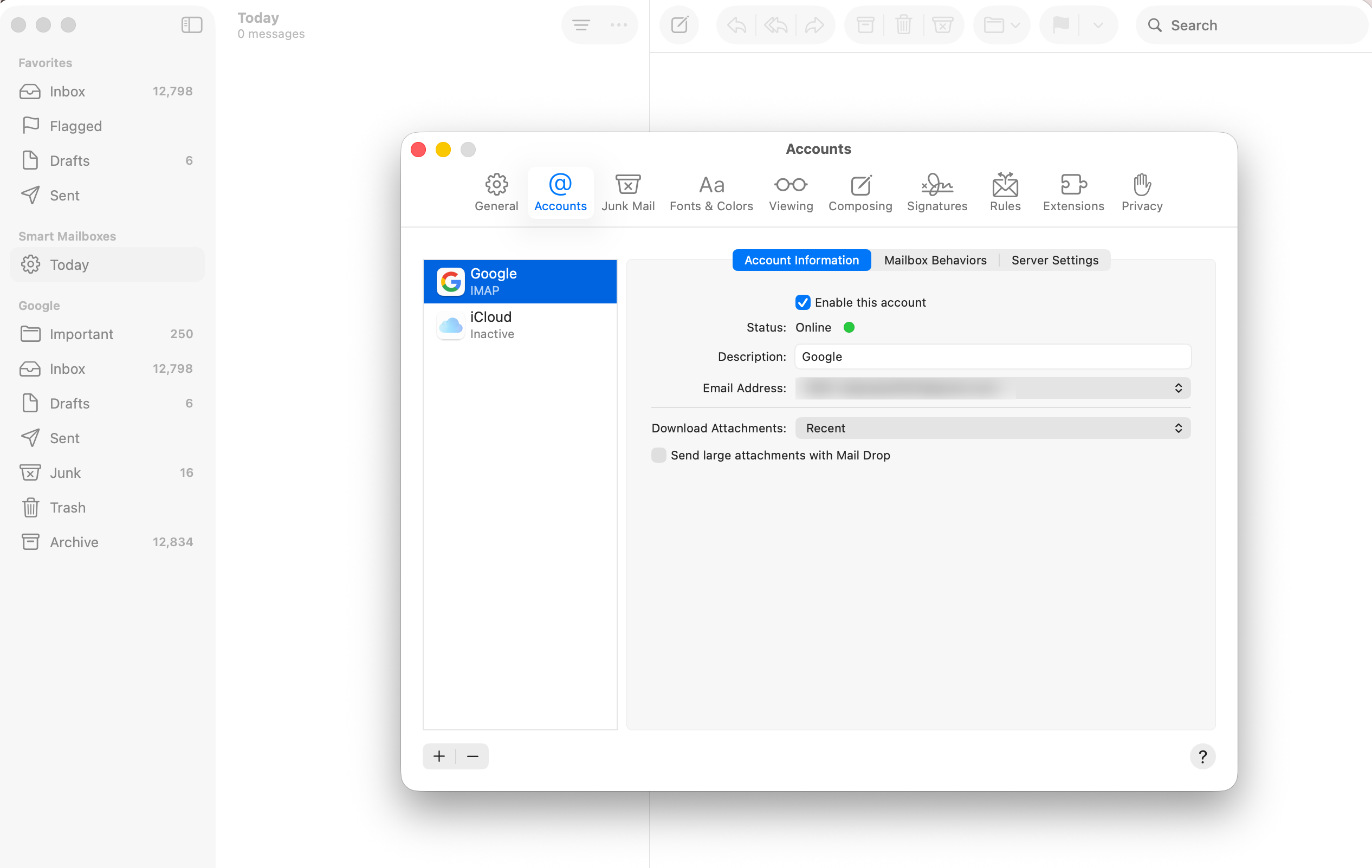
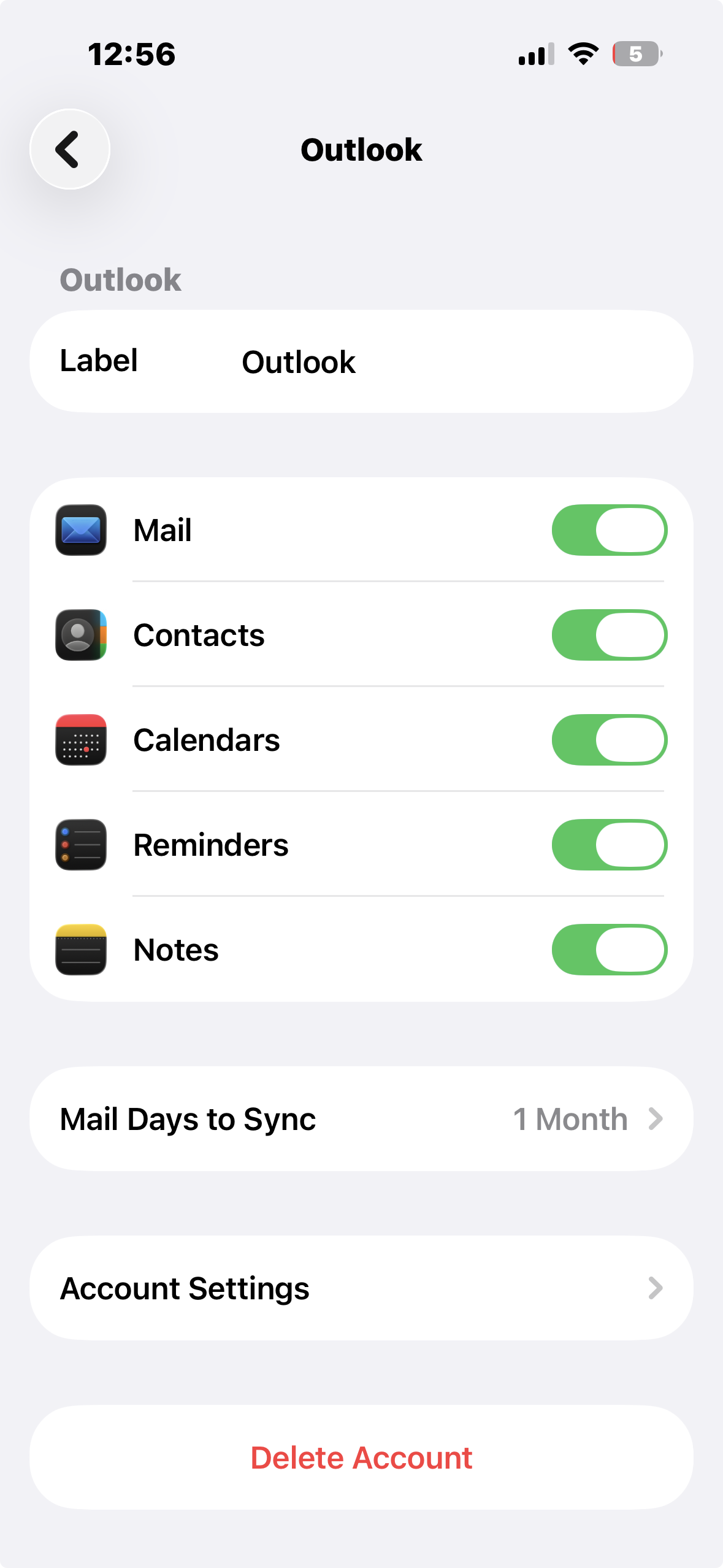
On iPhone or iPad, go to Settings → Mail → Mail Accounts → Outlook → Delete Account. On Mac, open Mail → Settings → Accounts, select your account, and remove it.
- Restart Your Device
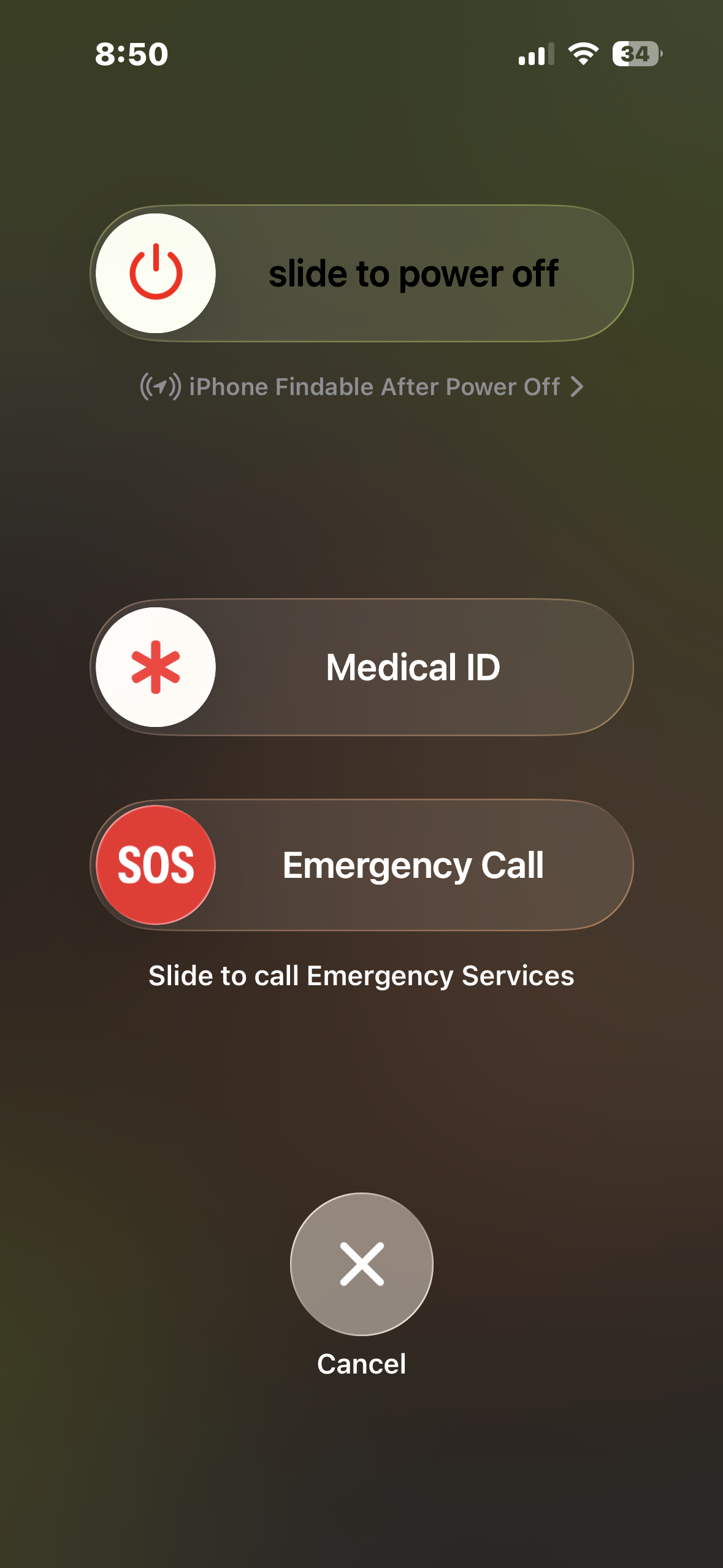
Restart your iPhone, iPad, or Mac to clear temporary sync errors.
- Add Account Using Outlook Option
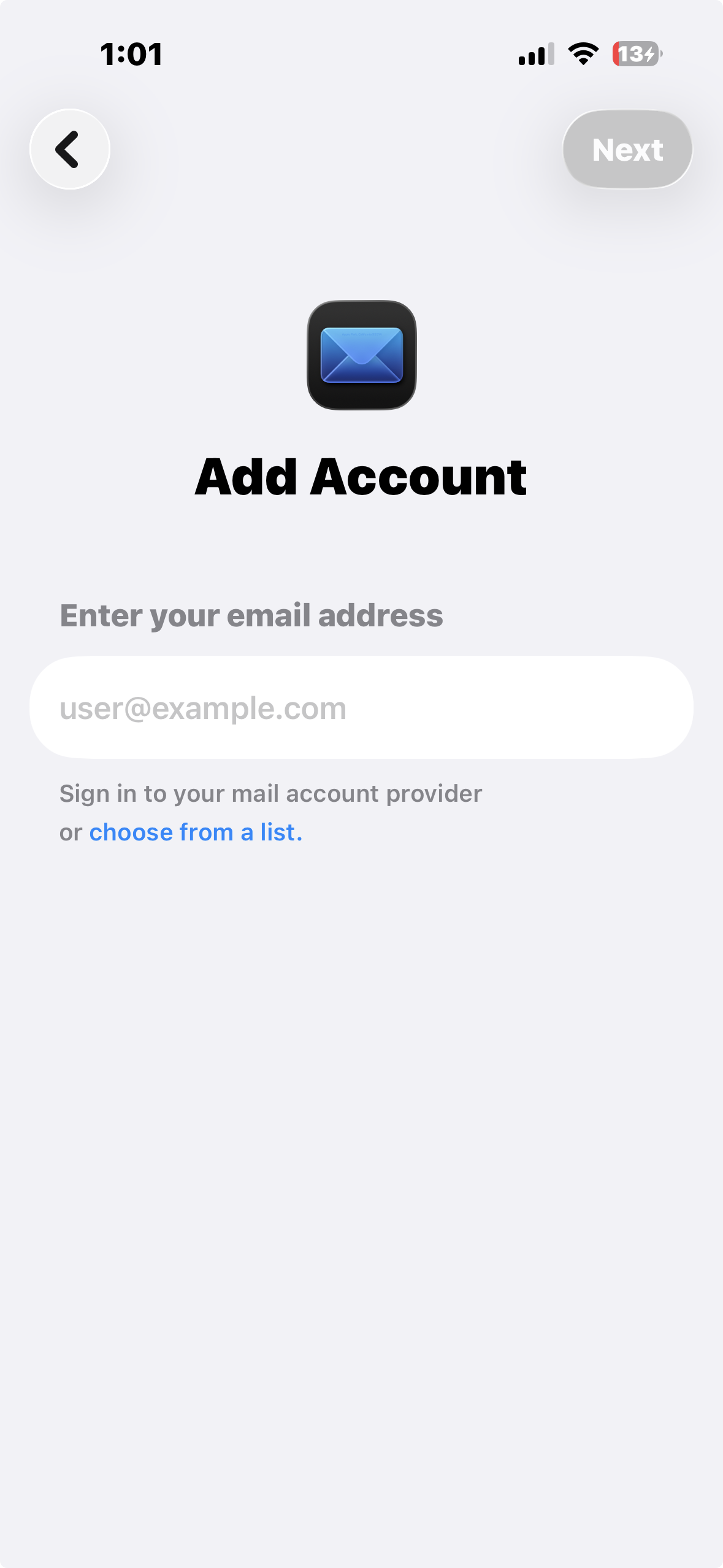
Go to Settings → Mail → Accounts → Add Account → Outlook.com and sign in with your Hotmail credentials.
- Enable Mail Sync
Make sure the Mail toggle is turned ON after adding the account.
- Open Apple Mail and Check Sync
Launch the Mail app and confirm that your emails are updating in real time.
2. Make Sure Mail Sync Is Enabled
Sometimes the issue is as simple as the Mail toggle being turned off. This can happen after a password change or system update.
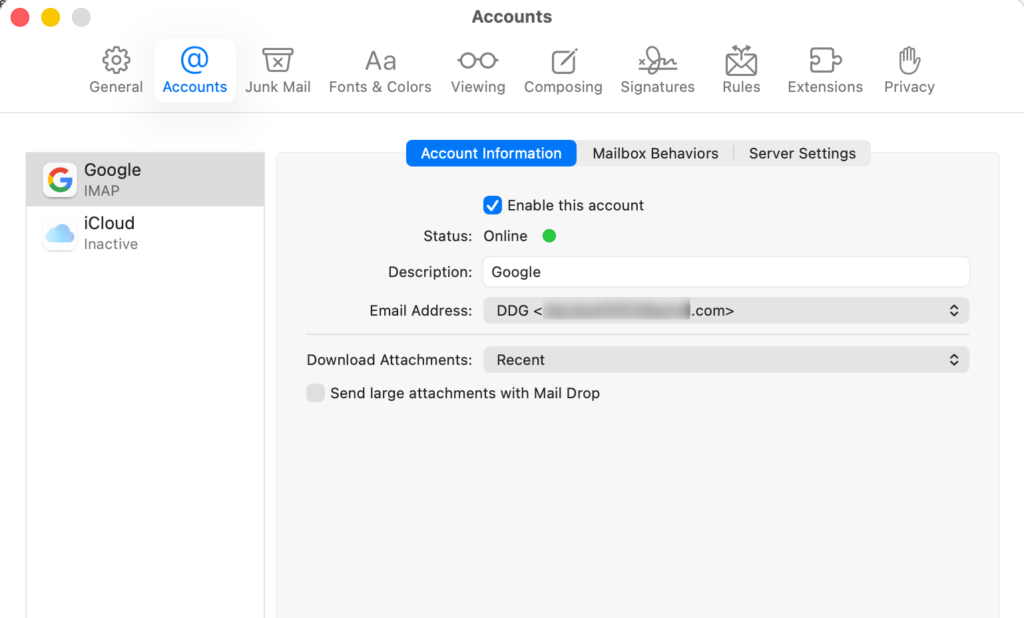
- On iPhone/iPad: Settings → Mail → Accounts → Outlook → toggle Mail ON
- On Mac: Mail → Settings → Accounts → select your account → enable it
3. Check Fetch and Push Settings
If your emails are delayed or not arriving, your device may not be checking for new messages correctly. Adjusting these settings helps restore real-time syncing.
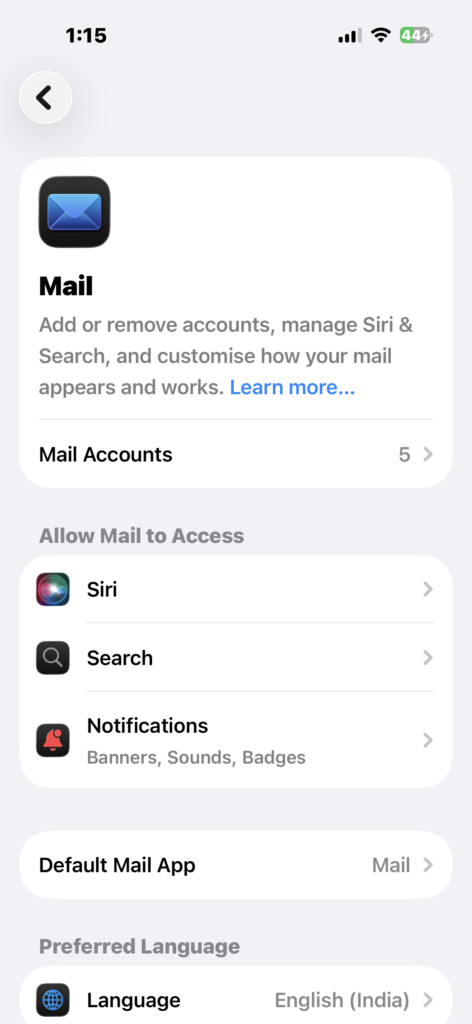
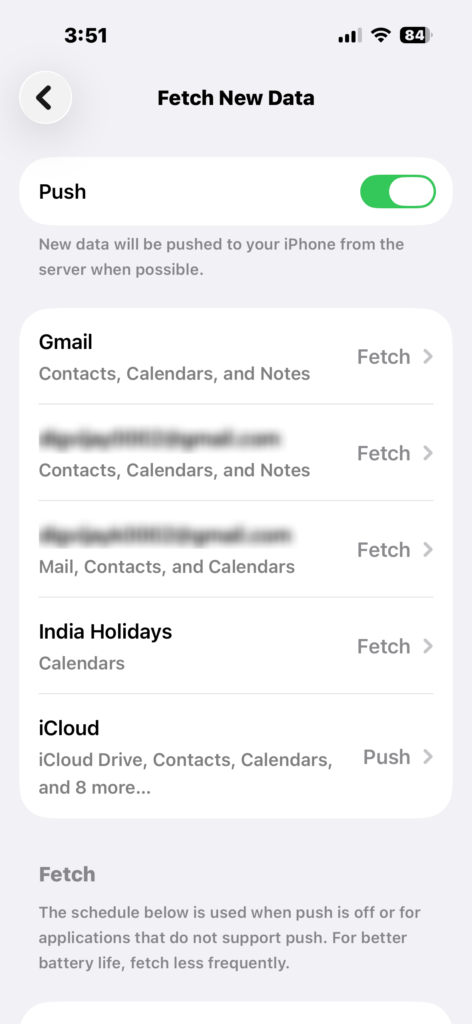
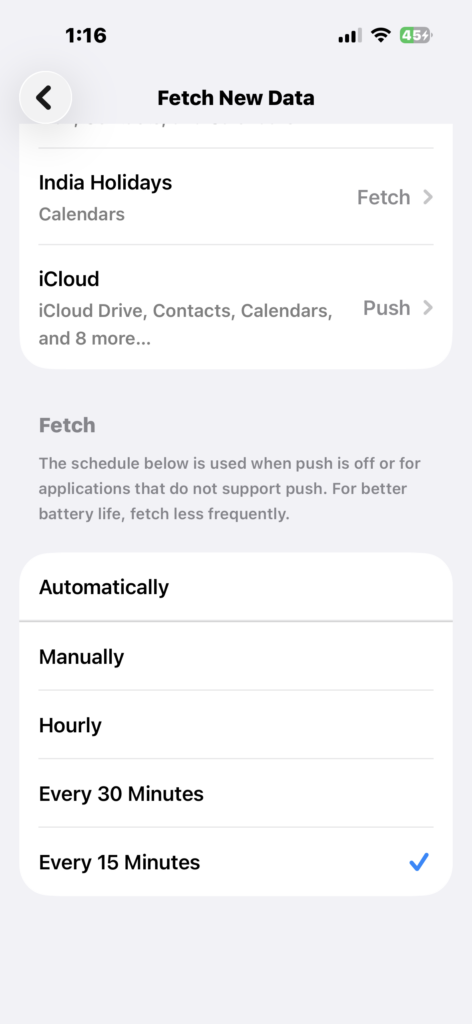
- Go to Settings → Mail → Mail Accounts → Fetch New Data.
- Enable Push for Outlook accounts.
- If Push is unavailable, set Fetch to every 15 minutes.
- On Mac: Mail → Settings → General → set Check for new messages to Automatically.
4. Update Your Account Password or Authentication
Login issues are one of the most common reasons Hotmail stops syncing with Apple Mail. Microsoft may require re-authentication without clearly notifying you.
- Re-enter your Hotmail password in account settings
- If two-factor authentication is enabled, generate an app-specific password
- Sign out and back into your account if prompted
5. Restart Apple Mail and Your Device
Temporary glitches can interrupt syncing even when everything is configured correctly. A quick restart often resolves these issues instantly.
- Force close the Mail app
- Reopen it after a few seconds
- Restart your iPhone, iPad, or Mac
6. Update iOS, iPadOS, or macOS
Outdated software can break compatibility with Microsoft Exchange services, especially after major updates.
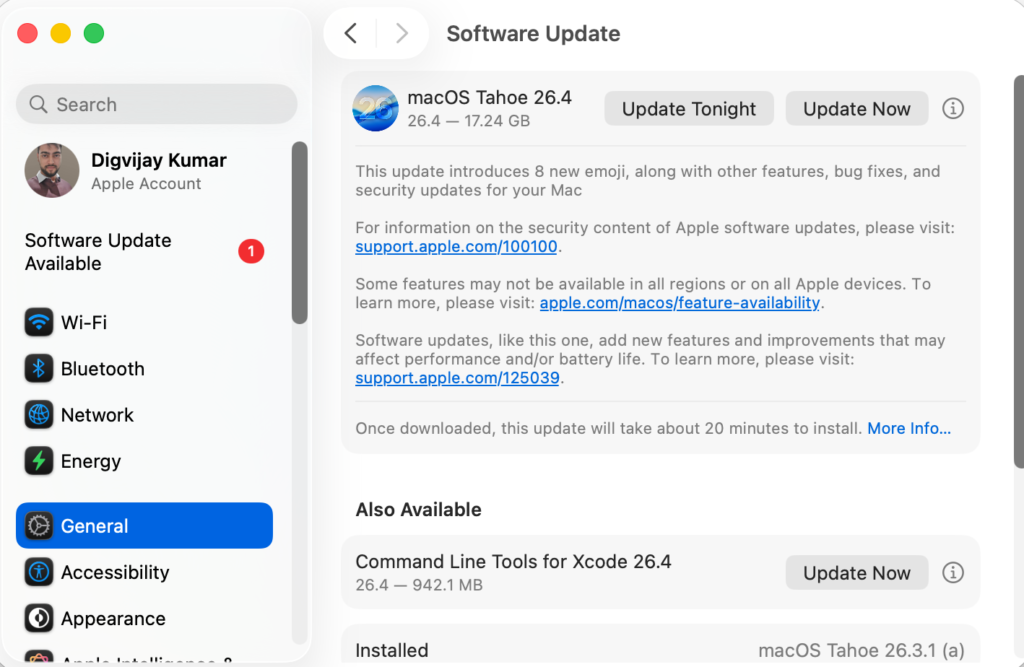
- On iPhone/iPad → Settings → General → Software Update
- Install any available updates
- On Mac → Apple menu → System Settings → Software Update
7. Check Background App Refresh and Internet Connection
Apple Mail relies on background activity and a stable connection to keep emails updated. If either is restricted, syncing can stop.
- Enable Background App Refresh in Settings → General
- Disable Low Power Mode temporarily
- Check your Wi-Fi or mobile data connection
- Turn off VPN if you are using one
Common Problems
- Hotmail emails not appearing in Apple Mail
- “Cannot Get Mail” or Exchange errors
- Inbox not updating automatically
- Emails stuck in Outbox
Fixes / Troubleshooting
- Re-add your account using Outlook (Exchange)
- Verify Mail is enabled in account settings
- Check Push or Fetch configuration
- Update your password or authentication
- Restart your device after making changes
Tips
Keeping Hotmail working smoothly in Apple Mail often comes down to a few simple habits.
- Always add Hotmail as an Outlook (Exchange) account, not IMAP
- Keep your Apple devices updated
- Enable Push for real-time syncing
- Reconnect your account after major updates
- Similar syncing issues can also appear with Gmail or Yahoo accounts due to authentication or fetch settings
Apple Mail and Hotmail usually work flawlessly when configured properly. By reconnecting your account, checking sync settings, and keeping your device updated, you can restore fast and reliable email syncing across all your Apple devices.
FAQs?
This usually happens due to authentication errors, disabled sync settings, or incorrect account configuration.
Exchange is recommended because it supports push email and more reliable syncing.
Re-add your account using Outlook, update your password, and check your internet connection.
Push may be disabled or Fetch is set to a long interval. Adjust your mail settings.
No, emails remain on Microsoft servers and will reappear when you add the account again.
Yes, some VPNs can block or slow down connections to Microsoft mail servers.



0 Comments