How to Remove “Managed by Your Organization” Virus in Chrome on Mac
- What Is the Chrome “Managed by Your Organization” Virus on Mac?
- Manual Removal of the “Managed by Your Organization” Virus on Mac
- Reset Your Browsers to Remove Remaining Adware Effects
- How the “Managed by Your Organization” Adware Gets onto Your Mac
- Use a Mac Security Scanner to Catch Hidden Threats
- Frequently Asked Questions
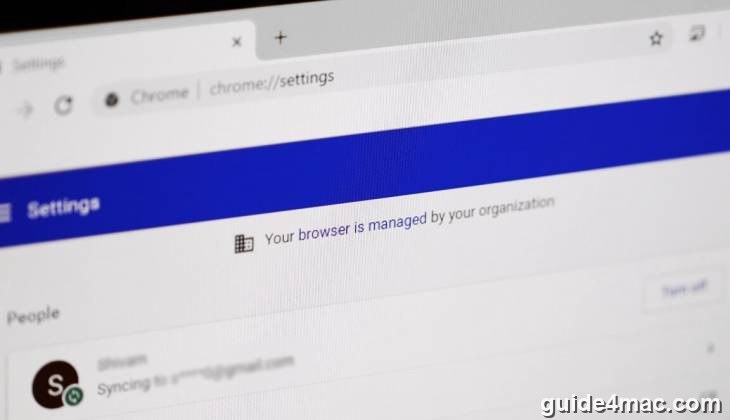
The “Managed by your organization” message in Chrome is supposed to indicate legitimate IT control on a corporate network. But if you’re seeing it on a personal Mac — and your homepage, search engine, or new tab page has changed without your permission — adware is almost certainly the cause. This guide walks you through removing it completely.
What Is the Chrome “Managed by Your Organization” Virus on Mac?
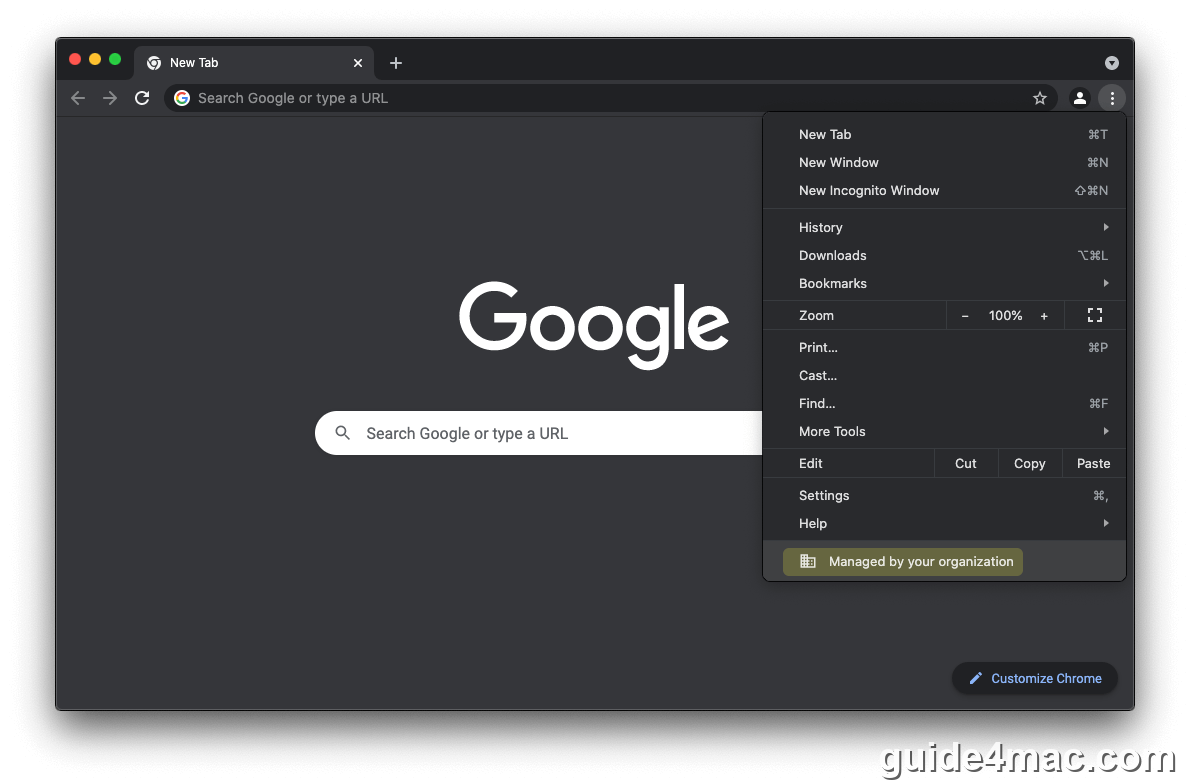
The “Managed by your organization” alert is a built-in Chrome feature that lets IT administrators enforce enterprise browser policies. It becomes a problem when adware — not your IT department — is the one enforcing those policies.
Mac adware families like SearchMine, Safe Finder, and Search Marquis abuse Chrome’s enterprise policy mechanism to lock your homepage, search engine, and new tab page to their own URLs. Because the settings are applied as policies, Chrome grays them out — you can’t change them manually. SearchMine points everything to searchmine.net, Safe Finder redirects to search.safefinder.com, and Search Marquis funnels traffic through searchmarquis.com or searchbaron.com before landing on Bing.
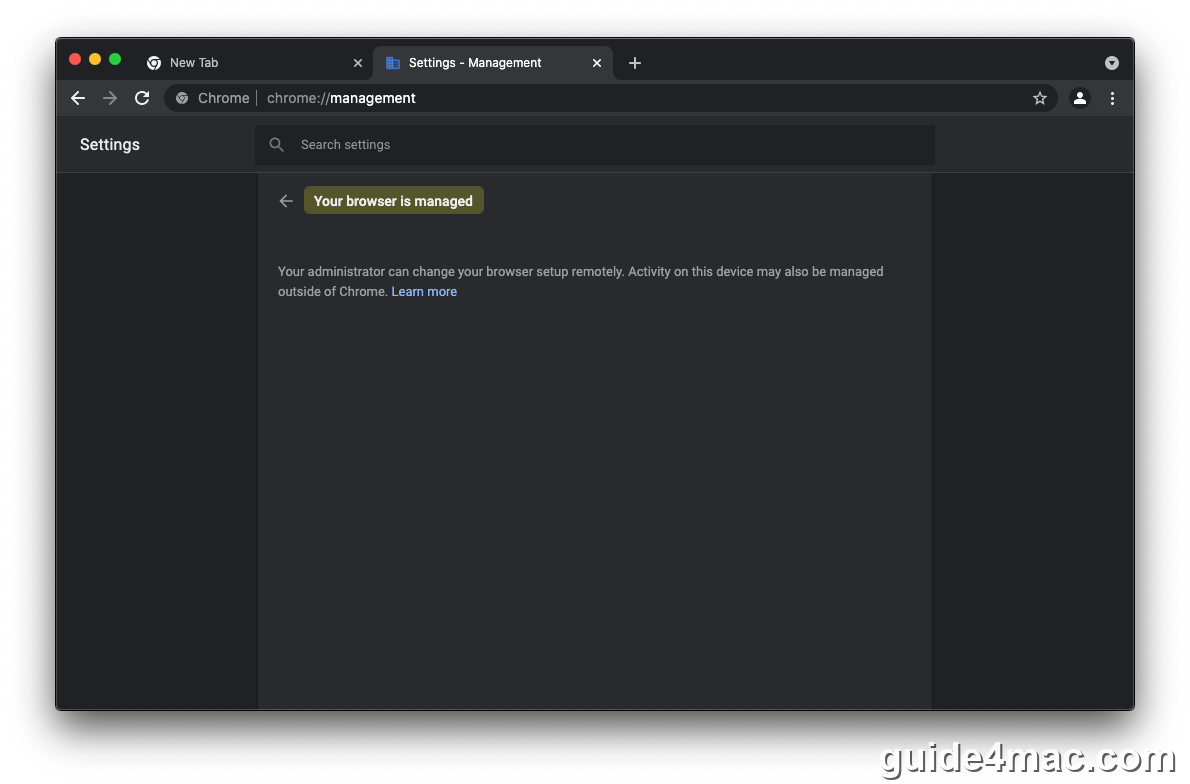
If you type chrome://management in your address bar and see “Your browser is managed. Your administrator can change your browser setup remotely,” that confirms a policy is active. On a personal Mac with no IT department, that policy was installed by malware.
The adware typically arrives bundled with fake Adobe Flash Player update popups on compromised websites. The installer quietly promotes a browser hijacker alongside whatever the user thought they were installing. Beyond locking Chrome settings, these infections also drop a malicious configuration profile — often named “Chrome Settings” or similar — that gives the adware another layer of control over your Mac.
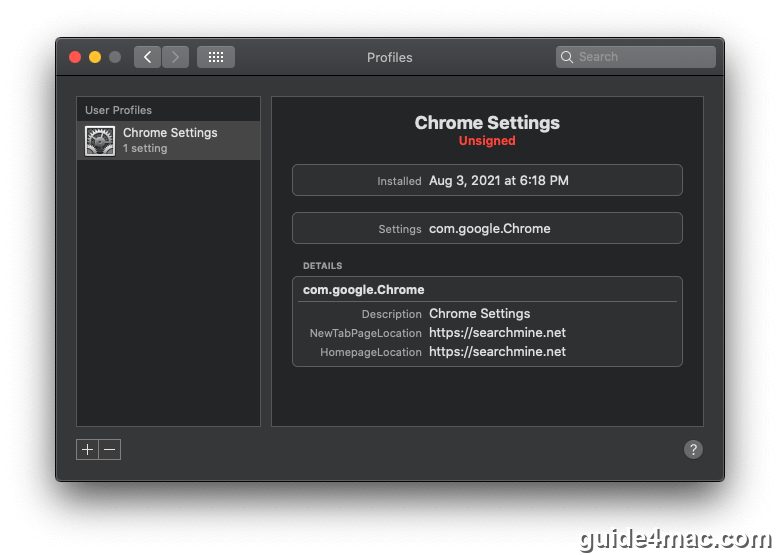
Removing the configuration profile is a required step — not optional. Without it, the adware policies will keep coming back even after you’ve cleaned up everything else. The steps below cover the full removal process, including profiles, launch agents, and browser resets. If you’re also concerned about broader Apple account security practices, it’s worth reviewing those alongside this cleanup.
Manual Removal of the “Managed by Your Organization” Virus on Mac
Manual removal requires working through several system locations in a specific order. Skipping steps — especially the configuration profile — means the infection will likely return. Follow each step carefully.
The “Managed by your organization” virus can re-infect your Mac if any fragments remain hidden in the system. Using a dedicated tool like Intego Mac alongside these manual steps can significantly reduce cleanup time.
Step 1: Kill the Malicious Process in Activity Monitor
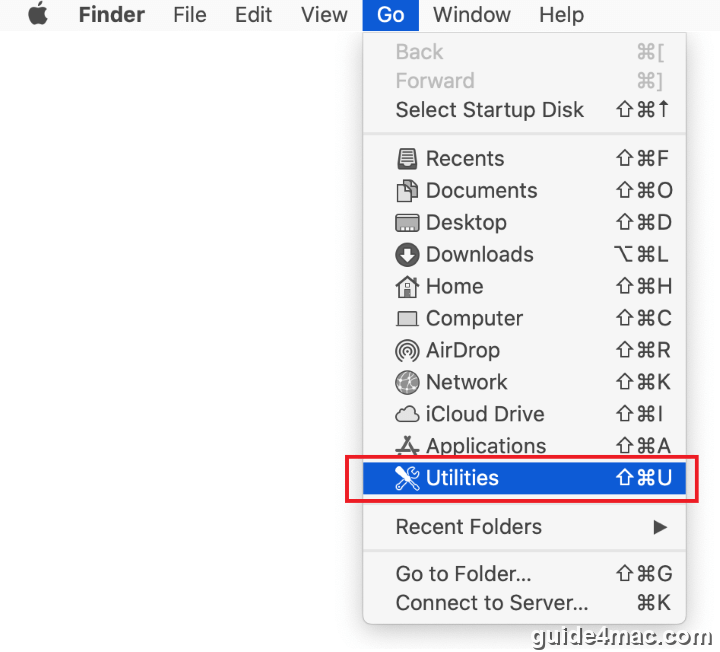
- Open Finder, click the Go menu in the menu bar, and select Utilities.
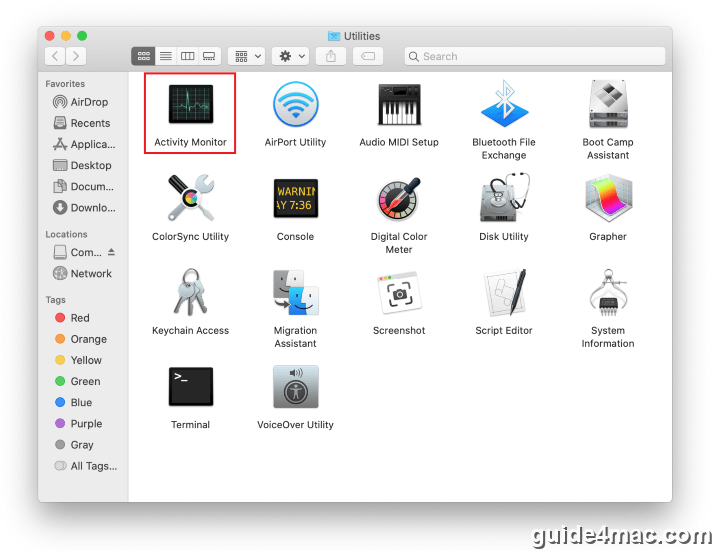
- Double-click Activity Monitor to open it.
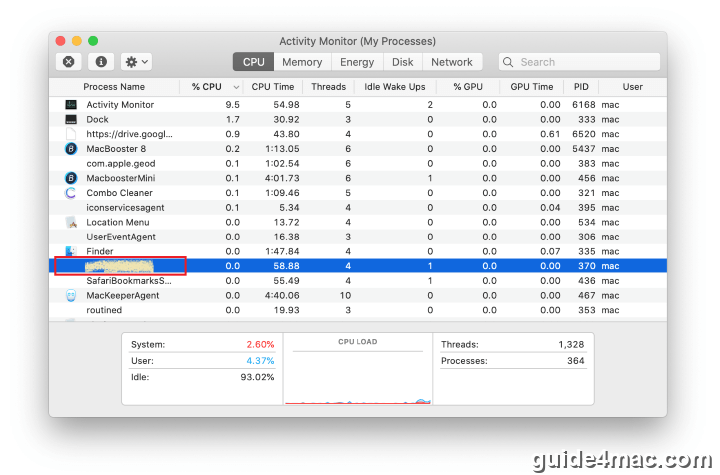
- Look for any unfamiliar, resource-intensive process. The name won’t always match the adware’s visible behaviour, so use your judgement. When you spot a suspicious entry, select it and click the Stop (✕) button in the upper-left corner.
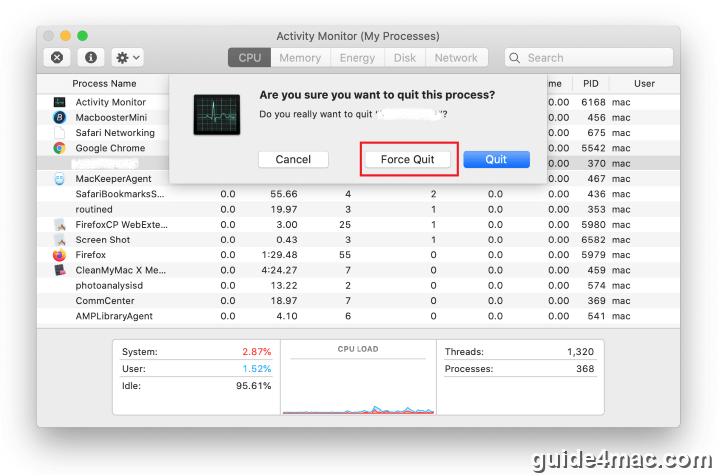
- When the confirmation dialog appears, click Force Quit.
Step 2: Remove Malicious Launch Agents and Daemons
- In Finder, go to Go → Go to Folder (or press Command+Shift+G).
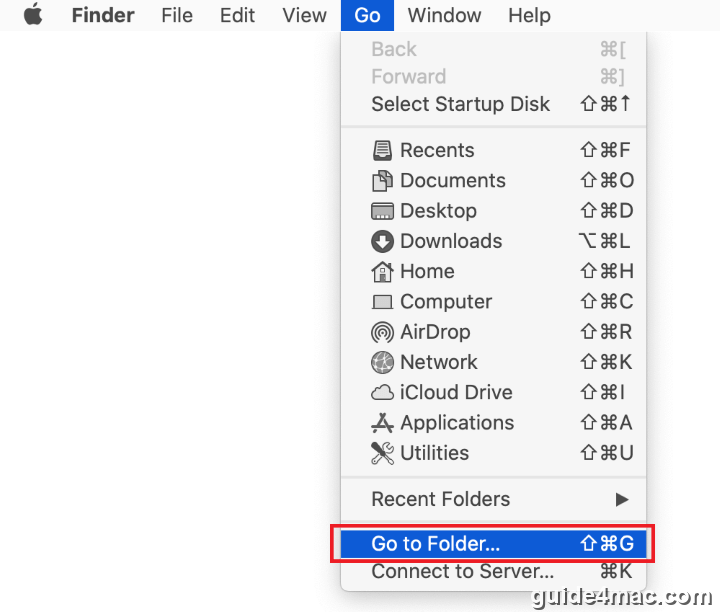
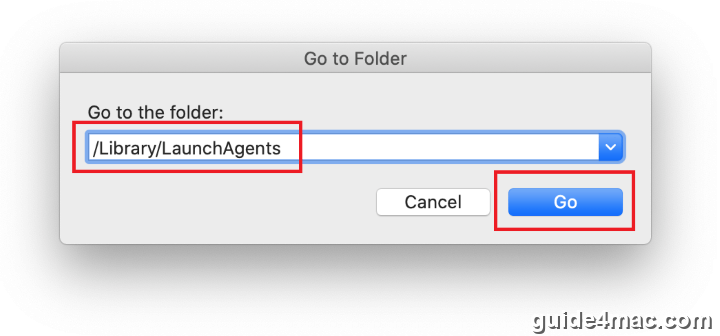
- Type
/Library/LaunchAgentsand click Go.
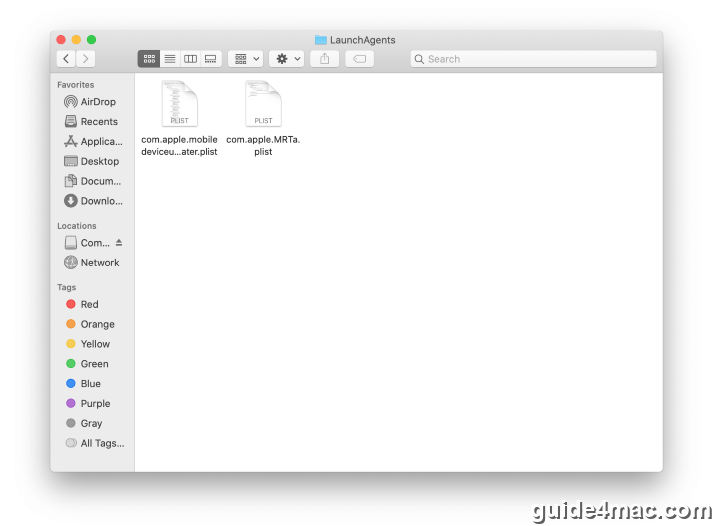
- Scan the folder for recently added .plist files that look out of place. Known malicious examples include
com.pcv.hlpramc.plist,com.updater.mcy.plist,com.avickUpd.plist, andcom.msp.agent.plist. Drag any suspicious files to the Trash.
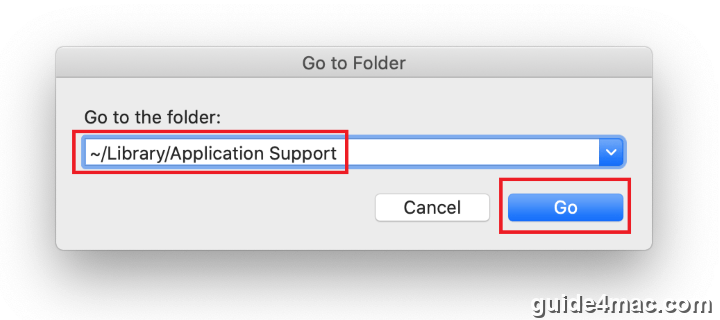
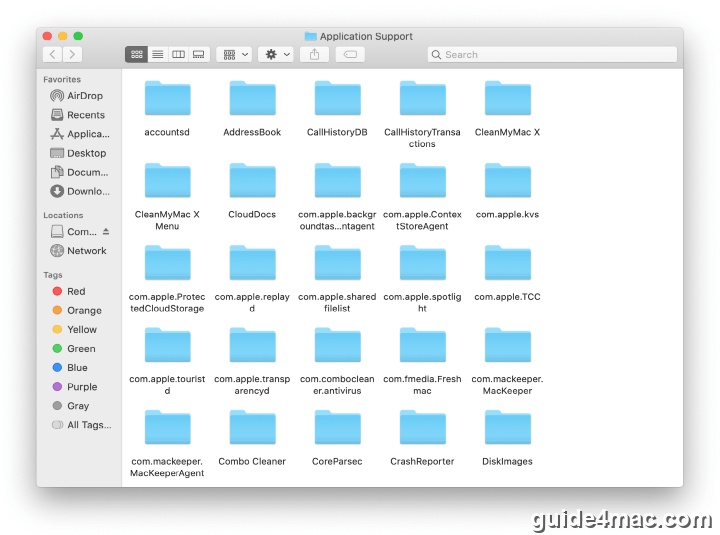
- Use Go to Folder again and navigate to
~/Library/Application Support(the tilde is required — it points to your user home directory).
- Look for recently created folders that have no connection to Apple products or apps you intentionally installed. Known malicious folder names include ProgressSite, IdeaShared, and ExtraBrowser. Move any suspects to the Trash.
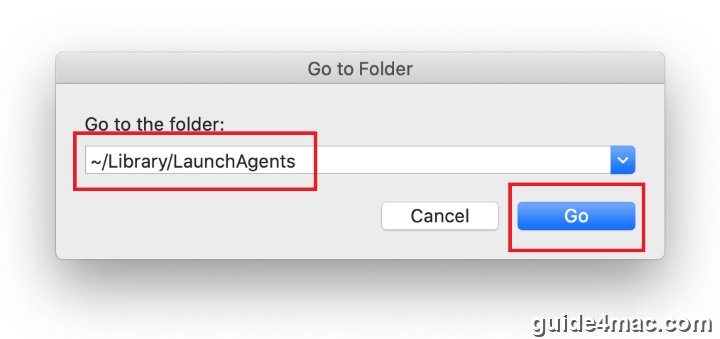
- Open Go to Folder once more and enter
~/Library/LaunchAgents.
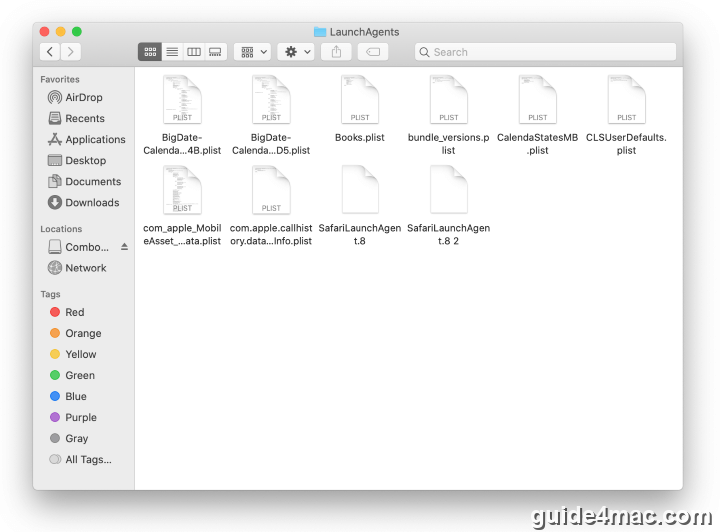
- This shows LaunchAgents in your personal home directory. Apply the same logic as before — look for recently added, unfamiliar .plist files and drag them to the Trash.
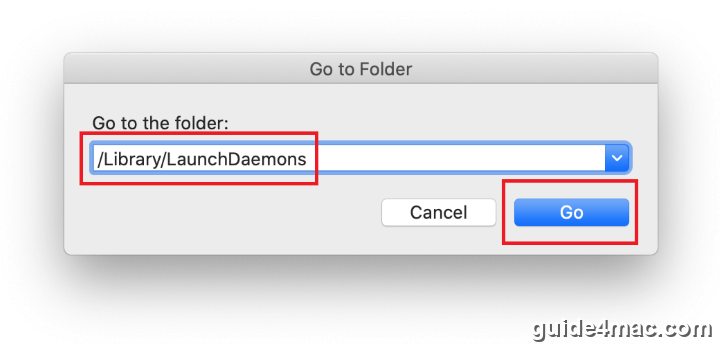
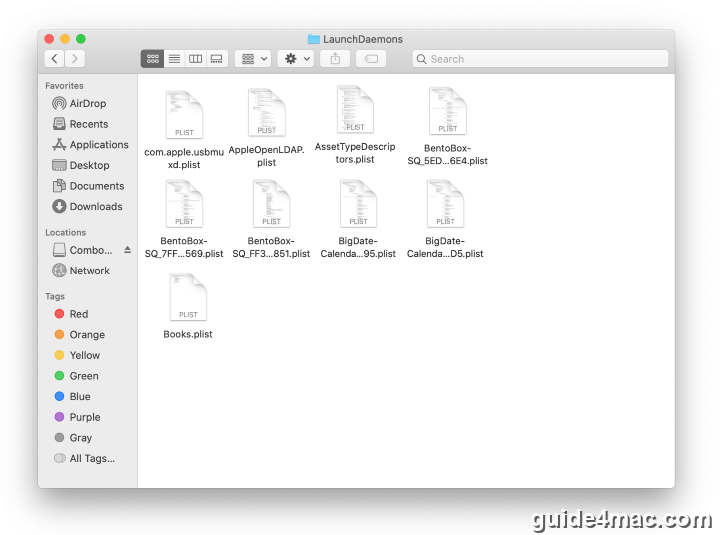
- Go to Go to Folder and type
/Library/LaunchDaemons.
- Check for persistence files used by the malware. Known examples are
com.pplauncher.plist,com.startup.plist, andcom.ExpertModuleSearchDaemon.plist. Delete anything suspicious immediately.
Step 3: Delete the Malicious Application
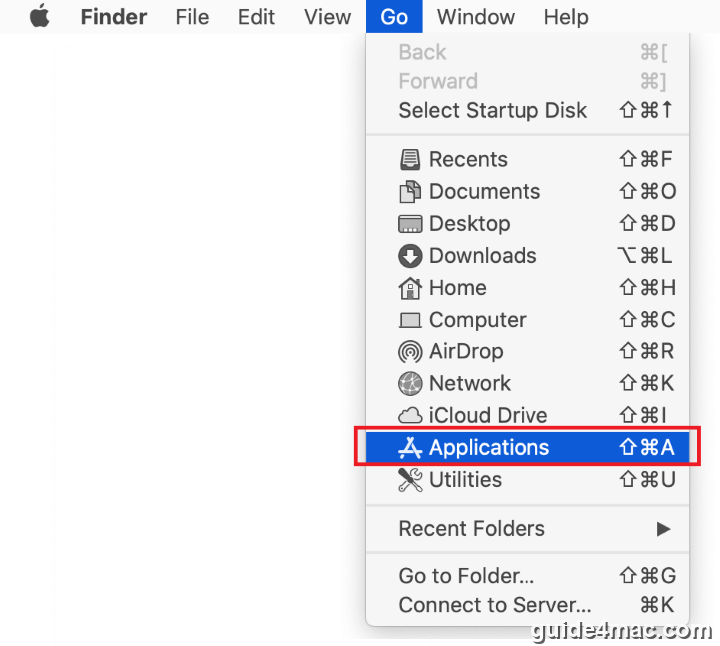
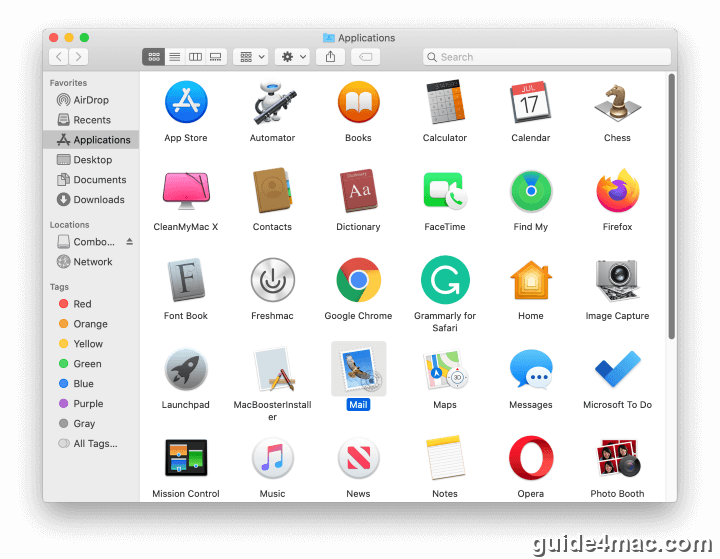
- In Finder, click Go → Applications.
- Find any app that you don’t recognise or didn’t intentionally install. Drag it to the Trash. Enter your admin password if prompted.
Step 4: Remove Login Items and the Malicious Configuration Profile
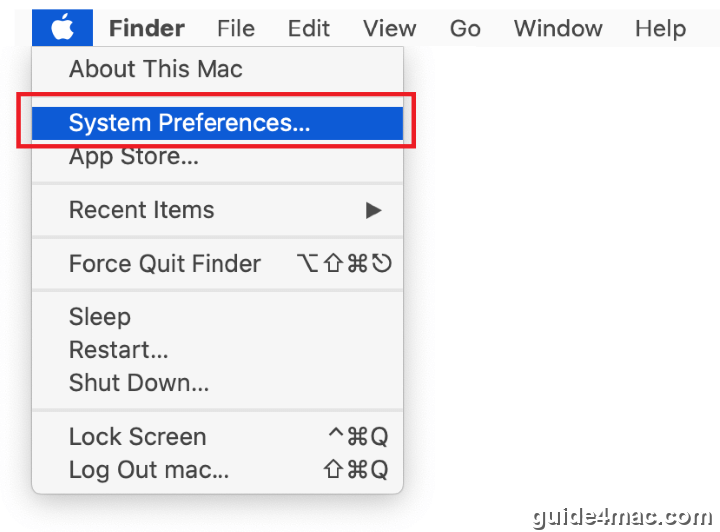
- Click the Apple menu () and open System Preferences.
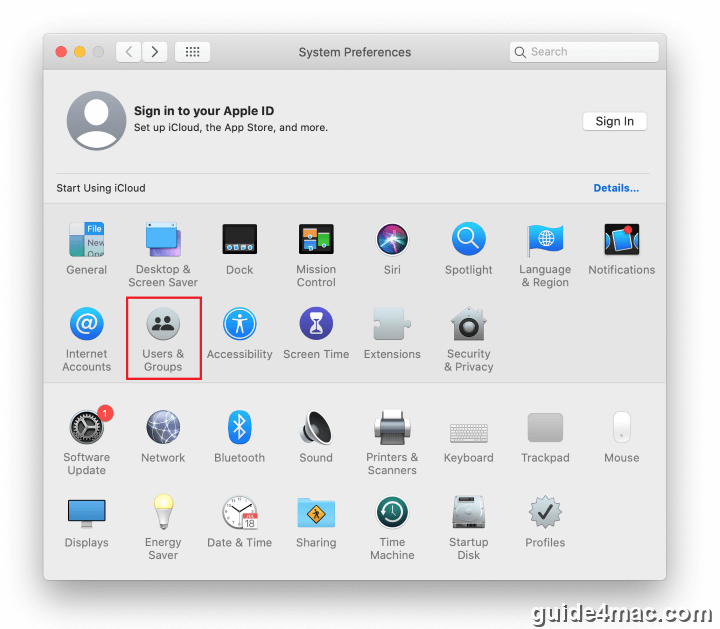
- Go to Users & Groups and click the Login Items tab. Find any entry linked to the adware and click the – (minus) button to remove it.
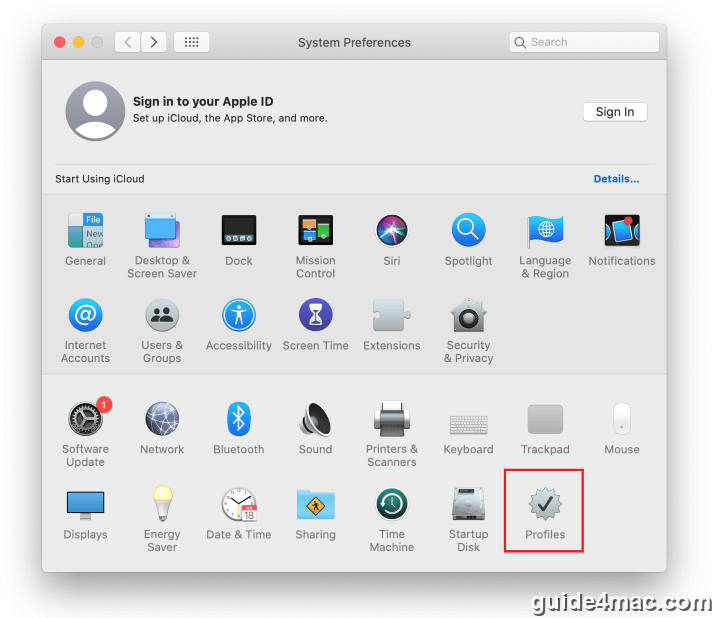
- Back in System Preferences, click Profiles. In the left sidebar, look for any suspicious configuration profile — common malicious profile names include ChromeSettings, TechSignalSearch, MainSearchPlatform, and AdminPrefs. Select it and click the – button at the bottom to delete it.
With the configuration profile gone, Chrome’s enterprise policies will no longer be enforced by the adware. Now you can proceed to reset your browsers. This is also a good moment to review your broader iCloud account activity to check for any signs of further compromise.
Reset Your Browsers to Remove Remaining Adware Effects
Even after removing the adware and its configuration profile, each browser may still carry hijacked settings. Resetting them to defaults clears any leftover policies, extensions, and homepage changes the infection put in place.
Reset Google Chrome
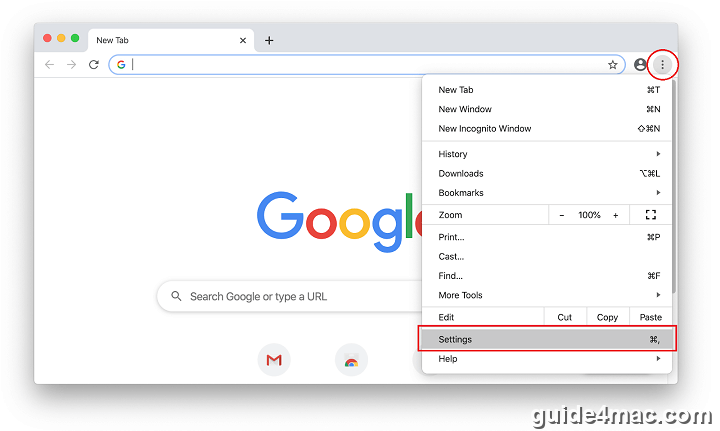
- Open Chrome and click the three-dot More menu (⋮) in the top-right corner. Select Settings.
- Scroll down and click Advanced to expand the full settings panel.
- Scroll to the bottom and click Restore settings to their original defaults.
- In the confirmation dialog, click Reset settings. This removes all custom settings, extensions, pinned tabs, and startup pages set by the adware.
Reset Safari
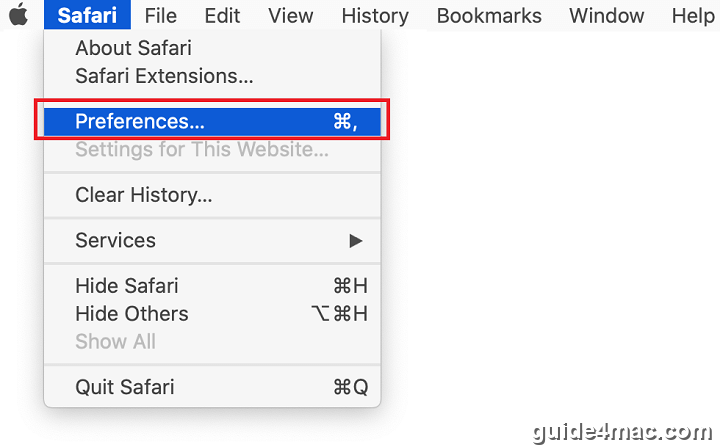
- Open Safari and click Safari in the menu bar, then choose Preferences.
- Under the General tab, reset your homepage to your preferred URL.
- Go to the Extensions tab and uninstall any extension you don’t recognise.
- Click the Privacy tab and select Manage Website Data, then click Remove All to clear stored site data.
- Finally, go to History in the menu bar and select Clear History. Choose all history from the dropdown and confirm.
Reset Firefox
- Open Firefox and click the Help menu (or the three-line menu, then Help).
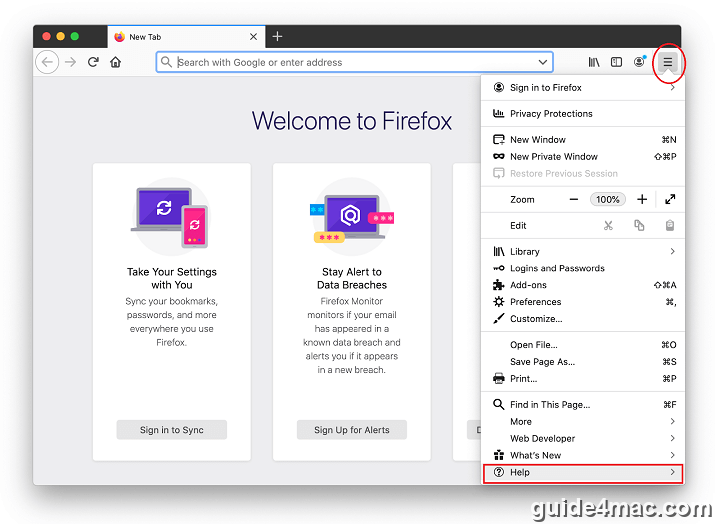
- Select Troubleshooting Information from the Help submenu.
- On the page that opens, click Refresh Firefox… in the top-right corner.
- Confirm by clicking Refresh Firefox again in the dialog box. Firefox will restart with all settings restored to defaults, removing the adware’s changes.
How the “Managed by Your Organization” Adware Gets onto Your Mac
This adware almost always arrives through software bundles. The most common delivery method is a fake Adobe Flash Player update popup displayed on a hacked or low-quality website. The installer looks legitimate but quietly installs a browser hijacker like SearchMine alongside whatever the user thought they were getting.
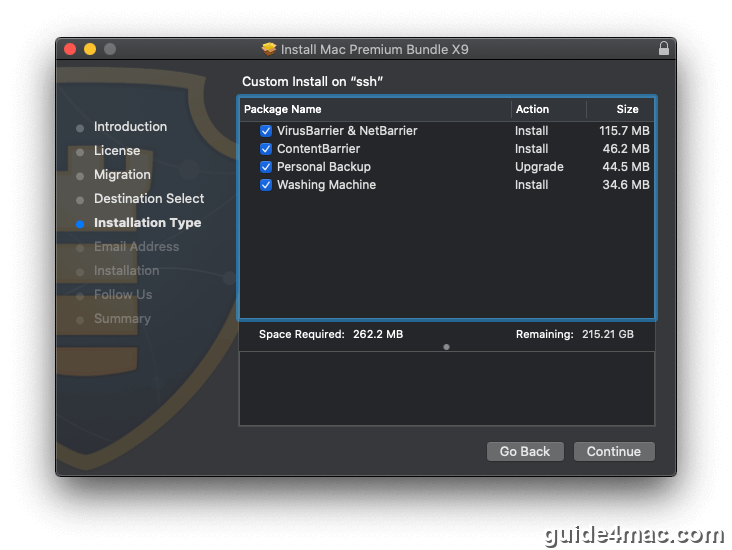
The key pattern is a push toward unnecessary software updates or “free” utilities through splash screens on dubious sites. If a website is insisting you update Flash Player, a codec, or a media player before you can view content, close the tab. Adobe ended Flash support in December 2020 — there’s no legitimate reason for those popups to exist.
Avoiding app bundles from unverified sources is your best defence. Download software only from the Mac App Store or directly from a developer’s official site. Apple’s security ecosystem continues to evolve — you can follow upcoming macOS changes that may introduce additional protections at the OS level.
Use a Mac Security Scanner to Catch Hidden Threats
Manual removal covers the most common locations adware hides in, but some infections drop files in unexpected places. A dedicated Mac security scanner picks up what manual inspection misses and confirms when your system is actually clean.
Intego VirusBarrier is a well-regarded option for Mac-specific threats. It’s built specifically for macOS and reliably detects adware families like SearchMine, Safe Finder, and Search Marquis.
- Download and install Intego VirusBarrier from Intego’s official website.
- Open the app and click Start Scan to run a full system scan.
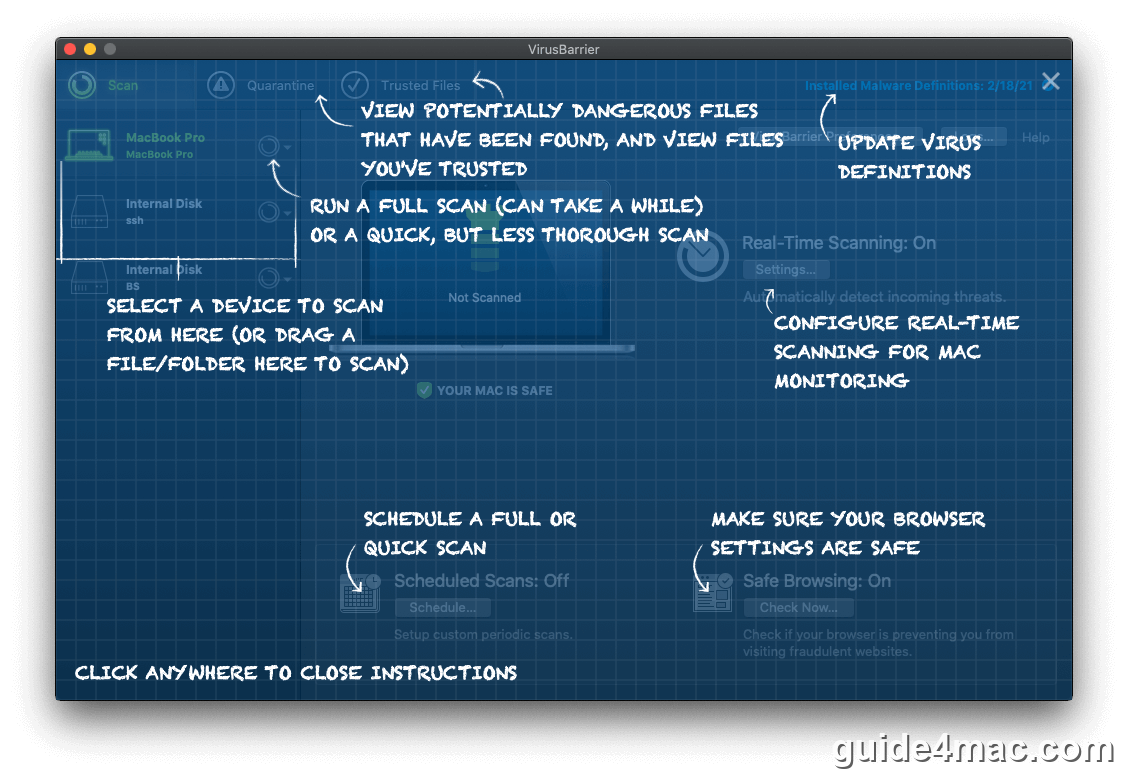
- Wait for the scan to complete. VirusBarrier will examine all system locations, including the ones covered in the manual steps above.
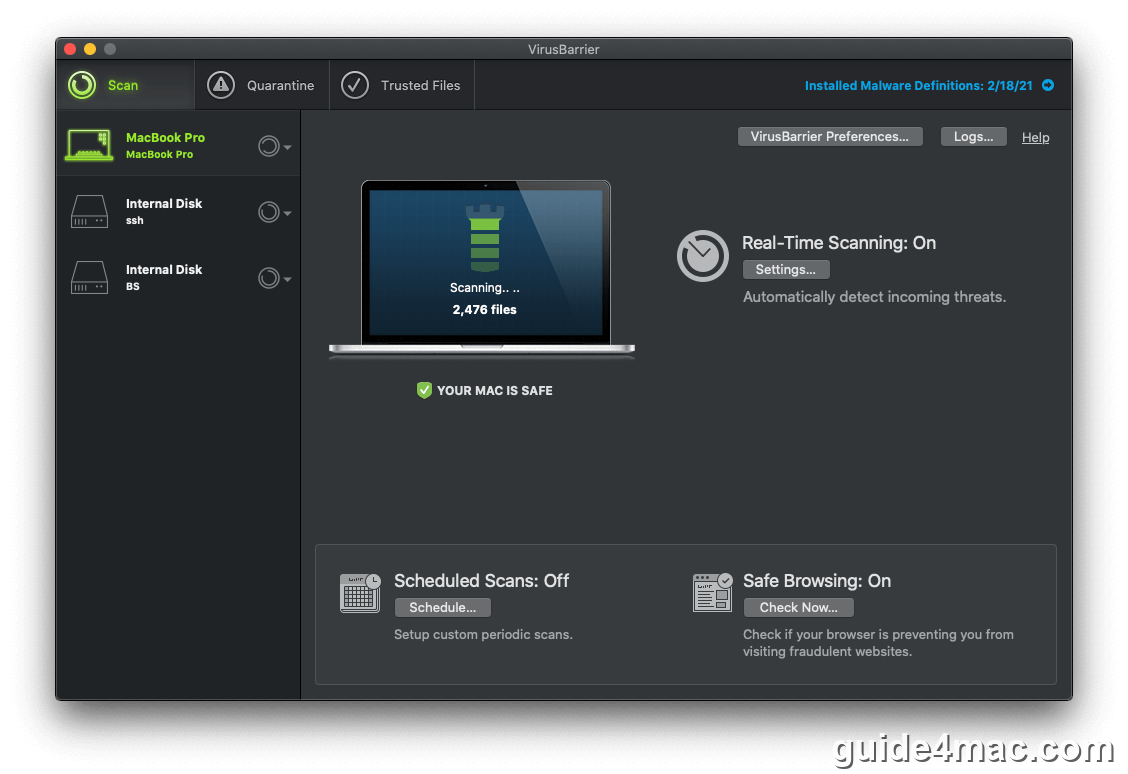
- If threats are detected, click Quarantine or Remove to deal with each flagged item. Review the results before confirming removal.
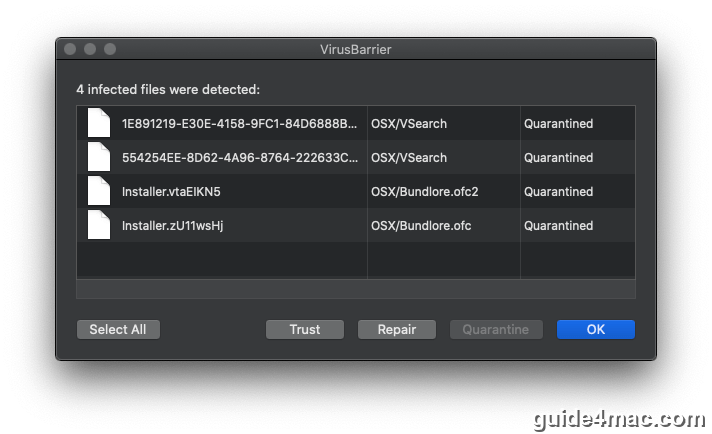
Running a security scan after any manual cleanup is good practice. It gives you a second layer of verification and catches any remnants the manual process may have missed. Given how frequently adware tactics evolve — and how Apple’s platform continues to expand — keeping a security tool active on your Mac is increasingly sensible.
Frequently Asked Questions
On a personal Mac with no IT administrator, this message almost always means adware has installed a malicious enterprise policy. Browser hijackers like SearchMine and Safe Finder use Chrome’s policy system to lock your homepage and search engine settings so you can’t change them manually.
You need to remove the malicious configuration profile from System Preferences, delete the adware application and its associated launch agents, and then reset Chrome to its default settings. Simply resetting Chrome without removing the profile and app first will not work — the policy will return.
SearchMine is a Mac adware application that uses Chrome’s enterprise policy feature to replace your homepage, new tab page, and search engine with searchmine.net. It then redirects your searches through its fake search engine to custom Yahoo results. It also installs a malicious configuration profile to maintain control over your browser.
Not on its own. If a malicious configuration profile is still installed on your Mac, Chrome will continue to report as managed even after a reset. You must remove the configuration profile in System Preferences and delete the underlying adware first, then reset Chrome.
Avoid downloading software from sites that push unexpected update popups, especially for Adobe Flash Player, which has been discontinued since 2020. Only install apps from the Mac App Store or verified developer sites. Keeping a Mac security scanner like Intego VirusBarrier active provides ongoing protection against new adware variants.



0 Comments