How to Sign Into Your Apple Account? Step-By-Step Guide 2026
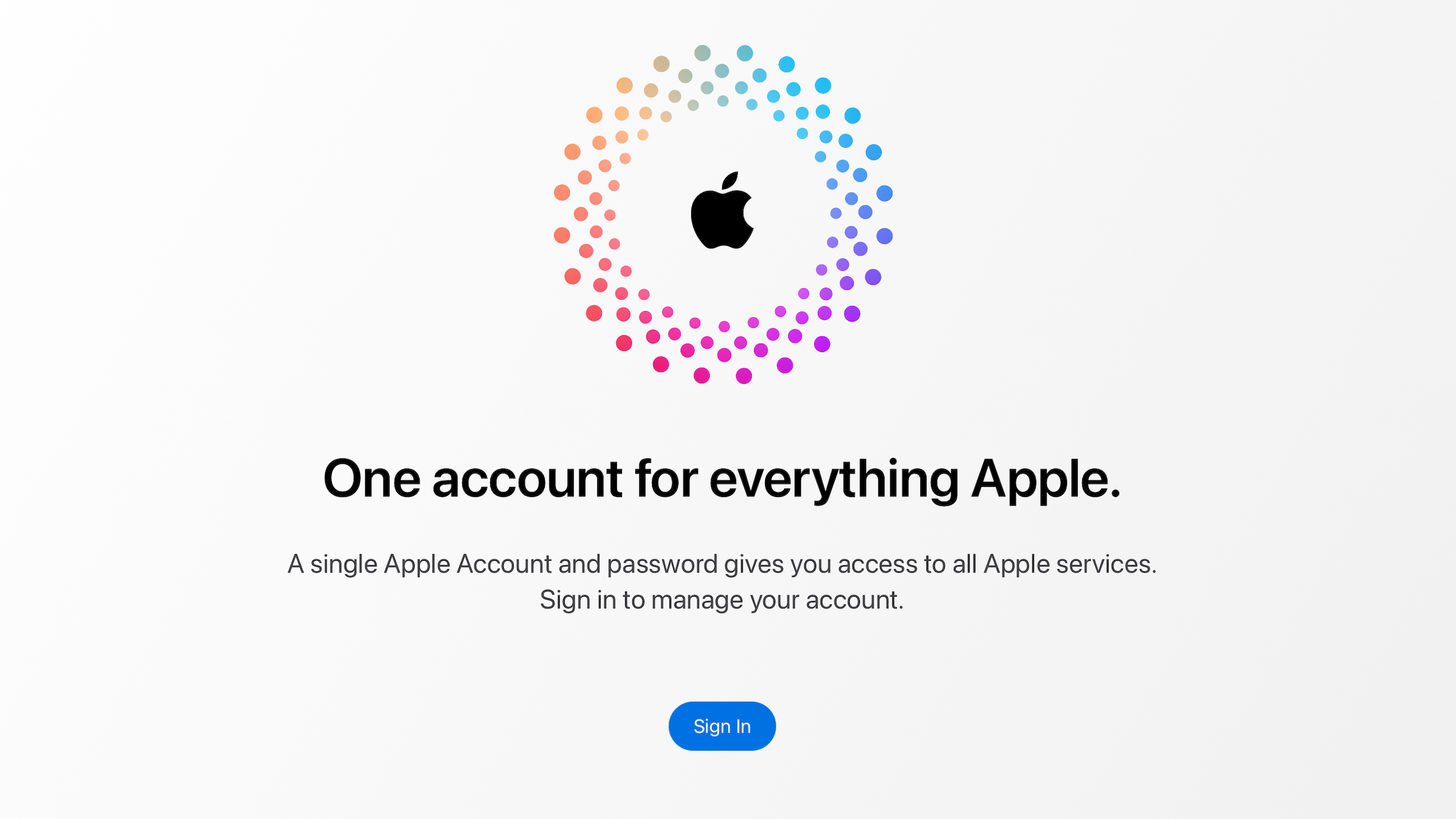
If you want to use services like iCloud, the App Store, FaceTime, or Apple Music, you first need to sign into your Apple account. This account connects all your Apple devices and allows your data, purchases, and settings to sync across iPhone, iPad, Mac, and other Apple services.
Below, you will find the exact steps to sign into your Apple account on iPhone, iPad, Mac, and through a web browser. The guide also includes quick fixes for common login problems if your Apple account will not sign in.
If you are unsure which Apple account you are using or need to confirm its details, our guide on finding your Apple ID information and login details explains how to check your account credentials safely.
How Do You Sign Into Your Apple Account?
Your Apple account, previously known as Apple ID, gives you access to Apple services like iCloud, the App Store, Apple Music, FaceTime, and iMessage. Signing in allows your device to sync data such as contacts, photos, Safari bookmarks, and backups across the Apple ecosystem.
You can sign into your Apple account through Settings on iPhone or iPad, System Settings on Mac, or directly from Apple’s website using a browser like Safari or Chrome.
Below are the most common ways to sign in.
Sign Into Your Apple Account on iPhone or iPad
If you are using an iPhone or iPad, signing into your Apple account is done through the Settings app.
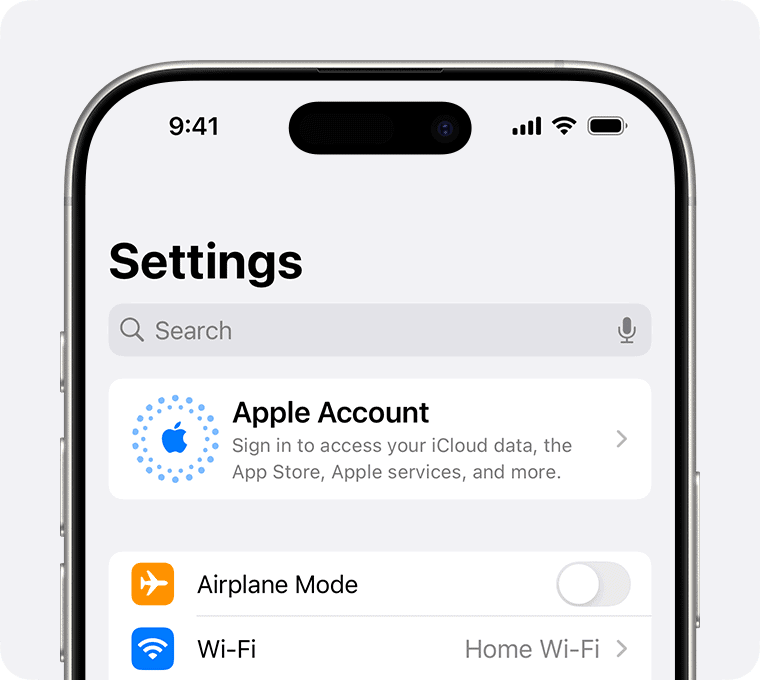
- Open Settings on your iPhone or iPad.
- Tap Sign in to your iPhone at the top of the screen.
- Enter your Apple ID email address.
- Tap Next.
- Enter your Apple ID password.
- Tap Sign In.
- Enter your device passcode if prompted.
Once you sign in, your device starts syncing iCloud services like Photos, Contacts, Safari bookmarks, and backups.
If your contacts do not appear after signing in, see our guide on recovering missing iPhone contacts for troubleshooting steps.
Sign Into Your Apple Account on Mac
Mac computers running macOS Ventura, Sonoma, or newer allow you to sign in through System Settings.
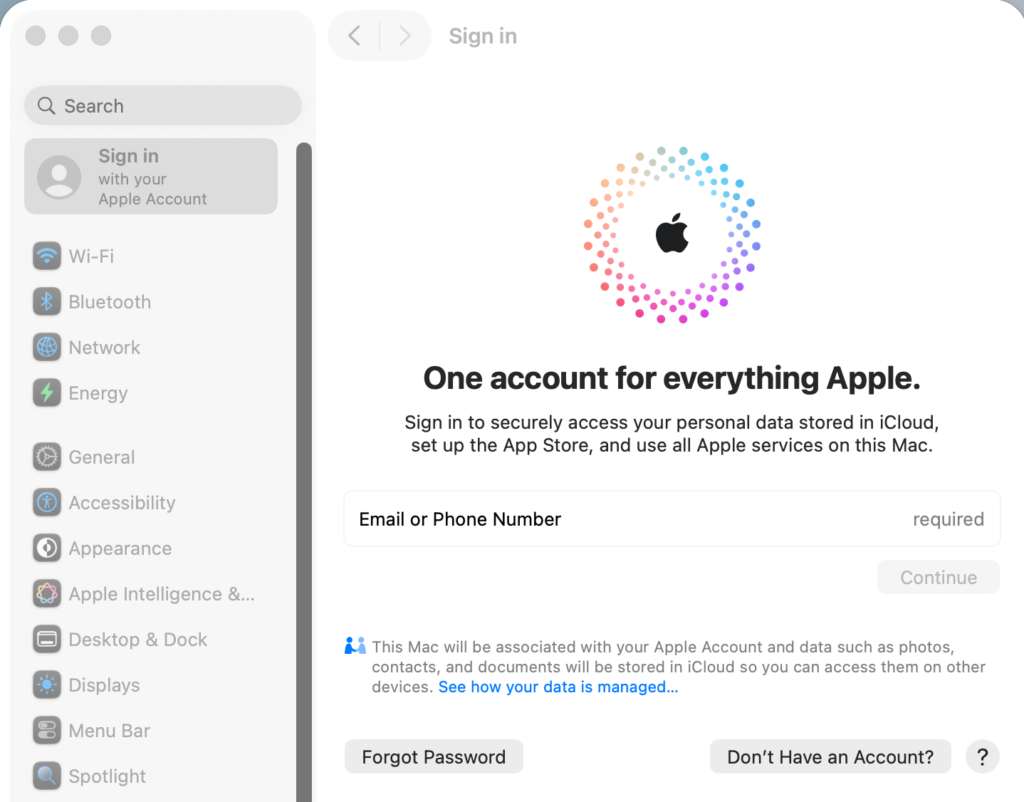
- Click the Apple menu.
- Select System Settings.
- Click Sign in with your Apple ID at the top of the sidebar.
- Enter your Apple ID email address.
- Click Next.
- Enter your password.
- Click Sign In.
After signing in, you can enable iCloud features like iCloud Drive, Messages syncing, and Safari data sharing across your Apple devices.
Sign Into Your Apple Account on the Web
You can also sign into your Apple account through a browser if you are using a different device or do not have access to your iPhone or Mac.
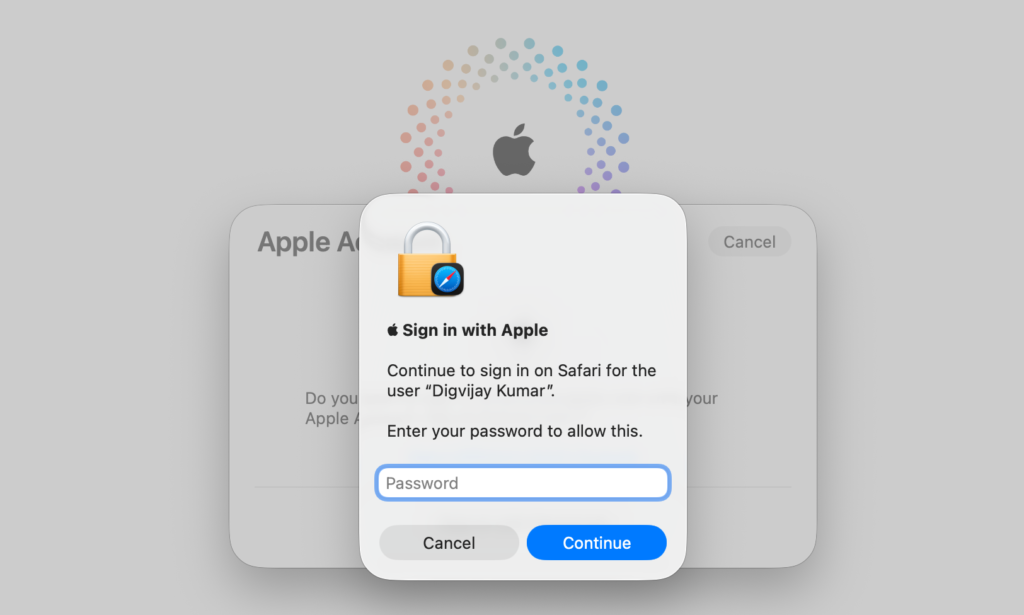
- Open Safari or another web browser.
- Go to appleid.apple.com.
- Click Sign In.
- Enter your Apple ID email address.
- Enter your password.
- Complete two-factor authentication if required.
Signing in online allows you to manage account security, payment methods, subscriptions, and connected devices.
Sign Into the App Store or Apple Services
Sometimes your device may be signed into iCloud but not into specific Apple services like the App Store.
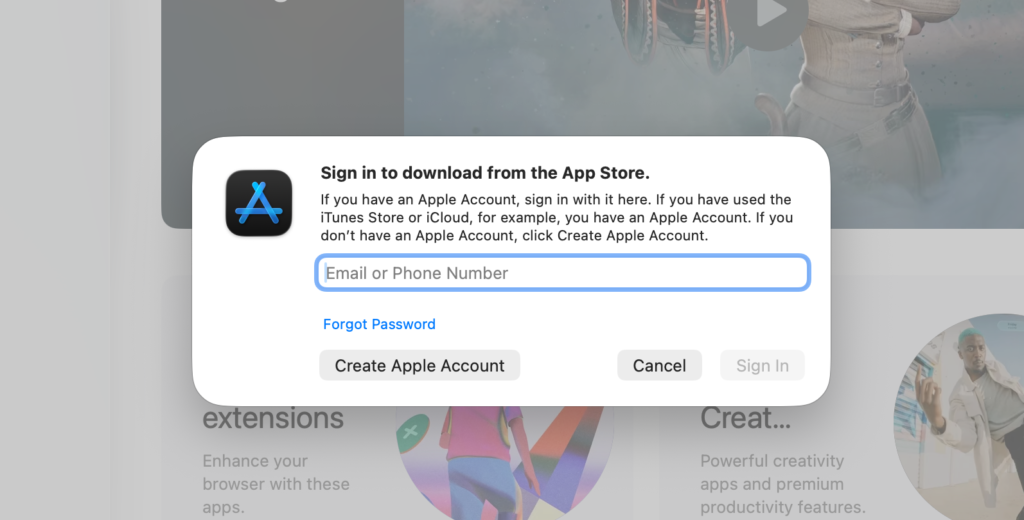
- Open Settings.
- Scroll down.
- Tap App Store.
- Tap Apple ID.
- Enter your login credentials.
Once signed in, you can download apps, manage subscriptions, and access purchases linked to your Apple account.
Fix Apple Account Sign-In Problems
If you cannot sign into your Apple account, several common issues might be causing the problem.
Check the following:
• Incorrect Apple ID email or password
• Weak or unstable internet connection
• Two-factor authentication delays
• Temporary Apple server outages
• Account security restrictions
Try these steps to troubleshoot the issue:
- Check your internet connection.
- Restart your iPhone, iPad, or Mac.
- Reset your Apple account password if necessary.
- Enter the two-factor authentication code when prompted.
- Check Apple System Status for service outages.
In many cases, simply restarting the device resolves login errors.
Sign Out and Sign Back Into Your Apple Account
Signing out and signing back in can fix syncing problems or account authentication errors.
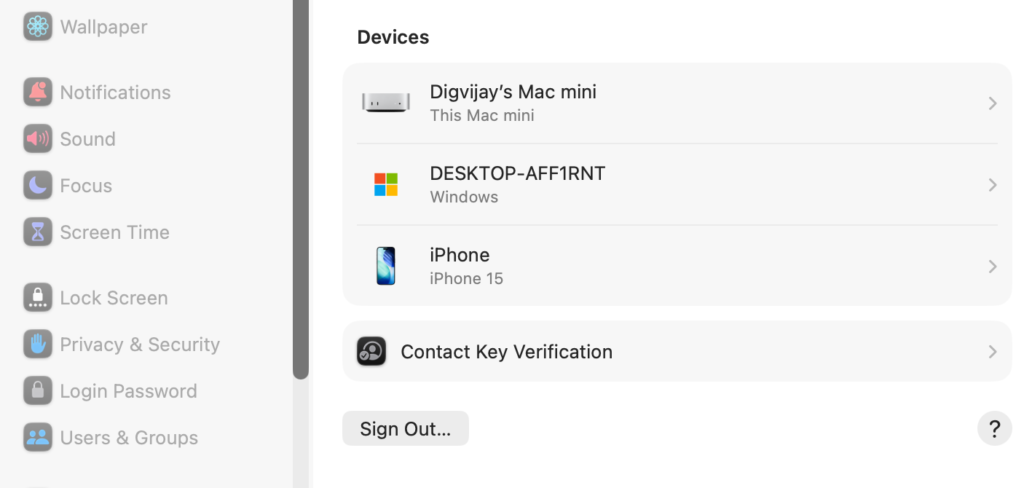
- Open Settings.
- Tap your Apple ID name at the top.
- Scroll down.
- Tap Sign Out.
- Enter your Apple ID password.
- Tap Turn Off.
- Sign back in using the previous steps.
This refreshes your iCloud session and reconnects your Apple account services.
Tips
• Enable two-factor authentication to protect your Apple account.
• Keep your Apple ID email address updated.
• Use a strong and unique password.
• Check Apple System Status if login problems appear suddenly.
• Keep iOS, iPadOS, and macOS updated.
Access All Apple Services in One Account
Your Apple account is the center of the Apple ecosystem. Once signed in, services like iCloud backups, App Store downloads, and device syncing work automatically across your devices.
Whether you sign in through Settings, System Settings, or the Apple website, the process only takes a few moments. Keeping your account active and secure ensures your data stays synchronized across iPhone, iPad, and Mac.
Key Takeaways
Signing into your Apple account connects your device to Apple services like iCloud, the App Store, and FaceTime. You can log in through the Settings app on iPhone or iPad, System Settings on Mac, or directly through Apple’s website. If login issues appear, checking your internet connection, password, or two-factor authentication usually resolves the problem. These steps help Apple users access their accounts quickly and securely.
Yes. Apple recently renamed Apple ID to Apple account, but both terms refer to the same login used across Apple services.
Yes. You can sign in through a browser at appleid.apple.com using any device with internet access.
Common causes include incorrect passwords, internet connectivity problems, two-factor authentication delays, or Apple service outages.
Using the same Apple account allows data, purchases, and iCloud services to sync across all your Apple devices.
You can reset it through Apple’s account recovery process or directly from the Settings app on your iPhone or Mac.



0 Comments