How to Download the YouTube App on MacBook
Many Mac users search for ways to download the YouTube app on MacBook, especially if they want faster access to videos without opening a browser every time. Unlike iPhone or iPad, macOS does not have an official YouTube app available in the Mac App Store.
However, there are several reliable ways to use YouTube like a native app on a MacBook Air, MacBook Pro, or iMac. You can install it as a web app, create a browser shortcut, or use third party tools designed for macOS. If you often install apps outside the App Store, you may also encounter security prompts. In that case, this guide on fixing the macOS cannot verify that this app is free from malware warning explains how to safely open blocked apps.
Can You Download the YouTube App on MacBook?
Google does not currently provide an official YouTube desktop application for macOS. Instead, YouTube is designed primarily for browsers like Safari, Chrome, and Edge.
That said, modern browsers allow you to install websites as Progressive Web Apps (PWAs). These apps behave almost like native applications, opening in their own window and appearing in the Dock. Below are the best methods to install and use YouTube like a real Mac app.
1. Install YouTube as a Web App Using Google Chrome
Time needed: 7 minutes
Installing YouTube as a web app through Chrome is the closest experience to using a real YouTube app on macOS.
- Open Google Chrome
Launch Google Chrome on your Mac.
- Go to the YouTube website
Navigate to youtube.com in the browser.
- Click the install icon
Look for the Install icon in the address bar.
- Select Install
Click Install YouTube when the prompt appears.
- Launch the YouTube app
The app will open in a separate window and appear in your Applications folder and Dock.
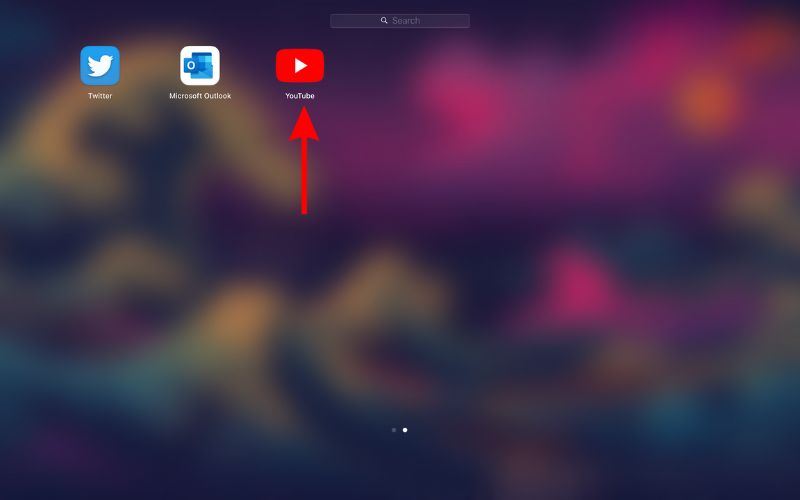
This method works on macOS Ventura, Sonoma, Sequoia, and later versions.
2. Create a YouTube App Using Safari
Safari also allows you to save websites for quick access from the Dock.
- Open Safari on your Mac.
- Go to youtube.com.
- Click File in the menu bar.
- Select Add to Dock.
- Name the web app and confirm.
The new YouTube shortcut will behave like a lightweight macOS app.
If you are organizing apps on your Mac, you may also want to manage files and screenshots efficiently. This guide on taking screenshots on Mac explains where images are saved and how to control screenshot tools.
3. Use a Third Party YouTube Desktop App
Some developers create unofficial YouTube apps for macOS that offer additional features such as background playback or media controls.
- Download a trusted YouTube desktop client.
- Open the installer file.
- Drag the app to the Applications folder.
- Launch the application.
- Sign in to your Google account if required.
If macOS blocks the app because it cannot verify the developer, open it using Finder’s Right click → Open method.
Before installing apps from the internet, it is always best to verify that your Mac is protected and updated.
4. Use YouTube Directly in Safari or Chrome
You can also simply use YouTube in your browser without installing anything.
- Open Safari or Chrome.
- Go to youtube.com.
- Sign in to your Google account.
- Bookmark the page.
- Pin the tab for quick access.
While this does not create an app, it is the easiest and safest method.
If your Mac becomes slow while streaming videos or running multiple tabs, you may want to optimize system storage. This guide on fixing large macOS system data storage explains how to free up space.
5. Install iPad YouTube Apps on Apple Silicon Macs
Mac computers with Apple Silicon chips such as M1, M2, M3, and M4 can run certain iPad apps. Some developers allow their iPad apps to run on macOS through the Mac App Store.
- Open the Mac App Store.
- Search for YouTube.
- Check the iPhone and iPad Apps section.
- Select a compatible app.
- Click Get to install.
Availability depends on the developer’s app distribution settings.
If you are setting up a new Mac, it may also help to confirm device coverage using Apple’s warranty tools. This guide on checking Apple warranty status explains how to verify coverage quickly.
Tips
- Use Chrome if you want the best YouTube web app experience
- Pin the app to the Dock for faster access
- Avoid downloading unknown third party apps
- Keep macOS updated for compatibility with web apps
- Use Safari web apps for a lighter system footprint
Enjoy YouTube Like a Real Mac App
Although macOS does not offer an official YouTube desktop application, you can still create an app like experience using modern browser features. Installing YouTube as a web app through Chrome or Safari is the easiest solution and works smoothly on both Intel and Apple Silicon Macs.
With these methods, you can launch YouTube directly from the Dock, manage it like a regular application, and enjoy videos without keeping a browser tab open.
Key Takeaways
There is no official YouTube app for MacBook, but users can still install YouTube as a web app through Chrome or Safari. This creates a native like application that appears in the Dock and Applications folder. Apple Silicon Macs may also support certain iPad apps through the Mac App Store. These options allow Mac users to enjoy YouTube without relying entirely on browser tabs.
FAQs
No. Google does not currently offer an official macOS YouTube application.
Installing YouTube as a Chrome web app provides the most app like experience.
Sometimes. It depends on whether the developer allows the iPad app to be used on macOS.
Yes. Safari allows websites to be added to the Dock and used like standalone apps.
Only download them from trusted developers, as unofficial apps can pose security risks.

0 Comments