How to Remove Search Marquis Virus from Mac: Step-by-Step Guide 2026

- Search Marquis Threat Profile
- What Is the Search Marquis Redirect Virus?
- Remove Search Marquis Manually from Your Mac
- Detect Search Marquis from the Terminal
- Check for Hidden Persistence
- Remove the Enterprise Policy (Chrome “Managed by Your Organization”)
- Where to Find These Settings on macOS Ventura, Sonoma, and Sequoia
- Verify Search Marquis Is Fully Gone
- Common Mistakes When Removing Search Marquis
- Frequently Asked Questions
Since August 2023, much of the traffic hijacked by the Search Marquis campaign has passed through a rogue service at search-alpha.com before landing on Bing. The result looks harmless, but it hides a chain of ad-network redirects that profit from every search you run. If your homepage keeps flipping to searchmarquis.com, you need to remove Search Marquis virus from Mac completely, not just change the search engine.
This guide covers the manual cleanup, Terminal checks for hidden persistence, and the post-removal checklist. If you suspect a wider infection, start with our guide to removing a virus on Mac and come back here for the Search Marquis specifics.
Remove the Search Marquis browser hijacker from your Mac by ending its process, deleting its hidden files, removing its configuration profile and resetting your browsers.
- Quit the malicious process
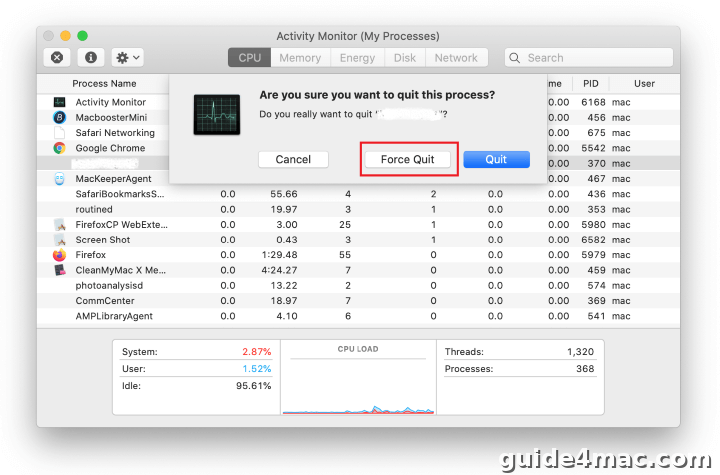
Open Activity Monitor from Utilities, select the suspicious process and click Stop, then choose Force Quit.
- Delete rogue LaunchAgents
Use Go to Folder to open /Library/LaunchAgents and ~/Library/LaunchAgents, then drag suspicious plist files to the Trash.
- Remove Application Support folders
Open ~/Library/Application Support and move recently created folders with unfamiliar names to the Trash.
- Check LaunchDaemons
Open /Library/LaunchDaemons and move any recently added, unfamiliar items to the Trash.
- Uninstall the malicious app
Open the Applications folder, drag the suspicious app to the Trash and empty the Trash.
- Delete the configuration profile
Open the Profiles pane in System Settings or System Preferences and remove the rogue profile.
- Reset your browsers and proxy
Restore the homepage, search engine and extensions in Safari, Chrome and Firefox, and uncheck every protocol in your proxy settings.
Search Marquis Threat Profile
| Name | Search Marquis (searchmarquis.com) |
| Category | Browser hijacker with configuration profile abuse |
| Affected Browsers/Systems | Safari, Chrome and Firefox on macOS |
| Symptoms | Changed homepage and search engine, Bing redirects, “Managed by your organization” in Chrome, fake memory alerts |
| Severity | Medium: persistent and hard to remove, but mainly monetizes traffic |
| Potential Damage | Redirects traffic through ad networks, may install a proxy that snoops on browsing, can push scareware |
What Is the Search Marquis Redirect Virus?
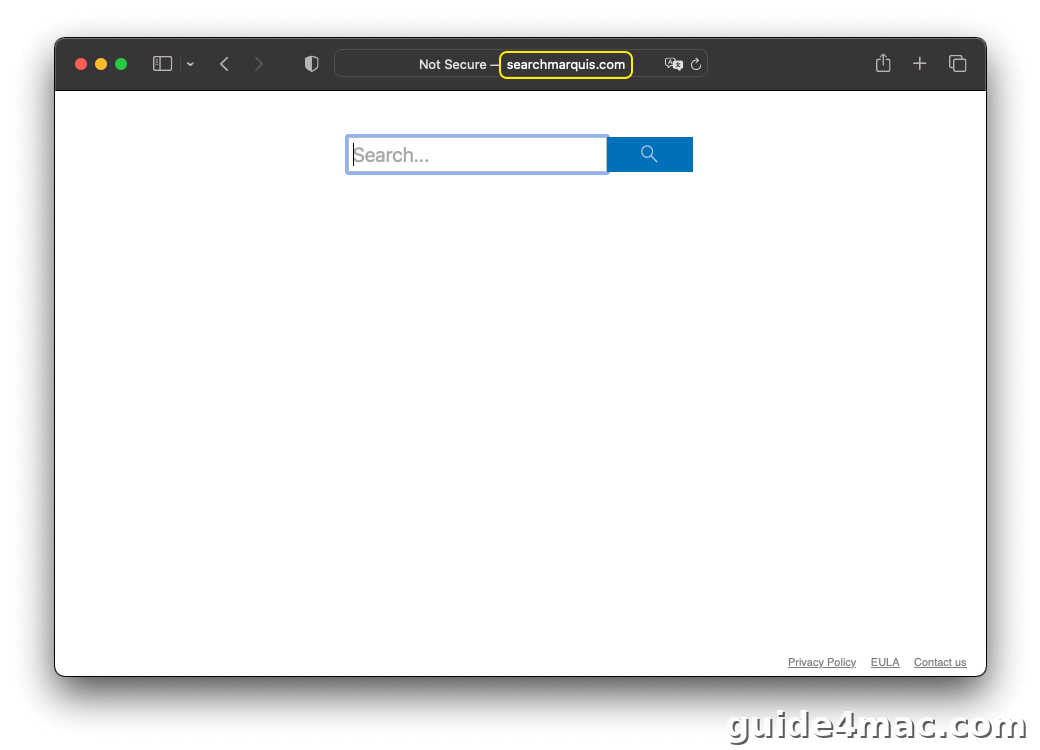
Search Marquis is a browser hijacker that reroutes your searches through searchmarquis.com before sending you to Bing.com, Search1.me or Ask.com. It installs without your approval and rewrites your homepage, search and new tab settings. Removing it is hard because it also changes DNS settings and adds a configuration profile.
How Search Marquis Gets onto Your Mac?
Search Marquis arrives through bundling, a packaging trick that hides extra apps inside the installer of a free program. If you accept the default setup instead of choosing the custom option, the hijacker installs alongside the app you wanted.
The app is code-signed, so Gatekeeper does not flag it. That is why it can gain the permissions it needs without a warning. It also explains why it may return after a quick cleanup if hidden fragments remain. Our guide to the “Browser Is Infected” pop-up virus covers a similar bundling path.
How Search Marquis Takes Over Your Browsers?
Search Marquis targets Safari, Chrome and Firefox. A rogue helper in your browser replaces the homepage, search engine and new tab page with searchmarquis.com. It also tampers with DNS settings so the fake search engine resolves instead of the one you chose.
To lock this in, the malware uses Terminal to create a randomly named configuration profile that controls your browser settings.

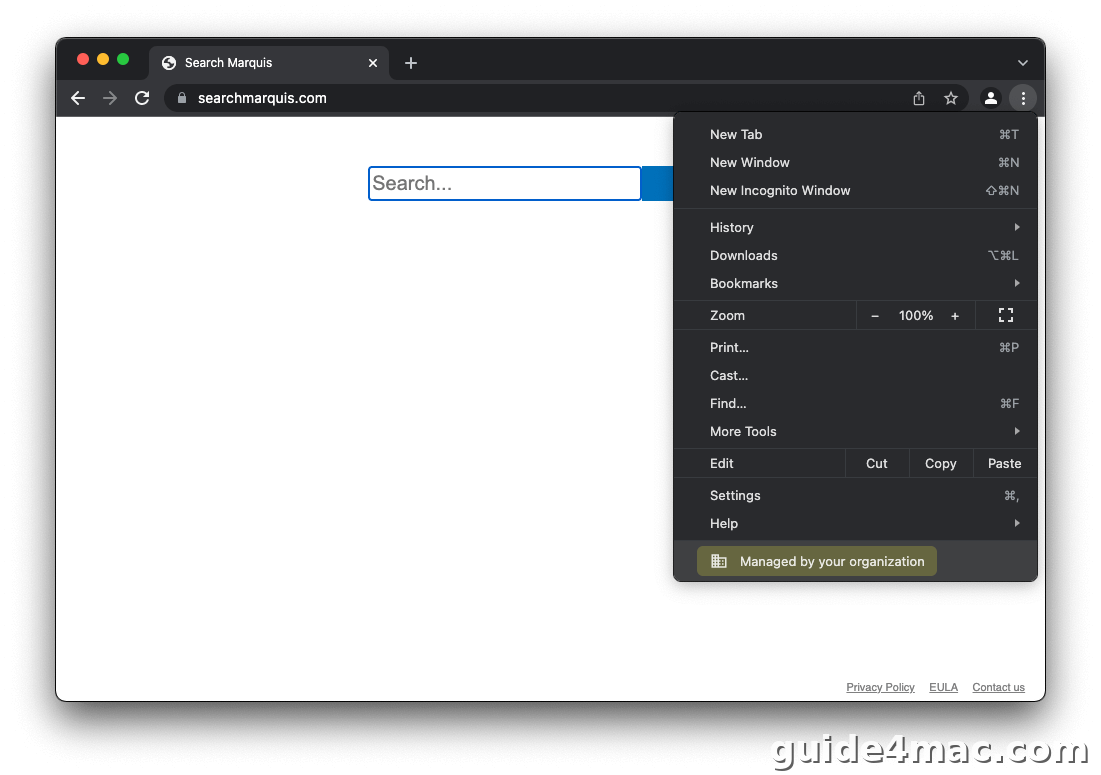
Chrome shows the clearest sign. Its main menu displays Managed by your organization, even on a personal Mac with no administrator. Some victims also report being signed out of Chrome now and then. If this is your main symptom, see our guide on the “Managed by Your Organization” virus in Chrome on Mac.
Why Every Search Ends at Bing When You Got Search Marquis?
searchmarquis.com looks like a plain search box with links to a EULA, a Privacy Policy and a Contact Us page. Whatever you type, it returns Bing.com results. Along the way, you pass through intermediate ad-network URLs for a fraction of a second.
Each of those hidden hits counts as a paid visit for the operators. The Bing page only adds a layer of normality. Domains seen in this campaign include:
- searchnewworld.com
- mybrowser-search.com
- api.lisumanagerine.club
- search.surfharvest.xyz
- search-location.com
- searchsnow.com
- searchitnow.info
- r.a9g.io
- nearbyme.io
- search1.me
- chillsearch.xyz
- search-alpha.com

Searchmarquis.com Fake Alerts and Proxy Snooping
Many infected Macs also show fake alerts such as “Your computer is low on memory” or “Your hard drive is almost full”. These pop up shortly after startup, even when plenty of RAM or disk space is free. They can overlay a permission dialog that asks to control Safari or another browser, so never click through blindly.

The hijacker may also install a proxy that lets it inject ads or fake forms into web pages. A proxy can read your browsing activity and collect details about your software and hardware. Some infections add a fake cleaning utility that demands a registration fee, a pattern also seen in the Shlayer trojan.
How To Remove Search Marquis Manually from Your Mac?
To remove Search Marquis manually, quit its process, delete its files in the Library folders, uninstall the app and remove the configuration profile. Follow the steps in order. If you want a broader walkthrough, our manual removal guide for MacBook Pro covers general cleanup.
Step 1: Quit the Malicious Process in Activity Monitor
- Open the Go menu in the Finder menu bar and select Utilities.
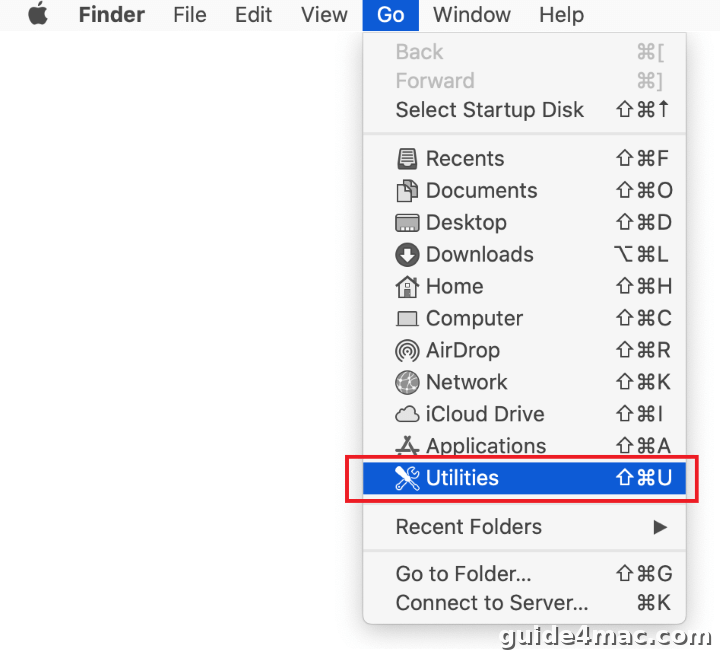
- Double-click Activity Monitor in the Utilities window.

- Look for an unfamiliar, resource-heavy process. Its name may not match the threat, so trust your own judgment. Select it and click the Stop icon in the upper left corner.
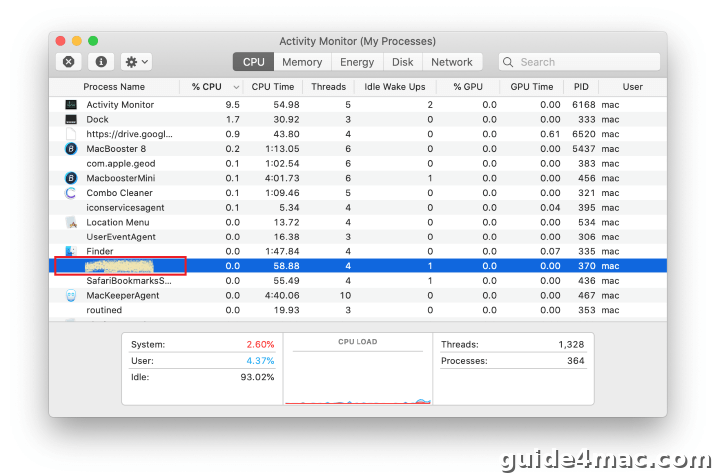
- Click Force Quit when the dialog asks you to confirm.
Step 2: Delete Rogue LaunchAgents and Support Folders
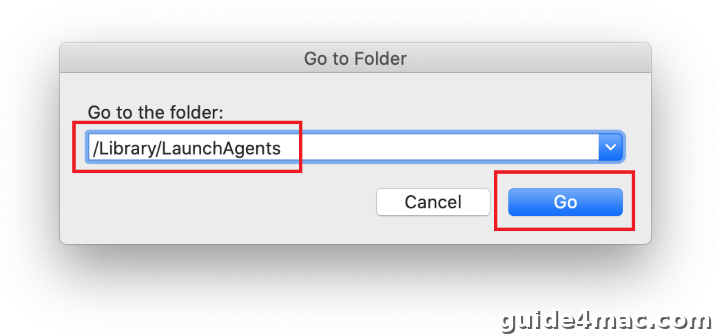
- Click Go in the Finder menu bar and select Go to Folder. You can also press Command-Shift-G.

- Type
/Library/LaunchAgentsin the dialog and click Go.
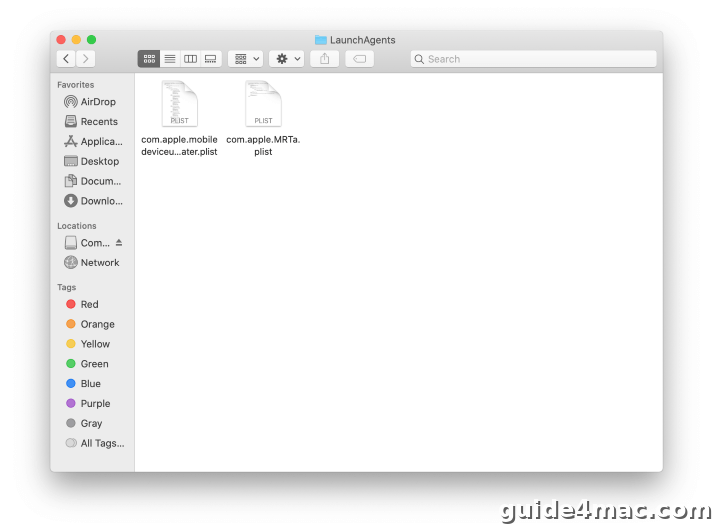
- Look for recently added files that do not belong. Malware file names rarely look malicious. Examples tied to Mac infections include
com.pcv.hlpramc.plist,com.updater.mcy.plist,com.avickUpd.plistandcom.msp.agent.plist. Drag any file that does not belong to the Trash.
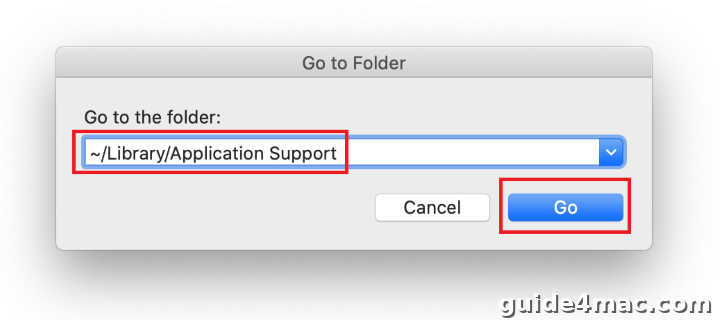
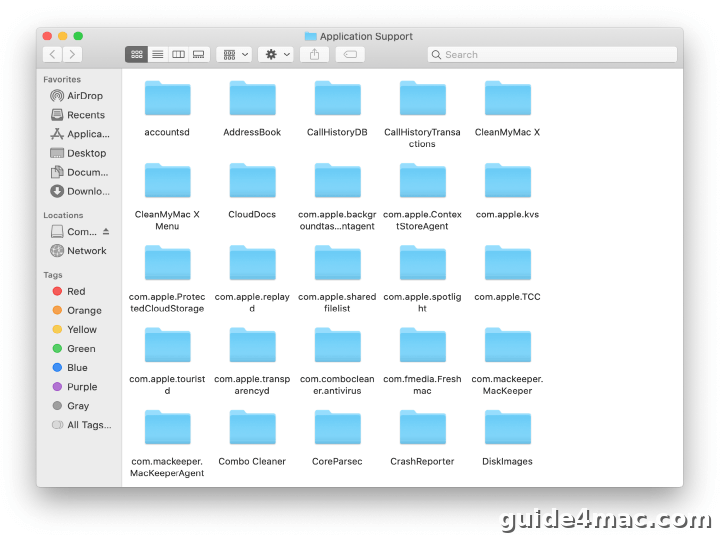
- Open Go to Folder again and enter
~/Library/Application Support. Keep the tilde at the start of the path.
- Find recently created folders unrelated to Apple or to apps you installed on purpose. Known malicious examples include UtilityParze, ProgressSite and IdeaShared. Move them to the Trash.
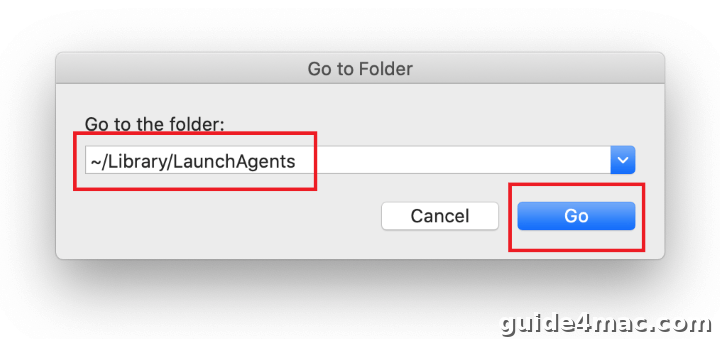
- Open Go to Folder and enter
~/Library/LaunchAgents, again with the tilde.
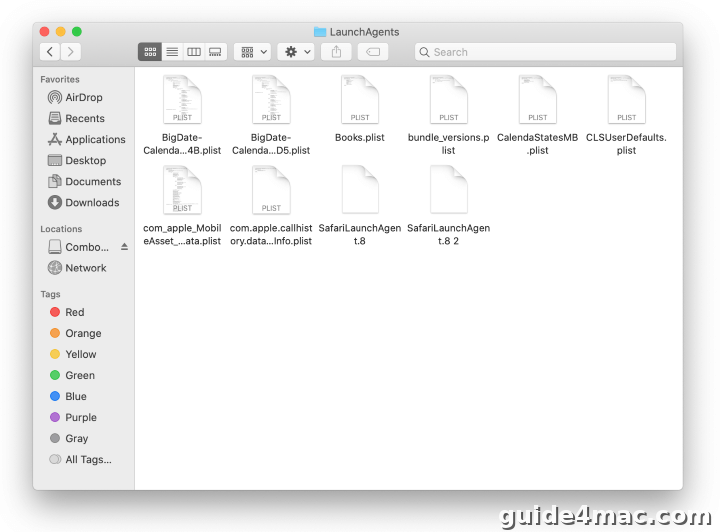
- Check the folder for recently added files you do not recognize and drag them to the Trash.
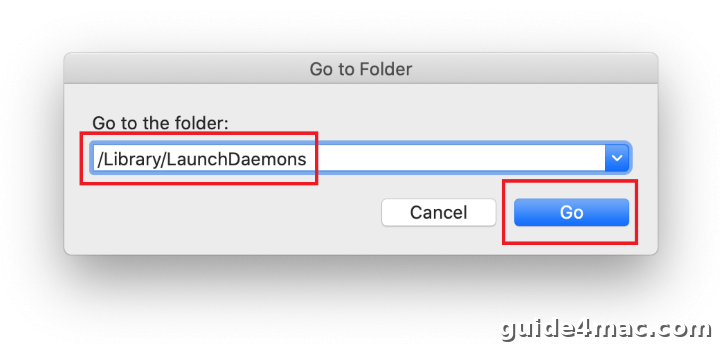
- Open Go to Folder once more and enter
/Library/LaunchDaemons.
- Move any recently added, unfamiliar items to the Trash.
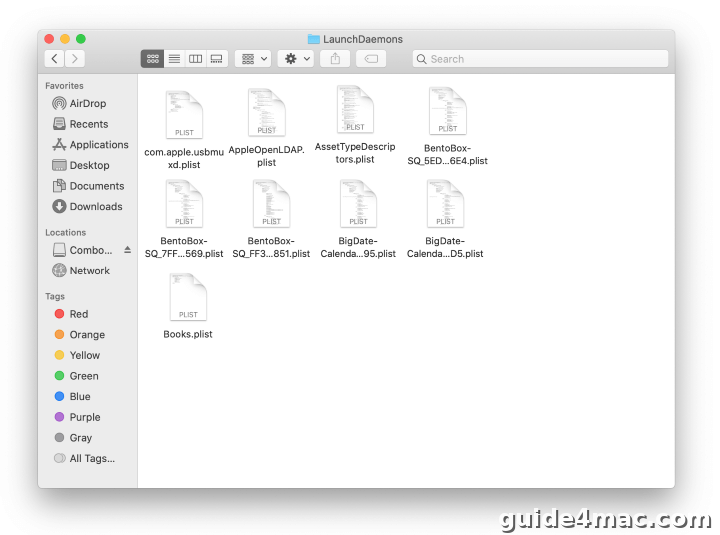
Some of these paths are symbolic links, so a file may appear in more than one place. Our guide to creating and removing symlinks on Mac explains how to handle them.
Step 3: Uninstall the Malicious App
- Open a Finder window and click Applications in the sidebar. Look for an app you did not install or no longer use.
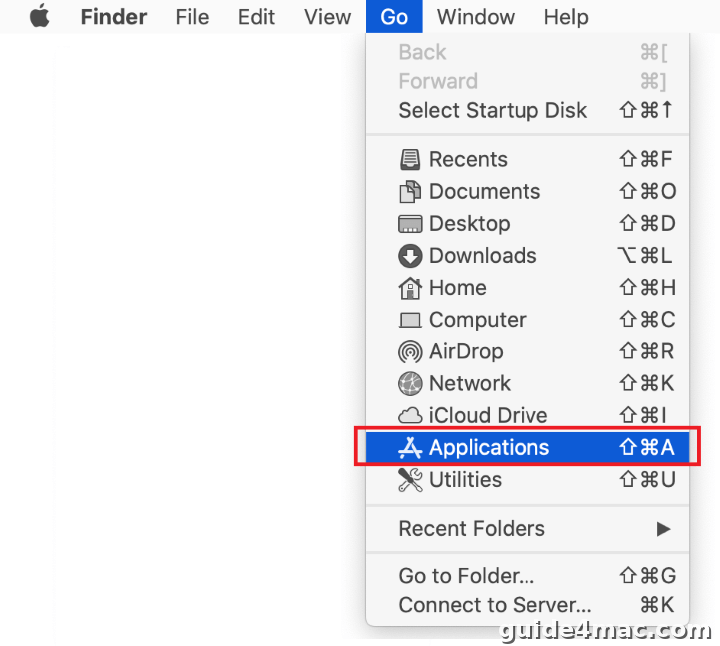
- Drag the suspicious app to the Trash, then empty the Trash.

Step 4: Delete the Rogue Configuration Profile
The configuration profile is what keeps the hijacker in control of your browsers. Until you remove it, resetting the search engine will not stick.
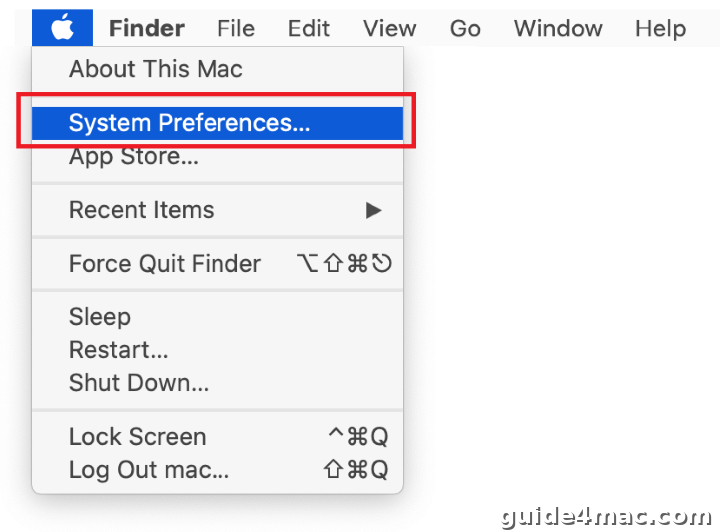
- Click the Apple menu and select System Preferences (System Settings on macOS Ventura and later).
- On older macOS versions, open Users & Groups and review the login items for anything you do not recognize.
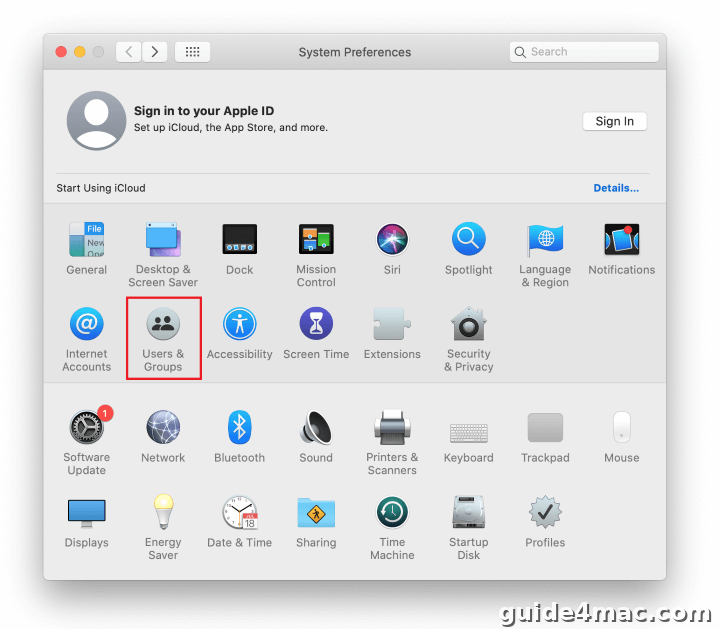
- Open Profiles, select the suspicious profile, and click the minus (-) button to remove it. If you do not see a Profiles pane, no configuration profile is installed.

Step 5: Reset Safari, Chrome and Firefox
Reset Safari
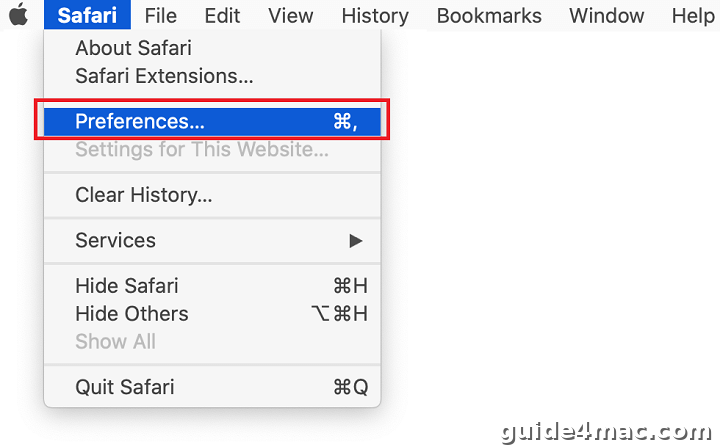
- Open Safari and choose Safari > Settings (Preferences on older macOS).
- Open the General tab and reset the homepage.
- Open the Search tab and pick your preferred search engine.
- Open the Extensions tab and uninstall anything you do not recognize.
Reset Chrome
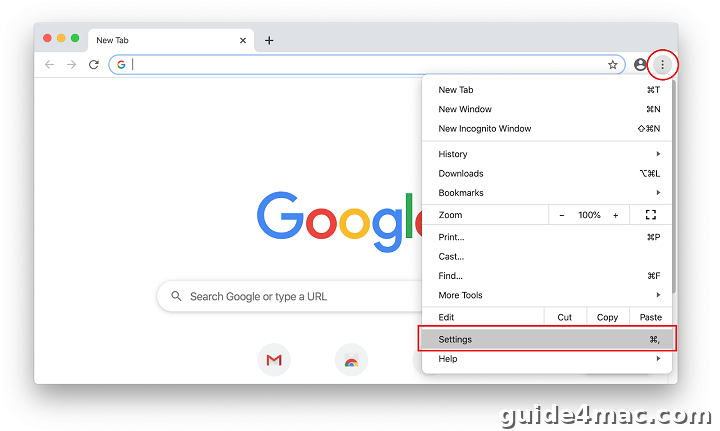
- Click the three-dot menu in Chrome and select Settings.
- Open Extensions and remove any unfamiliar extension.
- Open Reset settings and click Restore settings to their original defaults.
Reset Firefox
- Open Firefox and click Help in the menu bar.
- Select More Troubleshooting Information.
- Click Refresh Firefox and confirm.

Step 6: Clear the Proxy Settings
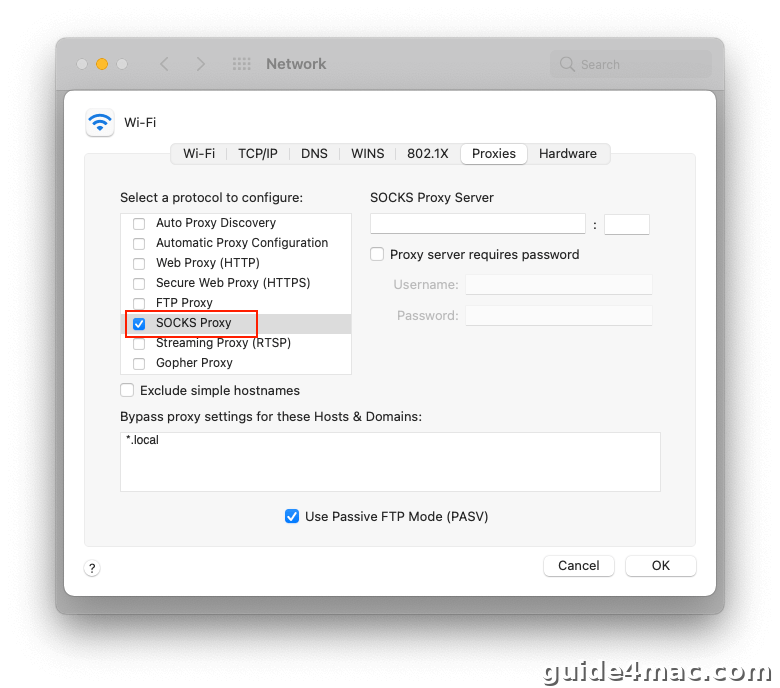
- Open System Settings > Network, select your connection and click Details (Advanced on older macOS).
- Open the Proxies tab.
- Uncheck every protocol that is selected, then click OK.
How To Detect Search Marquis from the Mac Terminal?
These read-only commands show what Search Marquis changed on your Mac. They do not delete anything. Run them in Terminal and compare the output with the clean results described below.
- List installed configuration profiles with
profiles list. A clean Mac returns a message saying there are no configuration profiles installed. Any random-named profile you did not install is suspicious. - List non-Apple background items with
launchctl list | grep -v com.apple. Expect only apps you recognize. Randomly named entries deserve a closer look. - Inspect persistence folders with
ls -la ~/Library/LaunchAgents /Library/LaunchAgents /Library/LaunchDaemons. Look for recent dates and names you cannot match to an installed app. - Locate a suspicious app with
mdfind "kMDItemKind == 'Application'" | grep -i marquis. A clean Mac prints nothing.
Check for Hidden Persistence
Search Marquis changes proxy, DNS and profile settings so it survives a browser reset. The commands below check each layer. They use Wi-Fi as the network service. If you connect over Ethernet, replace Wi-Fi with Ethernet.
- Check the web proxy with
networksetup -getwebproxy Wi-Fi. A clean result showsEnabled: No. - Check the secure proxy with
networksetup -getsecurewebproxy Wi-Fi. Again, expectEnabled: No. - Check the SOCKS proxy with
networksetup -getsocksfirewallproxy Wi-Fi. ExpectEnabled: No. - Check DNS with
networksetup -getdnsservers Wi-Fi. A clean Mac shows a message that no DNS servers are set, or addresses you configured yourself. - Inspect the hosts file with
cat /etc/hosts. Normal entries map localhost only. Extra lines pointing known sites elsewhere are a red flag.
Warning: the next commands change your network settings. Run them only if the checks above show a proxy or DNS change you did not make.
- Turn off a rogue web proxy with
networksetup -setwebproxystate Wi-Fi off. - Reset DNS to automatic with
networksetup -setdnsservers Wi-Fi Empty.
Warning: the next command removes a configuration profile. Replace the placeholder with the exact identifier shown by profiles list.
sudo profiles remove -identifier {PROFILE_ID}Remove the Enterprise Policy (Chrome “Managed by Your Organization”)
Chrome reads managed policies from the configuration profile. If Chrome still shows Managed by your organization, check which policies are set. Type chrome://policy into the address bar for the visual list, then run the command below.
- Read Chrome’s managed policies with
defaults read com.google.Chrome. Keys such as a forced homepage or default search provider point to Search Marquis. - Remove the profile that sets them using the
profiles removecommand shown above, then restart Chrome.
Where to Find These Settings on macOS Ventura, Sonoma, and Sequoia?
Apple replaced System Preferences with System Settings in macOS Ventura, so the menu paths differ from the screenshots above. Use the paths below on Ventura, Sonoma and Sequoia.
- Login items: System Settings > General > Login Items & Extensions.
- Background items: the same pane has an Allow in the Background list. Switch off anything you do not recognize.
- Profiles: System Settings > General > Device Management on Ventura and Sonoma. On Sequoia, look for Profiles under General. If neither entry appears, no profile is installed.
- Proxies: System Settings > Network > your connection > Details > Proxies.
How To Verify Search Marquis Is Fully Gone On Mac or Macbook?
Verification means repeating the read-only checks and confirming a clean result. Restart your Mac first so any leftover background process loads fresh.
- Run
profiles listand confirm no rogue profile appears. - Run
launchctl list | grep -v com.appleand confirm no unknown entries remain. - Run
networksetup -getwebproxy Wi-Fiand confirmEnabled: No. - Run
networksetup -getdnsservers Wi-Fiand confirm no unfamiliar servers appear. - Open Chrome, Safari and Firefox. Confirm the homepage and search engine are yours and that Managed by your organization is gone.
Common Mistakes When Removing Search Marquis
- Myth: Changing the default search engine fixes it. Reality: The configuration profile resets your choice until you remove the profile.
- Myth: Deleting the app is enough. Reality: LaunchAgents, Application Support folders and the profile can bring the hijacker back.
- Myth: Bing is a legitimate engine, so the results are safe. Reality: The danger is in the redirect chain before Bing, not in Bing itself.
- Myth: A fake memory alert means you need a cleaning app. Reality: The alert can hide a permission request. Dismiss it and check what is asking for access.
Looking for more ways to protect your Mac? Browse all our guides in the Mac Security category.
Frequently Asked Questions
Quit the suspicious process in Activity Monitor, delete rogue files in the Library LaunchAgents, LaunchDaemons and Application Support folders, uninstall the app, remove the configuration profile and reset your browsers and proxy settings.
Search Marquis installs a configuration profile that sets Chrome policies. Chrome shows the message whenever a policy is active, even on a personal Mac. Removing the profile clears it.
The website itself is a redirect service, but the malware that sends you there is what you need to remove. It changes browser settings and may install a proxy.
Search Marquis has no search engine of its own. It forwards your query to Bing after passing through ad-network domains that earn money from each visit.
Yes, if hidden files or the configuration profile remain. Recheck the Library folders and run the profiles list command to confirm everything is gone.
No. These alerts often appear with plenty of memory free and can cover a dialog that asks for permission to control your browser.




0 Comments