How to Force Restart or Shut Down iPhone 17: Complete Guide

If you need to turn off iPhone 17, Apple provides several ways to power down the device. The most common method uses the side button and volume buttons, but you can also shut down the phone through Settings if the hardware buttons are not working.
Turning off your iPhone can help resolve minor software glitches, improve performance, or prepare the device for storage or troubleshooting. In this guide, you will learn multiple ways to power off your iPhone 17 safely. If your device becomes unresponsive while trying to shut it down, it may also help to learn how to restart or force restart Apple devices properly to regain control.
Why Would You Turn Off iPhone 17?
Most iPhone users rarely power down their devices, but there are several situations where shutting off the phone can be useful.
Common reasons include:
• Fixing temporary system glitches
• Preserving battery during travel
• Troubleshooting app crashes
• Preparing the phone for repairs or updates
• Resetting system processes
Below are the most reliable ways to turn off your iPhone 17.
1. Turn Off iPhone 17 Using the Buttons
The quickest way to power off the iPhone 17 is by using the hardware button combination.
- Locate the Side and Volume Buttons
Identify the Side button on the right edge of the frame and the Volume Up button on the left edge. In the iOS 26 hardware architecture, these buttons must be pressed simultaneously to bypass the Apple Intelligence shortcut.
- Press and Hold Both Buttons
Press and hold the Side button and the Volume Up button at the same time. Do not just click them; you must maintain pressure for approximately 2–3 seconds to trigger the power menu.
- Wait for the Power Off Slider
Continue holding the buttons until the Liquid Glass UI displays the “slide to power off” bar at the top of the screen. You will also see options for Medical ID and Emergency Call.
- Drag the Slider to Power Down
Place your finger on the power icon within the slider and drag it to the right. The screen will go black as the M-series processor initiates a safe system shutdown.
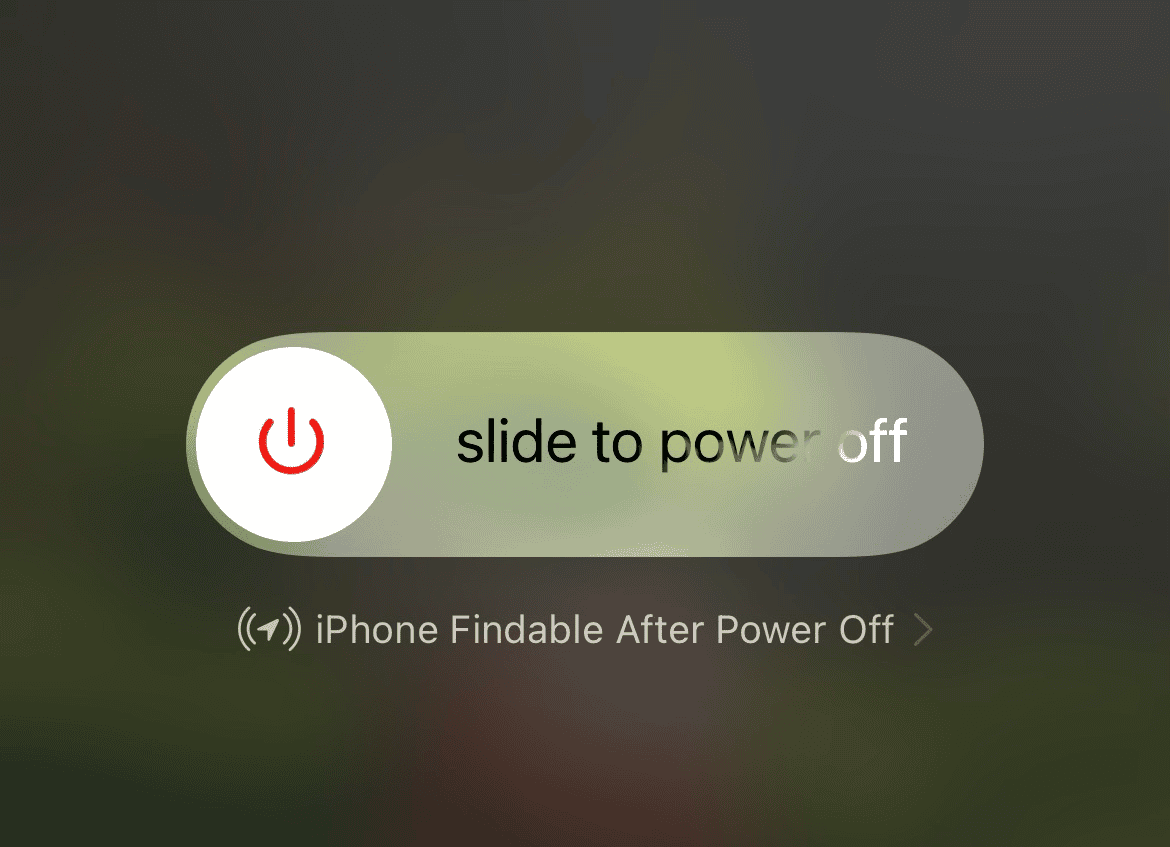
Your iPhone will shut down within a few seconds.
2. Turn Off iPhone 17 From Settings
If the physical buttons are not working, you can power off the device directly from the Settings app.
- Open Settings.
- Tap General.
- Scroll to the bottom.
- Tap Shut Down.
- Drag the Power Off slider.
This method works even if your side buttons are damaged.
3. Use Siri to Turn Off iPhone 17
Recent iOS versions allow you to ask Siri to turn off your iPhone.
- Activate Siri by saying “Hey Siri.”
- Say Turn off my iPhone.
- Confirm the request when prompted.
Your iPhone will display the power-off slider for confirmation.
4. Force Restart if the iPhone Is Frozen
If your iPhone becomes unresponsive and cannot shut down normally, a force restart can help.
- Press and quickly release the Volume Up button.
- Press and quickly release the Volume Down button.
- Press and hold the Side button.
- Release the button when the Apple logo appears.
This process forces the device to restart when normal shutdown is not possible.
5. Turn the iPhone Back On
After shutting down your iPhone, you can power it on again easily.
- Press and hold the Side button.
- Wait until the Apple logo appears.
- Release the button.
Your iPhone will boot normally within a few seconds.
Tips
• Restart your iPhone occasionally to improve performance.
• Shut down the device before replacing a SIM card.
• Avoid force restarting unless the device is frozen.
• Keep iOS updated for better system stability.
• Power off your device before long-term storage.
Powering Off Your iPhone Safely
Turning off the iPhone 17 is simple and only takes a few seconds using the button combination or Settings menu. Knowing multiple methods ensures you can power down your device even if hardware buttons stop responding.
Shutting down your phone periodically can also help clear temporary system processes and keep the device running smoothly.
Key Takeaways
You can turn off iPhone 17 using the side button and volume button combination, through the Settings app, or with Siri. If the phone becomes unresponsive, a force restart can restore control. Knowing these methods ensures you can safely power down or restart your device whenever needed.
FAQ
Press and hold the Side button and Volume Up button until the power slider appears, then drag it to shut down the device.
Yes. You can open Settings, go to General, and tap Shut Down to power off the device.
Perform a force restart by pressing Volume Up, Volume Down, then holding the Side button until the Apple logo appears.
No. Powering off the device does not remove any files, apps, or settings.
Restarting the device occasionally can help clear temporary glitches and improve performance.




0 Comments